

Although the WordPress Content Management System (CMS) is commonly associated with personal blogs and journals, it actually comes out of the box with five fundamental user roles, providing varying tiers of administrative permissions for each type of user.
These five user roles are Subscriber, Contributor, Author, Editor, and Administrator. For multi-author platforms and publications—which are increasingly popular today—this built-in mechanism eliminates the immediate need to install third-party access control plugins.
Compared to CMS platforms like Joomla or Drupal, WordPress started out with a blogging focus, so its native access control can feel somewhat basic. Fortunately, you can expand its flexibility through plugins such as Members (shown in Figure 1) or by adding custom programmatic hooks (such as add_role()) to tailor granular roles and permissions.
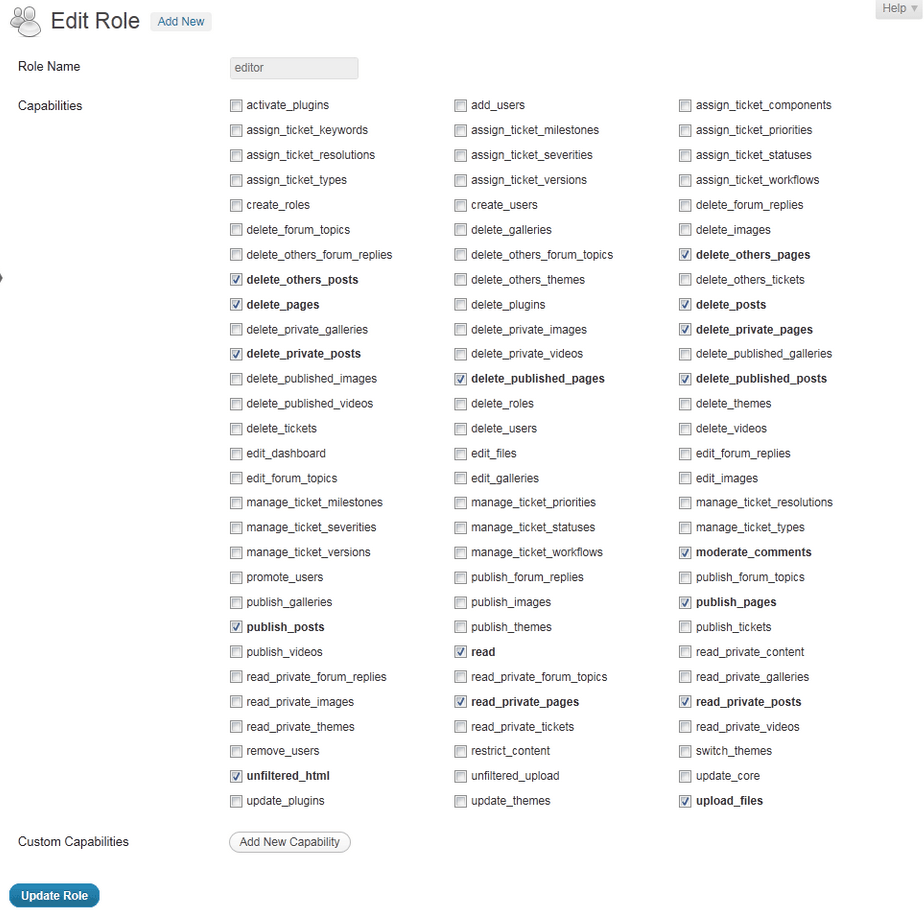 Fig. 1: WordPress user role management plugin Members.
If your site is strictly a personal blog, you might not worry much about role configuration since your account already holds full administrative privileges to do whatever you want in your own space.
Even so, for security best practices, we strongly recommend creating a separate dedicated account strictly for authoring and publishing content.
This strategy keeps your main administrator account obscured from public view. It also improves workflow convenience: you can assign a lengthy, complex password to the Administrator account while using a simpler passphrase for your publishing account, making it easier to log in when drafting posts across different workstations without needing to memorize exhaustive credentials every time.
Understanding User Roles and Capabilities
As mentioned, WordPress includes five default user roles. Below is a detailed breakdown of what each role can and cannot do:
Subscriber
Subscribers are granted the minimal level of permissions. Like any anonymous visitor, they can read public posts. When logged into the dashboard, they can view basic site activity feeds, comment threads, WordPress news feeds, Jetpack status, and update their own personal profile details.
By default, any new user registered on a WordPress site is assigned the Subscriber role.
While Subscribers cannot directly edit or damage your website content, I strongly advise disabling open user registrations unless your site model explicitly requires it, preventing malicious actors from snooping on internal setup details.
As illustrated in Figure 2 below, user registration settings can be found in “Settings” → “General” in the dashboard. If you are launching a new site, remember to verify whether the “Anyone can register” option is unchecked.
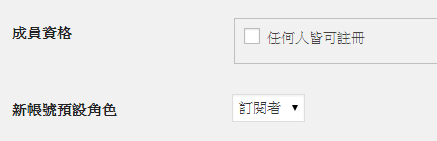 Fig. 2: General Settings configure membership permissions.
Contributor
The Contributor role inherits all permissions granted to Subscribers. In addition, Contributors can access dashboard post summaries, read all posts and comments (without editing or deleting them), and view select plugin and tool settings.
Crucially, Contributors can write new posts, but they cannot upload media files (such as JPEG images) and cannot publish directly. Instead, their posts must be submitted to higher-level roles for editorial review (as shown in Figure 3).
 Fig. 3: “Submit for Review” button.
However, the Contributor role can occupy an ambiguous territory: they can draft posts but cannot upload images, yet they can view substantial backend site info, which poses subtle security vulnerabilities. For instance, poorly coded plugins might expose configuration parameters to them. I have seen sites publicly share a Contributor username and password so guest writers could log in and submit articles. If you must support guest submissions, create a customized role strictly scoped to article drafting without broader dashboard visibility, and thoroughly audit its access before deployment.
Author
While Subscribers and Contributors act as exploratory accounts, an Author is like a fully onboarded team member with complete publishing rights for their own work. Authors can upload media files, draft, edit, delete, and publish their own posts directly. Beware: if spammers or malicious bots compromise an Author account, you could wake up to hundreds of unsolicited promotional posts flooded across your site.
Additionally, Authors can configure specific plugin options and link their account via “Settings” > “Sharing” to automate external social broadcast channels.
Editor
Positioned just below Administrator, an Editor’s responsibilities revolve around site-wide editorial governance. Editors hold higher permissions than Authors: they can review, edit, create, and delete any post, page, media asset, or comment across the entire website. They also wield full control over categories and tags, effectively managing the core intellectual assets of the CMS.
In other words, you should treat the Editor role with the same level of trust and scrutiny as an Administrator. Never assign this role unless the individual is a thoroughly vetted team member or trusted collaborator.
Beyond editorial powers, an Editor’s system and plugin settings permissions generally mirror those of Authors and Contributors.
Administrator
The final, most critical, and well-known role is the Administrator. An Administrator possesses absolute authority over the entire website and its underlying configuration. Be sure to check our dedicated guide, Cybersecurity: Designing Strong Passwords to Protect Your Privacy and Security (Best Practices & Rules), to craft a bulletproof password, and avoid logging into admin credentials from untrusted or public computers whenever possible.
Further Reading
- WordPress Codex: Roles and Capabilities
Support Independent Perspectives & In-Depth Insights
Every thoughtful analysis and candid critique comes from our dedication to truth and quality. We choose not to follow sensational algorithms or clickbait headlines.
Sustaining independent research requires reader support. Make a one-time or monthly contribution, securely processed by Google.
Payments secured by Google · Manage or cancel anytime in your Google Account

Comments