

WordPress is a world-renowned Content Management System (CMS) and a top choice for bloggers across the globe. Compared to Google Blogger or local blogging platforms like Xuite, WordPress offers extensive plugin support and the flexibility to migrate between servers seamlessly, making future computing scale-ups effortless.
Recently, while helping someone migrate a WordPress website to a Bluehost server, a post-migration test revealed that images could not be added while editing articles. Even attempting to upload media files directly via the WordPress Dashboard failed, triggering the error shown in Figure 1: “The uploaded file could not be moved to images/…”.
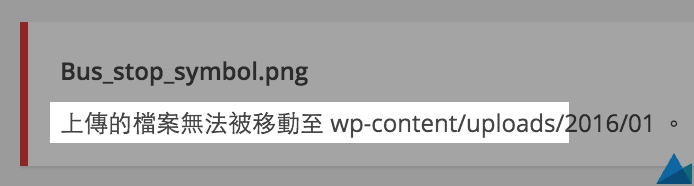 Figure 1: WordPress error notification when uploading media.
To resolve this issue, the first step is to log into the Linux server hosting WordPress and inspect the file system permissions of the relevant directories.
As shown in Figure 2 below, the uploads directory—used specifically for storing uploaded media—has permissions set to rwxr-xr-x. The first group rwx indicates that the owner has read, write, and execute permissions; the second group r-x grants the user group read and execute permissions; and the third group r-x grants others read and execute permissions.
 Figure 2: File permissions and ownership of the media folder.
Generally, executing the following command to make the uploads directory completely world-writable (rwx across all three groups) will allow media uploads to succeed in WordPress:
chmod 777 uploadsHowever, while some adopt this quick-and-dirty workaround, overly permissive permissions (777) introduce significant security vulnerabilities to your web server. It treats the symptom rather than solving the underlying permission structure.
Instead, we need to inspect where the configuration actually went wrong.
Looking closely at Figure 2, two root issues stand out: the directory’s group is set to root, and the directory’s owner is also set to root. This means the folder is owned entirely by the root account.
A fresh standard WordPress installation typically does not encounter this. However, because the site owner wanted to host multiple websites on the same server, separate user accounts were created to isolate each site. That process, combined with specific data migration steps, led to the permission mismatch we see here.
Linux Tip: Prefix commands with
sudoto execute tasks with root privileges.
Next, we need to reassign both the user owner and group owner of the directory to the correct web user (you can check adjacent directories to identify the appropriate web server user and group).
In Linux, the standard commands are chgrp (Change Group) and chown (Change Owner). Entering the following commands will configure the ownership of uploads correctly:
chgrp GROUP_NAME uploads/
chown USER_NAME uploads/
However, if you think running these two commands alone completes the fix, you will run into the exact same pitfall I did.
Refer to Figure 3 below: attempting another upload in WordPress produced the same initial error, because subdirectories nested beneath uploads remained unchanged.
 Figure 3: Subdirectory attributes beneath the uploads folder.
As you can see in Figure 3, each subdirectory under /images/ was still owned by root. Therefore, the best solution is to update the parent directory, all subfolders, and all contained files recursively in a single command. In /wp-content/, execute the following:
chown -R User_Name:Group_Name uploadsHere, the colon : between User_Name and Group_Name allows you to assign both owner and group simultaneously with the -R (recursive) flag, solving the entire problem at once without running multiple redundant commands.
Support Independent Perspectives & In-Depth Insights
Every thoughtful analysis and candid critique comes from our dedication to truth and quality. We choose not to follow sensational algorithms or clickbait headlines.
Sustaining independent research requires reader support. Make a one-time or monthly contribution, securely processed by Google.
Payments secured by Google · Manage or cancel anytime in your Google Account


Comments