
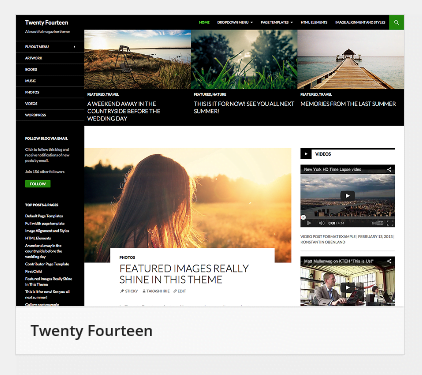
WordPress1, a user-friendly blog publishing platform and lightweight content management system (CMS), is widely favored by online writers and web creators across the globe.
Beyond compelling written content and useful interactive functionality, elegant visual layout and styling represent a vital cornerstone of any successful website.
One of WordPress’s greatest strengths compared to other CMS platforms is its outstanding built-in theme2 management system. It is genuinely so simple and intuitive that users immediately fall in love with it.
Installing themes is remarkably straightforward: simply navigate to Appearance > Themes in the WordPress admin dashboard. There, you can search through thousands of excellent themes online and activate them with a single click.
During site development, unless you hand-code the complete layout from scratch, you will inevitably spend considerable time browsing, auditioning, and tweaking multiple themes until you settle on a design you truly love. However, this testing process often leaves behind a clutter of unused theme files in your installation.
Therefore, we recommend that website administrators delete any themes they haven’t used for an extended period and don’t intend to use going forward. This keeps your theme management dashboard clean and visually uncluttered, while freeing up valuable server disk space.
Two Ways to Delete Unused Themes
Method 1: The Direct Approach ─── Delete Theme Folders Directly
Connect to your web hosting server and navigate to the default themes directory under /wp-content/themes/. From there, manually delete the individual folders corresponding to the unused themes.
As shown in Figure 1 below, “Floki” and “Tonal” are the themes actively used on our site, whereas other default themes (such as Twenty Fourteen) or temporary testing directories have already been removed.
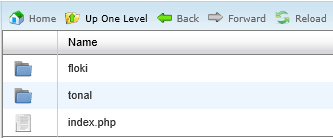 Figure 1: Server directory structure (located under
/wp-content/themes/).
Doesn’t the cleaned-up directory look refreshingly tidy?
Still, logging into the server terminal or SFTP client just to remove a theme can feel cumbersome and overcomplicated. Fortunately, the clever developers behind WordPress thought of this, which brings us to the second method.
Method 2: Delete Themes Directly from the WordPress Dashboard
As shown in Figure 2, navigating to Appearance > Themes in the WordPress backend displays all installed themes in a clean graphical card interface, showcasing previews of each theme for quick reference.
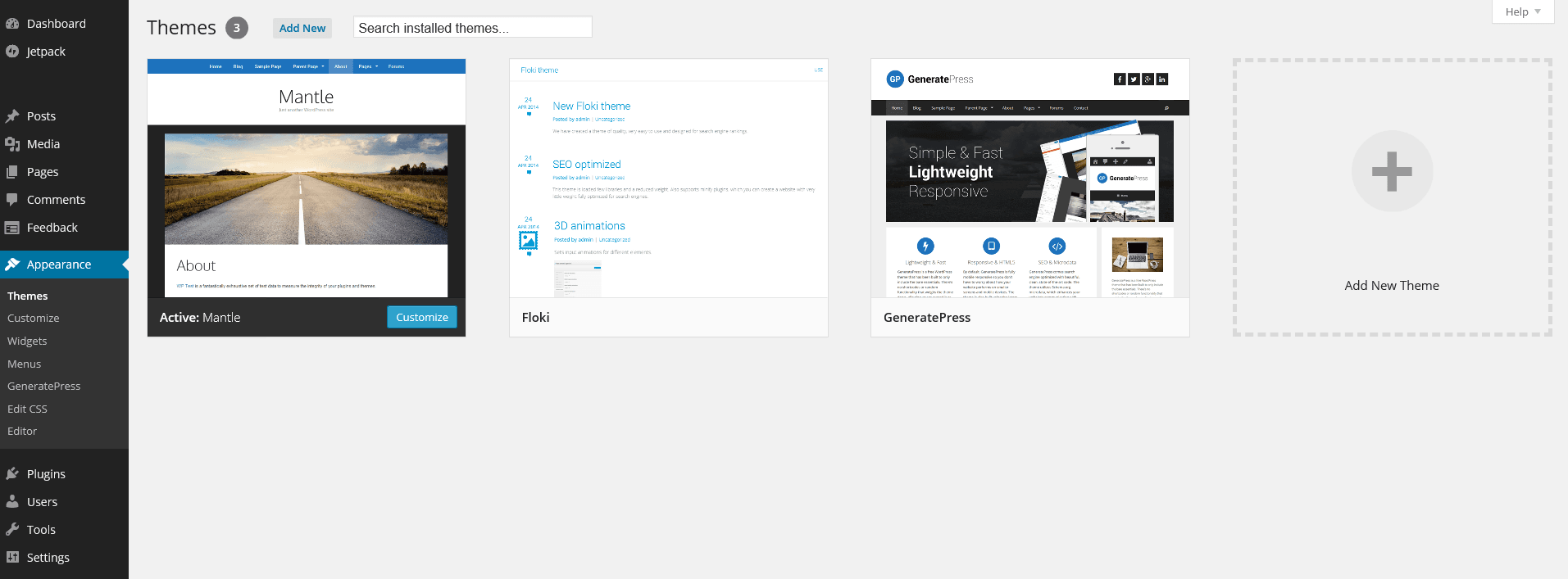 Figure 2: Installed themes visualized under Appearance > Themes.
When hovering your mouse cursor over any theme card, you will see the “Activate” button and the “Live Preview” option. This is the familiar workflow for activating themes: just click Activate to switch over.
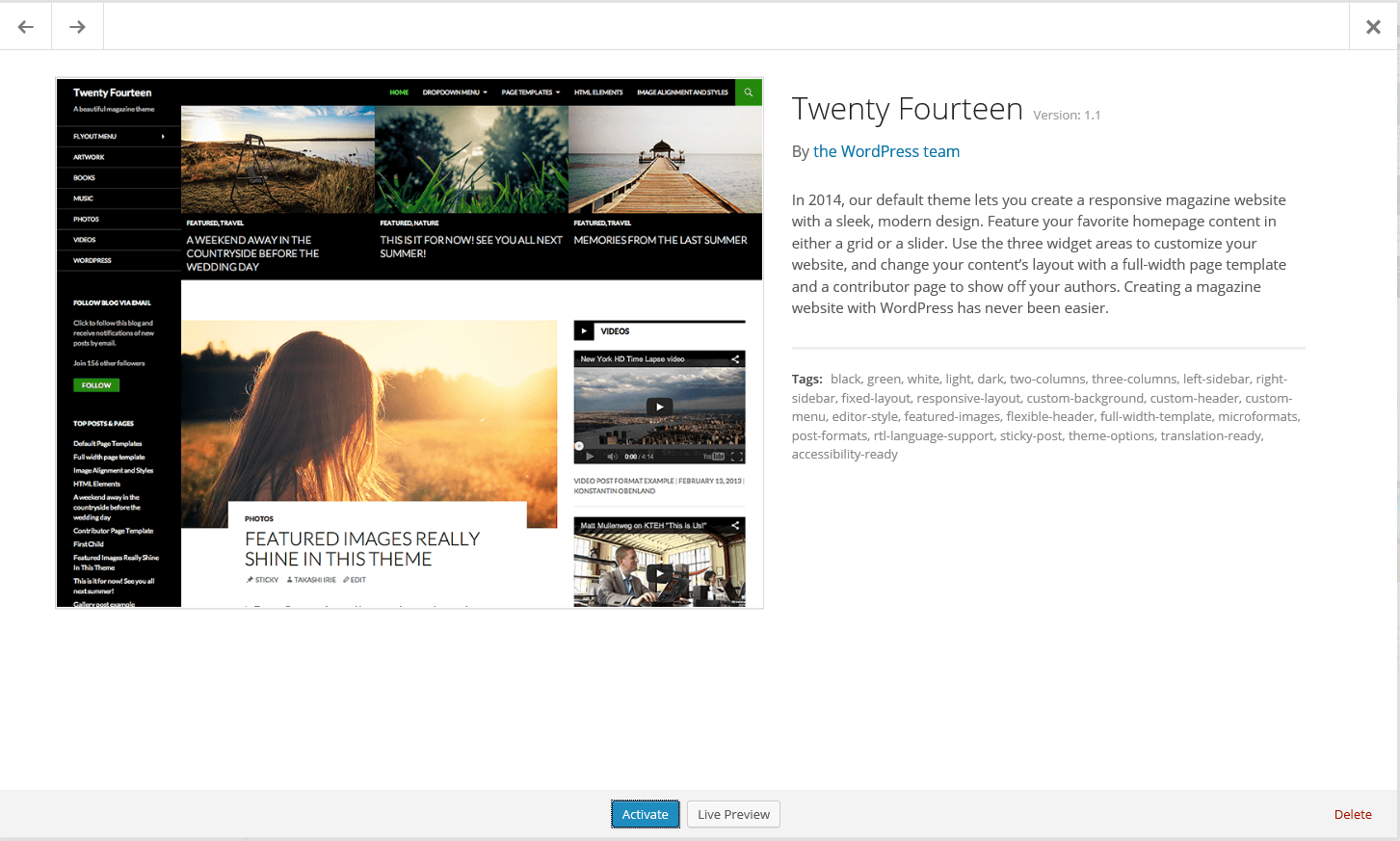 Figure 3: Theme detail modal.
When you hover over a theme tile in Figure 2, an overlay prompt reading “Theme Details” appears. Clicking it opens the modal window shown in Figure 3, displaying the theme’s preview image, theme name, version, tags, and description.
Most importantly for our purpose, notice the small red text in the bottom right corner of Figure 3 labeled “Delete”. Simply click that link, confirm the prompt, and WordPress will automatically remove the theme files from your server!
Support Independent Perspectives & In-Depth Insights
Every thoughtful analysis and candid critique comes from our dedication to truth and quality. We choose not to follow sensational algorithms or clickbait headlines.
Sustaining independent research requires reader support. Make a one-time or monthly contribution, securely processed by Google.
Payments secured by Google · Manage or cancel anytime in your Google Account


Comments