
“Regenerate Thumbnails” is a plugin for the WordPress Content Management System (CMS) designed to regenerate thumbnail images for existing media uploads. For website owners and bloggers who frequently adjust media file dimensions or change themes, it serves as an indispensable tool for site optimization.
Why Install Regenerate Thumbnails?
Under normal circumstances, this plugin isn’t something you need to keep running constantly. However, I reinstall and run this regeneration service under two primary scenarios (meaning you can deactivate and uninstall it afterwards to save system resources):
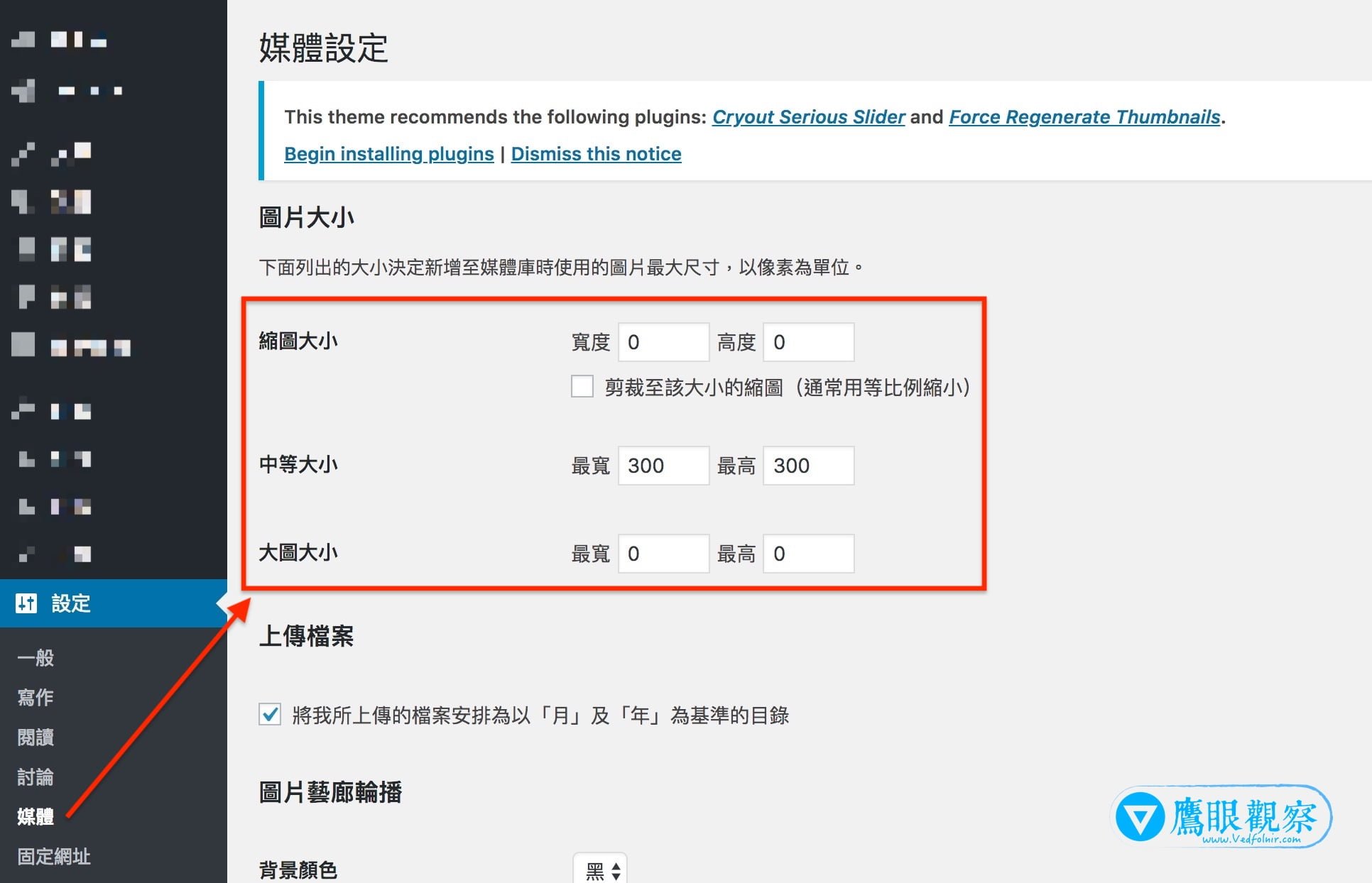 Figure 1: Available media image size settings.
- Media settings changes: In the WordPress admin dashboard under “Settings” > “Media”, when you adjust standard dimensions such as Thumbnail size, Medium size, or Large size (as shown in Figure 1 above).
- Switching themes: Every WordPress theme has specific image proportions and thumbnail dimensions favored by its designer. When switching to a new theme, regenerating thumbnails to match the new specifications improves page load speeds and visual consistency.
If either situation applies to you and your site has accumulated a substantial number of media uploads over time, using Regenerate Thumbnails is highly recommended.
Step-by-Step Guide to Using Regenerate Thumbnails
Step 1: In your WordPress dashboard, navigate to “Plugins”, search for, install, and activate “Regenerate Thumbnails”.
Step 2: As shown in Figure 2 below, go to “Tools” > “Regenerate Thumbnails” in the admin dashboard.
Step 3: Click the “Regenerate Thumbnails For All Attachments” button to start rebuilding all image sizes required by your system.
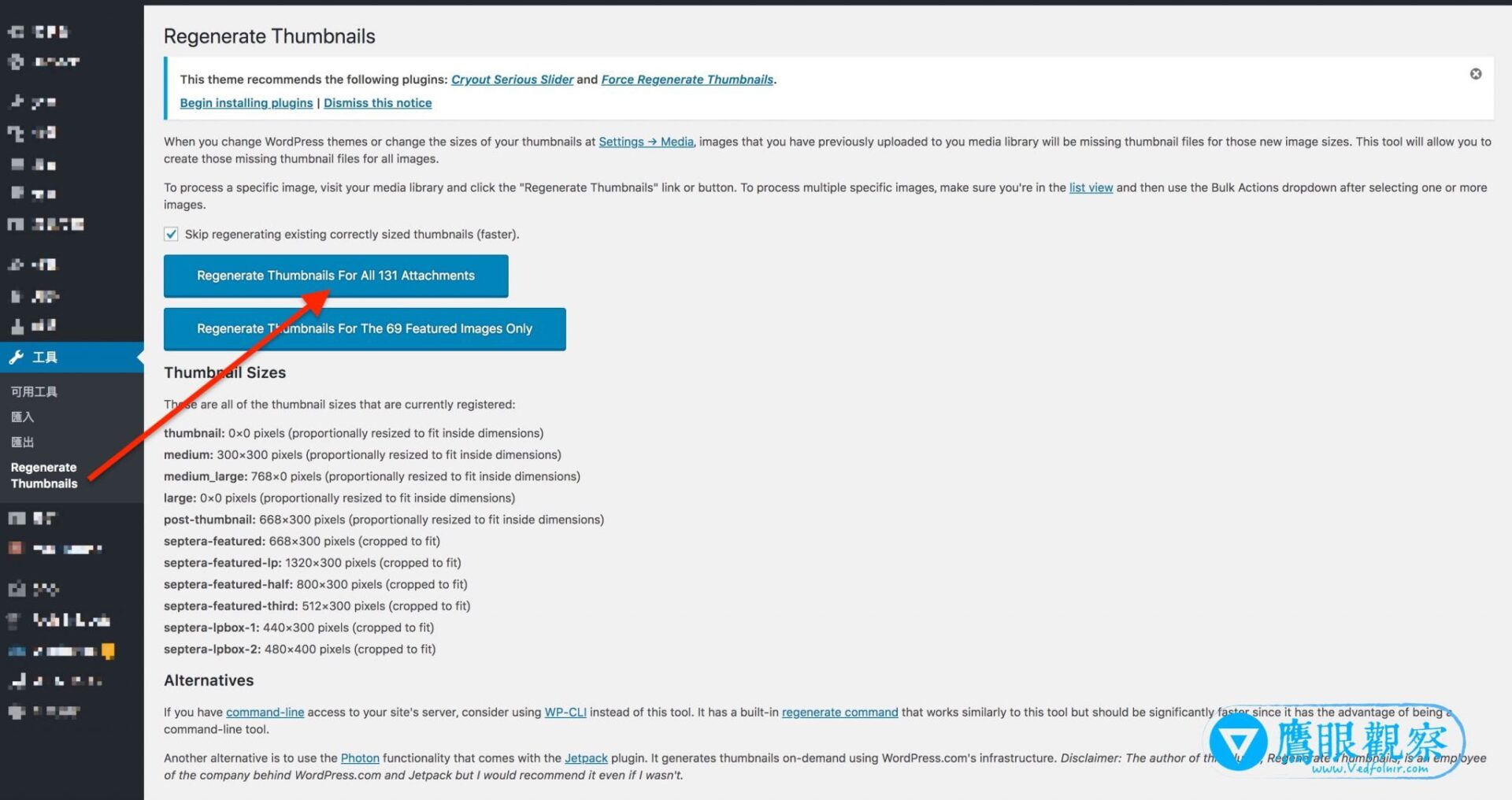 Figure 2: Regenerate Thumbnails interface.
In the example above with 131 attachment files, the batch regeneration process was estimated at around 2.5 hours. Processing time varies depending on server resources and real-time visitor load, so feel free to step away and let it run in the background.
Once the task finishes, an execution summary appears as shown in Figure 3, highlighting several important pieces of information:
- Total execution time: 2.1 hours.
- The “Regeneration Log” details every image successfully rebuilt.
- The “Errors Encountered” section lists files that could not be regenerated. Common reasons include unsupported formats (e.g., PDF documents, ZIP archives) or missing original source images. The former is completely normal, while the latter requires re-uploading the missing files.
Tip: When uploading media files, consider naming them using English letters and numbers rather than special or non-ASCII characters to avoid database encoding and compatibility issues with third-party plugins.
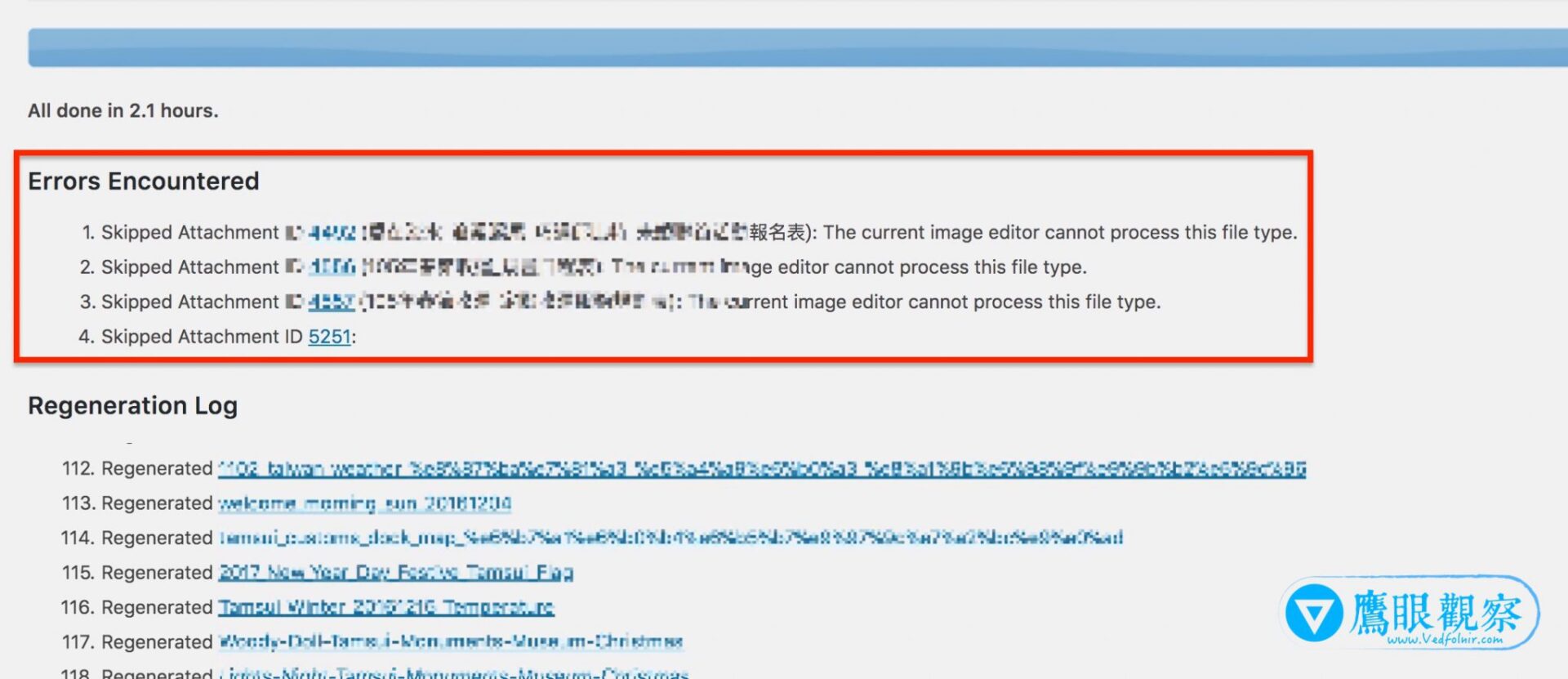 Figure 3: Error logs indicating unsupported formats.
WordPress Plugin Information
- Plugin Name: Regenerate Thumbnails
- Purpose: Regenerate different thumbnail sizes for all uploaded images in the media library.
- Author: Alex Mills
- Official Link: Regenerate Thumbnails
Support Independent Perspectives & In-Depth Insights
Every thoughtful analysis and candid critique comes from our dedication to truth and quality. We choose not to follow sensational algorithms or clickbait headlines.
Sustaining independent research requires reader support. Make a one-time or monthly contribution, securely processed by Google.
Payments secured by Google · Manage or cancel anytime in your Google Account



Comments