

The Administrator account of the WordPress Content Management System (CMS) holds the highest site management authority, controlling all life-and-death power in its little world. So once the administrator’s login password is lost, the entire site is half crippled.
Of course, the WordPress developers wouldn’t let users suffer such an apocalyptic event. Below are four methods for administrators to reset a new password, listed from simple to complex (dangerous) for the reference of all you hard-working webmasters.
WordPress Account Password Reset
1. Resend the password reset email
Please refer to Figure 1 below. On the login page (wp-login.php), click “Lost your password?”, then follow the prompts to send the password reset notification email to your inbox.
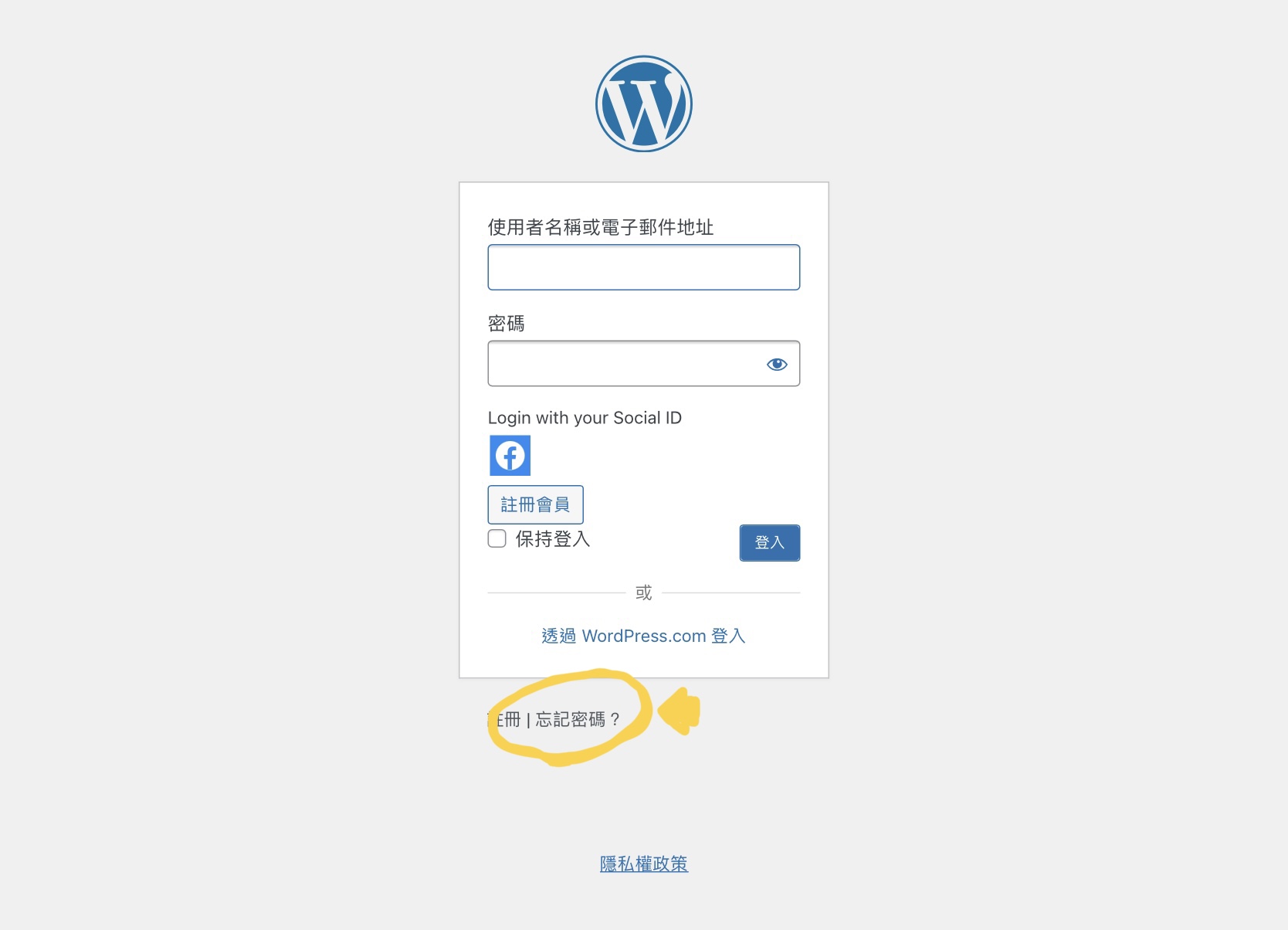
Figure 1, Login page.
Although this method is the most convenient and simple, many WordPress server providers block outgoing email functionality for security reasons. If the webmaster hasn’t checked and confirmed this beforehand, it may result in the awkward situation of manually resetting the password but not receiving the verification email.
If you want to enable outgoing email functionality, besides asking your hosting service provider to enable it, you can also install the plugin “WP Mail SMTP by WPForms” and use Google’s SMTP server to support outgoing email service. Of course, this must be installed in advance.
2. Set a new password using a directive in the theme (Themes) file
In the theme (Themes) folder there is an important function file “functions.php”, which allows the theme to control WordPress functions through functions.
Therefore, in the theme folder (if you use a child theme, look in the child folder), write the following directive into functions.php, save it, and re-run the WP login process, and you can log in with the newly set password.
wp_set_password (‘vedfolnir, 1’)
The parameter “vedfolnir” above refers to the newly set password, which you can replace with any string you like.
The parameter “1” refers to the user with the first user ID, i.e., the original administrator account. If you have previously manually added an administrator account, the ID will also change, so please correct it according to the actual situation of your site.
⚠️A reminder to all webmasters: after successfully changing the password and logging in, immediately delete the above password-setting directive from the functions.php file, and use the WordPress backend user page to reset it again with a strong password[1].
3. Set a new password in the database
The third method is more suitable for mid-to-high-level administrators or technicians, because it requires using “phpMyAdmin”, a database graphical interface management program (of course, those with stronger technical skills will issue directives directly at the Linux level).
Please refer to Figure 2 below. Under the WordPress database you can see a table “wp_users”, used to record the data of all users on the site. After finding the account you want to modify, you can set the password by manual modification.
Next, in the user data table, find the “user_pass” field ①, enter the strong password you want to use in the value field ③, and select “MD5” from the function dropdown ② to encode it. After saving, the password is reset.
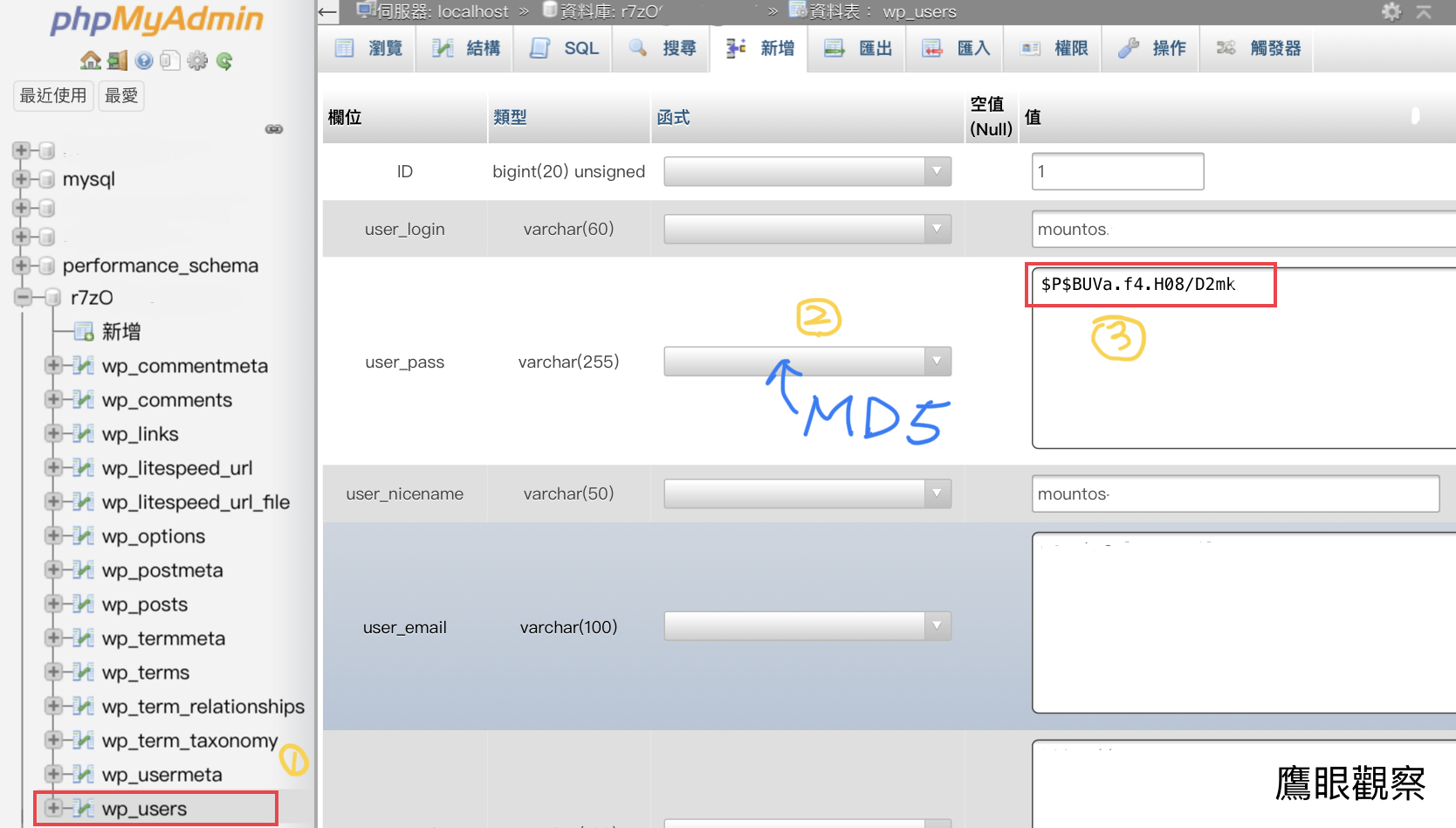
Figure 2, Resetting the password in the database.
Since I can easily open phpMyAdmin through CPanel on the server, this is also my personal preferred password reset method.
4. Use the Emergency Password Reset Script
The fourth method, although not very convenient to use, is an official feature released by WordPress, “Using the Emergency Password Reset Script”[2], so I’ll briefly introduce it.
The Emergency Password Reset Script works by creating a brand-new PHP file “emergency.php” in the site’s root directory to intervene in the operation of the WordPress core program. For the detailed code content, please copy and paste directly from the official Codex page[2].
After that, you can open “yourdomain.com/emergency.php” in a browser and update the password according to the system prompt screen.
Since this method requires knowing your administrator account name and email address, plus uploading a file, and carries a certain degree of security threat, I suggest using this option only as a last resort.
⚠️Once again, a reminder to all webmasters: after successfully changing the password and logging in, immediately delete the emergency.php script file to prevent hackers from monitoring and exploiting it to intrude.
…
Support Independent Perspectives & In-Depth Insights
Every thoughtful analysis and candid critique comes from our dedication to truth and quality. We choose not to follow sensational algorithms or clickbait headlines.
Sustaining independent research requires reader support. Make a one-time or monthly contribution, securely processed by Google.
Payments secured by Google · Manage or cancel anytime in your Google Account


Comments