

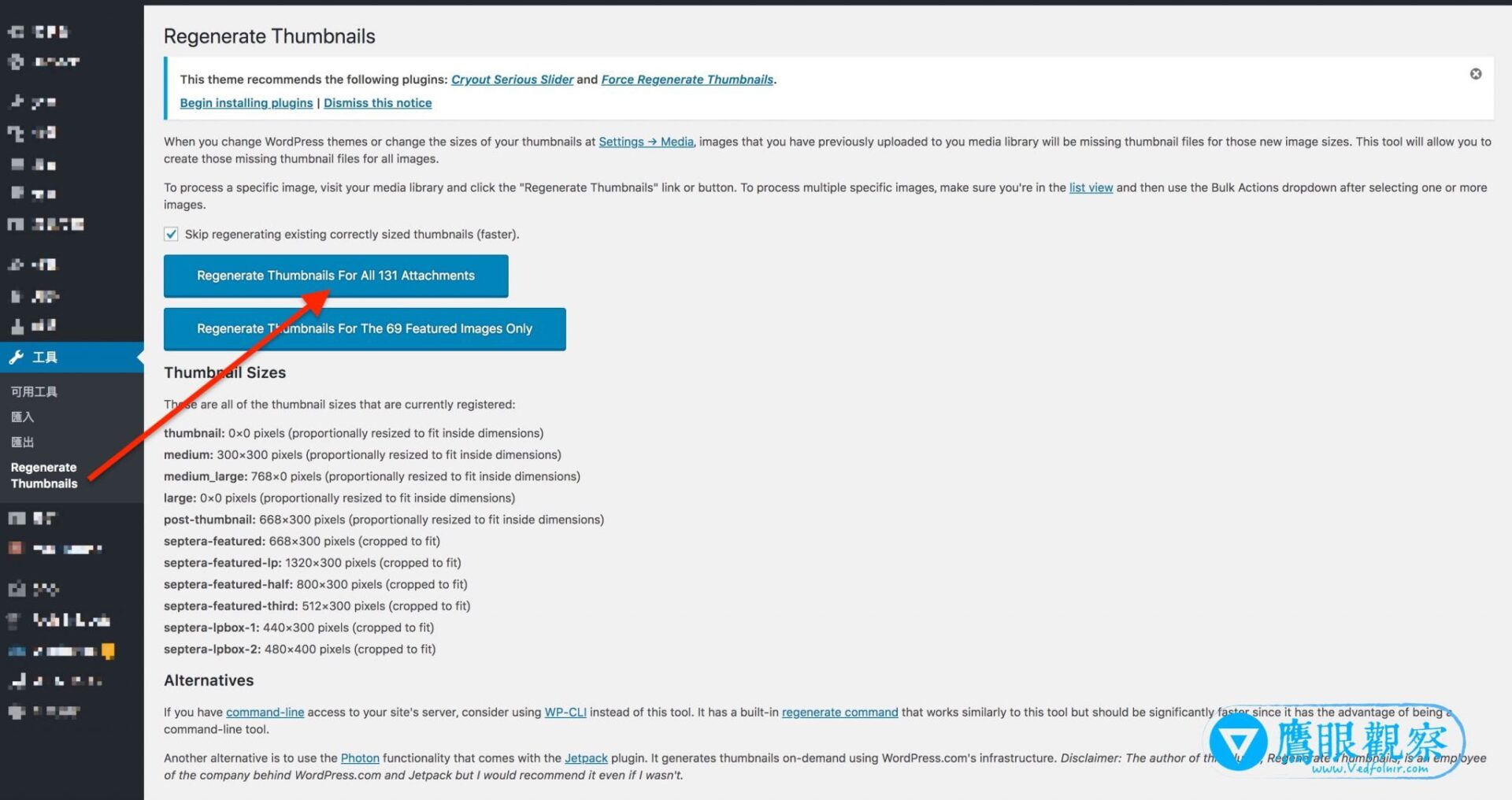
Whenever you upload an image to the WordPress Media Library, the CMS automatically generates multiple image files in varying dimensions. These derivatives accommodate diverse theme layouts, featured post widgets, and responsive screen viewports—delivering appropriately sized images to minimize visitor page load times.
Consider the alternative: loading a massive 2000×2000px source image just to display a 100×100px thumbnail avatar. Not only would that slow down page loading significantly, but it would also consume needless network bandwidth—and bandwidth costs real money.
However, the specific sizes generated by your theme are defined directly in theme code by its author and are hardcoded unless modified manually. To disable or customize these theme-driven thumbnails, look in your child theme’s functions.php file for functions such as add_image_size or set_post_thumbnail_size.
Meanwhile, default WordPress core dimensions can be easily adjusted by site owners. Navigating in your WordPress admin dashboard to Settings > Media reveals settings for Thumbnail size, Medium size, and Large size, used as pre-set insertion dimensions during post drafting.
Because every defined dimension creates a physical file on your server disk, storage accumulates quickly. One practical recommendation is to keep only your most frequently used dimension (such as Medium) and set the width and height of unused sizes to 0 to halt their automatic generation.
That said, dormant thumbnails sitting on disk do not impact frontend page rendering speed. If your hosting environment provides unmetered disk storage (such as Bluehost shared plans), generating multiple sizes may not pose an immediate concern.
Real-World Test: Automatically Generated Media Library Dimensions
During a test upload of an image named Vedfolnir-Images.png with an original file size of 181,911 bytes, WordPress applied core settings (retaining only Medium size) alongside active theme rules, automatically creating the following seven files:
Vedfolnir-Images-1320x500.png— 307,841 bytesVedfolnir-Images-160x160.png— 12,838 bytesVedfolnir-Images-300x169.png— 30,462 bytesVedfolnir-Images-320x320.png— 30,164 bytesVedfolnir-Images-520x245.png— 77,597 bytesVedfolnir-Images-720x340.png— 103,277 bytesVedfolnir-Images-980x450.png— 241,061 bytes
From this output, we observe that the theme alone registered six distinct layout sizes. Paradoxically, two of the generated thumbnails ended up with a larger file size than the original image itself.
Why does this happen? Core WordPress resizing scales images proportionally from the source, whereas themes often execute hard cropping and re-encoding to fit exact container ratios. The re-compression algorithm applied to cropped segments can sometimes produce heavier file payloads than well-optimized original files.
In total, an upload of a single 181 KB graphic consumed 985,181 bytes (approx. 985 KB) across all variants—a 5.44-fold increase in storage. Across a moderately sized website hosting thousands of images, disk footprint expands rapidly.
Fortunately, deleting a file directly from the WordPress Media Library automatically purges all corresponding generated thumbnail variants from disk, leaving no orphaned clutter behind.
Support Independent Perspectives & In-Depth Insights
Every thoughtful analysis and candid critique comes from our dedication to truth and quality. We choose not to follow sensational algorithms or clickbait headlines.
Sustaining independent research requires reader support. Make a one-time or monthly contribution, securely processed by Google.
Payments secured by Google · Manage or cancel anytime in your Google Account

Comments