
Tired of web pages taking forever to load? Constantly experiencing lag when opening social media or international websites? By simply changing the “DNS server” in your computer or mobile operating system, you can significantly enhance page responsiveness, domain resolution speeds, and security defenses—even without upgrading your physical broadband plan!
In our studio, for instance, using the default DNS provided by our Internet Service Provider (ISP) sometimes introduced subtle delays when browsing Facebook. After switching manually to Google Public DNS, page latency dropped noticeably.
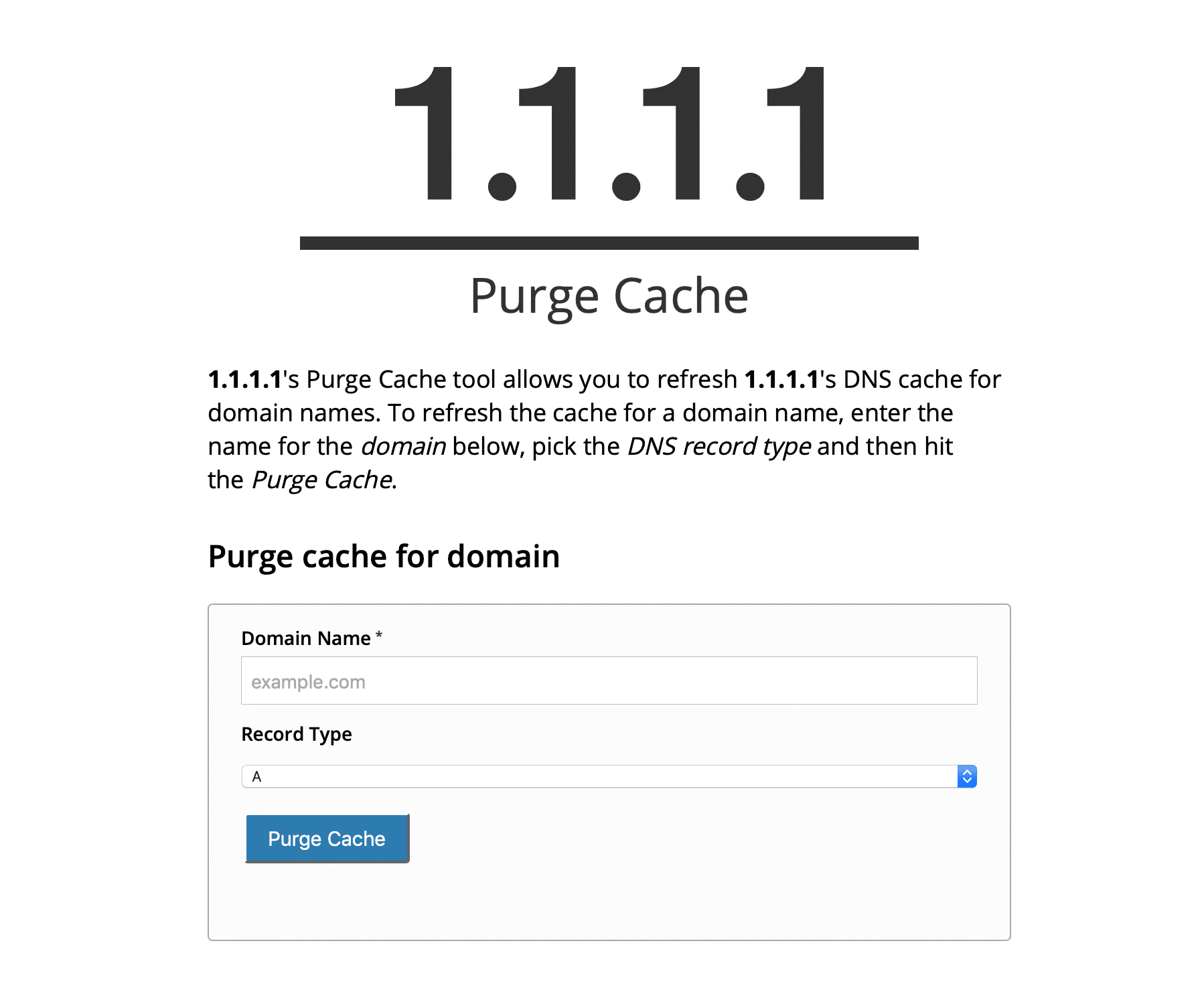
What Is DNS? Why Does Changing DNS Make Internet Browsing Faster?
The Domain Name System (DNS) is a foundational protocol of the internet. Its core job is translating human-friendly domain names (such as www.vedfolnir.com) into computer-readable IP addresses (such as 104.21.32.1).
In simple terms, DNS works like the internet’s phone book. If your device looks up numbers in the phone book much faster, your overall browsing experience naturally becomes significantly smoother!
2 Major Benefits of Using Premium Public DNS
- Reduced Resolution Latency: Major public DNS providers (like Google and Cloudflare) operate massive globally distributed server clusters with Anycast routing, resolving domain lookups far faster than typical regional telecom providers.
- Protection Against Malicious Hijacking: Top-tier DNS services automatically filter out known phishing sites and malicious domains, protecting you against DNS hijacking and spoofing attacks.
Popular Free Public DNS Server Addresses
Here is a list of reputable, free public DNS services available worldwide:
| DNS Provider | Preferred DNS | Alternate DNS | Highlights |
|---|---|---|---|
| Cloudflare | 1.1.1.1 | 1.0.0.1 | Blazing-fast global resolution, strong privacy protection |
| Google Public DNS | 8.8.8.8 | 8.8.4.4 | Most widely deployed globally, exceptionally reliable |
| OpenDNS | 208.67.220.220 | 208.67.222.222 | Offers web filtering and security protection |
| Chunghwa Telecom HiNet | 168.95.1.1 | 168.95.192.1 | Preferred choice for local resolution in Taiwan (HiNet subscribers only) |
Tutorial: Changing DNS on macOS (MacBook / iMac / Mac mini)
- Click the Apple menu () in the upper-left corner of your screen ➔ Open System Settings (or System Preferences).
- Click Network ➔ Select your active Wi-Fi or Ethernet connection ➔ Click Details (or Advanced).
- Switch to the DNS tab.
- Click the + button at the bottom of the list and add Google’s
8.8.8.8and8.8.4.4(or Cloudflare’s1.1.1.1and1.0.0.1). - Drag your newly added DNS entries to the top of the list, then click OK and Apply to save your changes!
Tutorial: Changing DNS on Windows (Windows 10 / Windows 11)
- Press
Win + Ron your keyboard, typencpa.cpl, and hit Enter to open the Network Connections panel. - Right-click your active Wi-Fi or Ethernet adapter ➔ Select Properties.
- In the list of items, locate Internet Protocol Version 4 (TCP/IPv4) and click the Properties button below.
- Select Use the following DNS server addresses:
- Preferred DNS server:
8.8.8.8 - Alternate DNS server:
8.8.4.4
- Preferred DNS server:
- Check the box for Validate settings upon exit and click OK to apply the configuration!
Support Independent Perspectives & In-Depth Insights
Every thoughtful analysis and candid critique comes from our dedication to truth and quality. We choose not to follow sensational algorithms or clickbait headlines.
Sustaining independent research requires reader support. Make a one-time or monthly contribution, securely processed by Google.
Payments secured by Google · Manage or cancel anytime in your Google Account



Comments