
Today, while updating my Mac system to macOS 10.12.5, I noticed an app called “Bear” highlighted among the Apple Design Award 2017 winners on the App Store. Its visual style looked remarkably charming, so I downloaded it to give it a spin. In short, while its aesthetics are delightfully cute, at its core Bear is a refined text editor—or as the developers describe it, an elegant and flexible “writing tool.”
Bear focuses primarily on three core pillars:
- Multi-Platform Support: Available for macOS on Apple iMac and MacBook[i], as well as iOS on iPhone and iPad. Text syncs seamlessly across laptops, desktops, smartphones, and tablets, enabling effortless cross-device writing and editing.
- Stylized Design: This styling applies not only to typography presentation, but also to interface polish and overall aesthetic appeal. You can even purchase premium application themes, and it supports far more versatile formatting options than traditional plain-text editors.
- Rich Feature Set: Beyond multi-platform sync and sleek design, Bear includes practical features like fenced code blocks, inline images, hashtag tagging, unique note URL generation for deep-linking, and export to multiple formats (including PDF, HTML, and DOCX).
Below is a walkthrough of Bear’s features, important caveats to keep in mind, and my personal review and impressions after hands-on testing.
Bear Walkthrough and Usage Considerations
Operating the Bear editor is very straightforward. Let’s walk through the workflow and key points to watch out for.
As shown in the first image, Bear’s interface is clean and minimal. It features three default panes from left to right: sidebar navigation/tags, note list, and note editing canvas (plus the adorable bear icon).
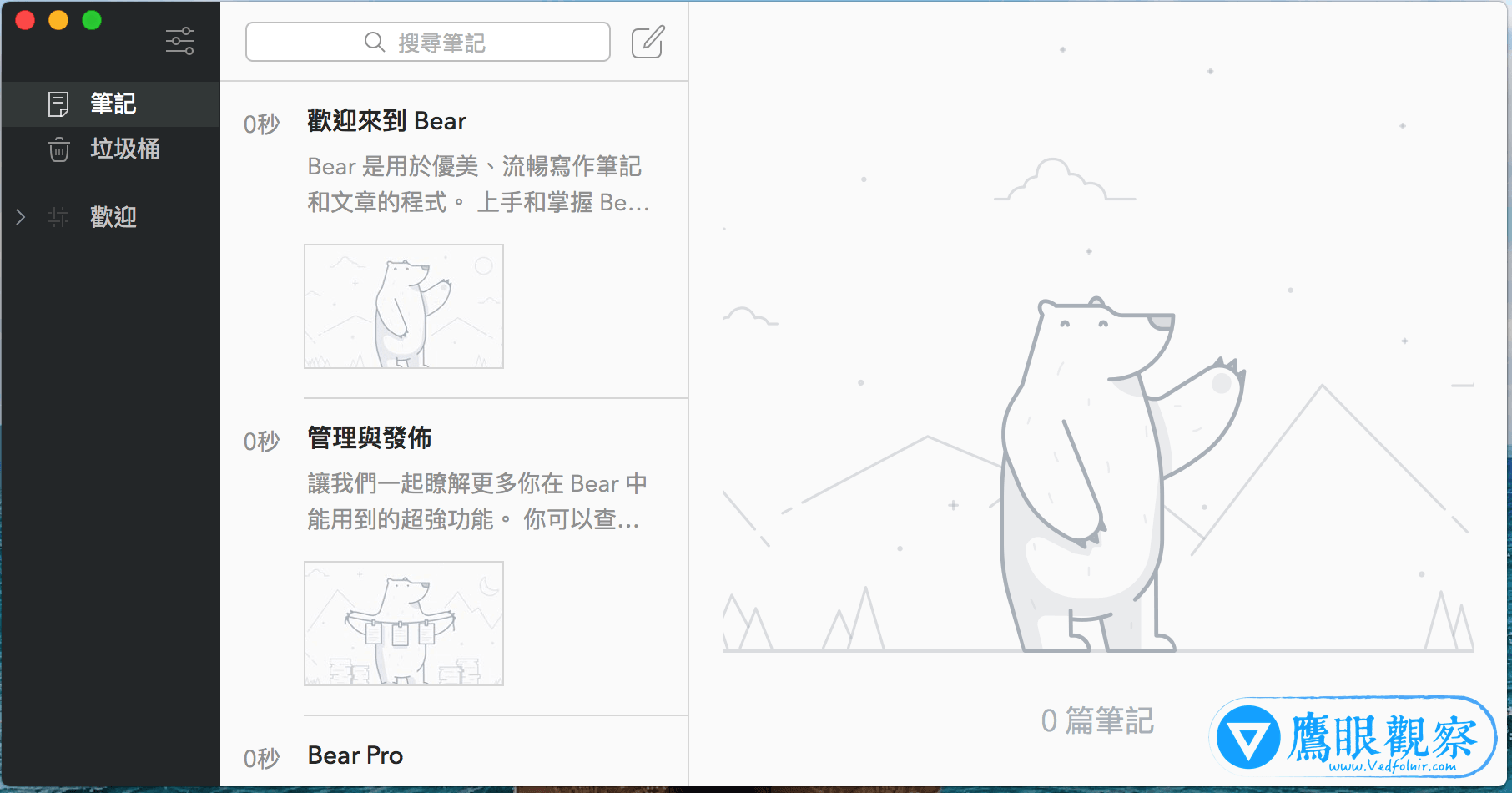 Figure 1: Bear’s main application interface.
In Figure 2, when creating a new note, the first line automatically formats as the title heading, followed directly by the body text.
Because Bear launches almost instantaneously, whenever inspiration strikes or you need to jot down thoughts or images quickly, simply opening Bear presents the editor canvas immediately. This frictionless capture feels reminiscent of classic lightweight tools like WordPad, but far more convenient—no need to worry about manual saves, filenames, or tedious format setups, and it opens much faster.
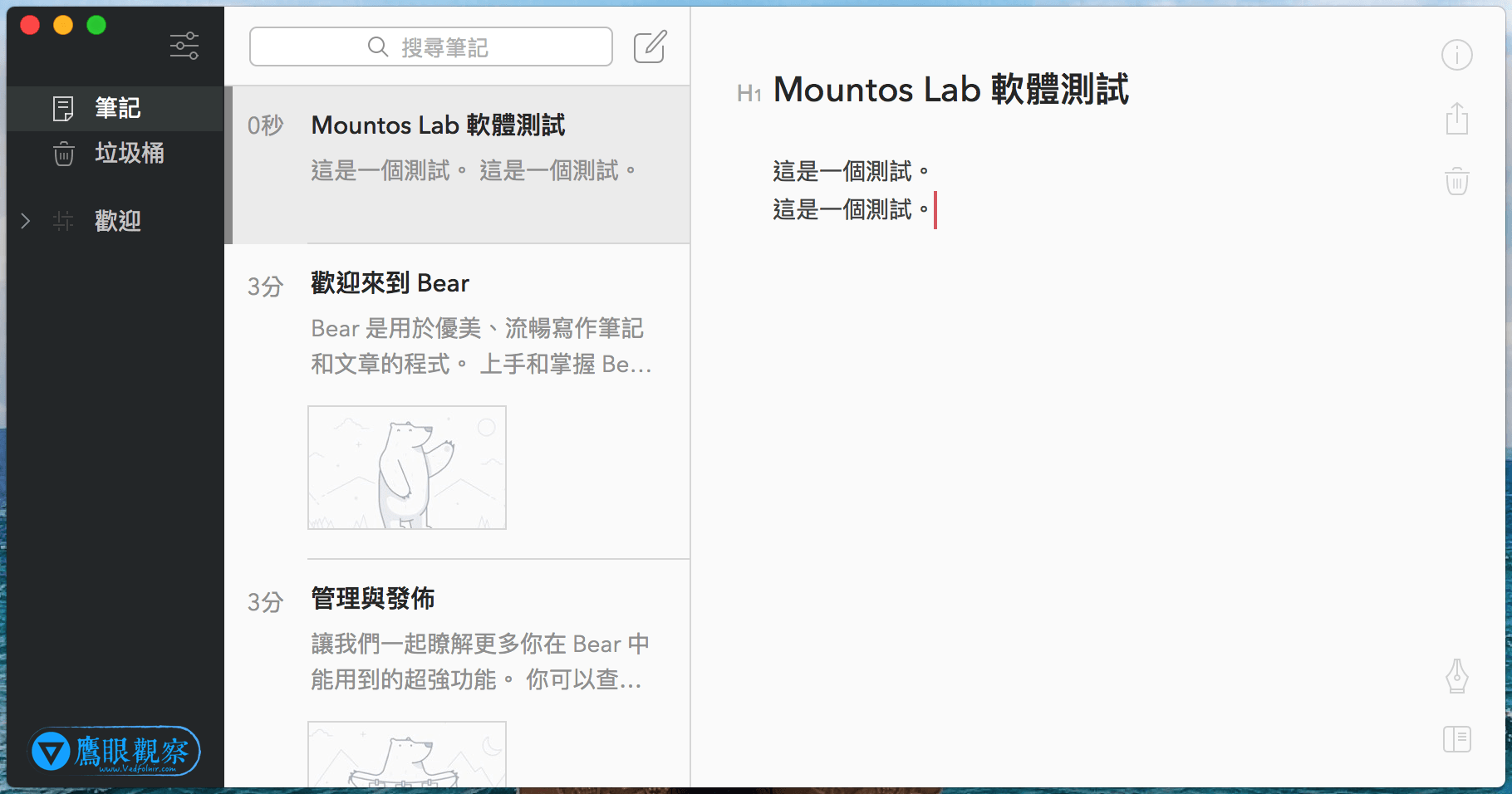 Figure 2: Creating a new document note.
As shown in Figure 3, Bear provides rich typography settings that go beyond standard text editors. It includes dedicated syntax code blocks and direct image embedding (which felt noticeably smoother and more dependable than Apple Notes).
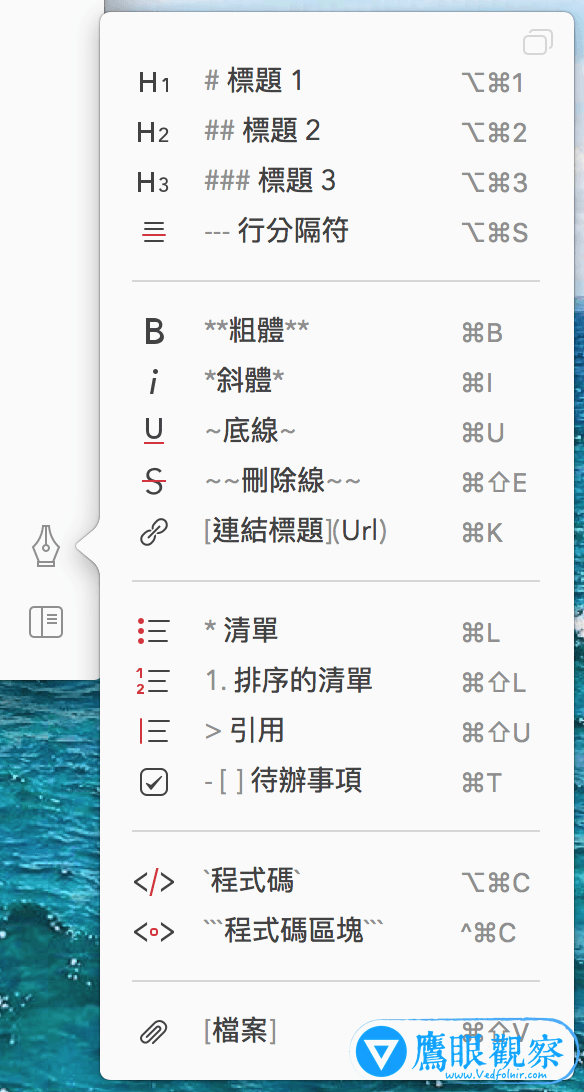 Figure 3: Typography and formatting options.
In Figure 4, you can see how drafting a note with structured formatting creates an exceptionally pleasant reading and writing experience.
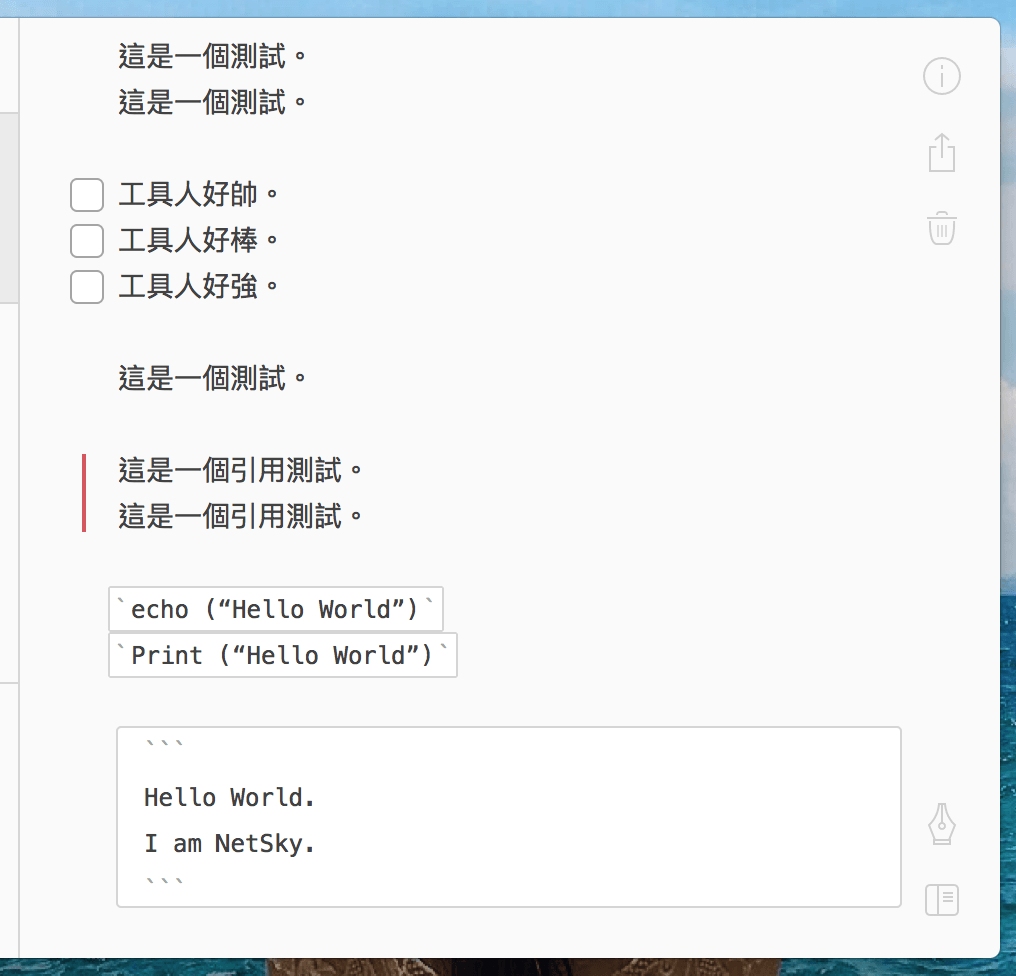 Figure 4: Editing text with rich styling elements.
In Figure 5, while testing Bear, I stumbled upon a minor bug that often crops up in localized software: during Chinese input method (IME) typing, candidate characters occasionally disappear temporarily from view. While not game-breaking, it does occasionally interrupt the writing flow.
 Figure 5: Input bug in localized text entry.
As shown in Figure 6, Bear includes a handy feature that generates a unique internal URL link for any note, making it easy to cross-reference or share. Note that this link opens within the Bear app rather than standard web browsers.
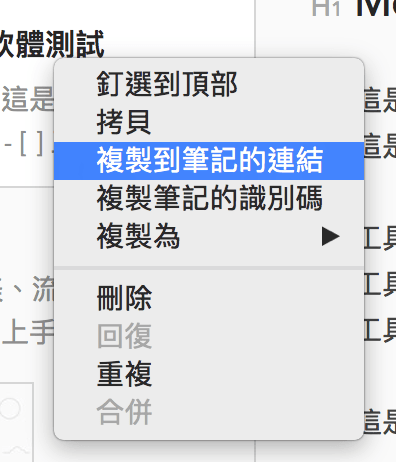 Figure 6: Bear deep-linking feature.
As seen in Figure 7, Bear’s default application preferences are sensible and require little tweaking out of the box.
However, if you frequently write online content, I recommend getting familiar with the Markdown syntax supported by Bear. Markdown utilizes human-readable plain text formatting symbols that compile directly into structured XHTML/HTML. While there is a slight learning curve, once it becomes second nature it significantly boosts drafting speed for long-form content.
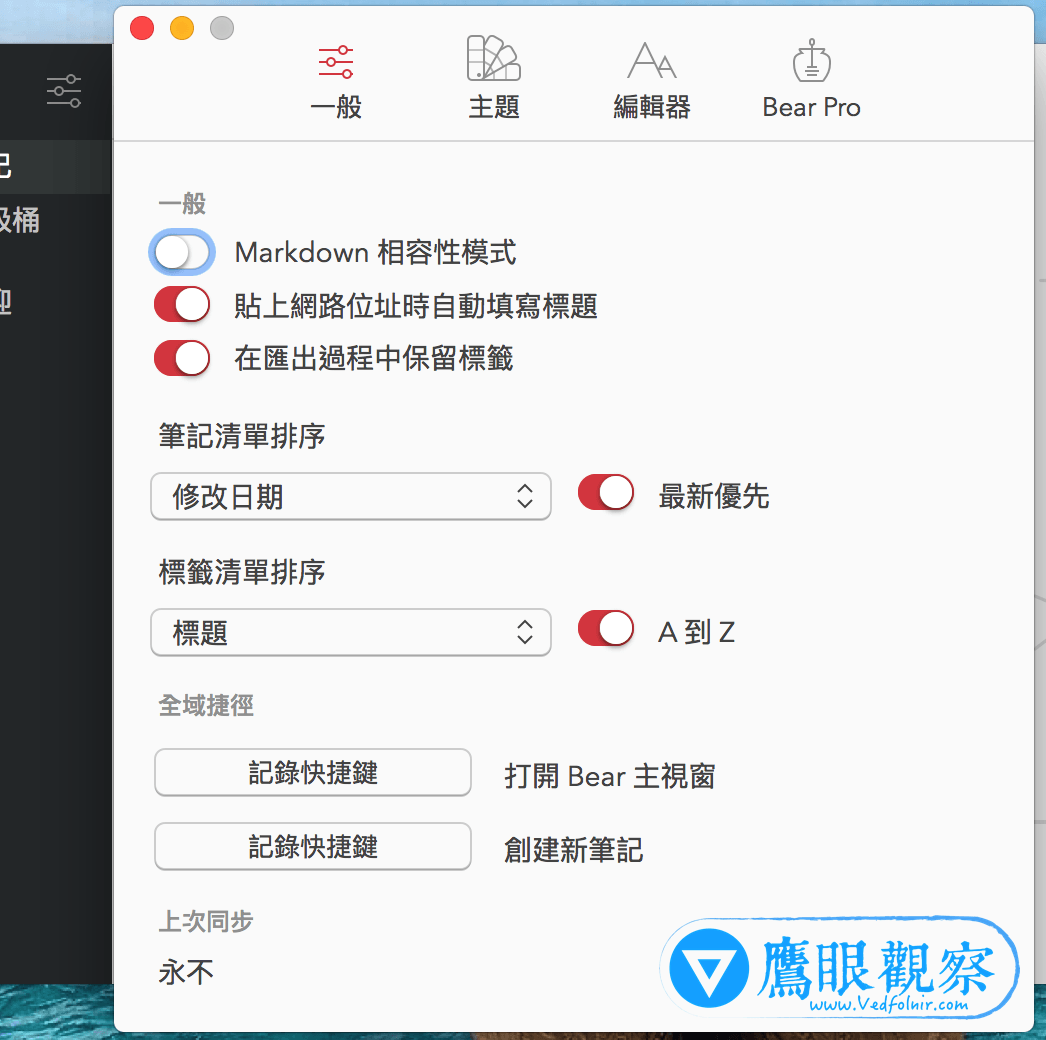 Figure 7: Bear preferences settings screen.
In Figure 8, under the preferences panel, you will find the “Bear Pro” subscription page. A monthly or annual subscription unlocks advanced capabilities, such as exporting to PDF, HTML, DOCX, and JPG, alongside extra themes to customize your workspace appearance.
 Figure 8: Premium Bear Pro subscription options.
Hands-On Review and Rating for Bear
Bear is genuinely a nimble and delightful note-taking and writing companion. However, Apple’s built-in “Notes” app has grown remarkably capable, leaving less imperative need to adopt Bear as a daily driver. For that reason, I’d rate it 3 out of 5 stars; had Apple Notes not existed, Bear would easily top my shortlist of daily writing apps.
Furthermore, factoring in the occasional IME rendering bug, it is harder to whole-heartedly recommend it to heavy Chinese-language writers, where instantaneous, distraction-free typing is paramount.
That said, if you adore the mascot aesthetic and appreciate Bear’s gorgeous typography and minimalist UI (which easily outshines default Apple Notes in visual flair), it remains a wonderfully crafted writing tool worth trying out.
Further Reading
- Mac Software Download: Bear on macOS.
- iPhone & iPad Download: Bear on iOS.
Support Independent Perspectives & In-Depth Insights
Every thoughtful analysis and candid critique comes from our dedication to truth and quality. We choose not to follow sensational algorithms or clickbait headlines.
Sustaining independent research requires reader support. Make a one-time or monthly contribution, securely processed by Google.
Payments secured by Google · Manage or cancel anytime in your Google Account



Comments