
In a previous article, Why I Bought a New Hard Drive: WD 1TB 3.5” SATA3 (WD10EZEX), I mentioned that running out of storage led me to pick up a new hard drive as my primary system drive.
Since it serves as the system drive, that naturally meant a fresh operating system reinstall.
Longtime readers of our blog know that our studio purchased genuine copies of Microsoft’s latest operating system, Windows 8, several months ago. Along the way, it has run without major showstoppers.
Occasional quirks still exist—such as unexpectedly waking up from Sleep Mode, ballooning temporary junk files, and gradual slowdowns—but compared to previous generations of Windows, these issues are minor hiccups.
Coincidentally, Microsoft recently rolled out the updated Windows 8.1 operating system. It can even be downloaded and upgraded directly through the Windows Store in Windows 8, which is undeniably convenient for everyday users.
In this article, I originally intended to teach you how to perform a clean installation of Windows 8.1 directly onto a brand-new drive (a lingering habit from Windows XP days, when direct in-place upgrades left behind sluggish junk files). However, my conclusion is that if you want to avoid hassle, you’re better off simply upgrading through the Windows Store.
Microsoft’s Windows 8.1 update download page: http://windows.microsoft.com/zh-hk/windows/download-shop
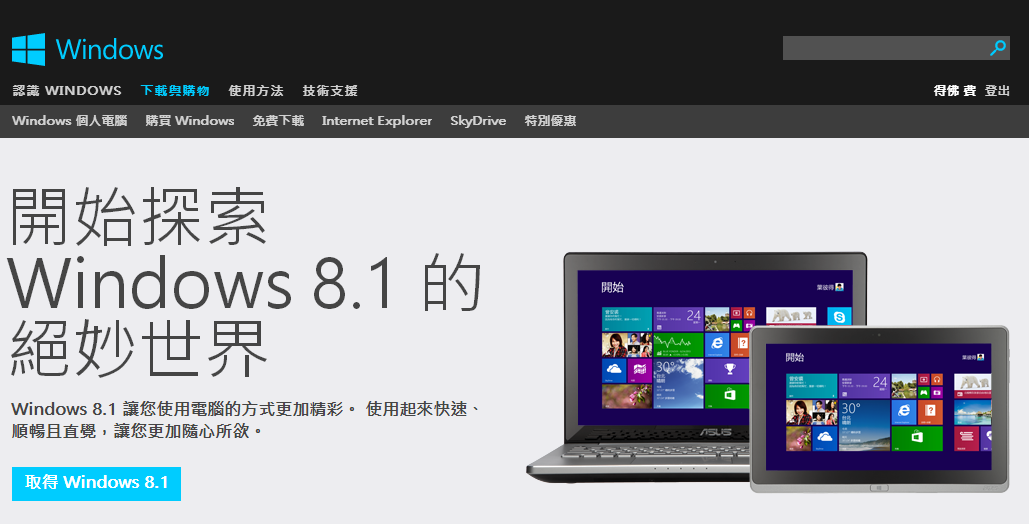
Official Windows 8.1 Webpage
Note that even if you initiate the process from this official page, it still executes the installation as an upgrade over Windows 8, automatically launching the Microsoft App Store.
In reality, Microsoft really does not want existing Windows 8 users downloading a standalone bootable ISO image of Windows 8.1.
Although international tech enthusiasts found a workaround to download the bootable Windows 8.1 disc image directly (Microsoft official URL: http://windows.microsoft.com/en-us/windows-8/upgrade-product-key-only), unfortunately, even after downloading, Microsoft blocks setup unless you enter a dedicated Windows 8.1 product key.
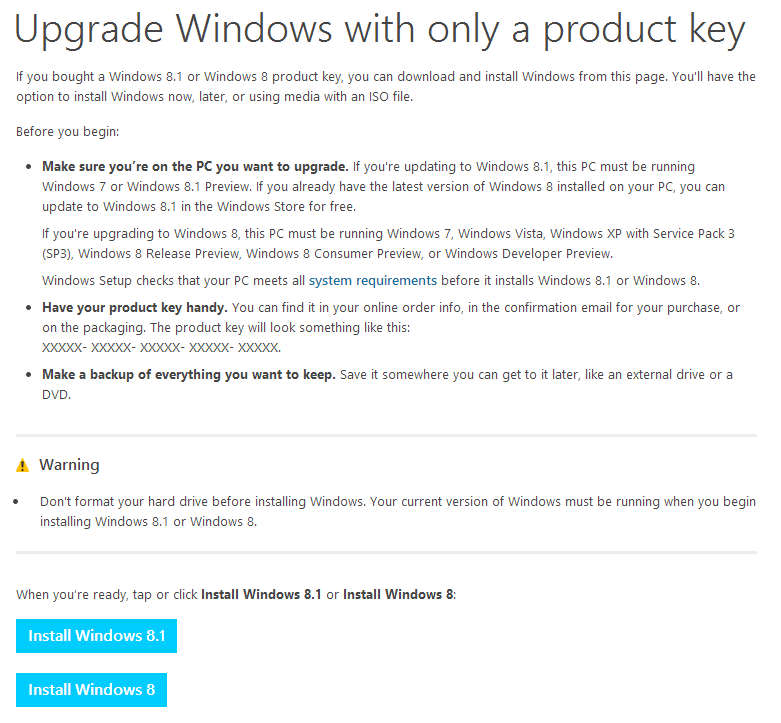
Microsoft: Upgrade Windows with only a product key
By the way, the Windows 8 license I previously purchased was the cheaper upgrade edition key. Therefore, when I downloaded the Windows 8.0 ISO image, while I could install it on a bare machine / brand-new drive, the OS refused activation upon entering Windows. There is a workaround for this, but I won’t provide crack tutorials here—feel free to Google search: “WINDOWS Clean Install Product Key REGEDIT”.
Below, I’ll showcase a few notable improvements distinguishing Windows 8.1 from Windows 8.0.
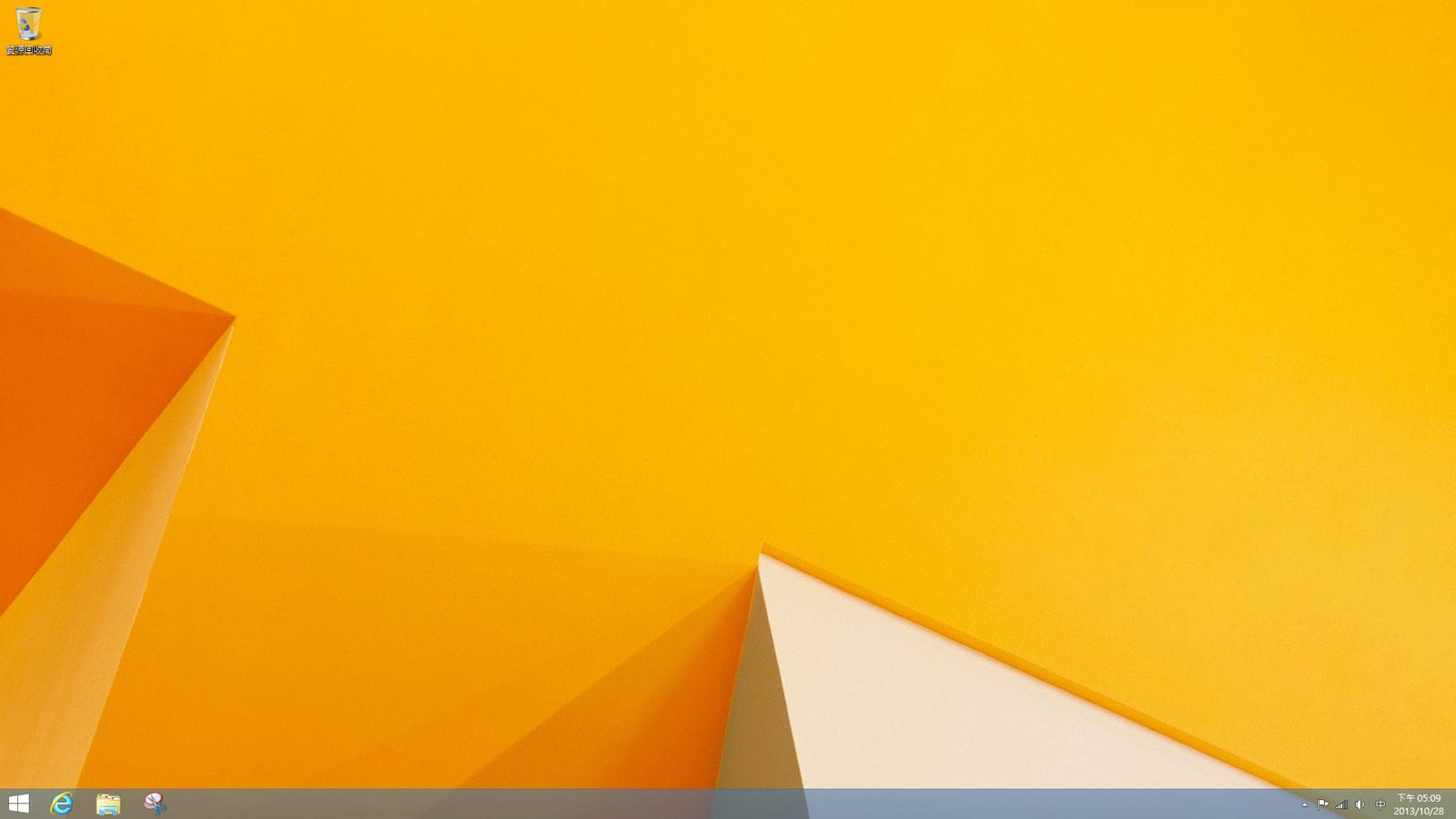
A pseudo-Start button now sits at the bottom-left corner of the Windows 8.1 desktop; it essentially pins down the floating Start button from 8.0 into a fixed place.
Right-clicking this Start button in Windows 8.1 brings up a handy quick-access power user menu, which is remarkably convenient.
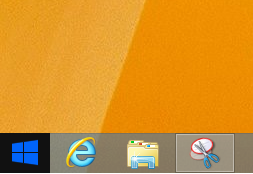
Pseudo-Start Button
Additionally, as shown below, Microsoft split the Start tile view and the installed applications view into two separate screens. Frequently used apps can be pinned to Start, while less common utilities like Calculator or Paint can be found on the All Apps screen. Newly installed apps will also appear there.
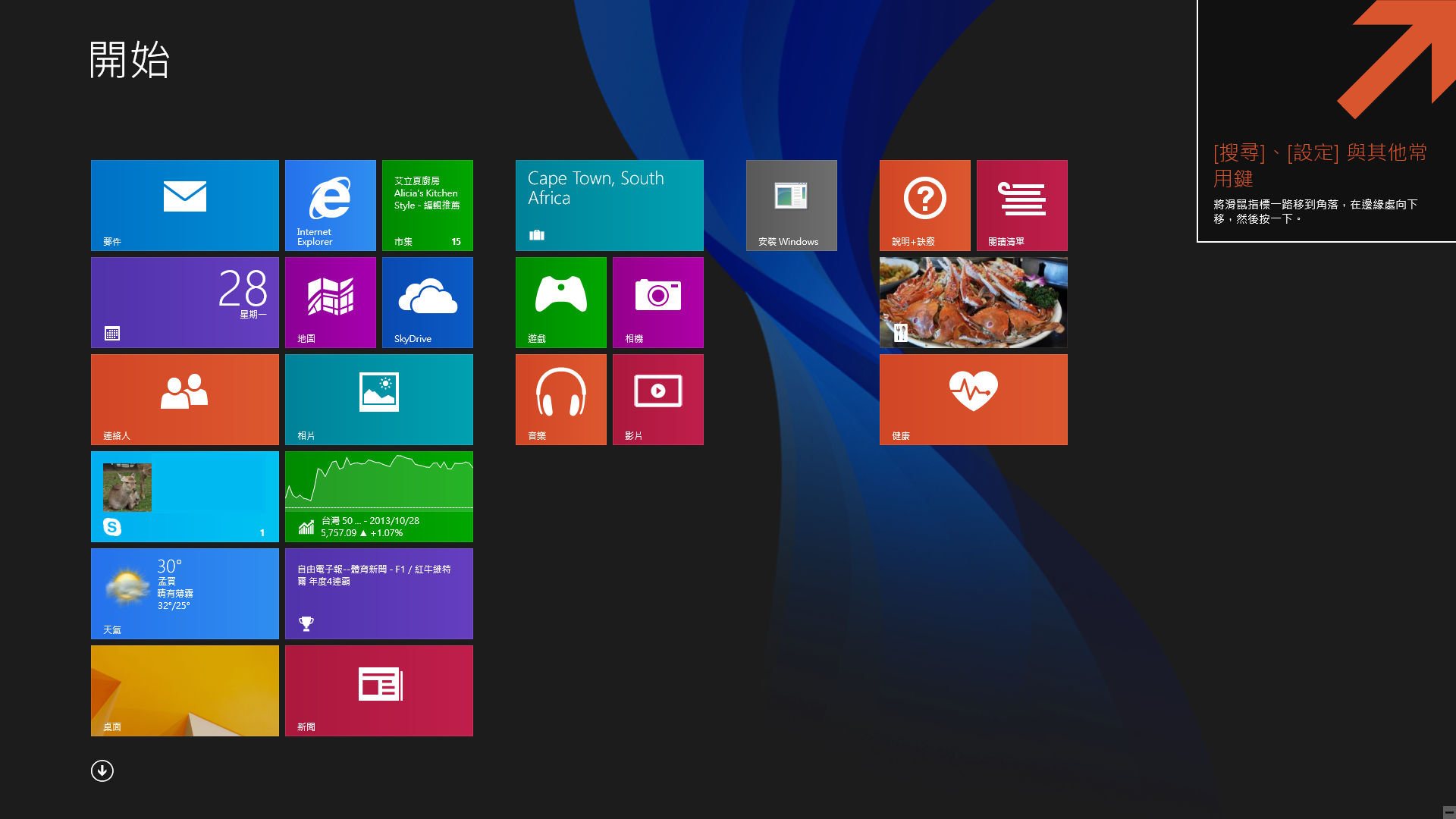
Windows 8.1 Start Screen
Do You Remember Your Product Key?
Because this was a clean operating system reinstall, we needed Microsoft’s product key. Unfortunately, my personal filing habits leave something to be desired, and I completely forgot where I put it after buying it months ago (sips hot tea).
I eventually found the original receipt Microsoft emailed me, with the subject line “Thank you for ordering Windows 8”, which contained the product key. If anyone is as scatterbrained as I am, you can search your inbox for those keywords (gets punched). (Interestingly, after creating a bootable USB from my original Windows 8 installation, the system actually retrieved it automatically.)
Further Reading: Operating Systems – Making a Bootable Windows 8 Disc / USB Drive
Support Independent Perspectives & In-Depth Insights
Every thoughtful analysis and candid critique comes from our dedication to truth and quality. We choose not to follow sensational algorithms or clickbait headlines.
Sustaining independent research requires reader support. Make a one-time or monthly contribution, securely processed by Google.
Payments secured by Google · Manage or cancel anytime in your Google Account

Comments