

Microsoft’s Windows 8 operating system allows users to download language packs directly from the cloud within the OS, changing the system display language to another dialect or language entirely.
I consider this one of the most convenient Windows versions for switching display languages to date.
For example, if your computer originally came with a Chinese system installed, you can use this feature to switch Windows 8 over to English.
This feature is genuinely practical. Whether you want to get used to using English in daily life or host an exchange student at home, this guide covers exactly what you need.
Step-by-Step Guide to Changing the Display Language
- Open Control Panel → Clock, Language, and Region → Language. By default, it displays Chinese, and only Chinese appears in the language list. Since we want to install another language, click “Add a language” to open a new window.
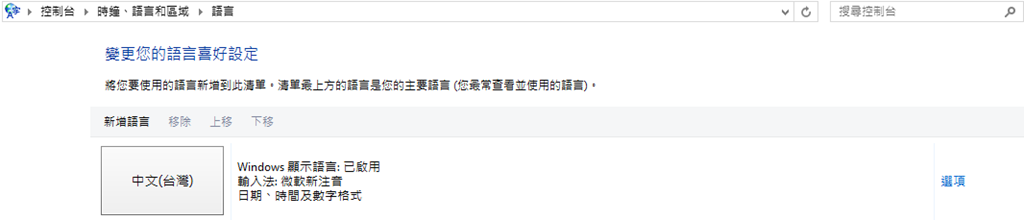
Change your language preferences
- Search for the language: In the “Add languages” window, locate the language you wish to install. This example demonstrates using “English”.
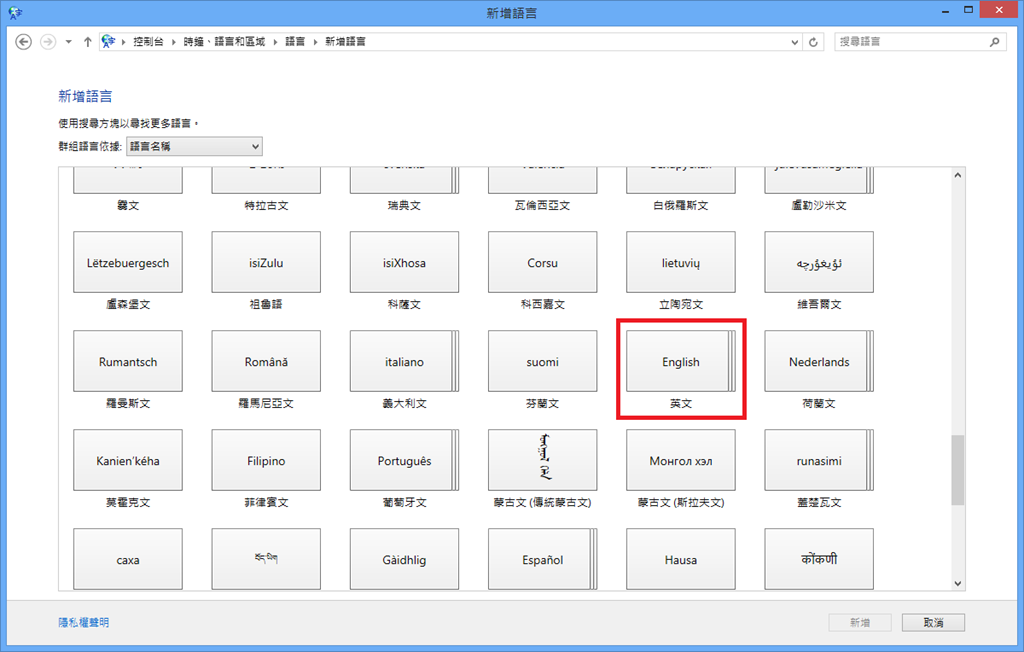
Add languages
- Choose the appropriate regional variation: Every language branches into different regional varieties due to cultural and historical factors. After clicking English in the previous step, you will see a variety of English regional options. In Taiwan, American English is widely used, though personally I prefer British English.
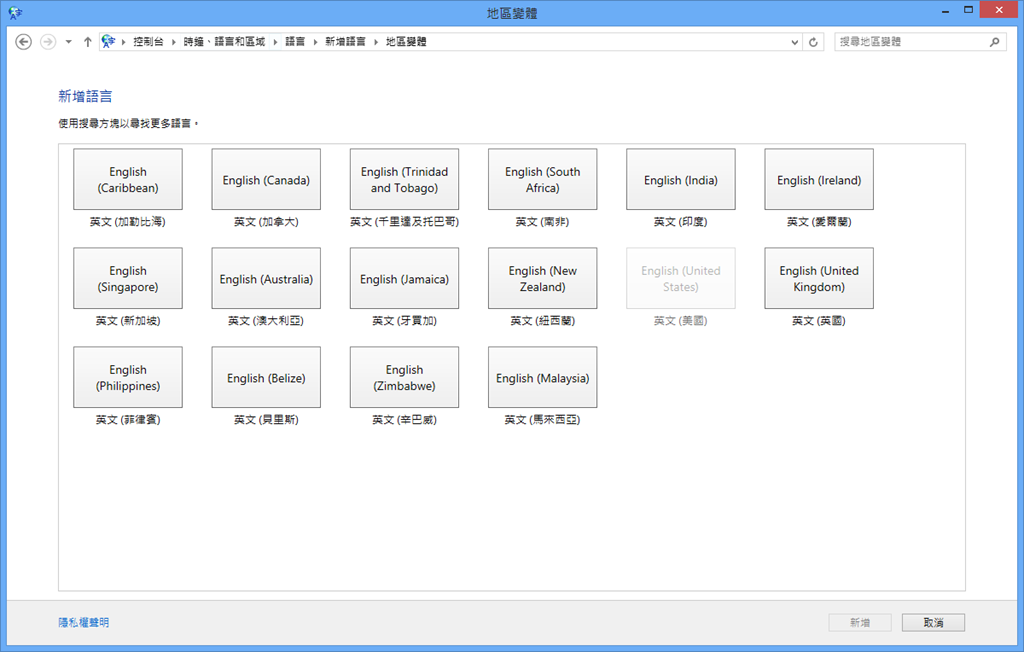
Add languages
- Once you select the desired language across the above steps and add it, the system will automatically begin downloading and installing the update. Because each language pack is substantial (e.g., the English pack is around 157 MB), Microsoft cannot pre-install every language pack onto the OS or installation disc, nor is there a need to. Therefore, an active internet connection is required when changing display languages.
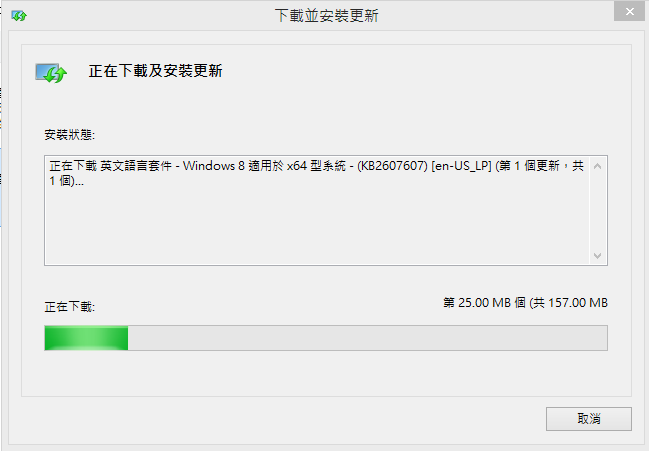
Downloading and installing updates
- Installation complete: Once the system finishes downloading and installing automatically, a notification window like the one below will appear.
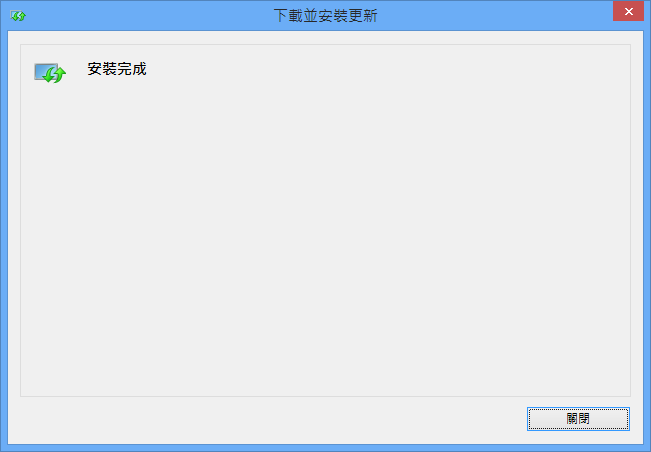
Installation complete
The Final Step
After adding the language, the language list expands from only Chinese to displaying Chinese and English in order.
Refer to the illustration below: you must select English and click “Move up” so that it appears before Chinese.
This way, upon restarting the computer, Windows 8 will boot using the top-priority language pack.
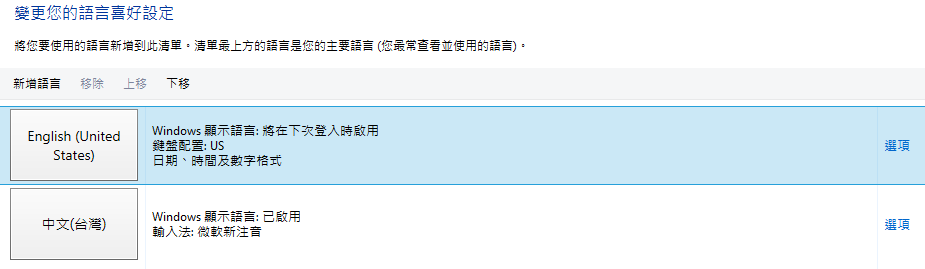
Change your language preferences
Further Reading
- Independent Travel: Internet Cafés and the Traveler’s Woes – On Chinese Input Methods
Support Independent Perspectives & In-Depth Insights
Every thoughtful analysis and candid critique comes from our dedication to truth and quality. We choose not to follow sensational algorithms or clickbait headlines.
Sustaining independent research requires reader support. Make a one-time or monthly contribution, securely processed by Google.
Payments secured by Google · Manage or cancel anytime in your Google Account

Comments