
Following Microsoft’s earlier release of the Windows 8 Developer Preview, the company recently rolled out the Windows 8 Consumer Preview. Compared to the frustrating download issues of the developer build, this consumer release (abbreviated as W8CP) is significantly easier to acquire.
Currently, Microsoft provides preview builds in English, French, German, Japanese, and Simplified Chinese. I recommend downloading the English edition to avoid any encoding glitches that might occur with Simplified Chinese. This article focuses on hands-on impressions and an introductory walkthrough of Windows 8.
My very first impression of Windows 8 was that it felt like Windows 7 wrapped in a Windows Phone skin. Upon entering the system, not only was the traditional desktop nowhere to be found, but I also had no idea what Windows 8 could actually do. It felt like being stranded in a boat without oars—all I could do was move the mouse cursor around the screen. Every visible tile informed me: “Not connected to the Internet.” Well of course! I hadn’t even installed the software driver for my 3.5G mobile broadband card yet. And without giving me a desktop, how on earth was I supposed to run the installer? (Desktop rage!)
Windows 8 Consumer Preview Logo
Installation Notice
Installing the Windows 8 Consumer Preview requires reinstalling your applications, and you cannot roll back to your original operating system. Please ensure you understand this limitation and possess the technical ability to reinstall your OS before trying this preview build. Alternatively, consider installing it inside a virtual machine, though proper driver support and stability cannot be guaranteed in virtualized environments.
Installation Walkthrough
Perhaps because I upgraded directly from Windows XP, the entire process felt virtually painless. After downloading and running the installer from the official website, I simply went to sleep; when I woke up, the setup was complete and ready to use.
Below are step-by-step screenshots captured during the installation process for your reference:
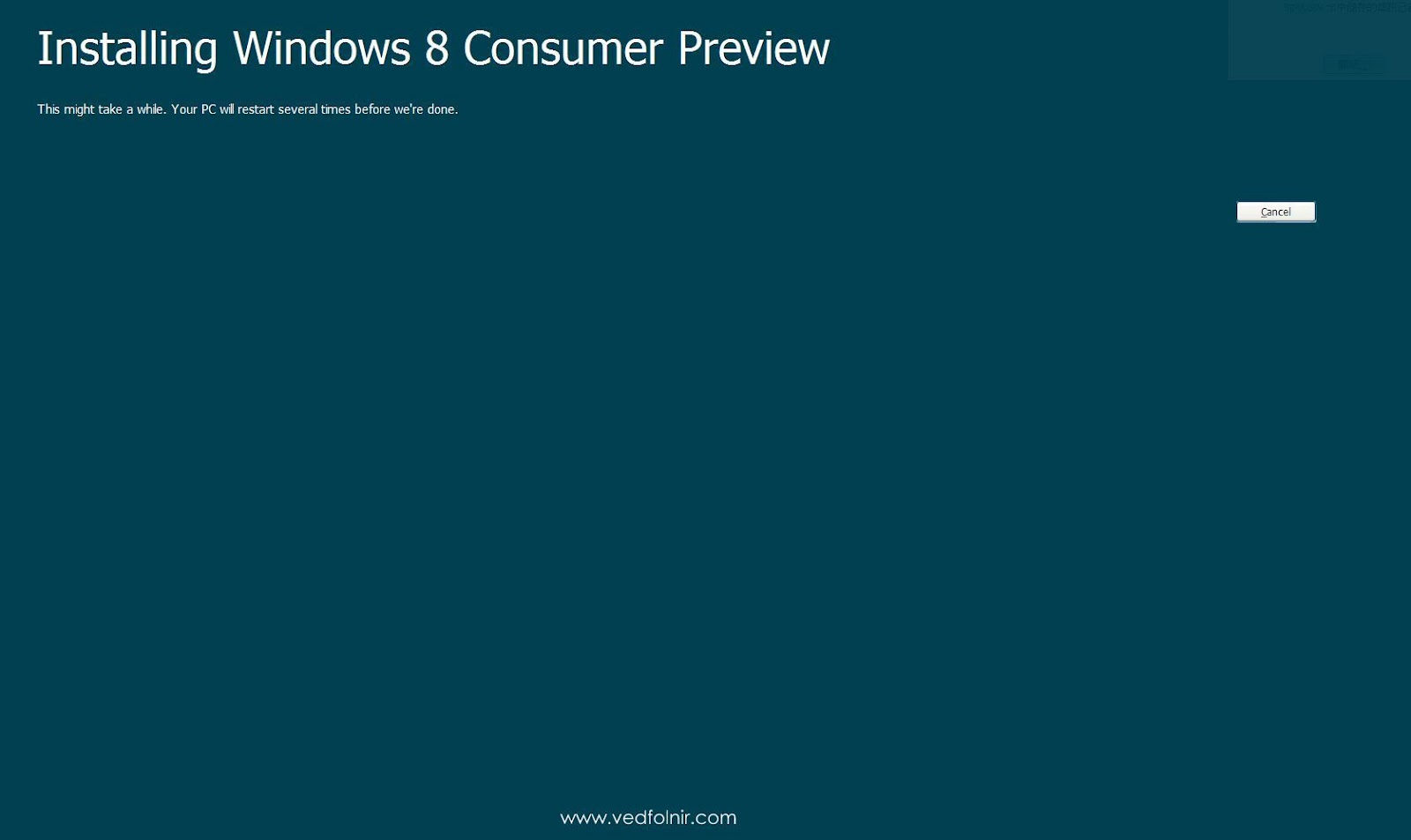
Running the Windows 8 installer on Windows XP for the first time.
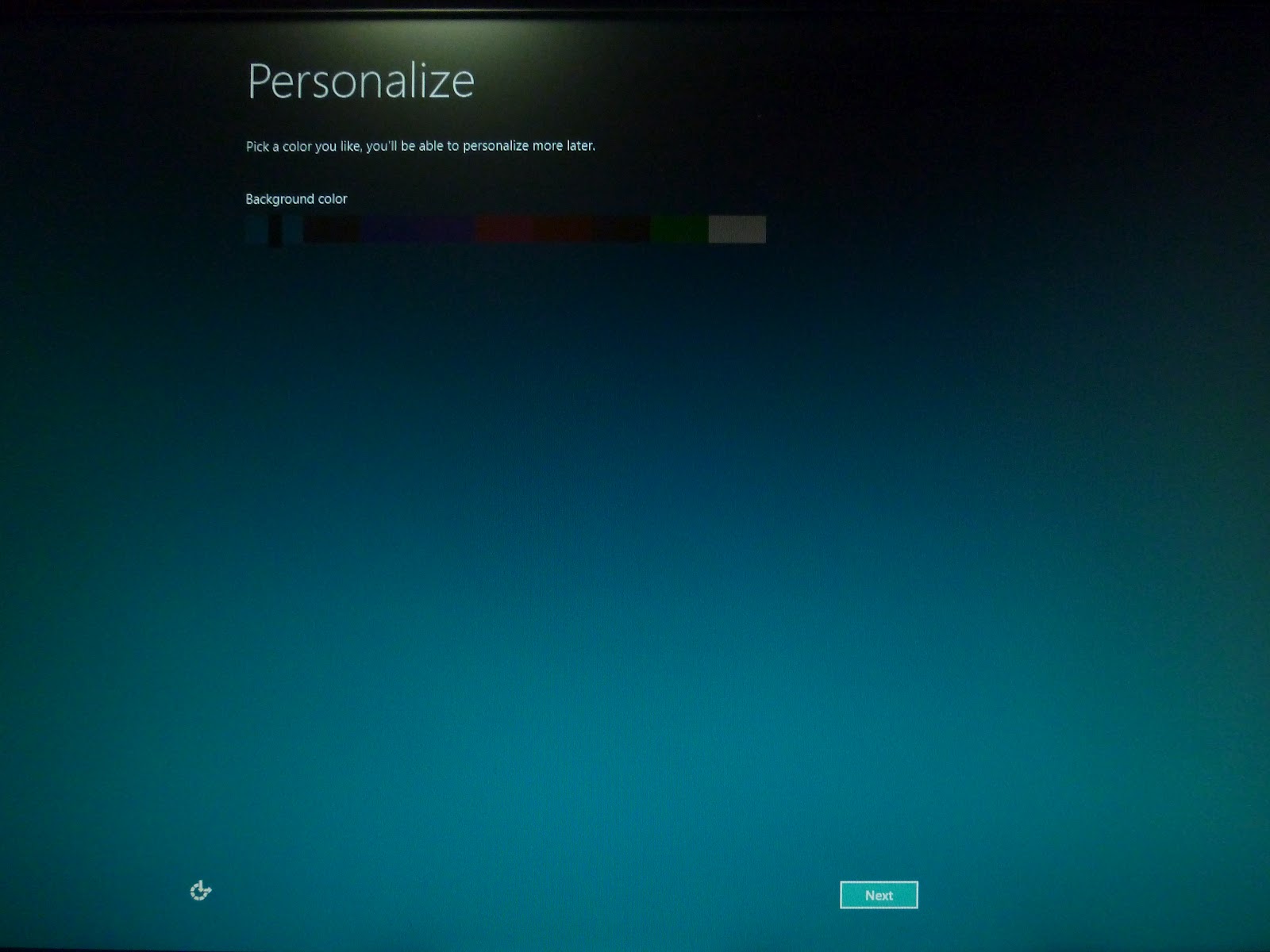
First boot screen after installation, prompting you to choose a personal background color.
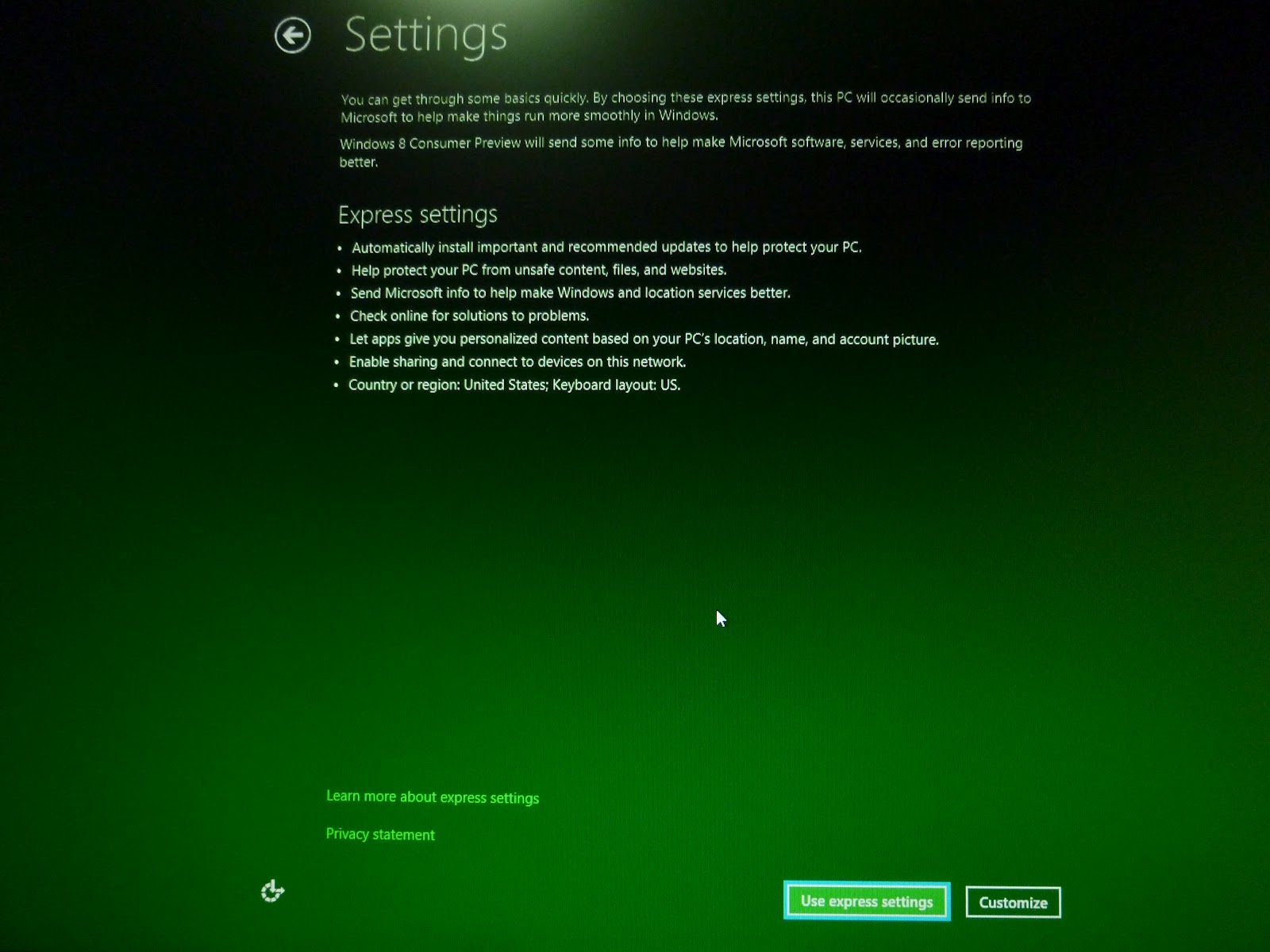
Setup screen (1)
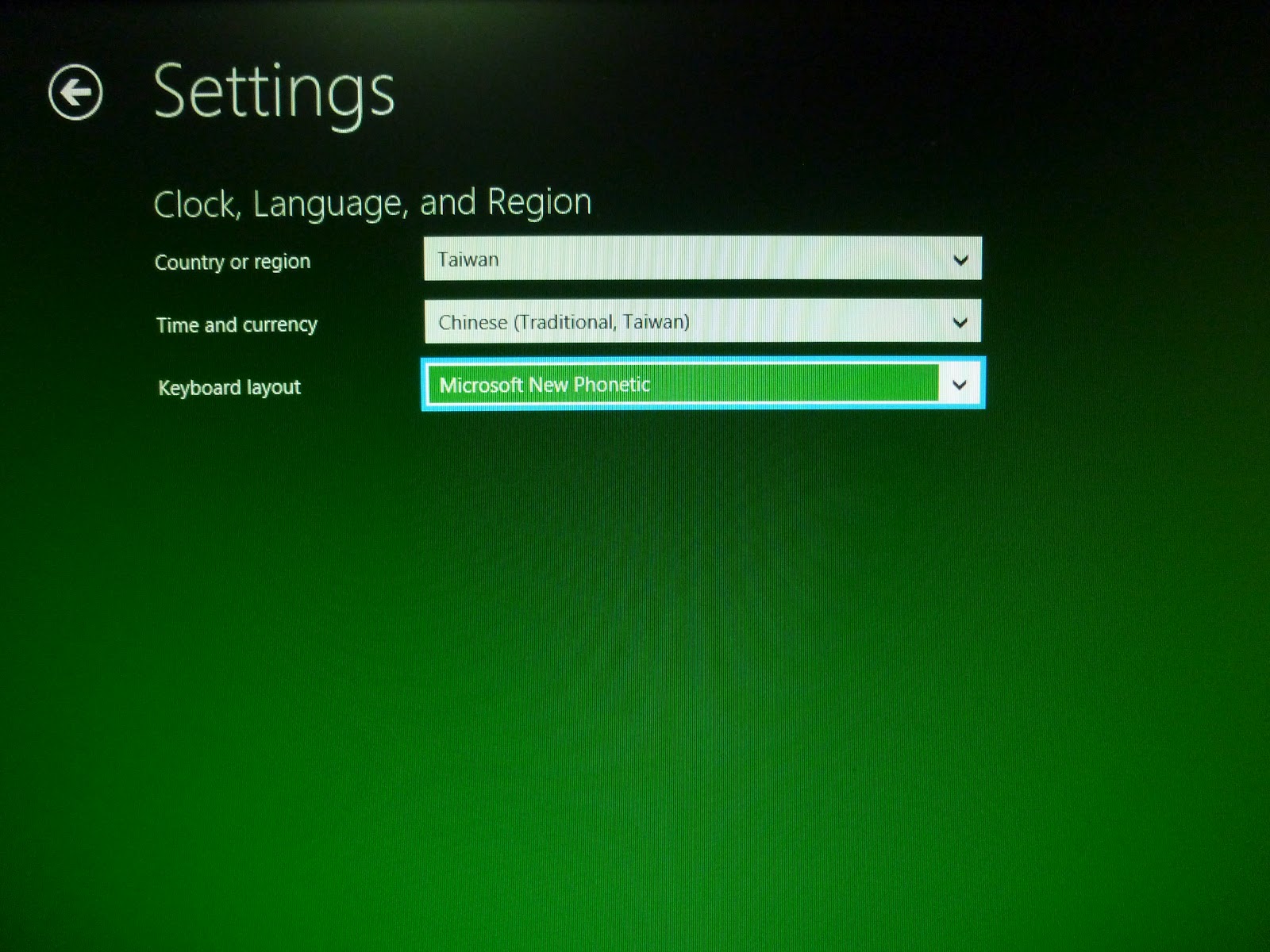
Setup screen (2)
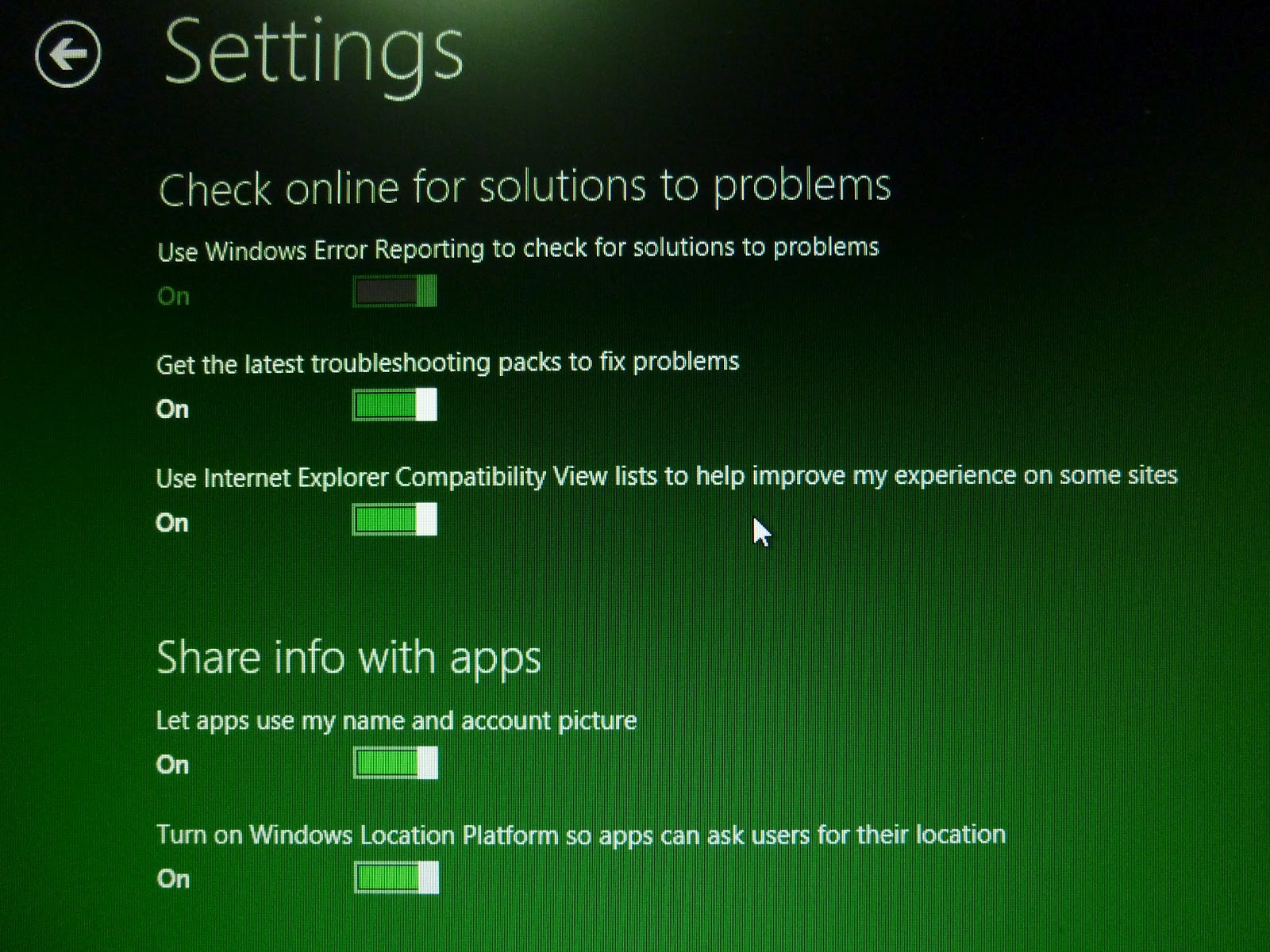
Setup screen (3)
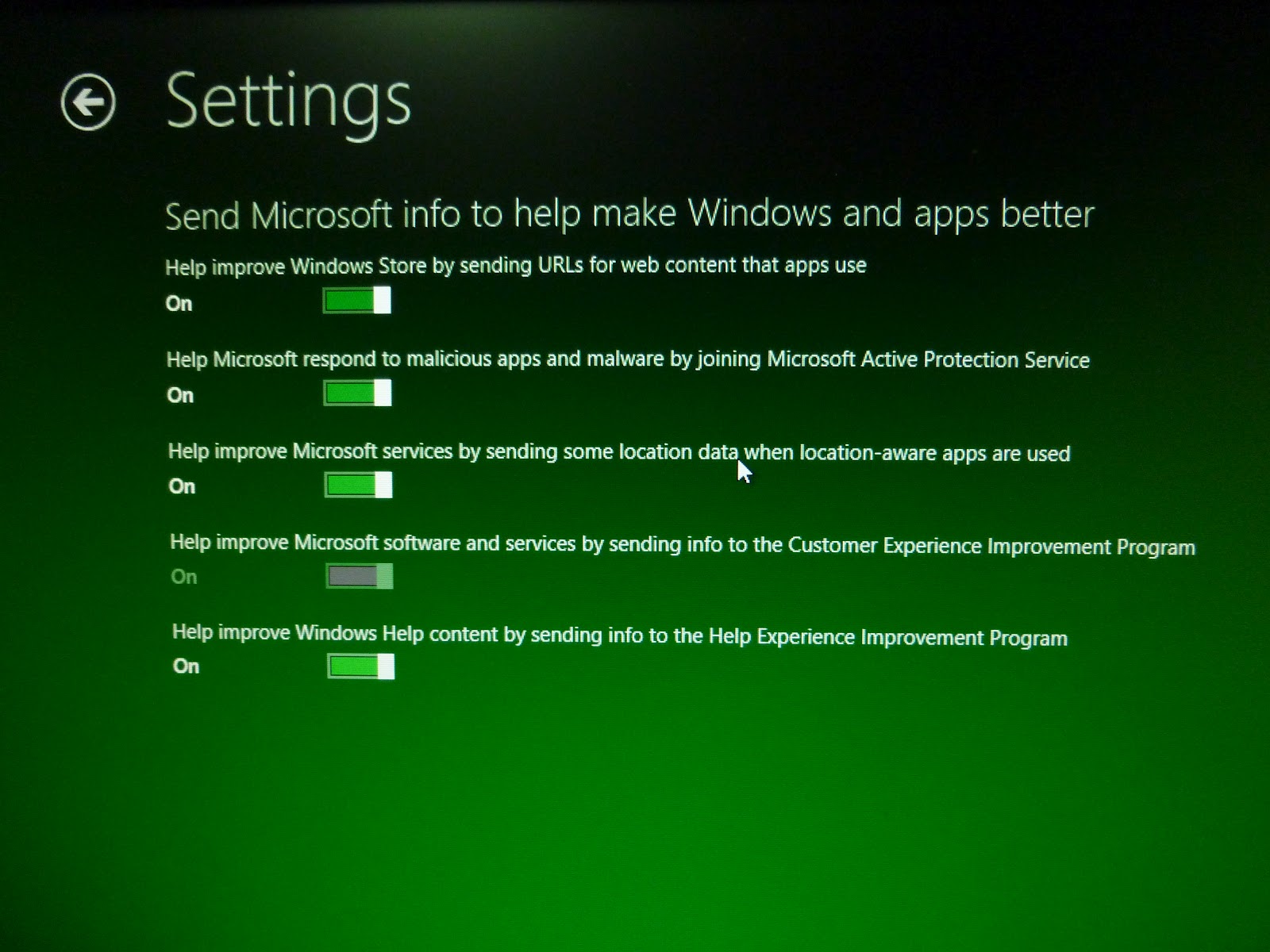
Setup screen (4)
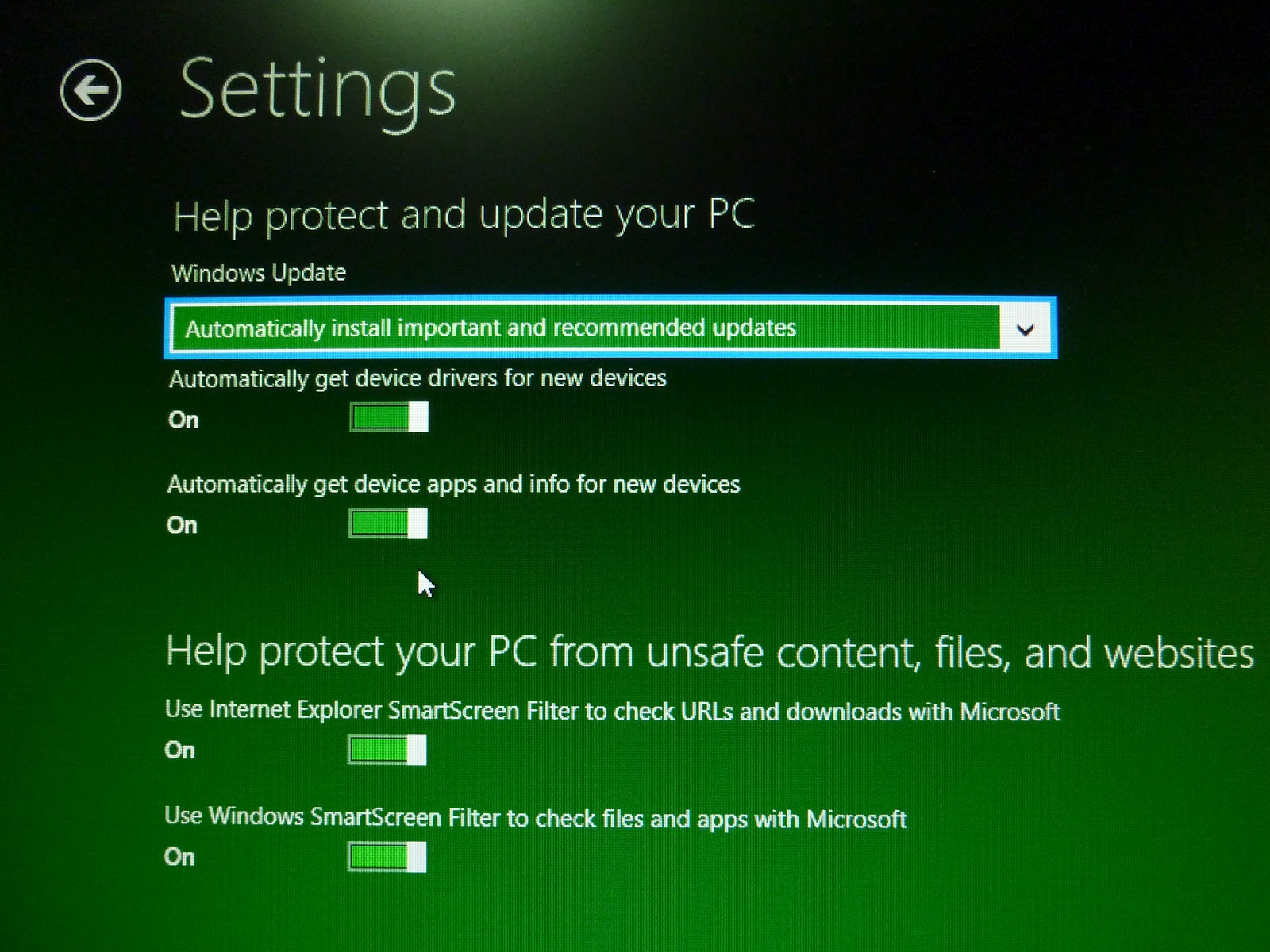
Setup screen (5)—simply click Next all the way through.
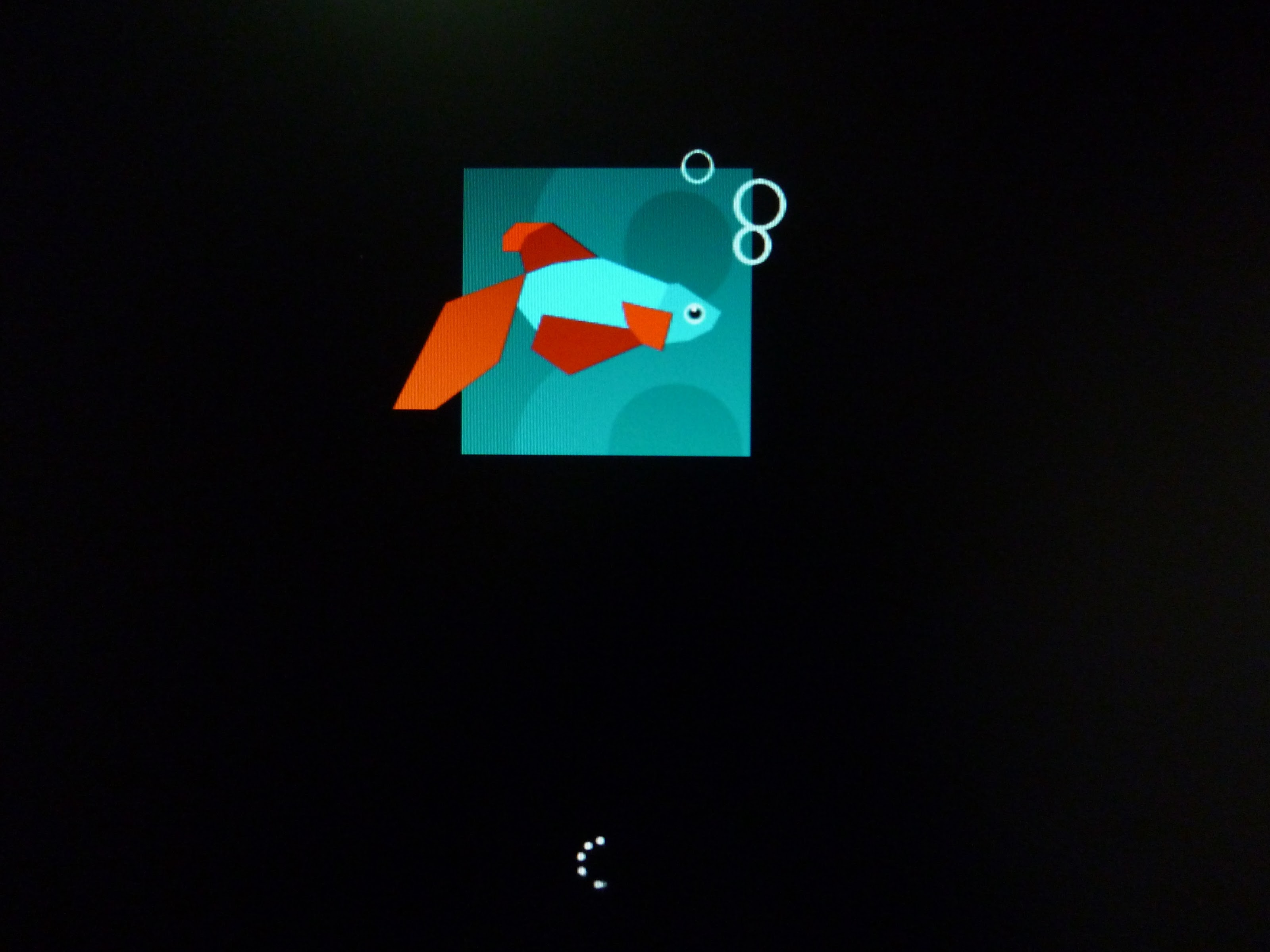
The eagerly awaited boot screen after configuration is finished.
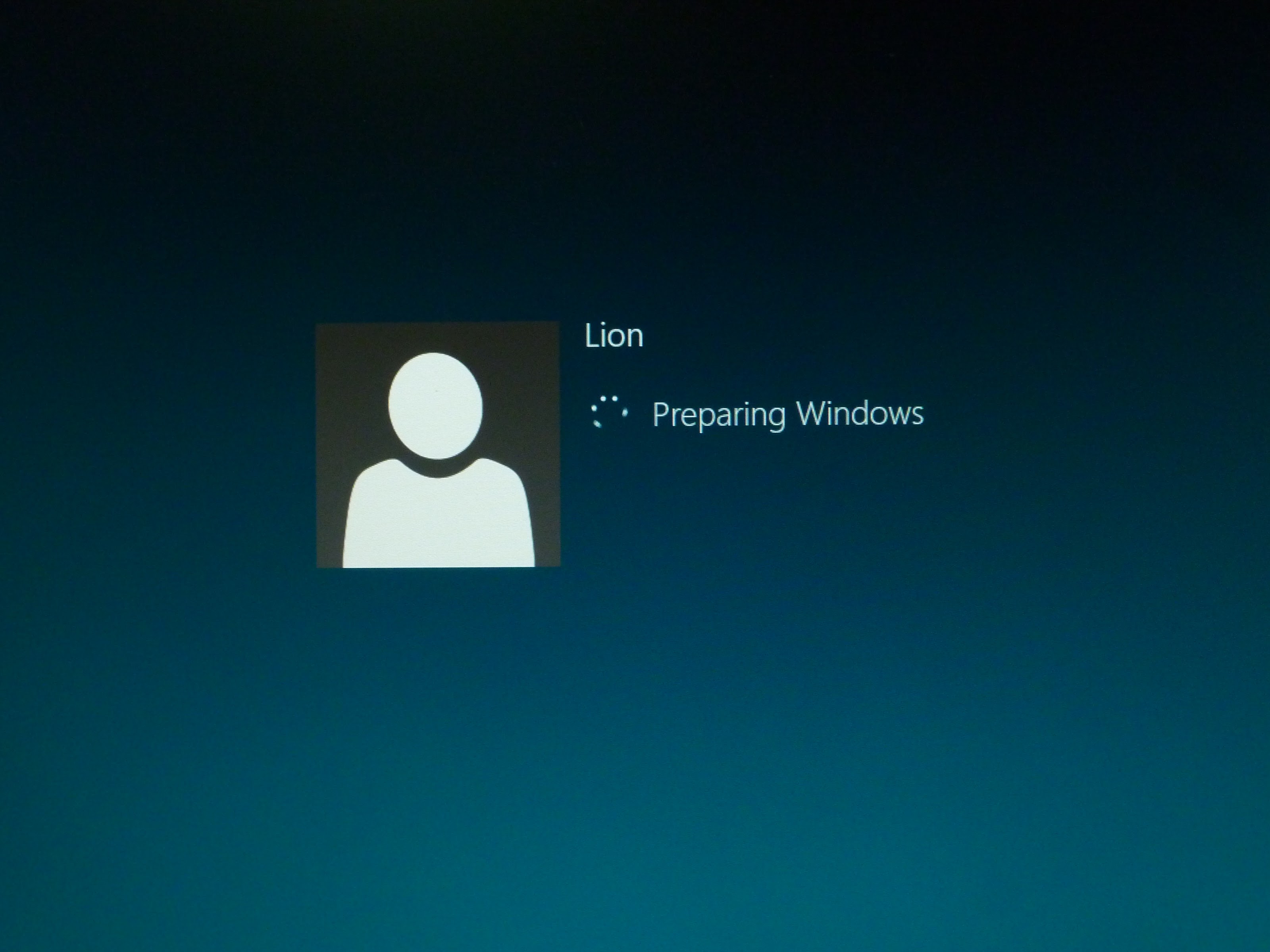
Logging in using migrated Windows XP user settings.
User Interface & Desktop Tour
The iconic Windows Start button underwent a radical redesign in this overhaul, which took some getting used to—mainly because it grew vastly larger (laughs). This is what Microsoft dubs the “Metro UI” design language.
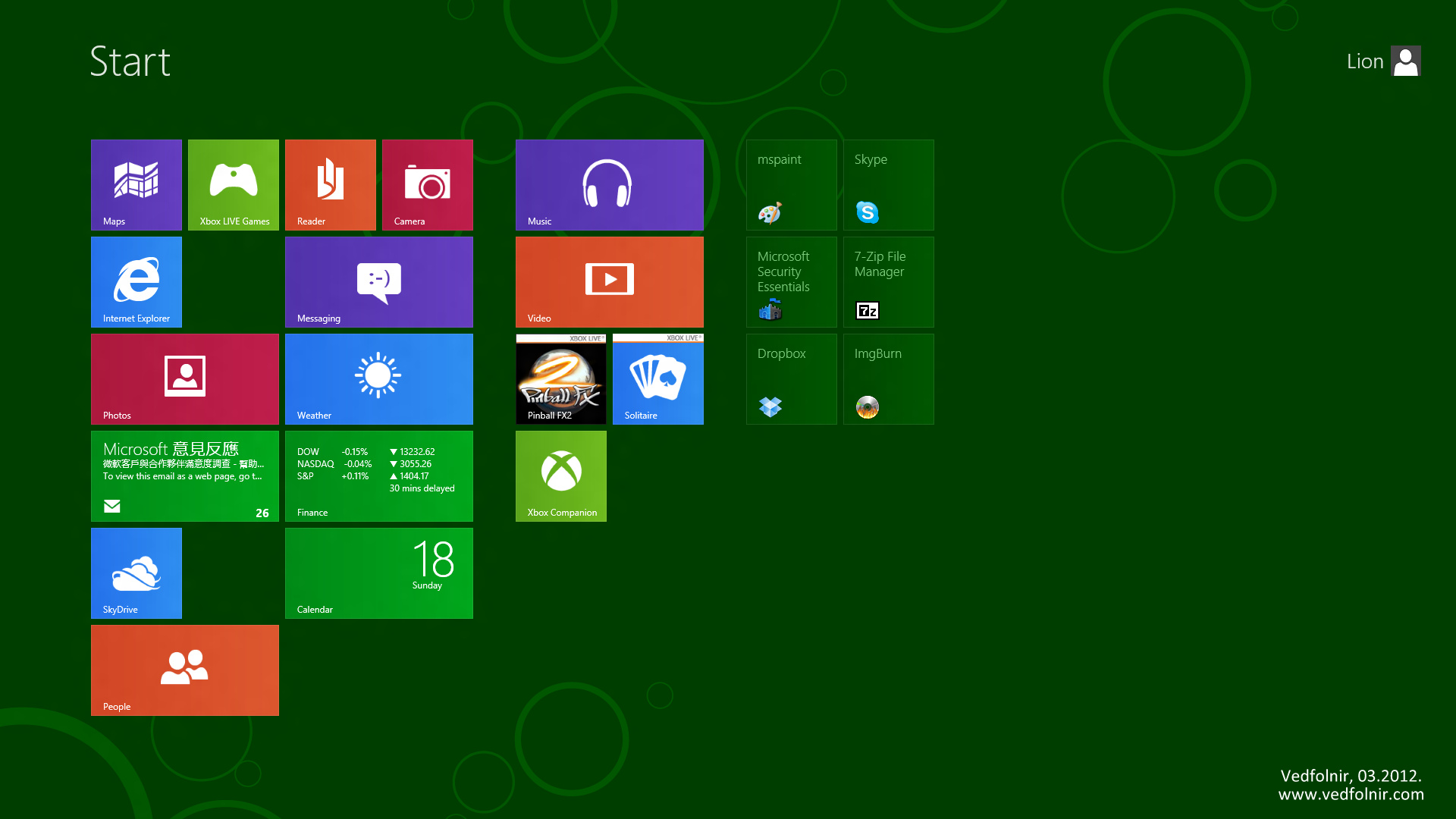
Metro UI
For the desktop environment, the design remains very close to Windows 7, allowing experienced users to adapt quickly. Microsoft has also included high-definition wallpaper galleries that make the display look sharp and lively.
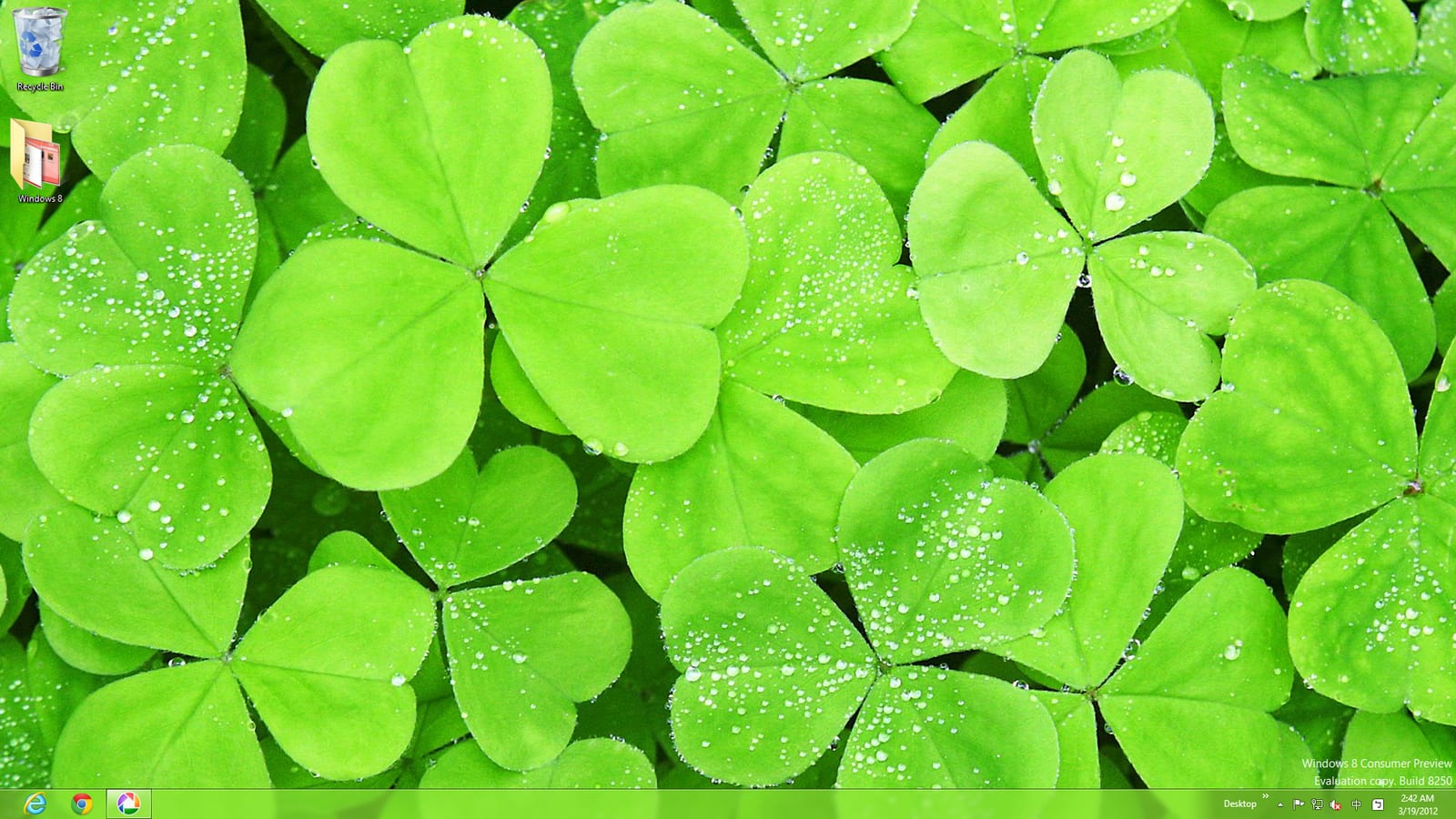
Windows 8 Desktop
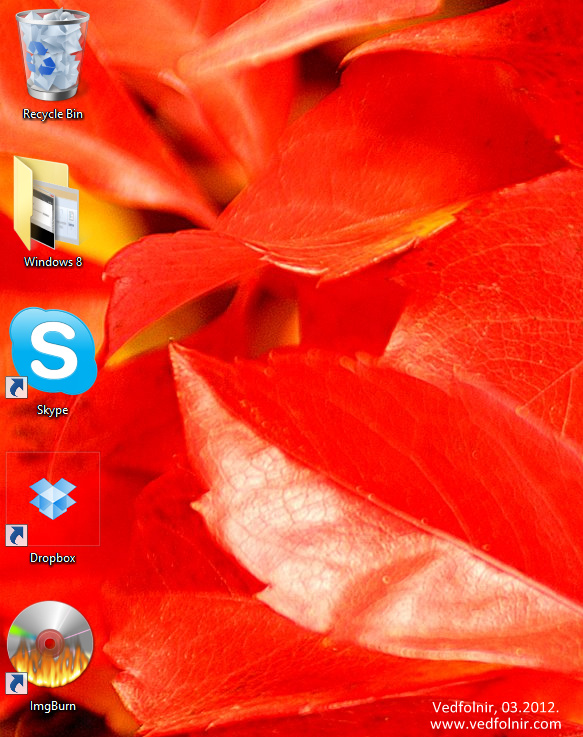
Sleek desktop icon design

New Taskbar design
As mentioned earlier, Microsoft redesigned the Start functionality, while the classic Explorer menu linking to “Computer” and system folders has once again been restructured into a distinct role. (If you recall, between Windows 98 and XP, two different Start menu styles coexisted, and many users never warmed up to XP’s split menu, sticking with the classic tree view instead.)
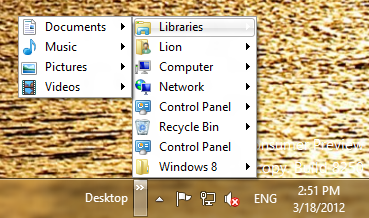
Computer icon split from the Start button integrated into the Toolbar
Furthermore, the Ribbon interface introduced in Office 2007/2010 has now been integrated directly into File Explorer. Microsoft organized all file management operations into categorized tabs at the top of folder windows, allowing users to locate features easily. Best of all, my favorite Office feature—customizable Quick Access Toolbars—has also been carried over.

Folder Ribbon menu
Historically, file transfers only displayed a basic dialog box predicting remaining transfer time—and everyone has witnessed an estimate of 10 minutes suddenly spiking to 30 minutes or more. In Windows 8, Microsoft overhauled the transfer dialog with rich metrics, including live transfer speeds and intuitive graphical charts, giving you total visibility over file operations.
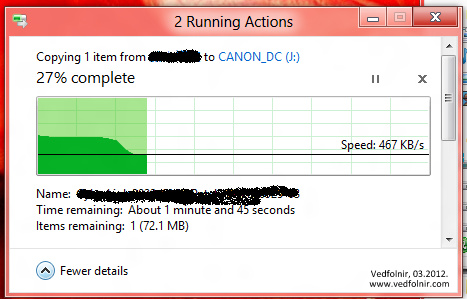
Detailed file transfer dialog in Windows 8
Start Screen - Windows Metro UI
Microsoft touted significantly faster boot times for Windows 8, largely due to the streamlined Start screen. Indeed, the journey from cold power-on to the Start screen is remarkably swift. However, transitioning from the Start screen into the desktop still incurs a noticeable delay—suggesting Microsoft engineered a clever visual illusion of speed. Tile icons on the Start screen can be freely repositioned according to your preferences, which feels very convenient.
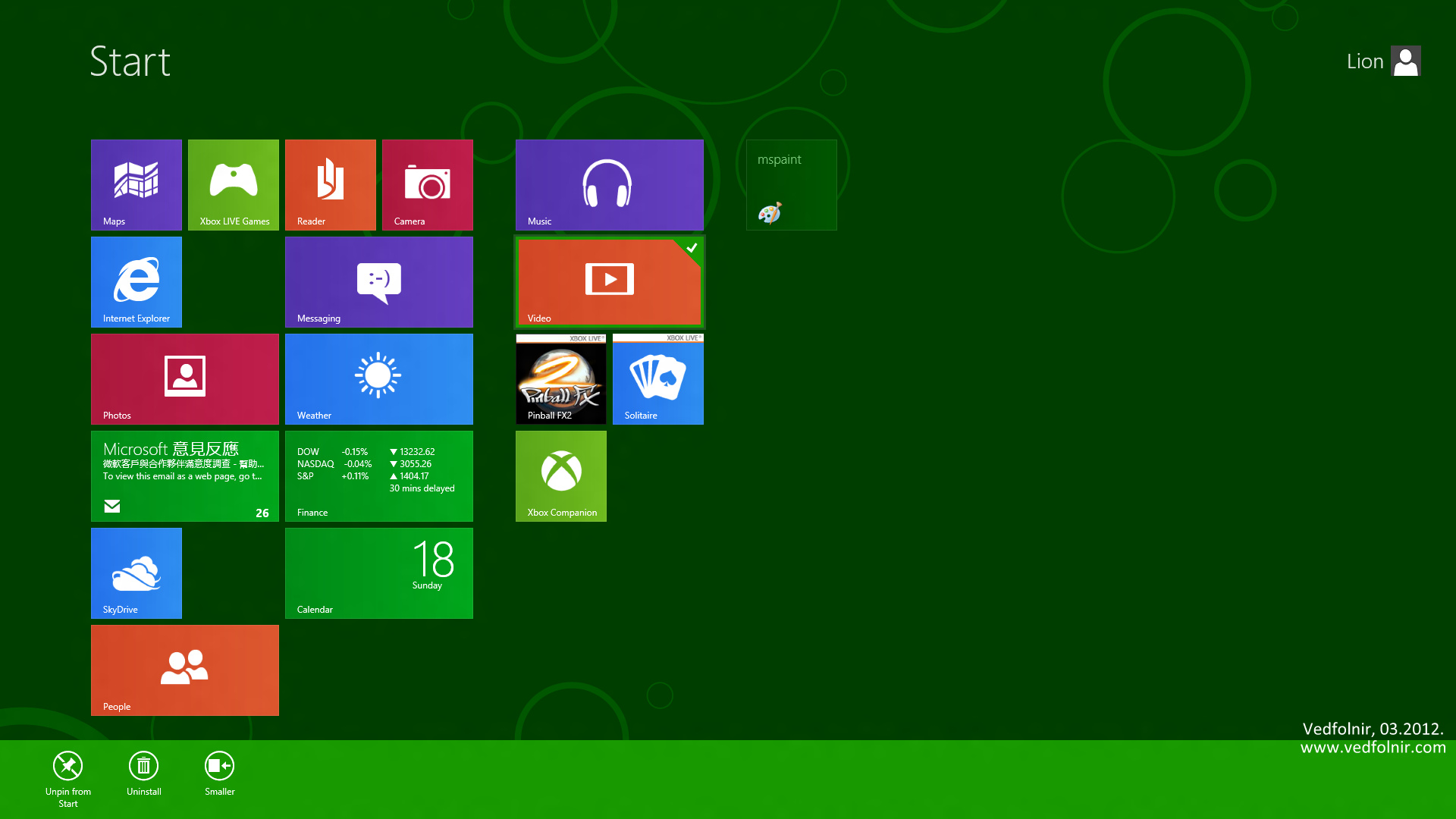
Right-clicking on an app tile summons the settings toolbar at the bottom.
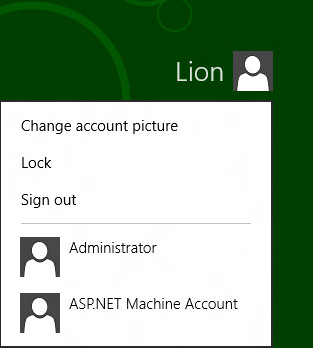
User profile menu
Once in desktop mode, moving your mouse cursor to the upper-right corner summons the Charms bar (pro tip: sliding downwards along the screen edge makes it stick reliably). It includes “Search”, “Share”, “Start”, “Devices”, and “Settings”. The “Settings” charm is also where you find the Power/Shutdown options (alternatively, the trusty Alt + F4 shortcut still works).
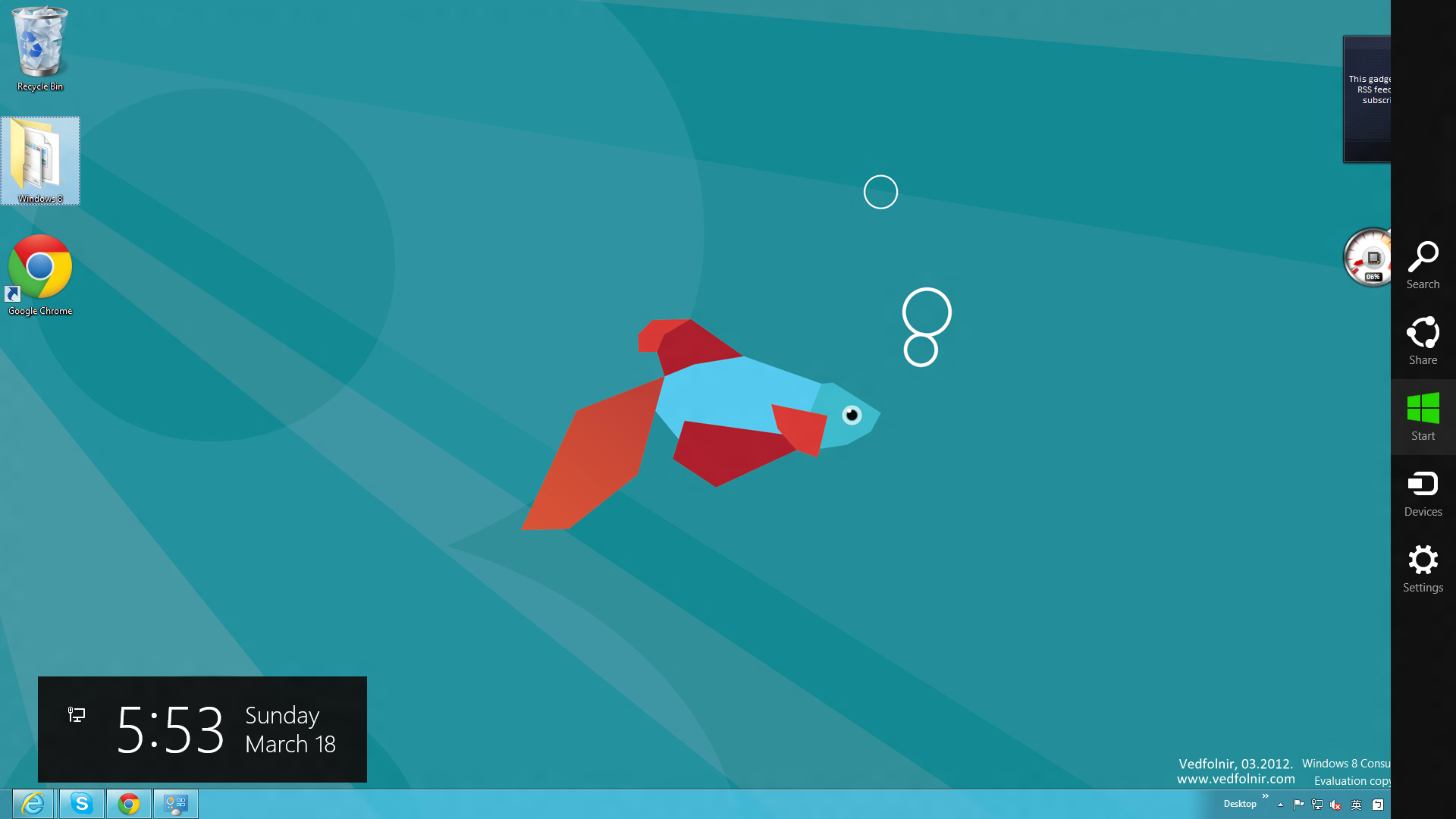
The somewhat quirky right-side Charms toolbar
Currently, I know of three ways to invoke the Start screen: clicking “Start” on the Charms bar, pressing the Windows key on your keyboard, or moving your cursor to the bottom-left corner and clicking the thumbnail preview. To return to the desktop, you can launch a desktop application or simply press the Esc key.
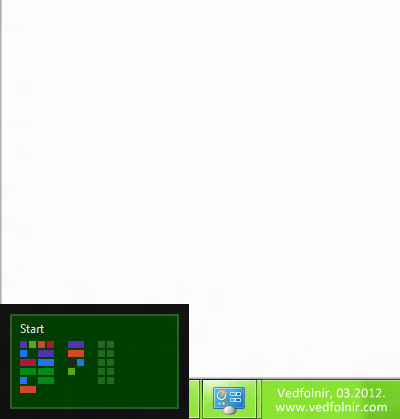
Summoning the left-side switcher
As shown below, while the left-side switcher isn’t visually odd, its behavior takes adjustment: it displays live app thumbnails of currently running Metro apps.
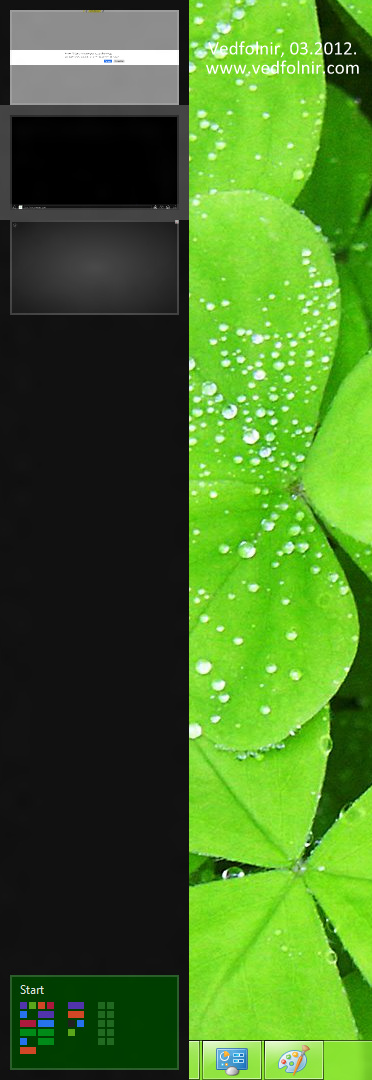
Left-side switcher
Looking at the screenshot below, the default Photos App offers four main sections, enabling users to browse images from linked web services. However, if you prefer not to connect your Facebook or Flickr accounts, three of those tiles become useless empty space. The app itself feels cumbersome with scarce utility—neither fancy nor practical.
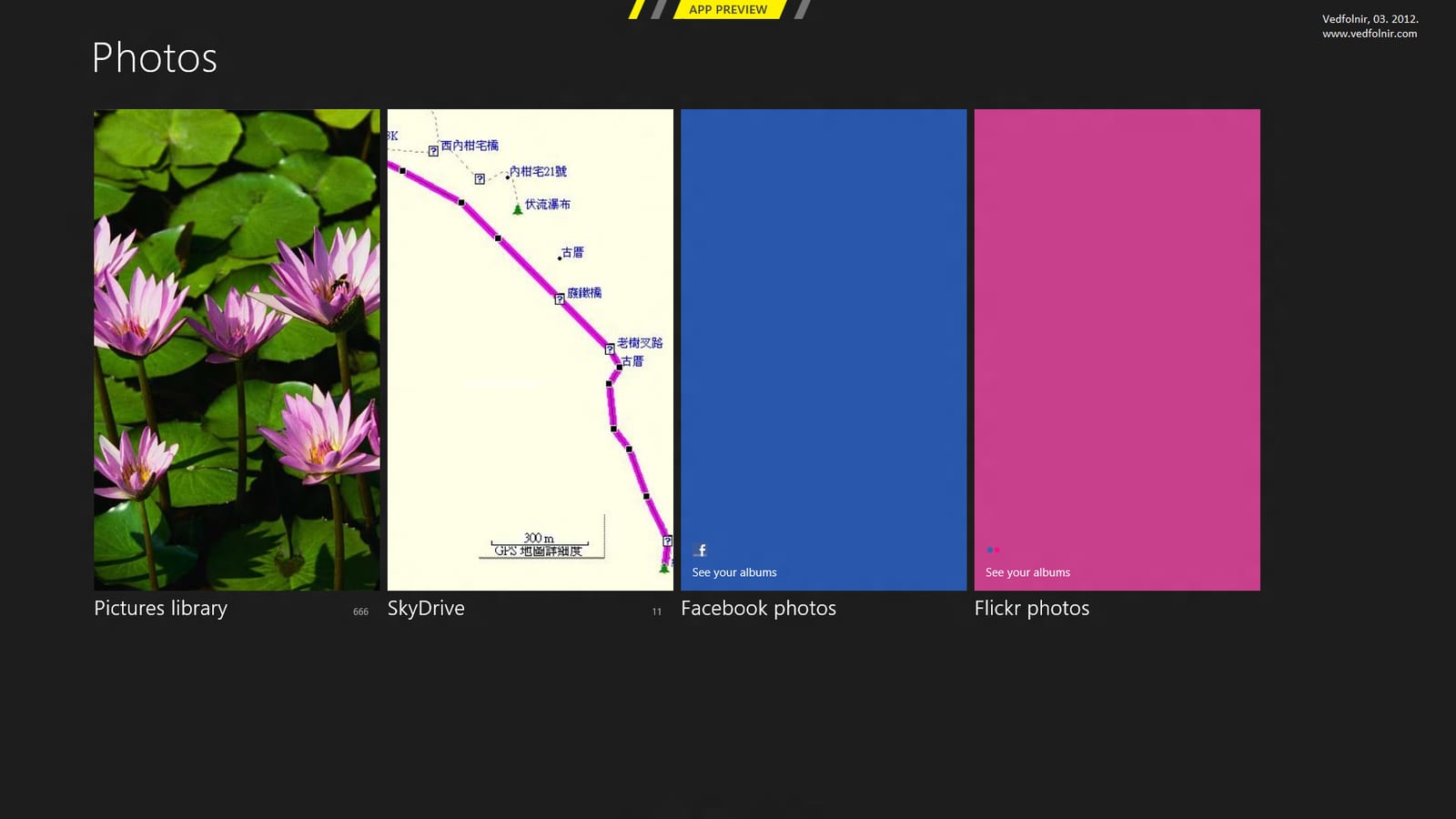
Default Photos App
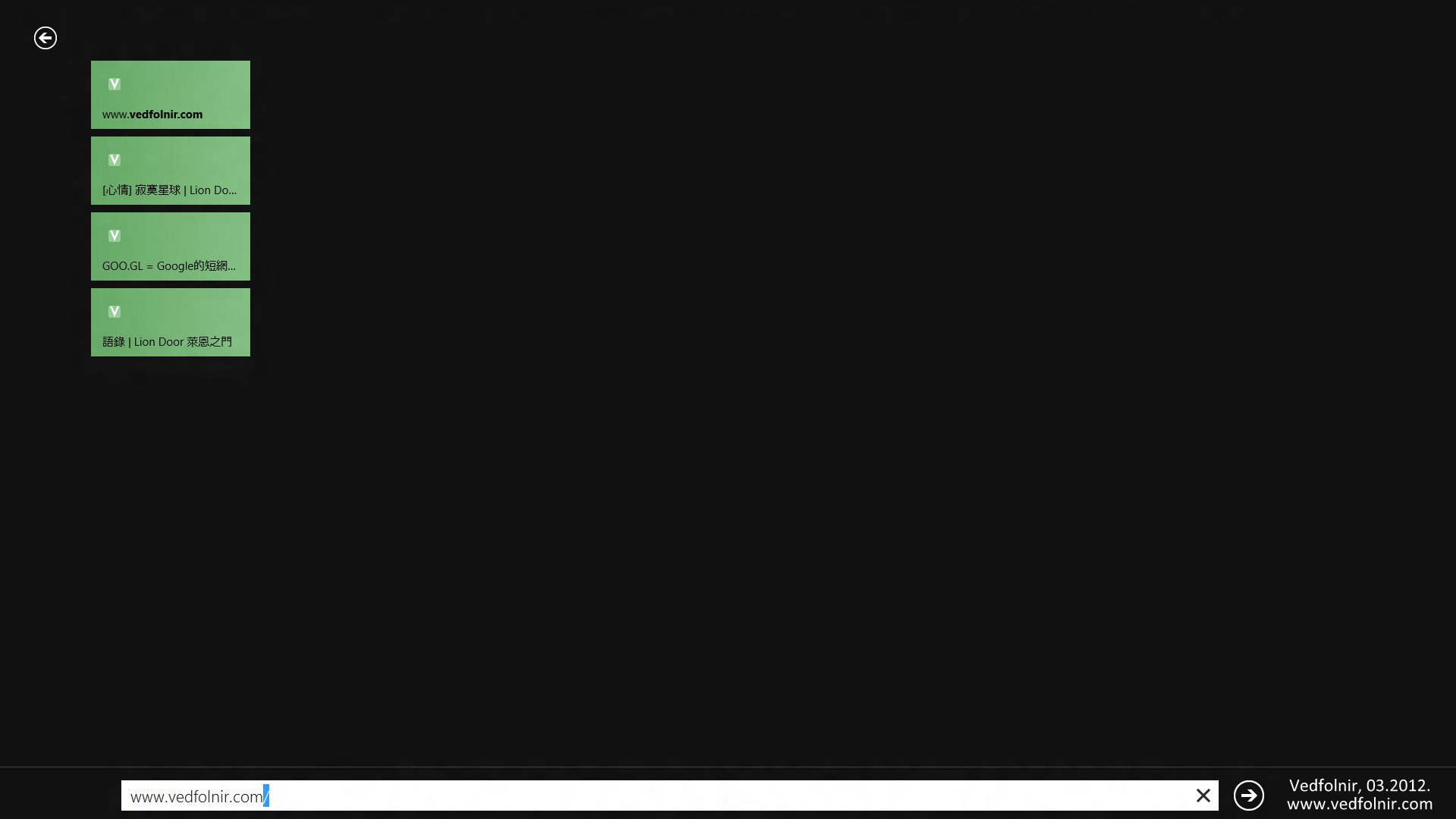
The Metro IE App on the Start screen generates visual tiles of previously visited websites.
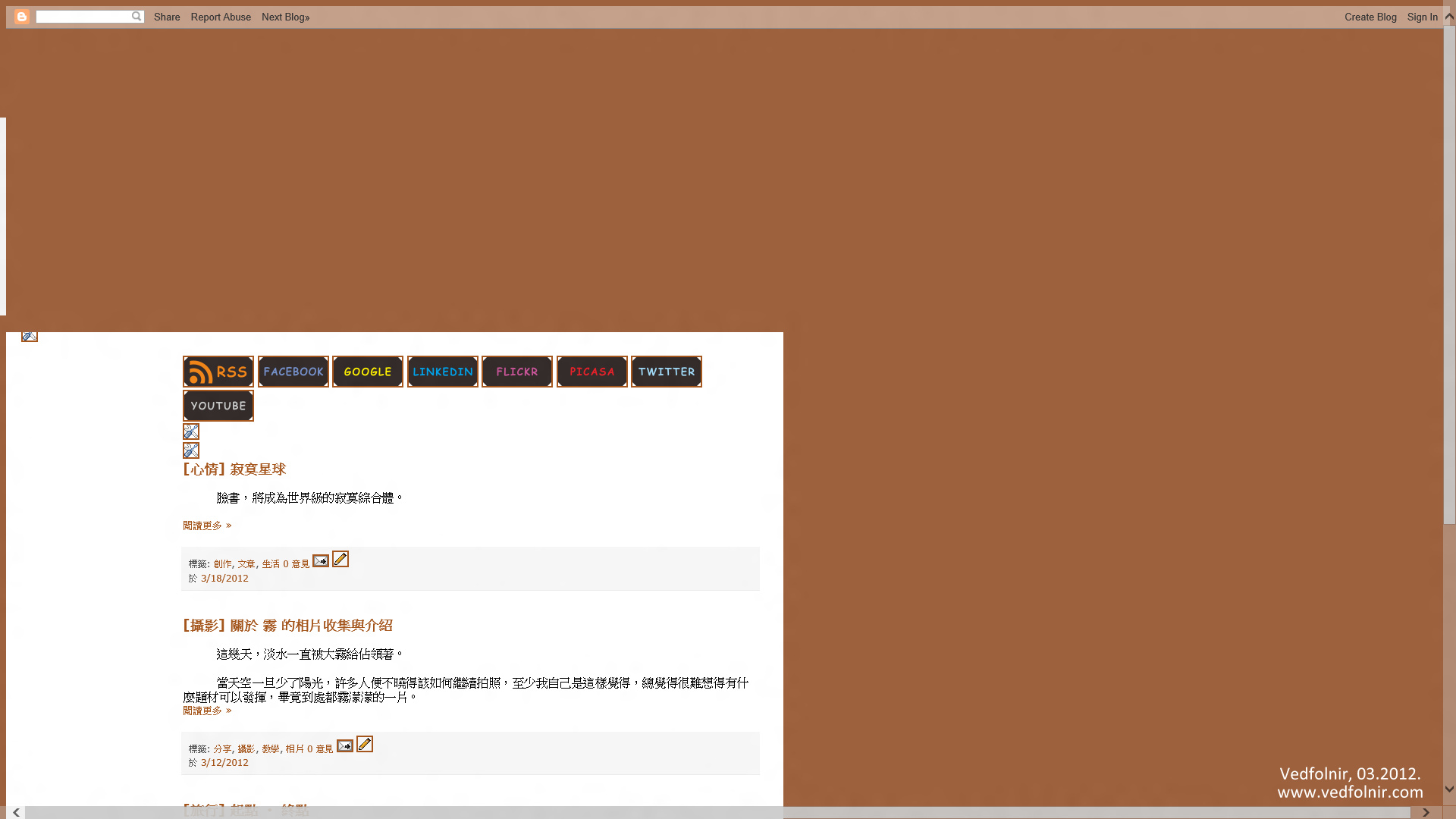
Metro IE App displaying broken webpage layout and rendering issues.
The default Weather App currently has no option for Republic of China regions, making it practically useless.
One additional detail worth noting: Windows 7 users will recall the resource-draining desktop gadgets (which I always felt were more gimmick than substance). Windows 8 surprisingly retains gadget functionality. Paradoxically, if Windows 8 is heavily pushing modern Metro Apps, why continue bundling desktop Gadgets? It remains an enigma typical of giant tech corporations.
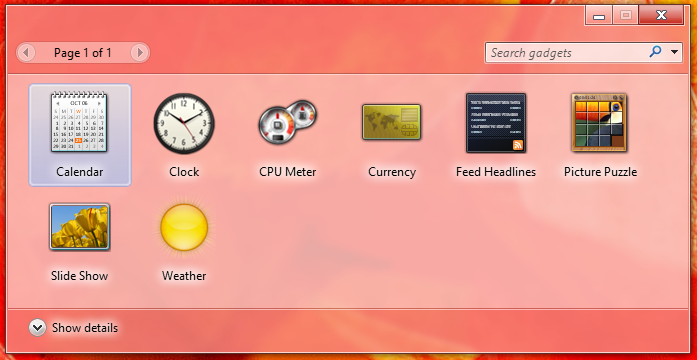
Desktop Gadgets identical to Windows 7
Everyday Workflow & File Setup
In my routine workflow, I prefer treating my entire hard disk as a personal workspace. Consequently, remapping the default location of “My Documents” is always the first task after a clean install.
The procedure is largely unchanged from previous versions, with one subtle distinction: in the past, changing the location of “My Documents” also shifted “My Music” and “My Pictures” concurrently. Windows 8 decouples these paths, allowing you to independently redirect specific media libraries or even create custom document libraries, making organization much more flexible.
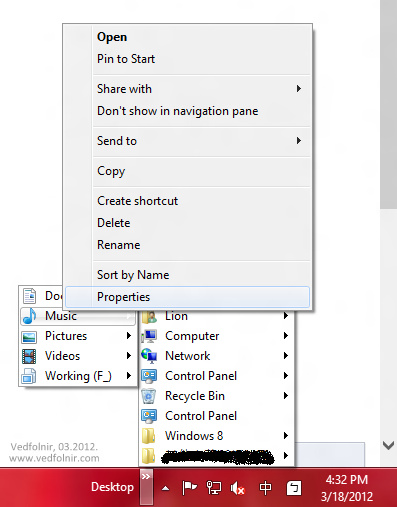
Redirecting folder locations for My Documents
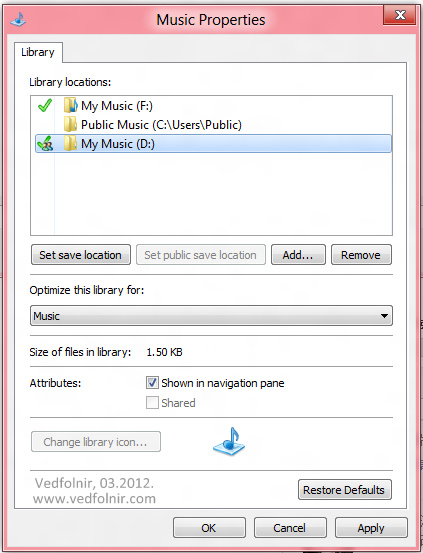
Music folder properties window
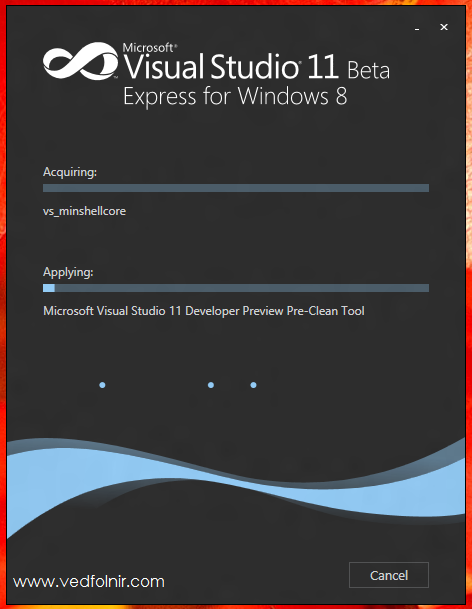
Windows 8 Development Tool - Visual Studio 11 Beta
Pinning Apps
In this release, Microsoft leans heavily into the “Pin” concept. Windows 8 offers two pinning methods: "**Pin to Start**" and "**Pin this program to taskbar**"—meaning you can pin any program or folder to either the Start screen or the classic desktop taskbar.
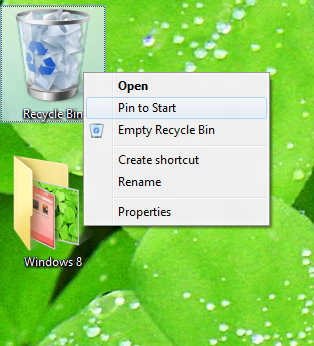
Pinning a folder or program to the Start screen
On the Start screen, between manually pinned software and automatically created installer shortcuts, it becomes apparent that Microsoft has completely migrated the legacy “All Programs” hierarchy into full-screen tiles. This harmonizes traditional executables with emerging modern apps while delivering a more touch-friendly experience.
The main frustration is discovering where standard built-in utilities are tucked away. For instance, to use Paint, I had to dig into Windows\System32 just to pin mspaint.exe to the Start screen; having to hunt it down manually every single time would drive anyone crazy. Surely this won’t be Microsoft’s intended end-user experience. Since this is an early preview build, we can reasonably expect improvements in the final release.
Software Compatibility
For years, I have relied faithfully on Windows XP. Although I tested Windows 7 Enterprise during graduate school, having to re-authenticate against campus KMS servers every six months was a nuisance.
More importantly, many scientific computing tools I relied on for research exhibited poor compatibility with Windows 7. Even though I briefly experimented with Ubuntu, XP remained the primary workhorse on my PC. Crucially, my XP license was fully legitimate, saving me the trouble and security risks of hunting down untrusted activation cracks that often pack malware.
Because my test upgrade to W8CP was performed directly on top of an existing XP installation, many daily utilities faced an immediate compatibility litmus test.
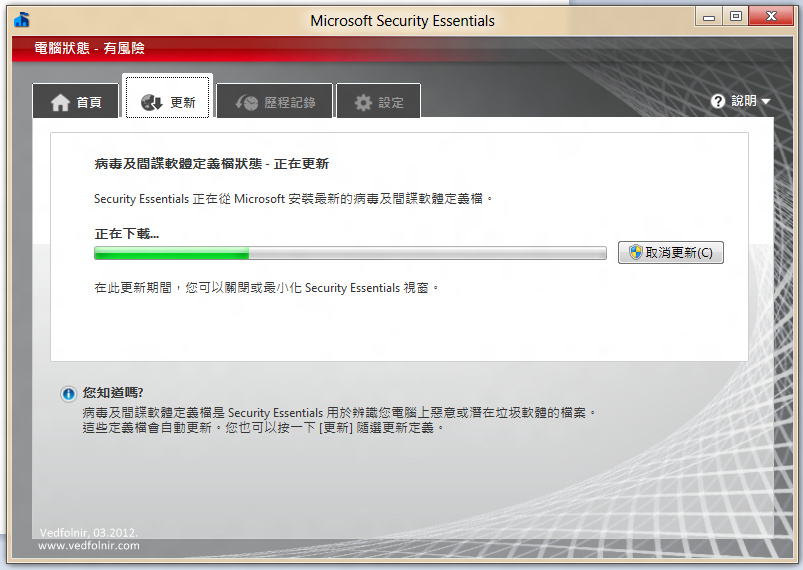
The Windows 7 version of Microsoft Security Essentials runs smoothly on Windows 8.
Generally speaking, lightweight utility software experienced very few issues. 7-Zip ran flawlessly without needing a re-download, and my preferred Chewing phonetic input method worked without a hitch. Other tools that ran smoothly included Vim, Skype, MSN Messenger, Dropbox, Google Picasa, Office 2007 (though OneNote could not stay resident), and the Lightroom 4 Beta.
Conversely, Chunghwa Telecom’s 3.5G USB broadband modem—which automatically installed drivers upon insertion in XP—failed to autorun on Windows 8. I had to manually browse into the modem’s onboard storage and run Setup.exe myself. Once installed, it functioned normally under W8CP, allowing me to stay online and publish this article.
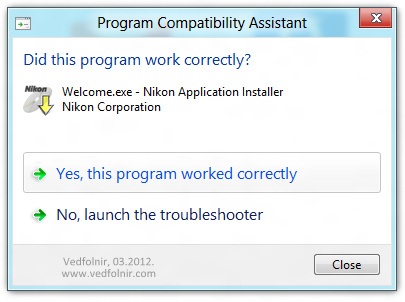
Forcing the installation of Nikon’s free image utility ViewNX 2.
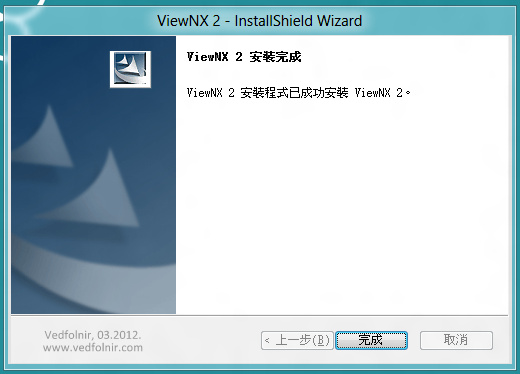
Nikon ViewNX 2 installed and running successfully.
When launching Internet Explorer 10 (IE 10) built into Windows 8, my very first thought was: “This is Chrome!”
The minimalist chrome layout almost entirely mirrors Google Chrome (which, funny enough, resembles the custom IE 6 toolbar layout I used a decade ago). It proves Chrome understood user demands early on, whereas Microsoft took a decade to arrive here—such is the inertia of software giants.

IE 10 browser interface
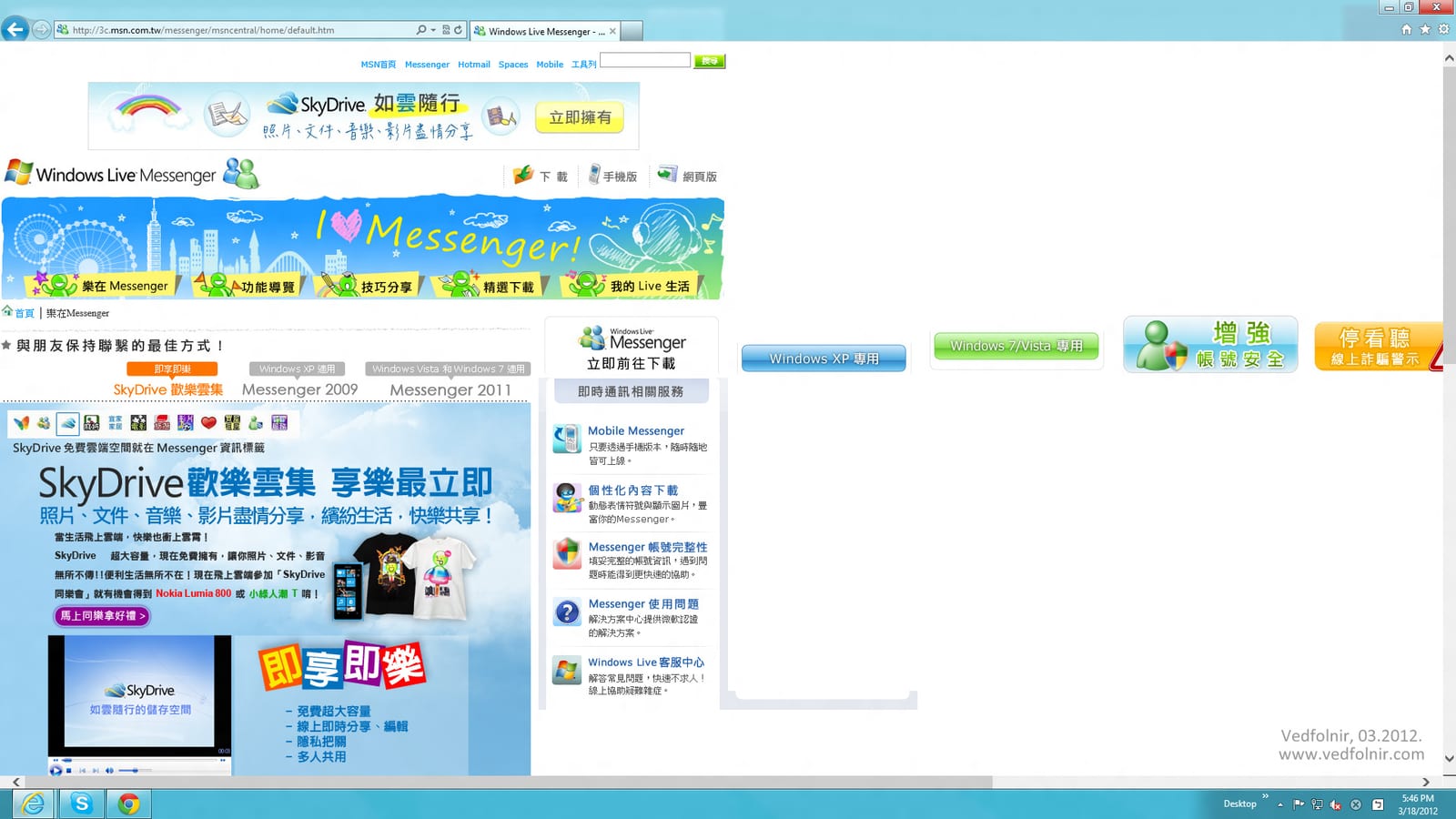
Rendering errors on Microsoft’s own portal inside IE 10.
Known Issues & Troubles
Of course, no major OS upgrade is entirely bump-free. During installation, one significant glitch cropped up: system audio completely failed to work… yes, silence (mild panic). Fortunately, I found a workaround; see Reference [5] at the end of this article.
Additionally, because Windows 8 centers around the Start experience, even after installing Google Picasa, the default modern image viewer insisted on taking file association precedence. Google might want to keep this redesign hurdle in mind, as Microsoft’s default Metro image viewer is rather clunky and confined by its full-screen tile paradigm.
Thankfully, you can force the override by right-clicking an image file → “Open With” → “Choose Default Program…” → check “Use this app for all .jpg files” → select Google Picasa.
Conclusion
While Microsoft attempted to bundle numerous personalized cloud services into Windows 8 (reminiscent of Ubuntu One or Chrome OS ecosystems) to loosen our reliance on Google, is IE 10 compelling enough to justify the shift? I remain skeptical. If the audio driver issue persists without an easy fix, I might find myself retreating back to Windows XP.
Nonetheless, Windows 8 preserves an approachable workflow: within two to three hours, most users can find their footing and get down to productive work, carrying on Microsoft’s legacy of mainstream accessibility.
Follow-up Notes:
- March 21, 2012: Day two of using Windows 8. I have mostly adapted to the operating system’s new rhythm and logic. What will I do if I can’t use it down the road? (Laughs—purely self-inflicted tech tinkering).
- Still no default audio out of the box.
- Noticed a minor change: input method defaults to English mode; pressing Ctrl + Space or Shift doesn’t switch between Chinese and English directly. You must toggle via the taskbar icon with the mouse or use Alt + Shift, while Ctrl + Shift rotates between installed Chinese IMEs.
- Here is a look at the revamped Windows 8 Task Manager (accessible via Ctrl + Alt + Del), which packs a wealth of useful diagnostics:
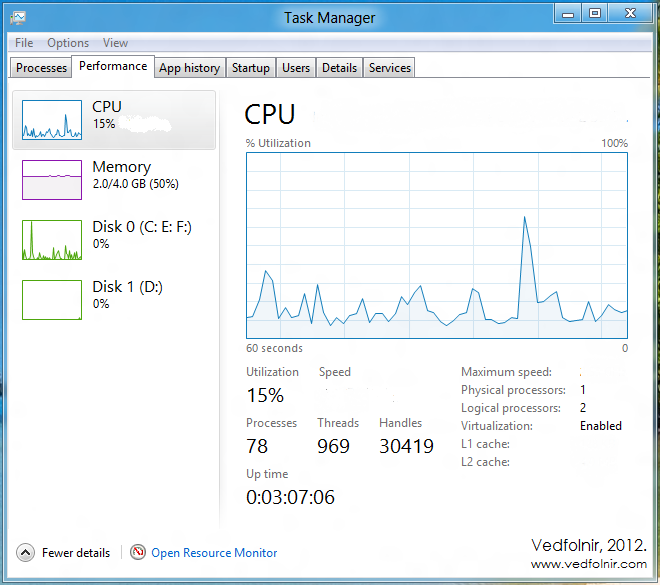
Task Manager
Further Reading
- Microsoft Official Download Link.
- Windows 8 Developer Tools - Visual Studio 11 Beta: Developer Download Page.
- Windows 8 RP Review and Impressions
- What!? Windows 8 is Here! Hands-On Test
- Troubleshooting: Fix Windows 8 System Audio Playback Failure (Error 1297)
- Windows 8 Release Preview Official Release
- A Discussion on Microsoft Windows 8 Metro UI
Support Independent Perspectives & In-Depth Insights
Every thoughtful analysis and candid critique comes from our dedication to truth and quality. We choose not to follow sensational algorithms or clickbait headlines.
Sustaining independent research requires reader support. Make a one-time or monthly contribution, securely processed by Google.
Payments secured by Google · Manage or cancel anytime in your Google Account

Comments