
As mentioned in our earlier article, “Microsoft Windows 10 Is Ready: Free Upgrade Arriving Late July”, Microsoft’s unified operating system—Windows 10—began rolling out worldwide as a free upgrade on July 29. Yet, even though it’s already July 31, many of you might be wondering why your PC remains completely quiet with no signs of an automatic update.
This staged rollout mirrors what happened during the early launches of Windows 7 and 8. With prospective downloads counted in the hundreds of millions worldwide, Microsoft’s servers, content delivery networks (CDNs), and global mirror sites simply cannot bear the crushing weight of simultaneous global demand.
To mitigate this bottleneck, Microsoft introduced an advance reservation procedure, covered in our guide “Windows 7.x / 8.x: Reserve Your Free Windows 10 Upgrade Now”. Reserving an upgrade essentially entrusts scheduling to Microsoft, allowing them to stagger updates region by region and ease global traffic strain across different time zones.
However, if you’re eager to get your hands on Windows 10 right away, you don’t actually need to wait in line. You can manually download the upgrade files yourself.
Simply head directly to the official Microsoft Windows 10 Download Page to grab the 32-bit or 64-bit version of the Media Creation Tool (MediaCreationToolx32/64). This utility provides three core features: download file formats optimized for high speed, built-in USB/DVD media creation tools, and the option to export directly to an ISO image file.
Figure 1 illustrates the initial screen that appears upon launching the tool, showing two paths: “Upgrade this PC now” and “Create installation media for another PC.” The former initiates an immediate upgrade on your current machine, while the latter creates an install DVD or USB drive—ideal if you manage multiple machines and want to avoid re-downloading multi-gigabyte installer files on every single device.
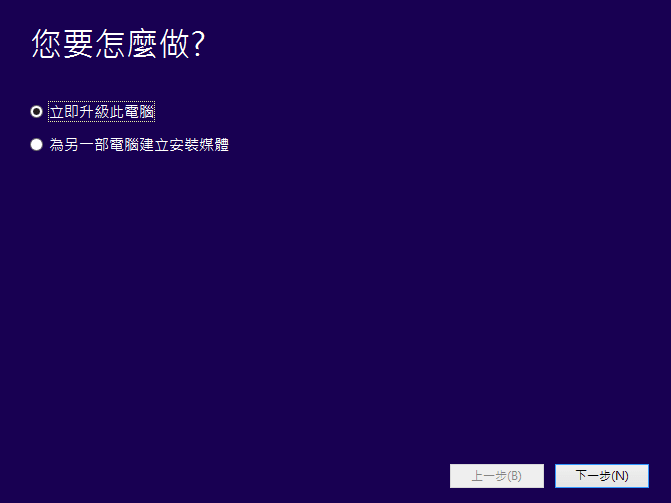
If you select “Upgrade this PC now,” the utility will download Windows 10 and proceed directly into the OS setup (in-place upgrades from genuine qualifying systems can typically skip entering a product key).
Below, let’s walk through the steps when selecting “Create installation media for another PC.”
Creating Windows 10 Installation Media for Another PC
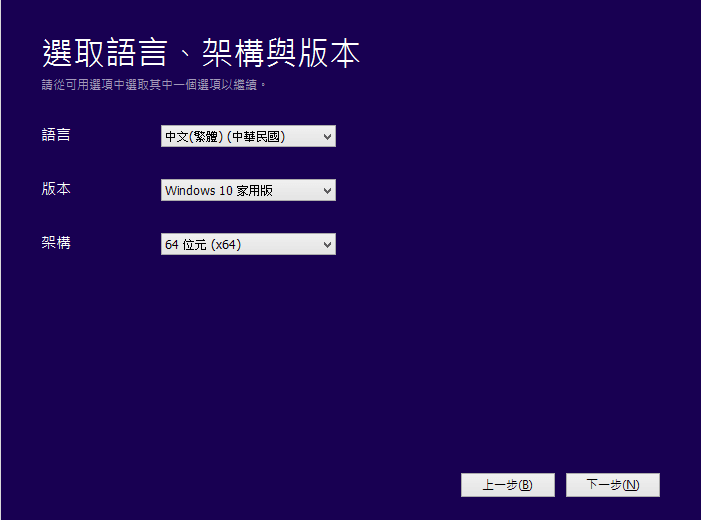
As seen in Figure 2 below, selecting “Create installation media for another PC” presents three primary selections: “Language,” “Edition,” and “Architecture.” Choose the parameters that match your needs. Note regarding architecture: if your computer hardware meets modern specifications, opting for the 64-bit version is strongly recommended.
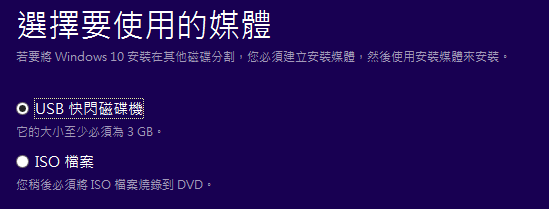
Once selected, proceed to Figure 3. The installer prompts you to pick your storage medium: either a “USB flash drive” (requiring at least 3GB of space) or an “ISO file” (used for burning to a physical DVD or mounting inside a virtual machine environment).
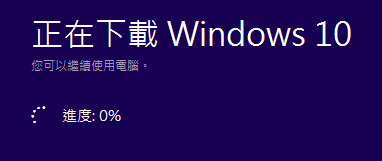
Next, as shown in Figure 4, the tool selects the nearest high-performance mirror server and begins downloading Windows 10. Speeds are surprisingly brisk—between capturing Figure 3 and writing this sentence, the progress bar had already crossed 25%. For anyone tired of waiting for Microsoft’s staged queue, manual installation is well worth doing.
Windows 10 Minimum System Requirements
- Processor: 1 GHz or faster processor or SoC
- RAM: 1 GB (for 32-bit) or 2 GB (for 64-bit)
- Hard Disk Space: 16 GB (32-bit OS) or 20 GB (64-bit OS)
- Graphics Card: DirectX 9 or later with WDDM 1.0 driver
- Display: 800 x 600 resolution
Purchasing Windows 10
What if you aren’t running Windows 7 or Windows 8 and therefore don’t qualify for the free upgrade?
If your workstation is still running Windows XP, we strongly recommend upgrading directly to Windows 10 for vital security protections. You can obtain genuine software licenses directly from the Microsoft Official Online Store. If you want to verify performance beforehand, try out the preview build described in our guide: “Sneak Peek: Microsoft Windows 10 Technical Preview (Screenshots)”.
Further Reading / Recommended Resources
- Windows 10 Official Download Portal
- Microsoft Official Online Store
Support Independent Perspectives & In-Depth Insights
Every thoughtful analysis and candid critique comes from our dedication to truth and quality. We choose not to follow sensational algorithms or clickbait headlines.
Sustaining independent research requires reader support. Make a one-time or monthly contribution, securely processed by Google.
Payments secured by Google · Manage or cancel anytime in your Google Account

Comments