
Windows 10, carrying a tidy round version number, is the upcoming major flagship operating system slated for release by Microsoft in 2015.
Following tradition, Microsoft is rolling out iterative Technical Previews ahead of the official launch. This preview allows software engineers and project managers to evaluate early builds while giving enthusiasts and everyday users a tantalising sneak peek at what lies ahead.
For official download links and details, please refer to the references section at the bottom of the article.
If you are eager to test-drive this preview build, Microsoft also offers the Insider Preview Program, welcoming volunteers to participate in operating system testing while helping Microsoft gather telemetry and real-world feedback.
Below is our hands-on walkthrough, tracking everything from installation to our initial impressions of Windows 10 Technical Preview (W10), packed with screenshots for your reference.
Windows 10 Technical Preview: Installation Walkthrough
Refer to Figures 1 through 13 for step-by-step illustrations, spanning the initial setup loader to the final desktop deployment.
Throughout installation, W10 retains the familiar flow established in Windows 7.x and 8.x, keeping things streamlined while delivering noticeably snappy install speeds. Note, however, that Windows 10 increasingly bakes Microsoft’s OneDrive cloud storage directly into the fabric of the OS, which might feel slightly redundant for devoted Google Drive or Dropbox users.
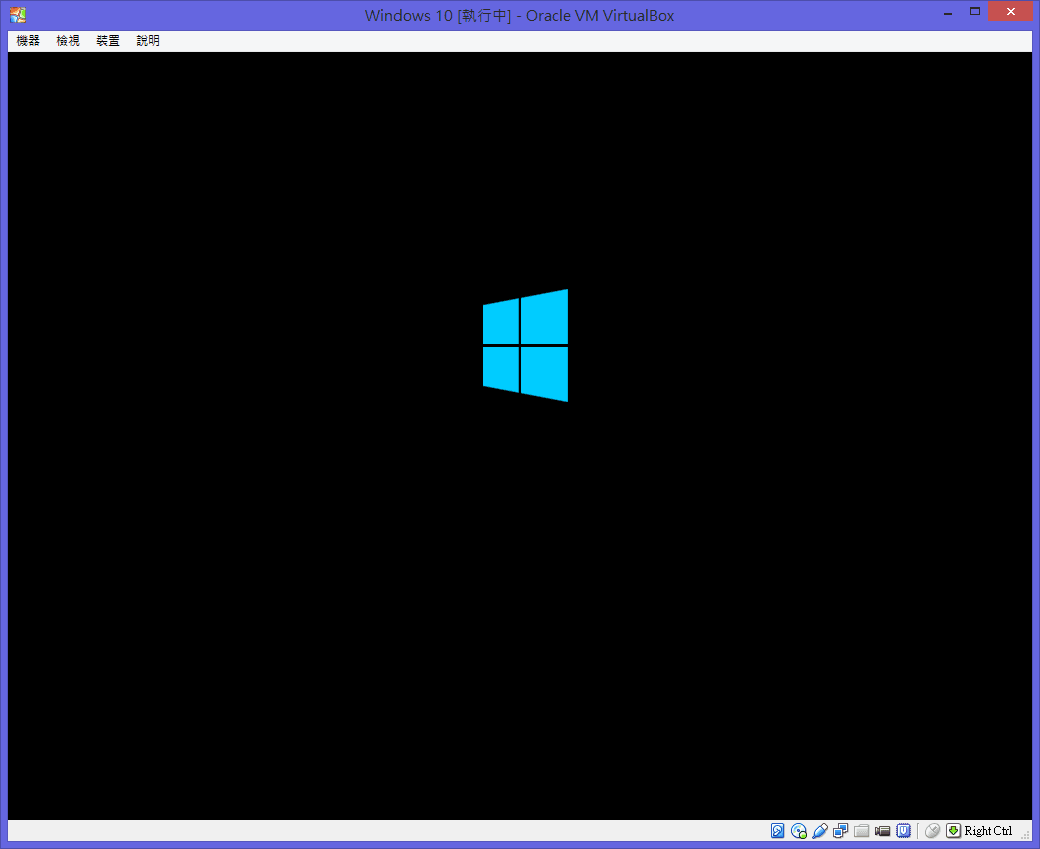
Figure 1: Windows 10 initial setup screen.
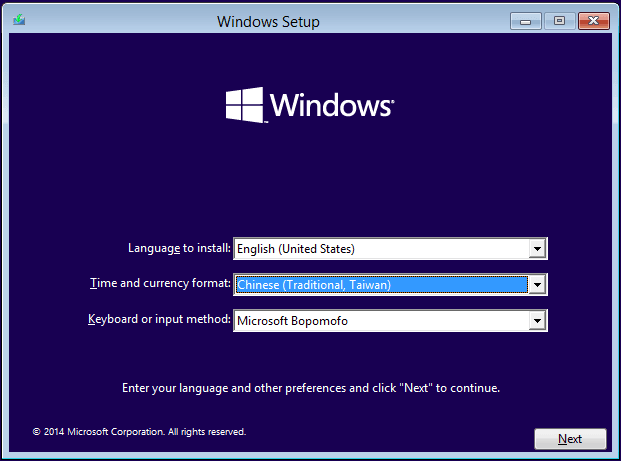
Figure 2: Windows 10 language and region selection screen.
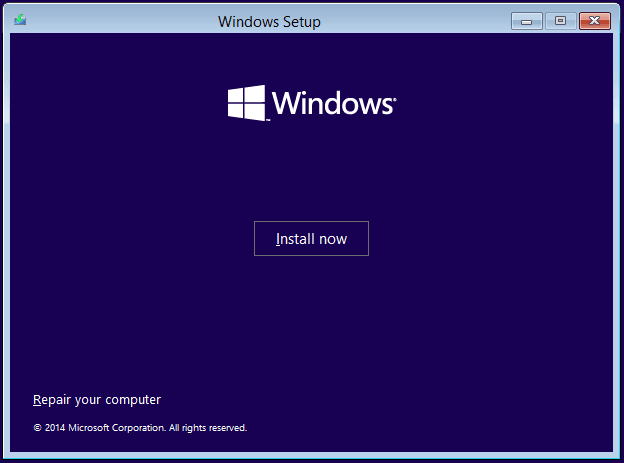
Figure 3: Windows 10 Install Now prompt.
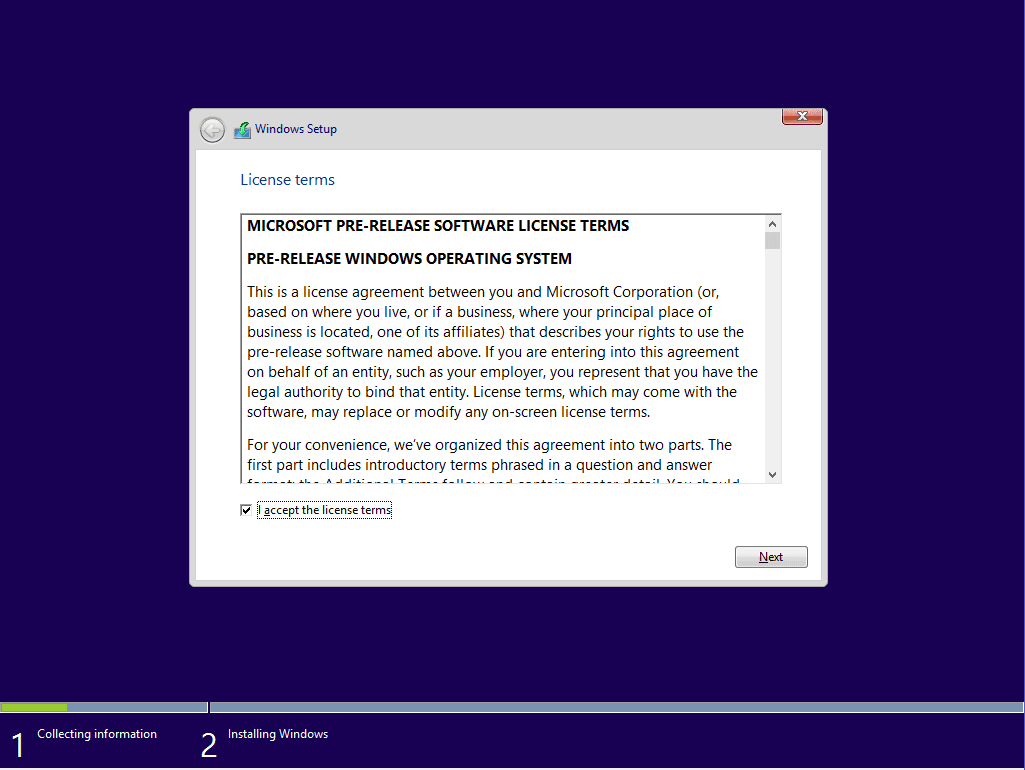
Figure 4: Windows 10 license terms and agreement.
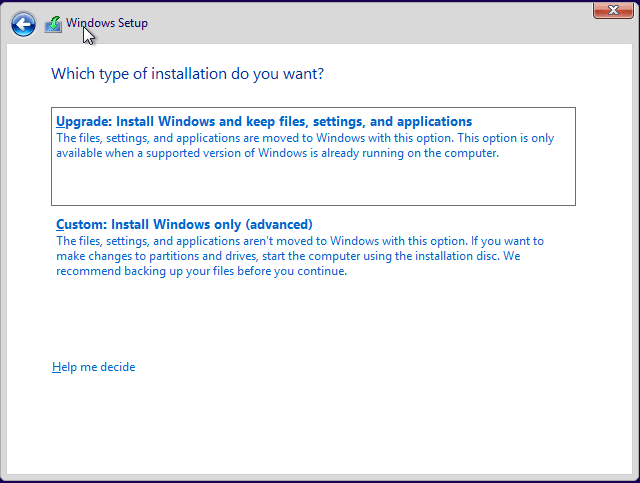
Figure 5: Installation type and partition selector.
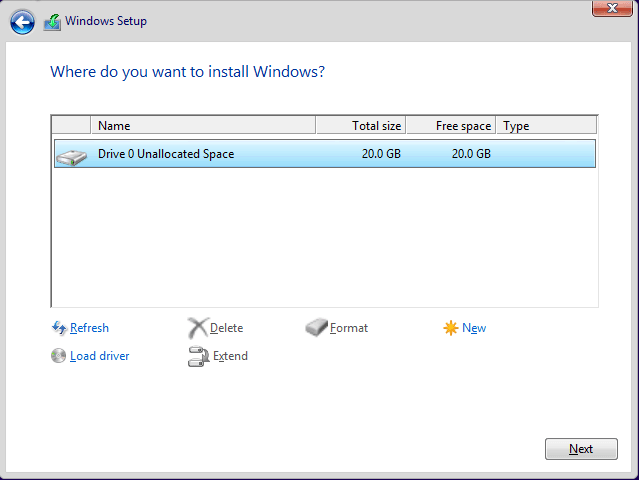
Figure 6: Drive partition management interface.
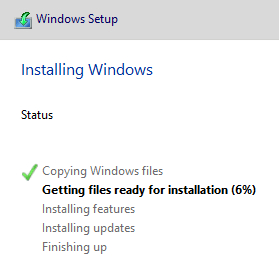
Figure 7: Windows 10 automated file copy and installation.
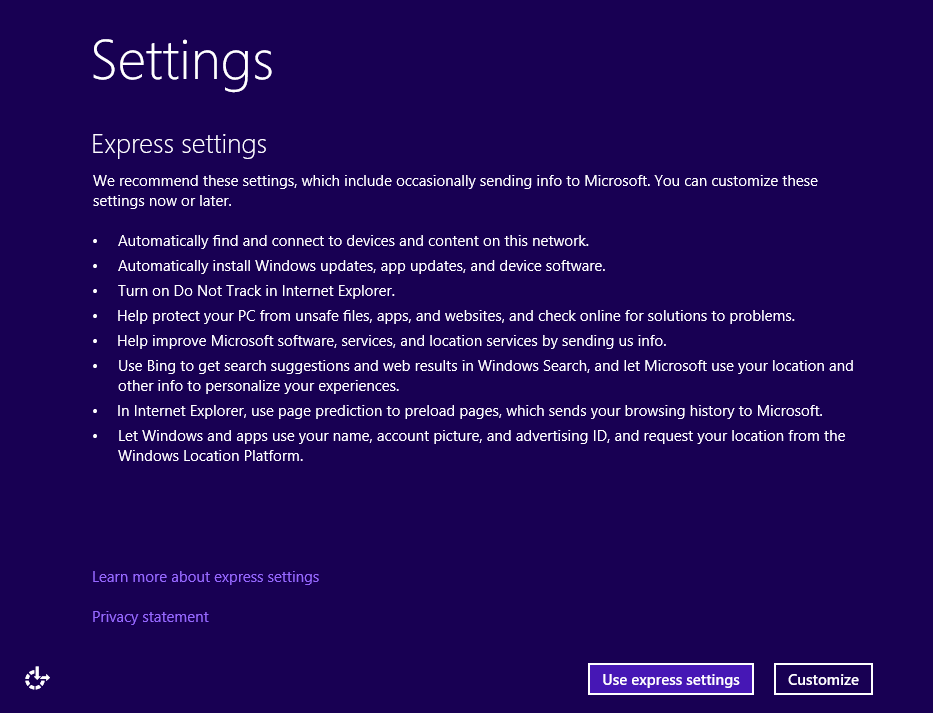
Figure 8: Out-of-box experience setup preferences screen.
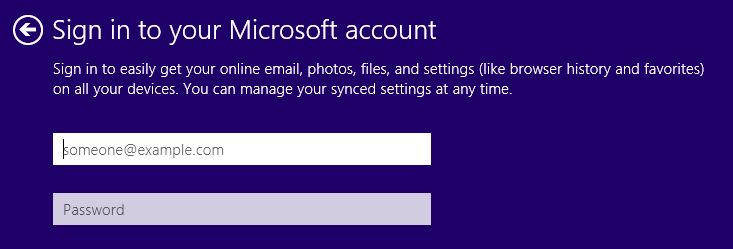
Figure 9: Microsoft account sign-in interface.
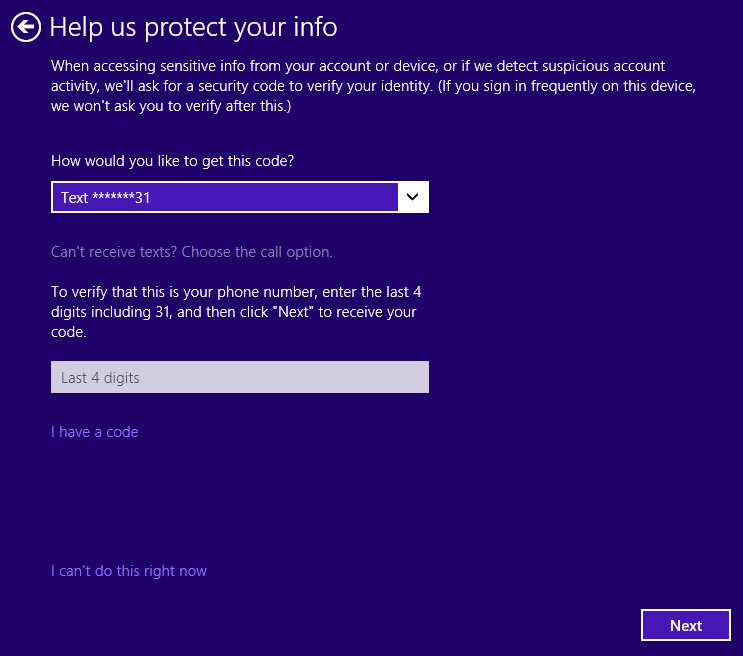
Figure 10: Account verification step.
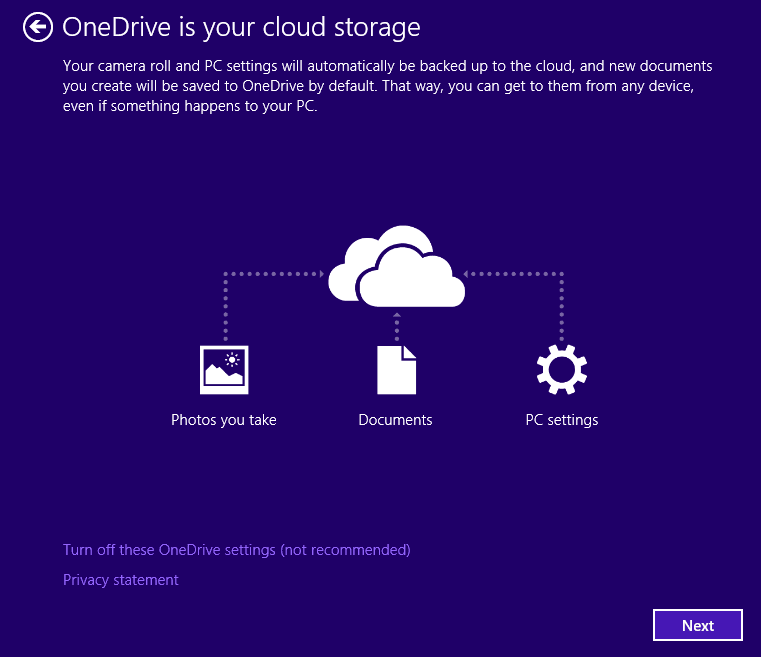
Figure 11: OneDrive cloud storage integration prompt.
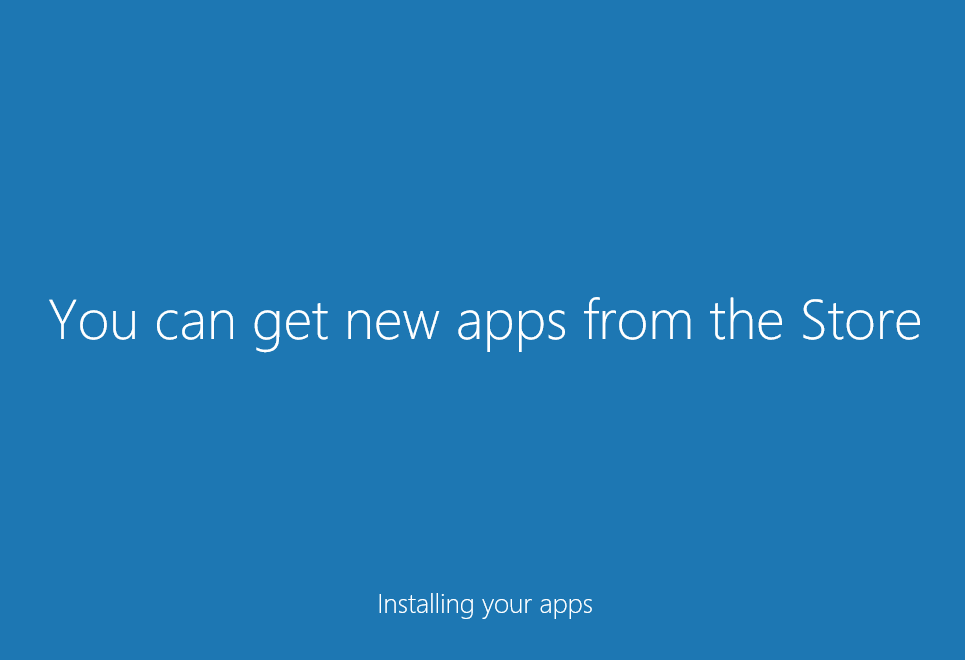
Figure 12: Finalizing system configuration.
Figure 13: Finalizing Windows 10 desktop environment.
Windows 10 Desktop Preview
Now let’s see how much novel ingenuity Microsoft has poured into the Windows 10 desktop—or perhaps, how familiar it all feels.
Figure 14 shows the early development desktop environment. Staying true to Microsoft’s signature design language, it offers an immediately familiar layout with few jarring surprises.
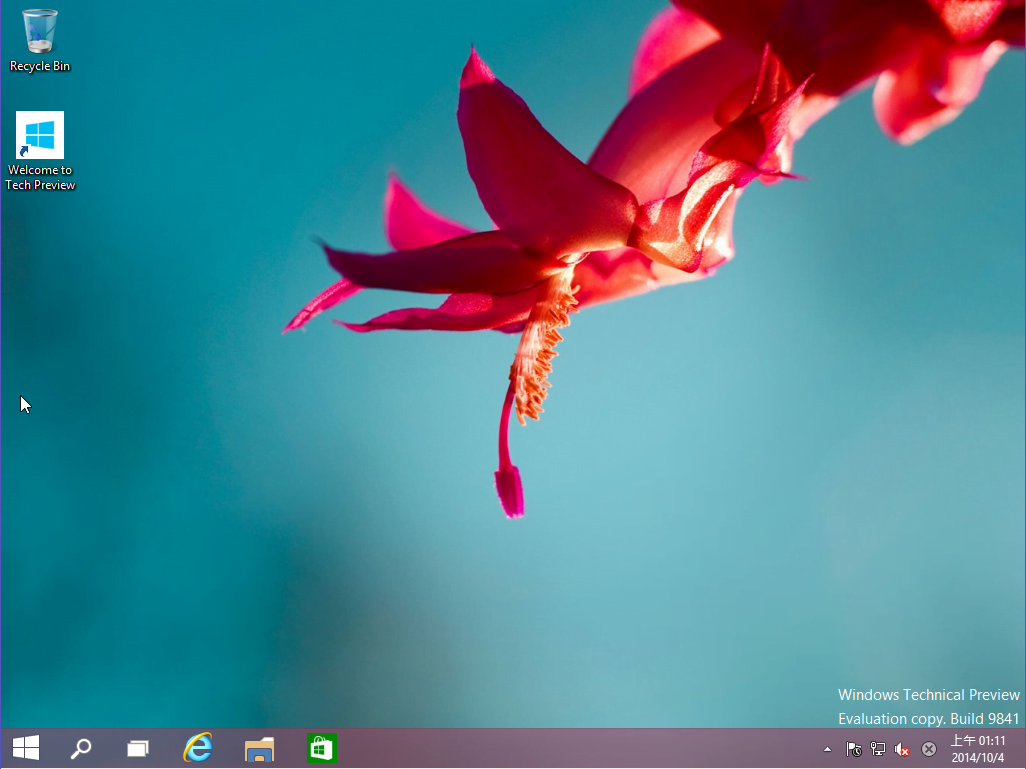 Figure 14: First boot into the desktop environment.
Figure 15 showcases the most consequential UI revision: the reimagined Start menu (or rather, a modernised return to the classic Start menu).
As seen in Figure 15, dynamic Live Tiles are seamlessly blended into the “Start” menu. If you remember Windows Vista and 7.x, it essentially feels like the classic menu layout with enlarged app tiles flanking your standard folder and program hierarchy.
Naturally, by the time the final build ships, Microsoft engineers will likely tailor adaptive UI behaviors for tablets and touchscreens, balancing hybrid device demands through responsive dual-mode designs.
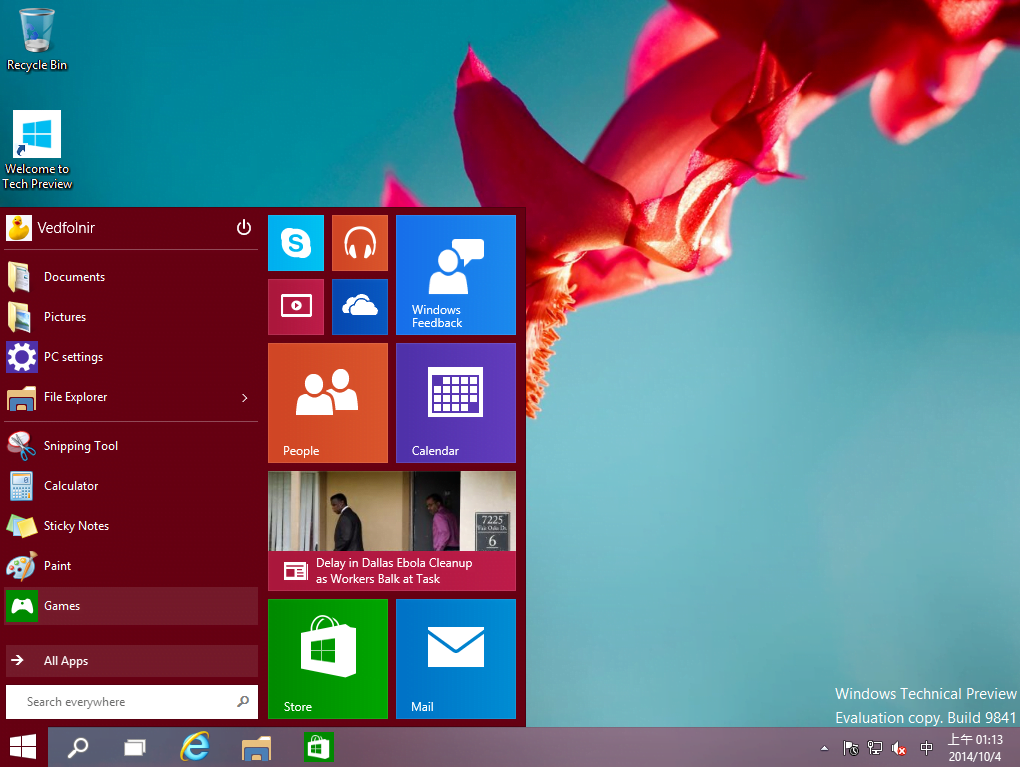 Figure 15: Windows 10 updated Start Menu and layout preview.
In Figure 16, notice that the massive charms bar and side search panel from Windows 8.x—which previously took over half the screen—has been scaled back into a discreet pop-up search dialog, integrating cleanly with the desktop space.
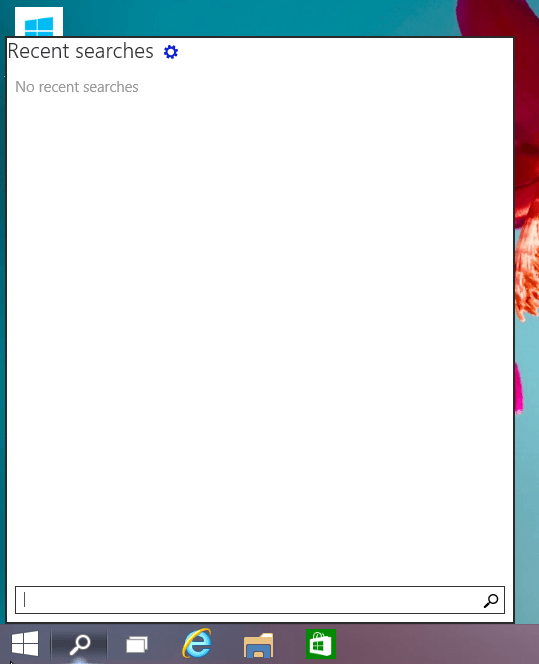 Figure 16: Improved desktop search experience.
Figure 17 displays the pre-login lock screen. If it looks suspiciously familiar, that’s because it is virtually identical to Windows 8.x. We can expect refined lock screen artwork and typography closer to general availability.
 Figure 17: Early Windows 10 lock screen.
Figure 18 highlights my personal favourite addition in this preview: native Virtual Desktops (Task View). While Linux and macOS users have enjoyed virtual workspaces for decades, native out-of-the-box support in Windows will significantly enhance productivity for power multi-taskers.
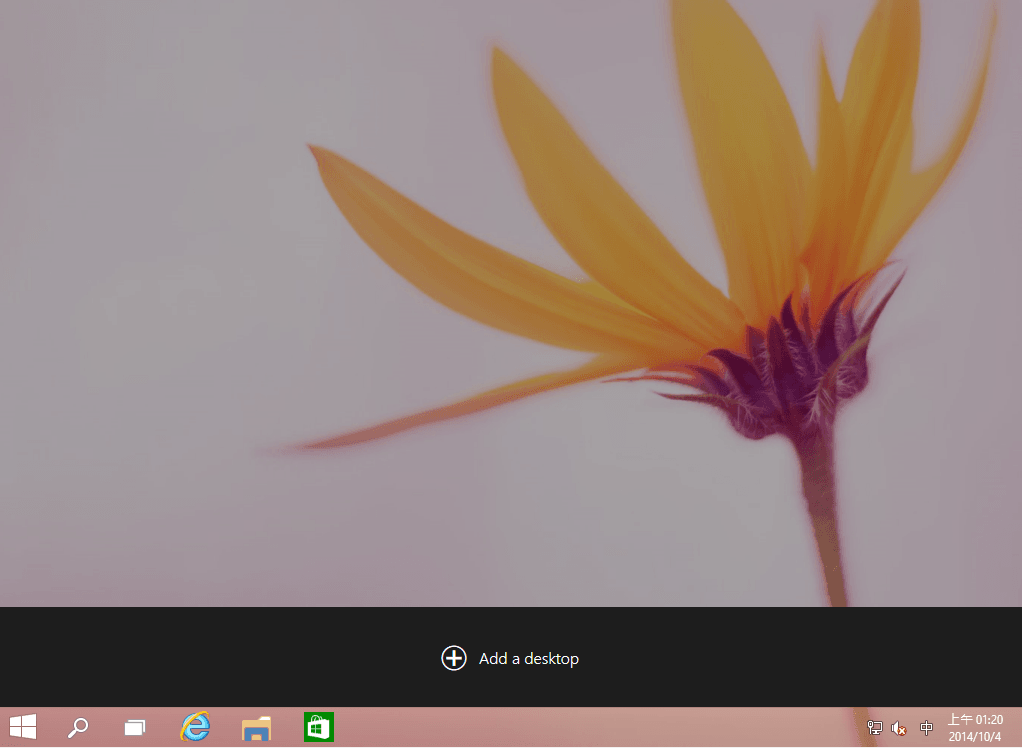 Figure 18: Virtual desktops interface with Add Desktop command.
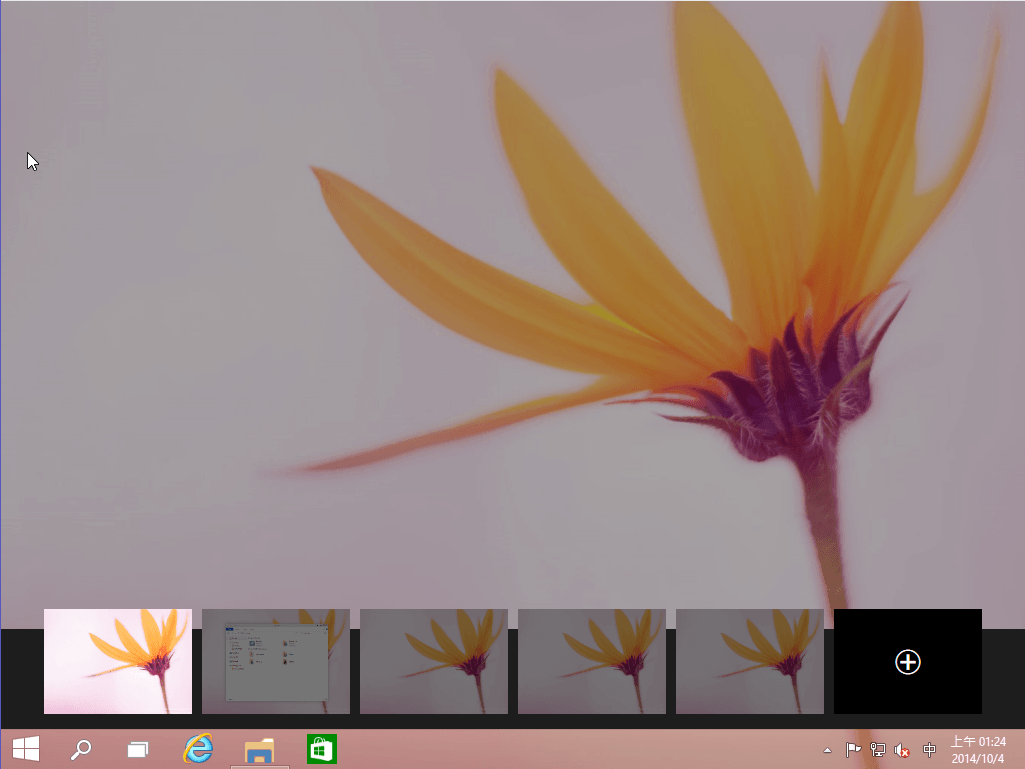 Figure 19: Simulated view of active virtual desktops in Task View.
 Figure 20: Launching separate applications across different virtual desktops.
Notice Figure 21 below: ever since Windows 8.x, multiple running instances of the same application are automatically grouped on the taskbar, showing thumbnail previews on mouse hover.
In Figure 21, using File Explorer as an example, instances are distributed across Desktop 2 and Desktop 5 (as seen in Figure 20). Switching to an instance automatically transitions your current display to the corresponding virtual desktop, keeping your workspace clutter-free and tidy.
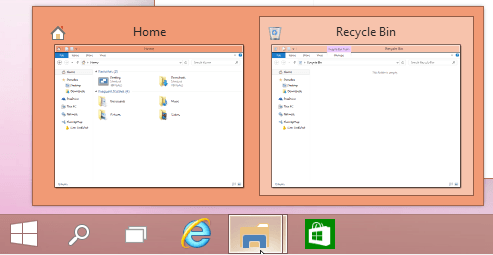 Figure 21: Application instance state across different virtual desktops.
Figure 22 illustrates the updated File Explorer interface. Compared to previous editions, it introduces a dedicated “Home” view, allowing users to jump back instantly to frequent folders and recent items (previously, the root starting point was typically “This PC”).
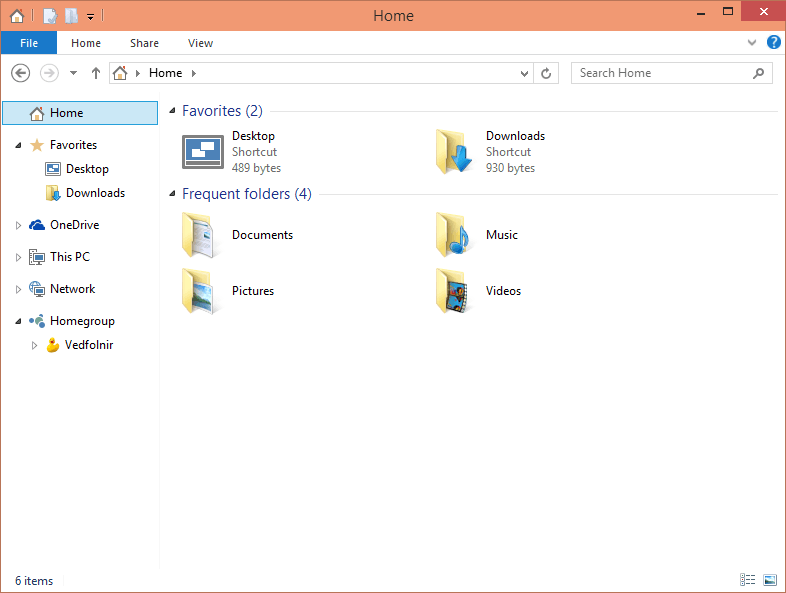 Figure 22: Updated File Explorer interface.
Finally, in Figure 23, we see another vital architectural refinement: solving the full-screen dilemma of Modern/Metro apps that plagued Windows 8.x.
Under Windows 8.x, Universal Apps ran strictly in full-screen mode, taking over the entire display. While suitable for touchscreen phones and tablets, forcing full-screen apps onto a desktop workstation fundamentally crippled productivity.
With Windows 10, modern apps now run inside standard windowed frames, restoring true multitasking and making the app store ecosystem far more practical on desktops.
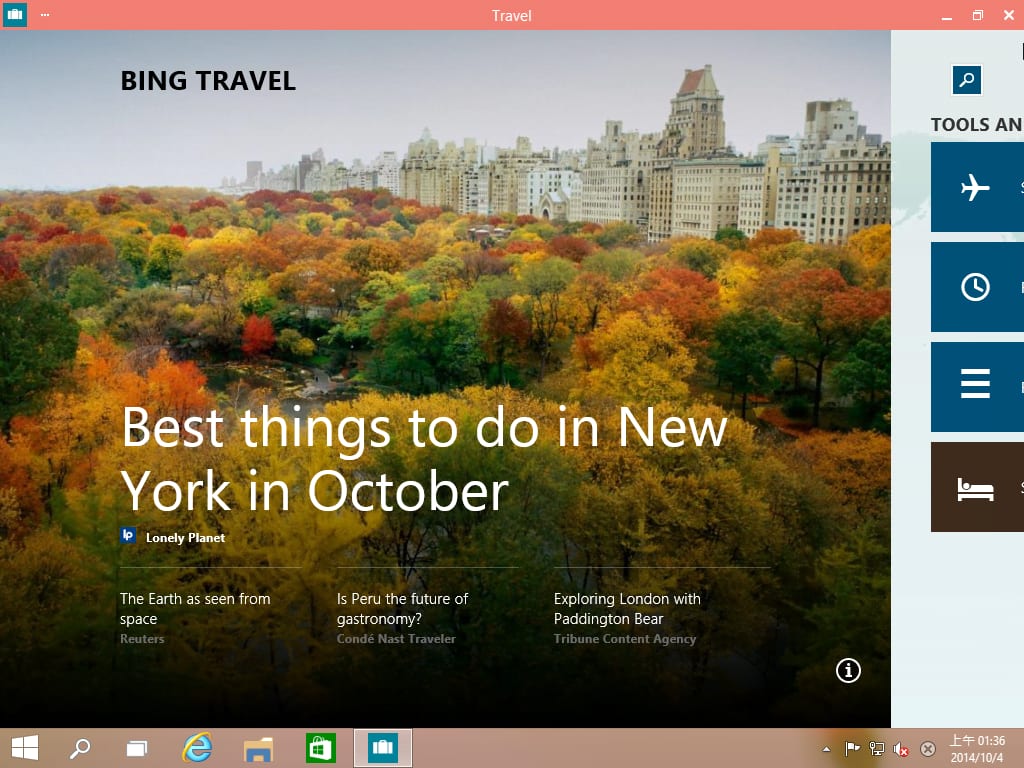 Figure 23: Preview of the windowed Travel App.
Discussion & Verdict
In this preview build, remnants of Windows 8/8.1 are still visibly pervasive. However, restoring the “Start” menu and allowing apps to run in resizable desktop windows rectifies the biggest missteps of its predecessor.
Moreover, skipping “Windows 9” in favour of Windows 10 is an intriguing branding move, perhaps serving to distance this release from the “transitional” reputation of Windows Vista or Windows 8. Microsoft’s product history often exhibits alternating hits and misses, where experimental editions lay the groundwork for polished successor releases.
Finally, a humorous nod to Microsoft’s legendary Blue Screen of Death (BSOD)—a shared memory for countless PC enthusiasts. Since upgrading to Windows 8, BSODs had become remarkably rare.
Encountering an early crash screen during testing (Figure 24) felt almost like catching up with an old acquaintance. With its softer blue shade and prominent frowny face, even crash screens have softened their harsh edges over time.
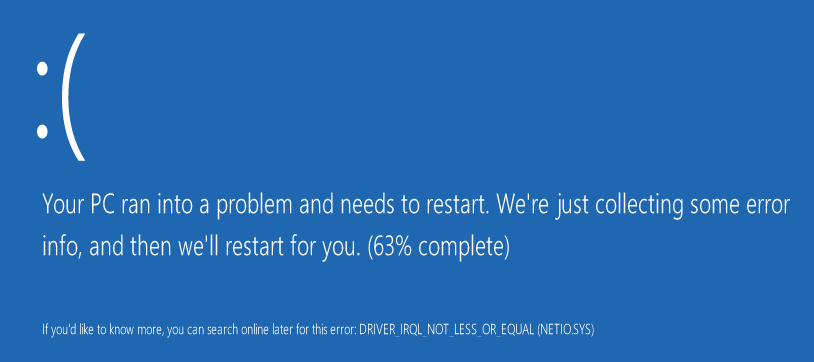 Figure 24: Windows 10 crash screen preview.
References
- Windows 10 Technical Preview: English 64-bit, Simplified Chinese 64-bit.
- Official portal: Microsoft Insider Preview Program.
Support Independent Perspectives & In-Depth Insights
Every thoughtful analysis and candid critique comes from our dedication to truth and quality. We choose not to follow sensational algorithms or clickbait headlines.
Sustaining independent research requires reader support. Make a one-time or monthly contribution, securely processed by Google.
Payments secured by Google · Manage or cancel anytime in your Google Account

Comments