
Xiaomi (Mi) Wi-Fi networking devices—including the Mi Wi-Fi Router Mini, Mi Wi-Fi Router Youth Edition, and the Mi Wi-Fi Range Extender—all feature hardware-level system reset capabilities. Users can easily restore the equipment back to factory initialization settings, making it simple to reconfigure their wireless network environment.
Using the Mi Wi-Fi Router Mini [1] as an example, The Fixer provides a step-by-step walkthrough to reset and set up the system.
Step 1: Use a pointed object (such as a paperclip or sharpened pencil) to insert into the reset pinhole on the back of the device. Press and hold the hidden button inside for 8 to 15 seconds until the front LED indicator changes status.
Step 2: Once reset, the Mi Router will boot back up with its default Wi-Fi SSID (as shown in Figure 1, the default SSID for the Mi Wi-Fi Router Mini is “Xiaomi_FAAE_055”). Connect your computer to this Wi-Fi network.
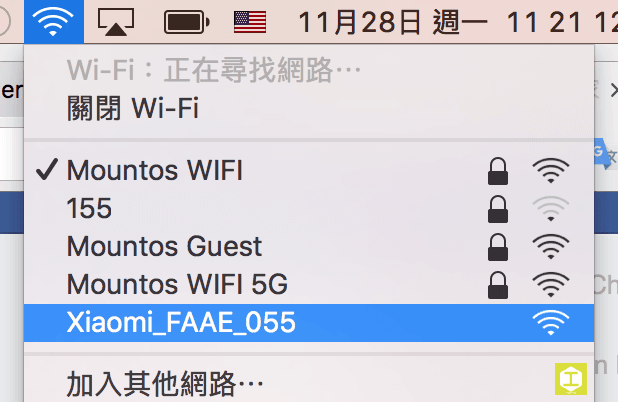
Figure 1: Xiaomi Wi-Fi wireless network configuration.
Step 3: After connecting your computer to the Mi Router, the setup web page [2] will automatically launch, as shown in Figure 2. Click the agreement button to proceed to the next step.
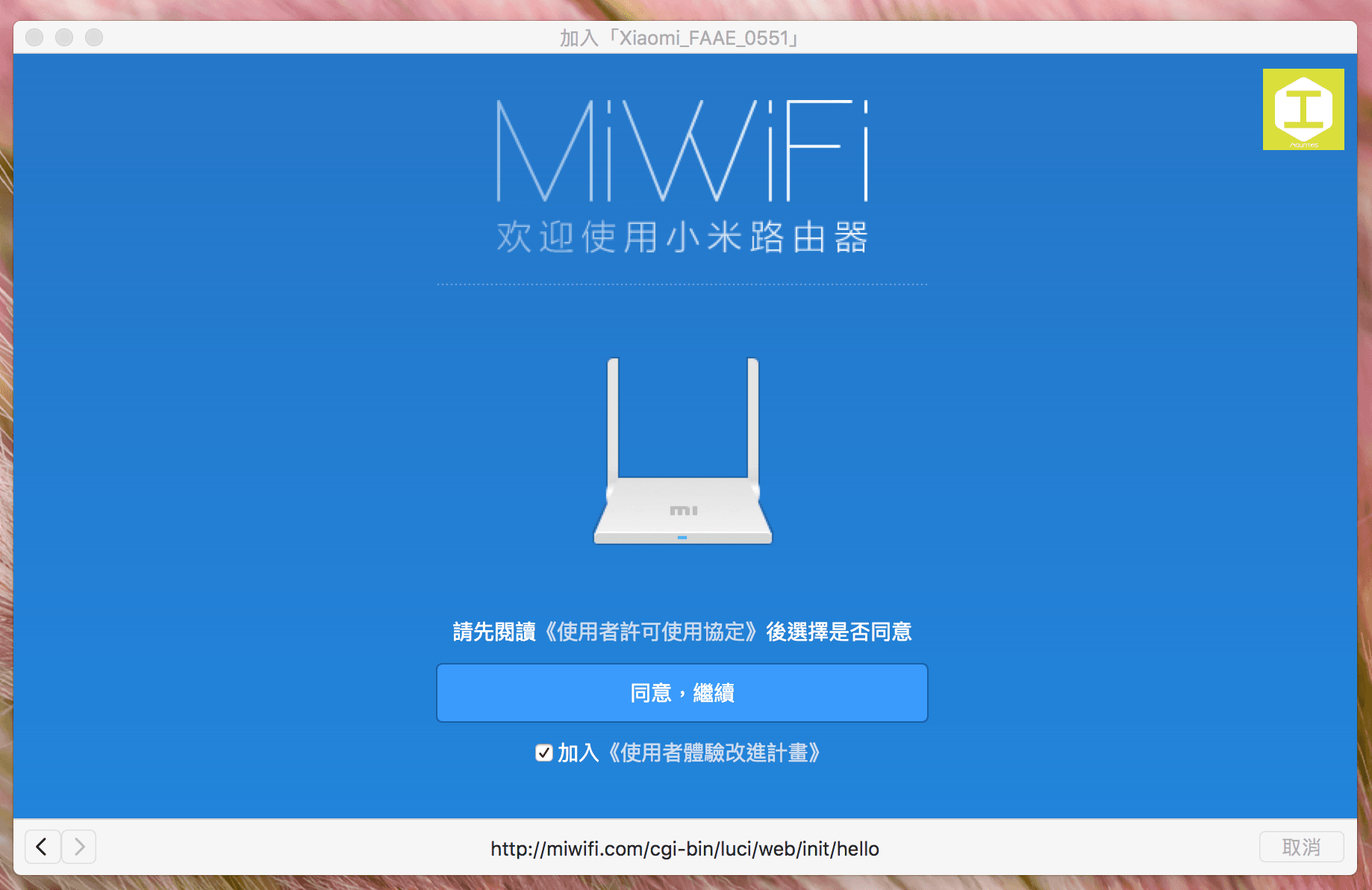
Figure 2: Mi Router MiWiFi startup screen.
Step 4: Next, choose the operating mode for the router. As shown in Figure 3, there are two modes: “Router Mode (Create a new wireless network)” and “Repeater Mode (Extend an existing wireless network)”.
Since our environment already has an existing Wi-Fi network and we want to expand coverage using the Mi Router, we will demonstrate the setup under “Repeater Mode.”
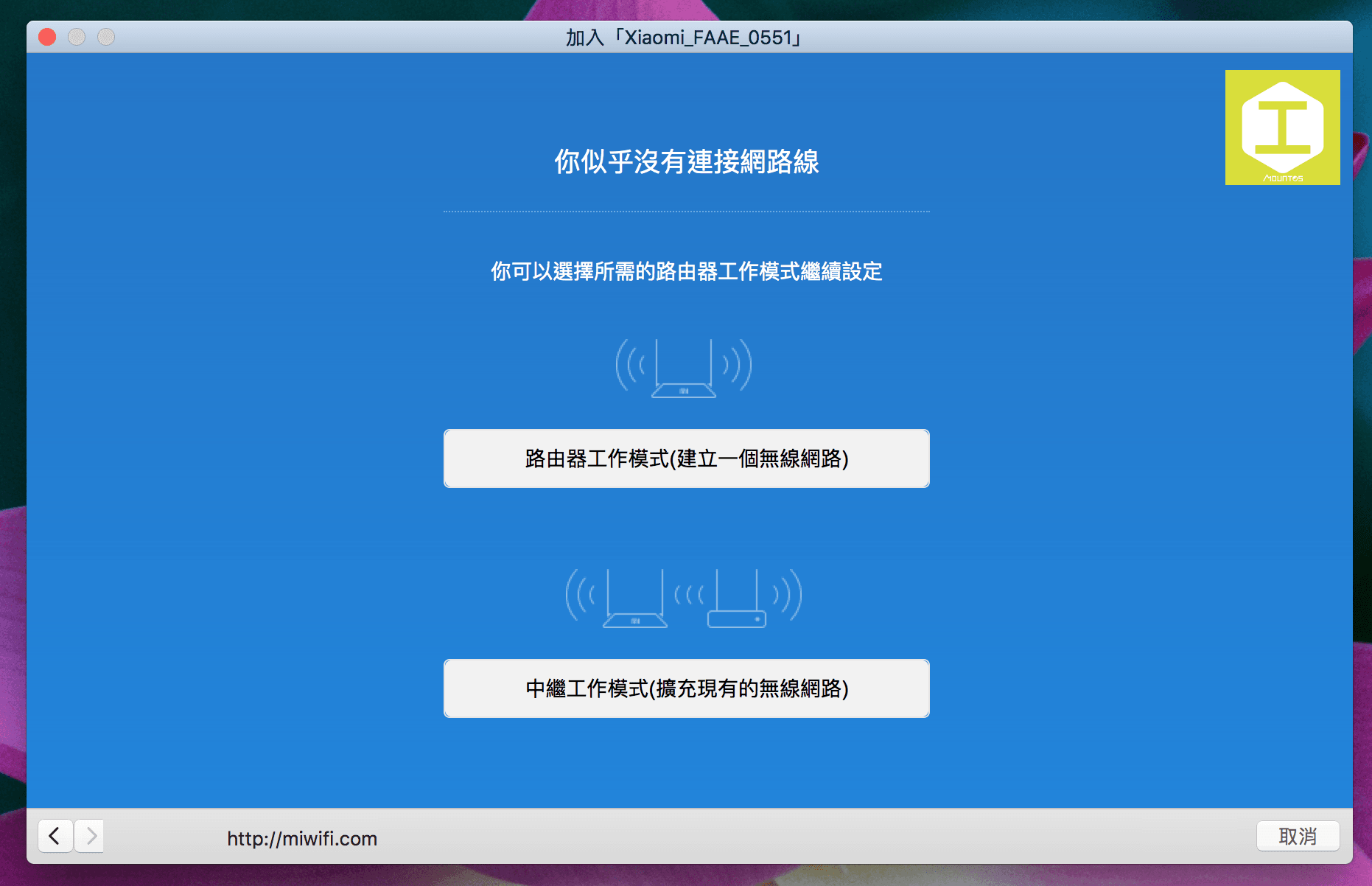
Figure 3: Selecting router operating mode.
Step 5: Because we are configuring the Mi Router as a range extender / repeater, refer to Figure 4: select the primary wireless network SSID and enter its password so the Mi Router can join the existing network.
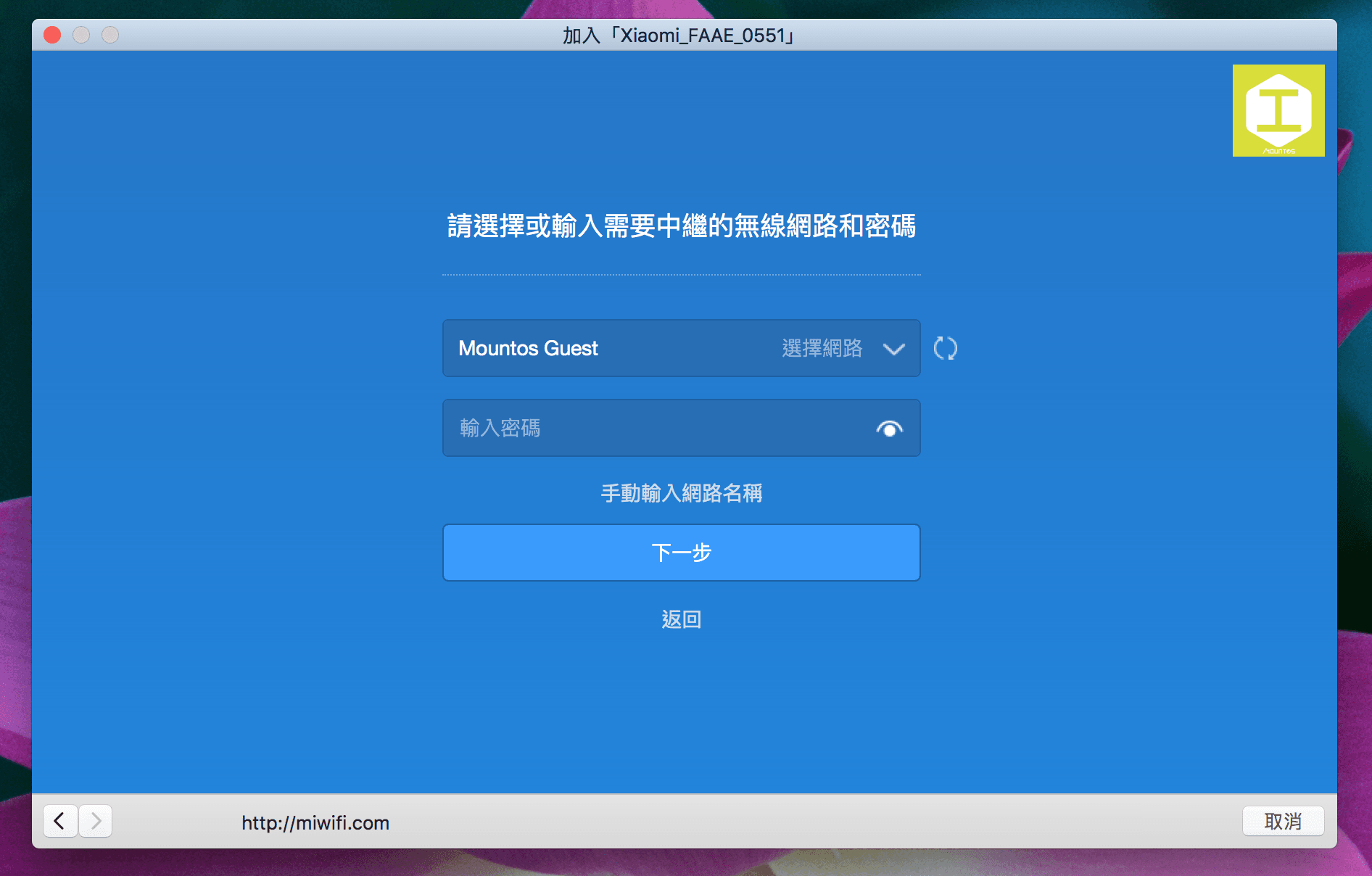
Figure 4: Selecting the existing wireless network.
Step 6: The system will prompt you to set a new Wi-Fi network name (SSID) and password. If you skip this, it uses the existing network name as the default SSID, enabling seamless roaming; alternatively, you can enter a distinct SSID. While separate SSIDs require reconnecting each device (such as iPhones, MacBooks [3], iPads, etc.), it makes network management and troubleshooting clearer.
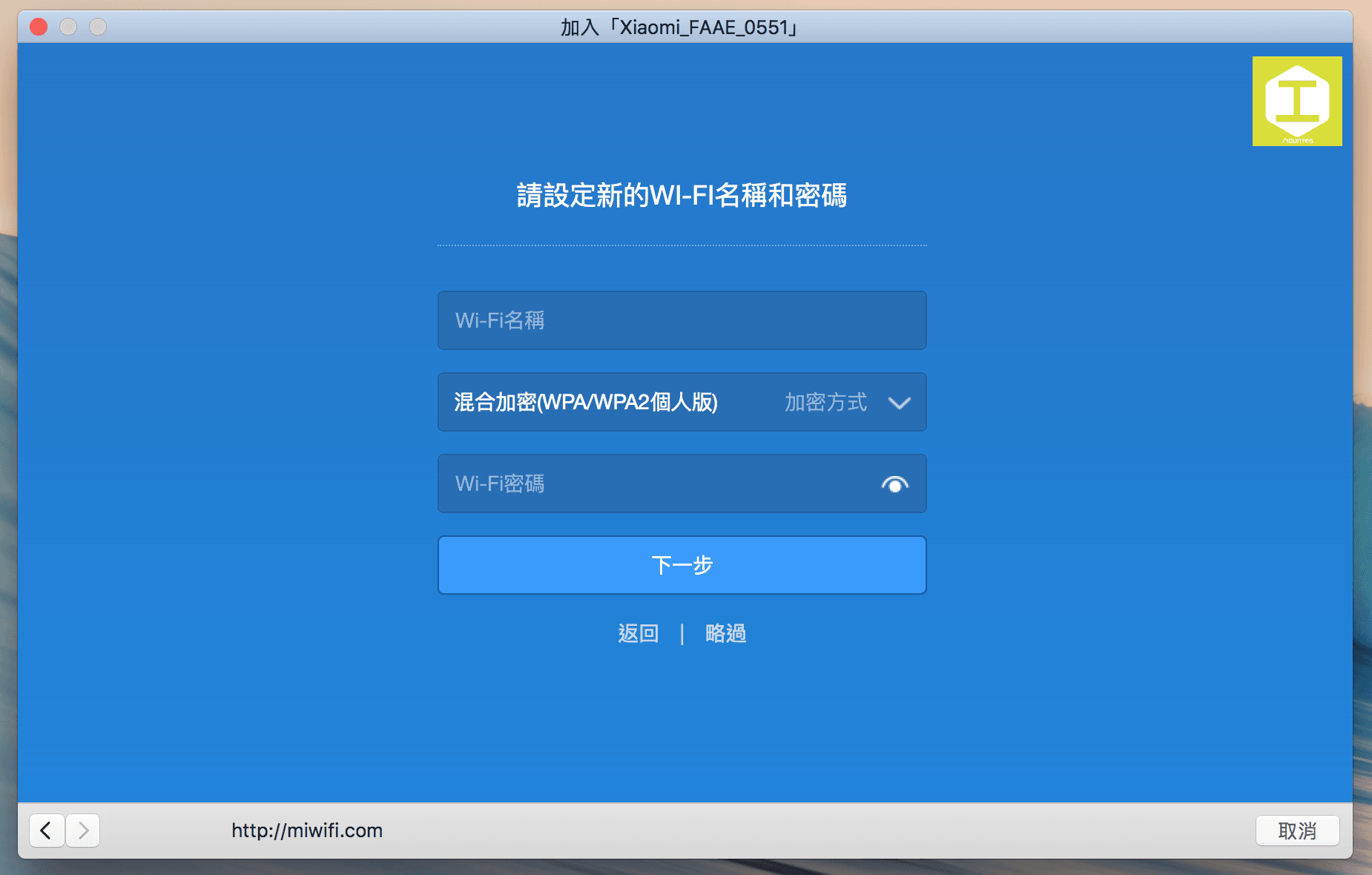
Figure 5: Setting new Wi-Fi name and password.
Step 7: Set an administrator password for the Mi Router. This will be required whenever you access the router management console in the future.
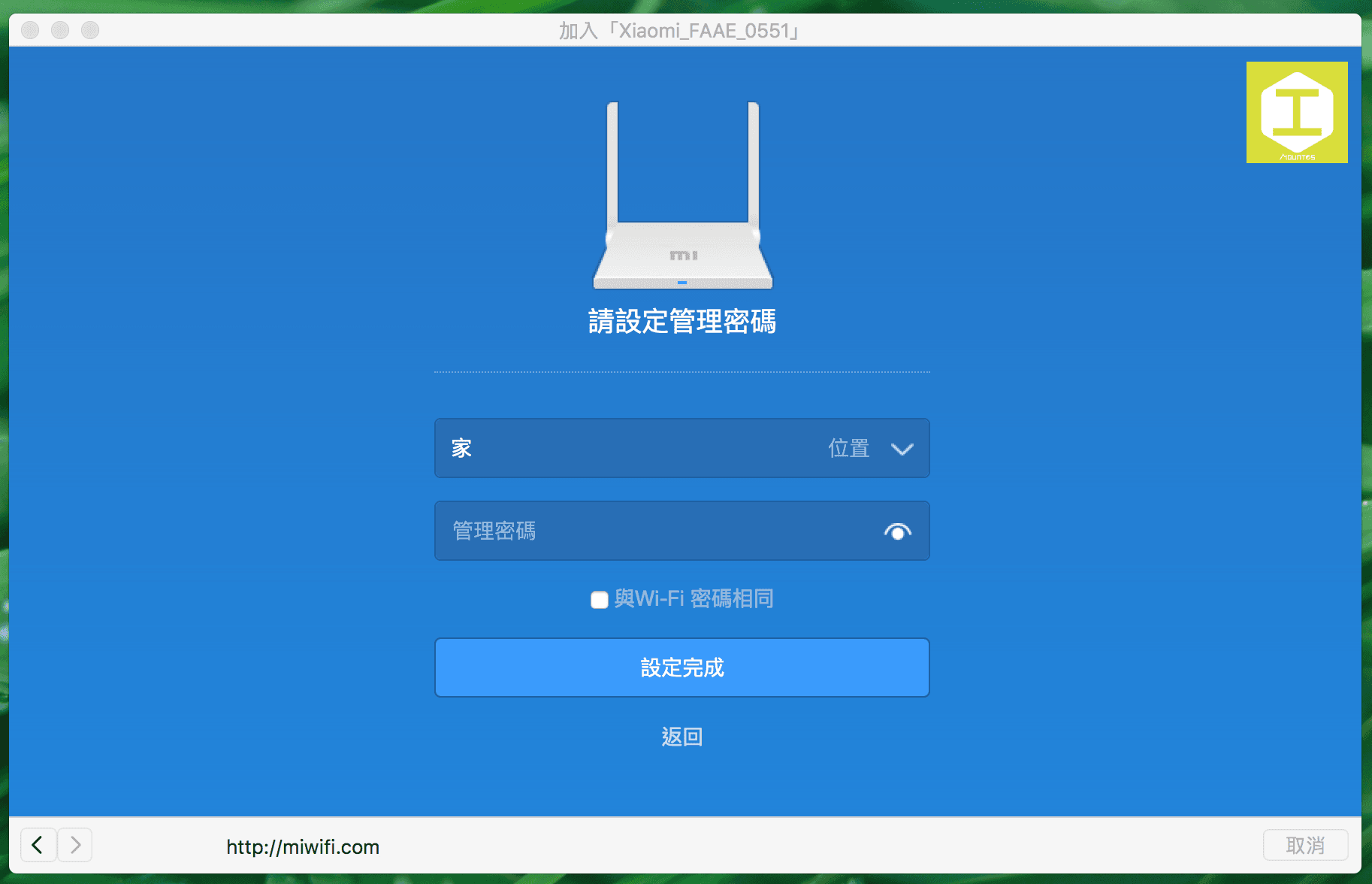
Figure 6: Setting the router administrator password.
Step 8: After completing these steps, the Mi Router will finalize the remaining background configuration and begin operating normally.
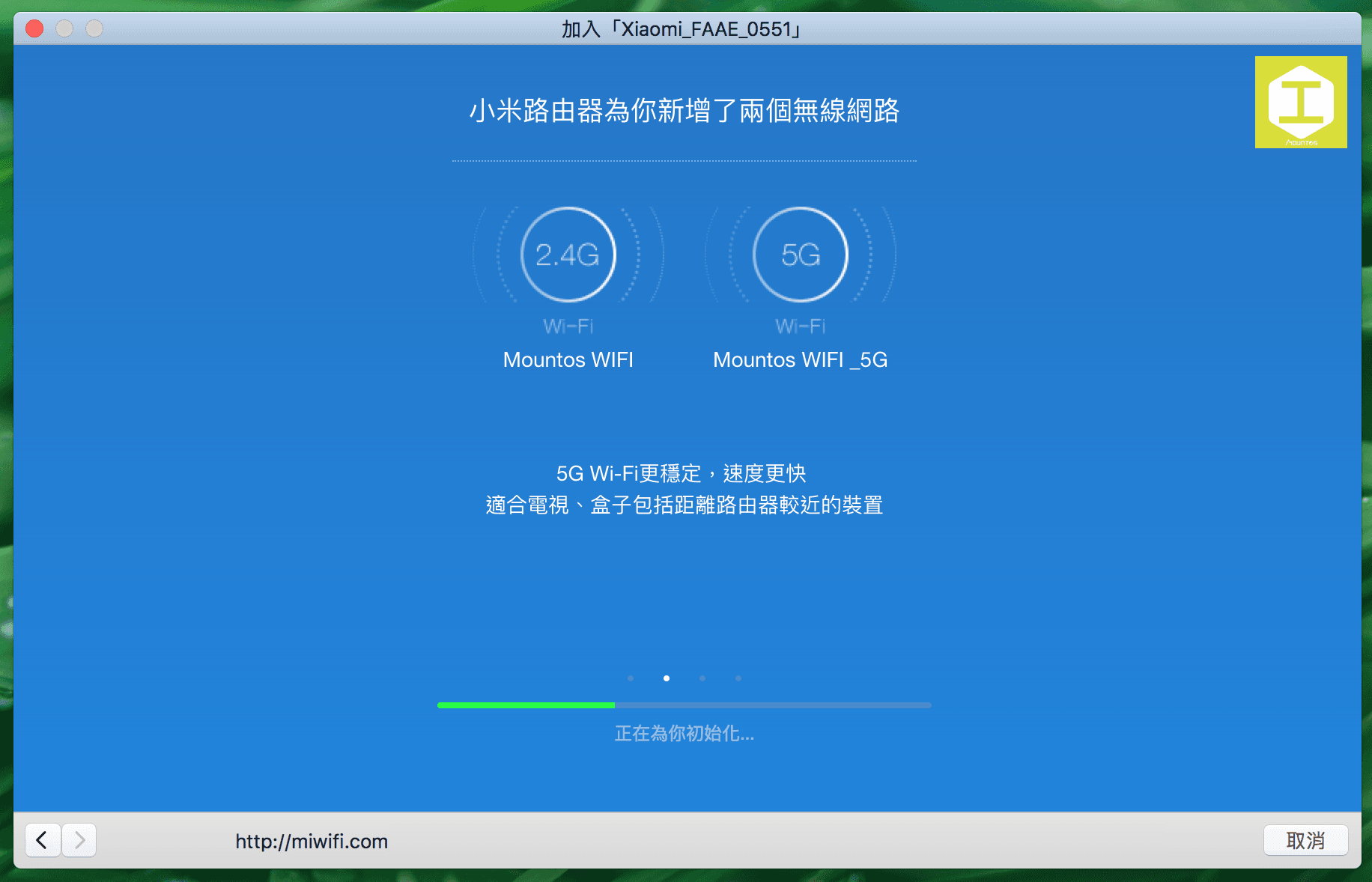
Figure 7: Initialization prompt screen.
As a side note (see Figure 7 above), the Mi Router automatically generates both 2.4 GHz and 5 GHz dual bands. However, the Mi Router Mini connects to the primary upstream network via 2.4 GHz and broadcasts outward across dual bands. There is specific architectural reasoning behind this design, which we can explore in a future deep-dive article.
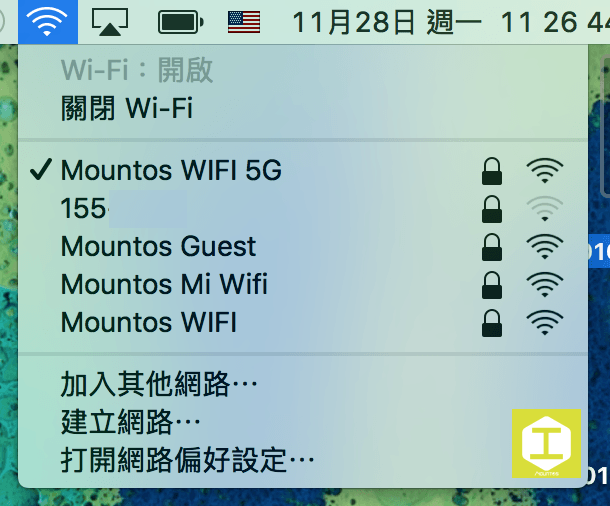
Figure 8: Network status with Mi Router operating as a repeater.
As shown in Figure 8, once the initialization is complete, you will see the configured router in your device’s Wi-Fi list. Connect to it and enter the password to save it on your computer or smartphone, allowing your devices to switch automatically to the strongest signal in the future.
References & Further Reading
- Xiaomi Official Store.
- If the setup page does not open automatically, enter
192.168.31.1in your browser address bar. - The Smartest Ways to Buy Apple Computers: Discount & Promotion Analysis (Mac, Mini, iMac, MacBook, Pro, and Air).
Support Independent Perspectives & In-Depth Insights
Every thoughtful analysis and candid critique comes from our dedication to truth and quality. We choose not to follow sensational algorithms or clickbait headlines.
Sustaining independent research requires reader support. Make a one-time or monthly contribution, securely processed by Google.
Payments secured by Google · Manage or cancel anytime in your Google Account

Comments