
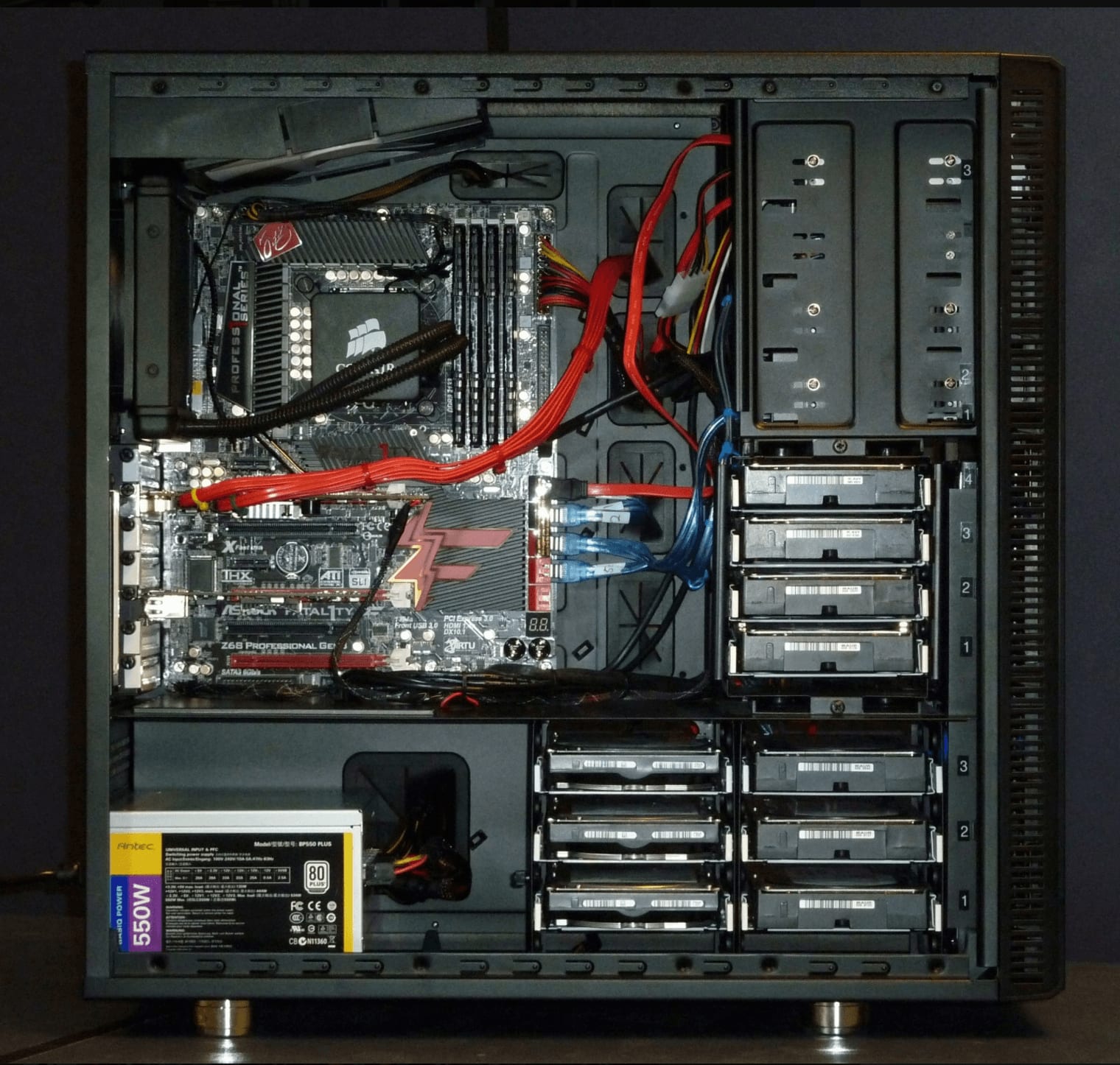
When computer system errors crop up, your first instinct should be to recall any recent modifications—such as operating system updates or newly installed software applications. If no software changes were made, the culprit is very likely a hardware malfunction.
Issues like swollen or ruptured motherboard capacitors, bad hard drive sectors, or burnt memory chips can trigger system instability, sluggish throughput, unusual noises, random freezes, sudden crashes, or even catastrophic loss of precious data.
Speaking of which, it reminds me of an urban legend I heard back when I was in elementary school learning computers: that a virus could supposedly cause a computer to physically catch fire.
How to Identify Computer Hardware Failures
For everyday users—and even many computer retail shops—pinpointing faulty hardware components in today’s highly modular systems is exceptionally difficult, and few are willing to invest the time to trace issues down to the component level.
Diagnosing hardware problems requires an understanding of distinct hardware design architectures and bus communication protocols. Furthermore, components other than motherboards and hard drives rarely feature built-in diagnostic tools for consumers. Even when diagnostics exist, hardware manufacturers cannot anticipate every failure edge case.
For instance, when a capacitor on a motherboard ruptures, the PC often reboots spontaneously without ever explaining that a power filtering capacitor failed.
Consequently, identifying hardware issues often requires relying on rule-of-thumb heuristics or using POST interrupt monitoring to capture BIOS error codes, identifying at which initialization stage the boot halts to narrow down the potential hardware culprits.
PC Diagnostic / Debug POST Card (Diagnostic Card / Tester Test Card): eBay Global Shopping / Taobao Marketplace.
This article documents the process of thoroughly testing system RAM after motherboard and hard drive issues have already been ruled out.
RAM Testing with MemTest86: Step-by-Step Instructions
For this test session, the target machine was equipped with an “OCZ Reaper Series DDR2 4GB 800MHz Dual-Channel Memory Kit”, and the testing utility of choice was “MemTest86”, downloadable from its official website.
Once you obtain the utility, insert a USB flash drive into the computer (or insert a blank CD into your optical burner). Run the installer, which will format the USB drive and create a bootable drive (or burn a bootable diagnostic CD). Next, restart the PC and boot from the USB drive or CD (press the designated BIOS boot menu hotkey during startup, such as F2, F8, or F12 depending on your motherboard).
When the system boots successfully into MemTest86, it enters a clean, standalone text interface and immediately begins iterative stress testing across all memory layers—including the CPU’s L1, L2, and L3 caches, as well as main system RAM.
Once all test passes complete without any red error lines appearing on screen, congratulations—your RAM is intact, and you can proceed to troubleshoot other hardware components (cue distant gaze).
If diagnostic errors do appear in red, don’t panic. Reboot into the BIOS setup utility and verify your memory settings. If you have overclocked the RAM, revert back to stock frequencies and default timings. If the motherboard applied incorrect memory voltages or latency parameters, adjust them to factory specifications, and then rerun MemTest86. Misconfigured timings or voltages frequently cause false positives, so re-verifying BIOS baseline figures is an essential diagnostic step.
Conclusion on RAM Testing and Maintenance
Memory is a fundamental hardware component occupying a critical role among the five core functional subsystems of a computer. Yet when subtle memory defects arise, they are notoriously difficult to self-diagnose without specialized utilities.
In recent years, memory manufacturers have widely promoted limited lifetime warranties, giving enthusiasts peace of mind to push modules to their limits. However, whether component quality, circuit design, and quality control can maintain premium standards across competitive price points remains an open question. After all, you get what you pay for. When manufacturing costs must remain flat or drop, where do the funds for extended warranty services and RMA management come from? That is a question well worth pondering.
Support Independent Perspectives & In-Depth Insights
Every thoughtful analysis and candid critique comes from our dedication to truth and quality. We choose not to follow sensational algorithms or clickbait headlines.
Sustaining independent research requires reader support. Make a one-time or monthly contribution, securely processed by Google.
Payments secured by Google · Manage or cancel anytime in your Google Account




Comments