
Not sure what got into the studio’s Apple system today, but a warning suddenly popped up saying my network settings encountered a “Double NAT” conflict error (as shown in Figure 1 below). Although the internet still worked, seeing that amber indicator instantly triggered my OCD—I couldn’t rest until it turned green.
A Double NAT error indicates that the network setup is running through too many layers of “Network Address Translation (NAT)” [1]. This error frequently occurs when multiple routers and firewalls coexist on the same local area network (LAN).
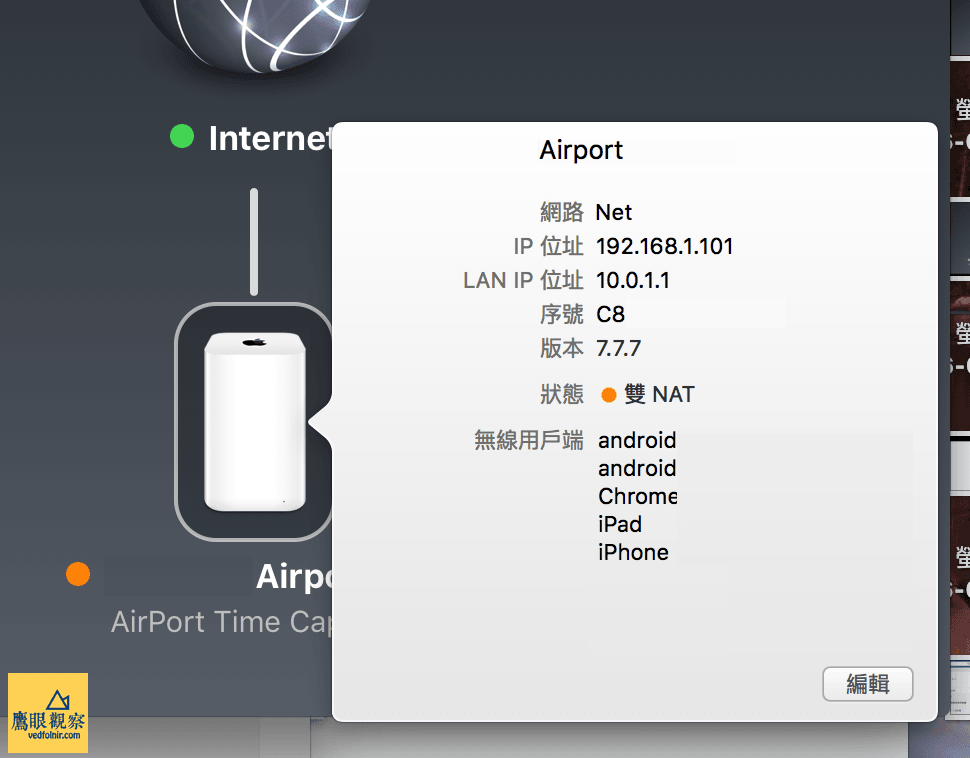 Figure 1: Base station Double NAT conflict.
Now that the cause is identified, troubleshooting becomes straightforward. This is probably why AirPort is a bit pricier than off-brand routers, yet worth every penny. Furthermore, AirPort can upgrade an ordinary printer into a network printer with AirPrint-like capabilities [2], making it a tremendous value.
Looking at it from another angle, if you use generic, off-brand routers at home, you might run into similar misconfigurations without ever realizing it. While web browsing and gaming might still function on the surface, requiring network packets to go through an extra translation layer substantially degrades network performance. You might end up complaining endlessly and bothering network technicians without ever realizing what went wrong.
Running “Network Utility” to Detect Double NAT Errors
Even if your router does not proactively warn you about errors, you can still perform a few simple checks to see whether your network violates Double NAT rules.
If you are a Mac user, you can diagnose this using “Network Utility” or by entering the “Traceroute” command in the Terminal.
As shown in Figure 1, Mac users running Apple OS X can press “Control” + “Space” simultaneously to summon the “Spotlight” search bar, then enter “Network Utility” for a quick lookup.
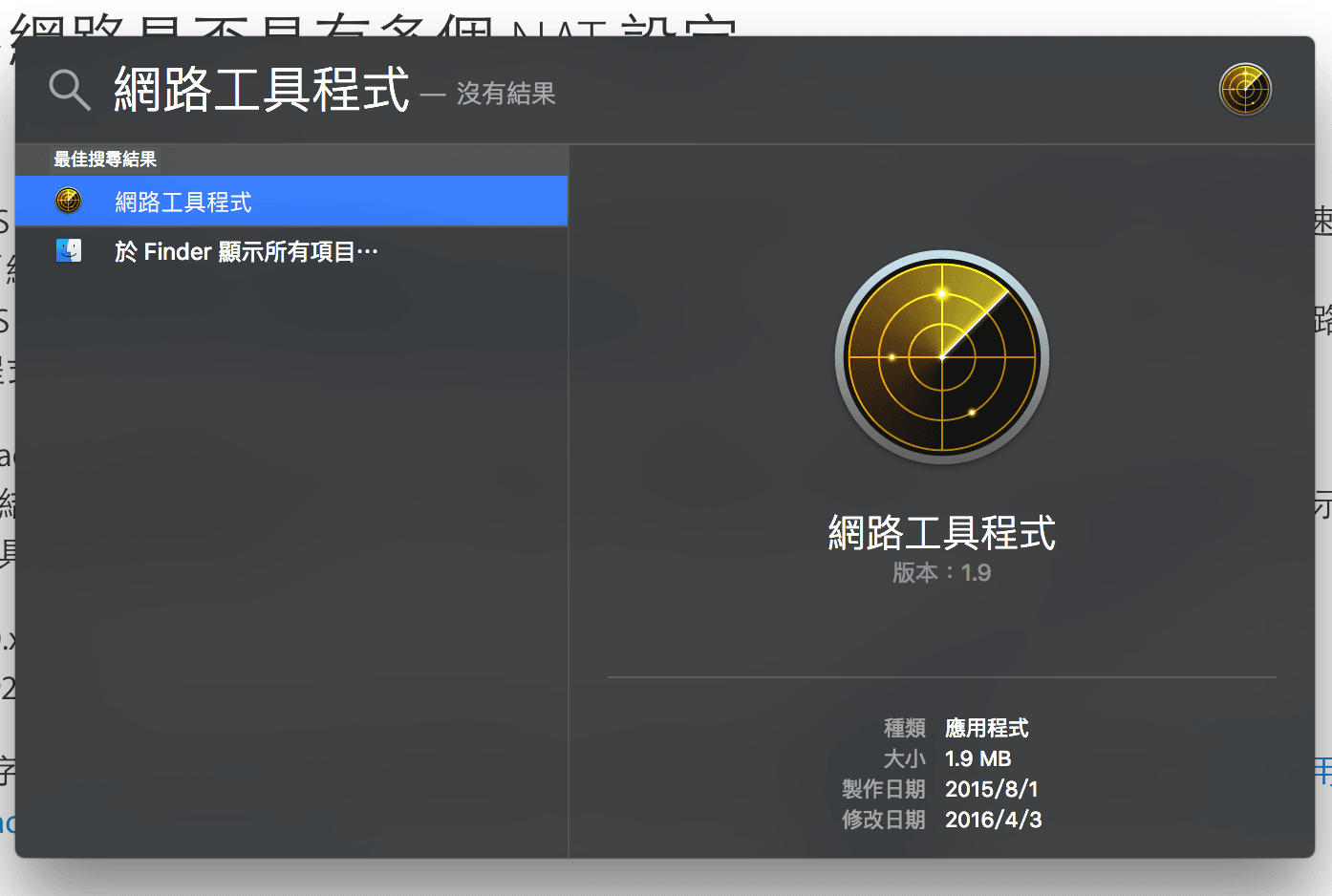 Figure 1: Apple Mac Network Utility.
After opening Network Utility, switch to the “Traceroute” tab as shown in Figure 2 below, and enter any valid external web address, such as “Mountos.com”. Then click the “Trace” button. The utility will begin tracing and listing every hop from your computer to the external host.
Here comes the key step: inspect the results closely. Does the second hop in the trace list have an IP address starting with “10.0.x.x” or “192.168.x.x”?
IP addresses beginning with 10.0 and 192.168 are reserved private IP addresses designated strictly for internal network use. Therefore, if the second hop is still one of these two private IP ranges, it clearly indicates that at least two network devices are performing routing and address translation simultaneously. In this case, your network setup has almost certainly triggered a Double NAT error.
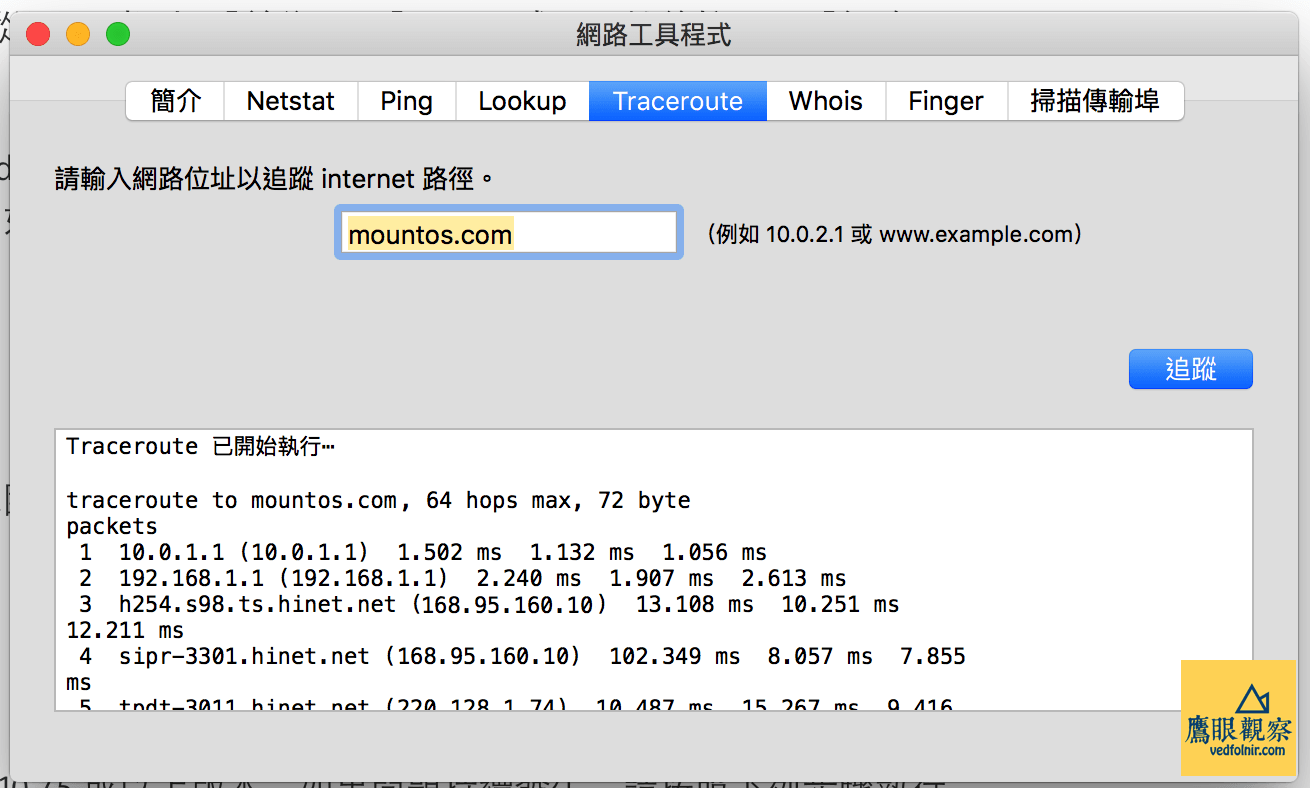 Figure 2: Apple Mac “Network Utility” Traceroute domain resolution feature.
As a side note, if you are a Microsoft Windows user, you can press the “Windows key” + “R” simultaneously to open the “Run” dialog box, type “CMD”, and hit Enter to launch the “Command Prompt”.
 Windows Key
Then enter the command “Tracert” to perform the same network route tracing described above. Command example:
C:\>tracert mountos.comTroubleshooting and Adjusting Router Settings After Detecting Double NAT
Our studio’s basic network topology is: “Client Terminals (Desktop PCs, smartphones, tablets, Google Chromecast) ⇔ Routers (Xiaomi Router, Apple AirPort Wi-Fi wireless router) ⇔ Modem (Chunghwa Telecom HiNet Fiber / ADSL Modem, Cable Broadband) ⇔ Internet.”
Among them, the Xiaomi router is used to extend the Wi-Fi signal to farther corners of the home. I will write a separate review covering its hardware and software management when time permits. Aside from the Xiaomi router, this setup is likely identical to what most households and studios use.
Since we already know what causes Double NAT, the solution is self-evident. Next, let’s roll up our sleeves and resolve it.
Because our studio’s primary network core is based on Apple’s “AirPort Time Capsule”, the following example focuses on this device. However, the operational principles across different router brands are virtually identical, so you should be able to apply the same steps. Anyone encountering questions is welcome to leave a comment below!
As shown in Figure 3 below, in OS X, open “Launchpad” from the dock, locate the “Other” folder, and you will find Apple’s built-in “AirPort Utility”. This is a dedicated router management application. Compared to off-brand routers that rely solely on web interfaces, this native tool is another reason why AirPort is worth investing in. Besides being easy to manage on the desktop, the same software is also supported on iPhone [3] and iPad!
 Figure 3: AirPort Utility icon.
Open AirPort Utility, and you will see the management interface shown in Figure 4 below. Navigate directly to the “Network” tab.
At the top of the Network tab, there is a “Router Mode” dropdown where you can choose between “DHCP and NAT” mode or “Off (Bridge Mode)”. This is where the magic happens! Even if your router is made by another vendor, you need to locate this exact setting. “DHCP and NAT” mode means the router handles IP assignment internally. If your modem also has routing enabled, a Double NAT conflict occurs.
Therefore, you should switch Router Mode to Bridge Mode. This configures the router to act merely as an extension or bridge for the network signal, leaving primary internal network routing and IP assignment to the modem.
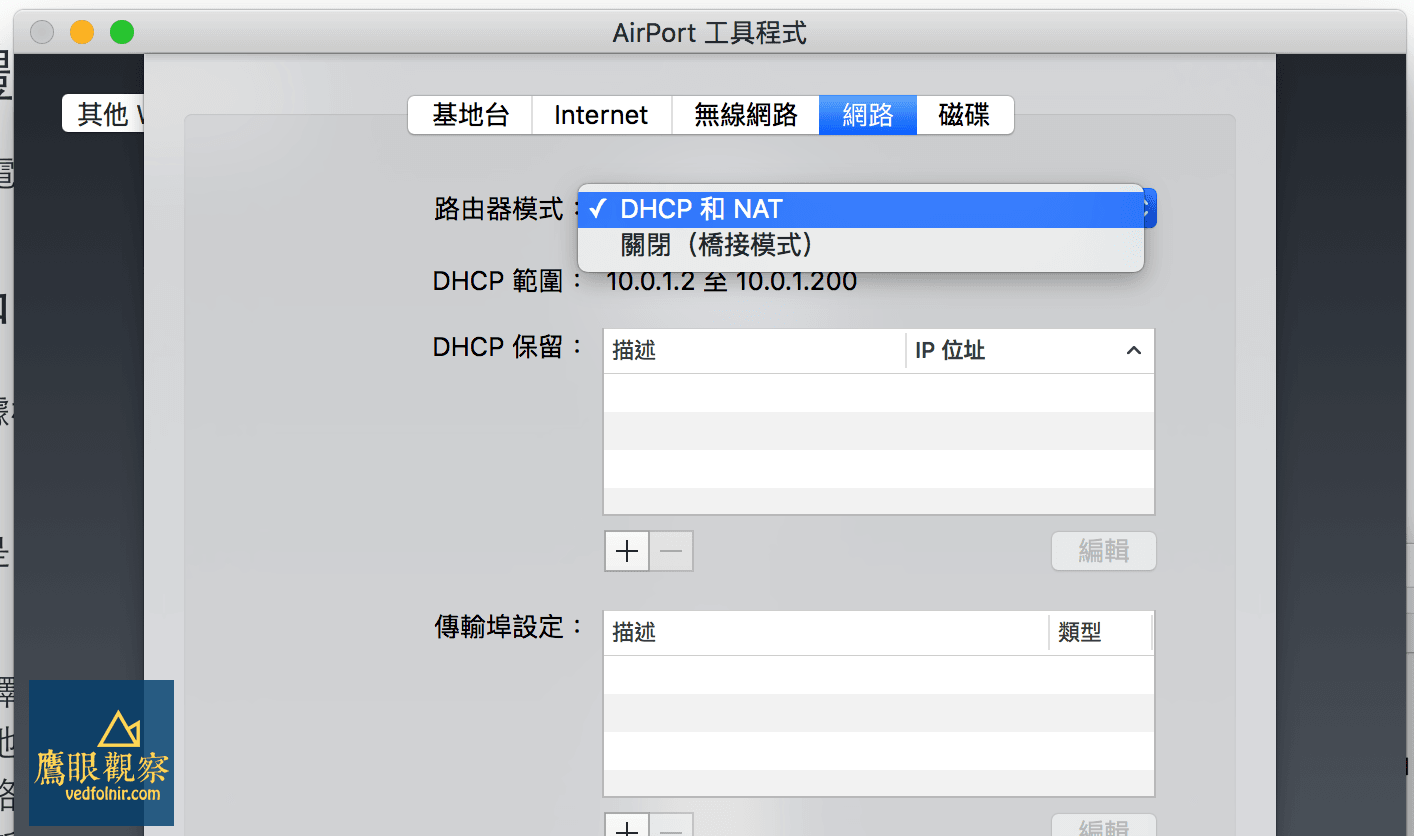 Figure 4: AirPort Utility Network settings.
The most frustrating part of network configuration is dealing with exceptions. For example, if the modem operates in pure bridged passthrough mode and the router manages the connection, routing and address assignment should remain on the router (AirPort). In that case, you would select “DHCP and NAT”. Once you grasp these fundamental concepts, configuring the correct network topology becomes effortless.
Figure 5 below illustrates the network returning to normal status after adjusting the settings.
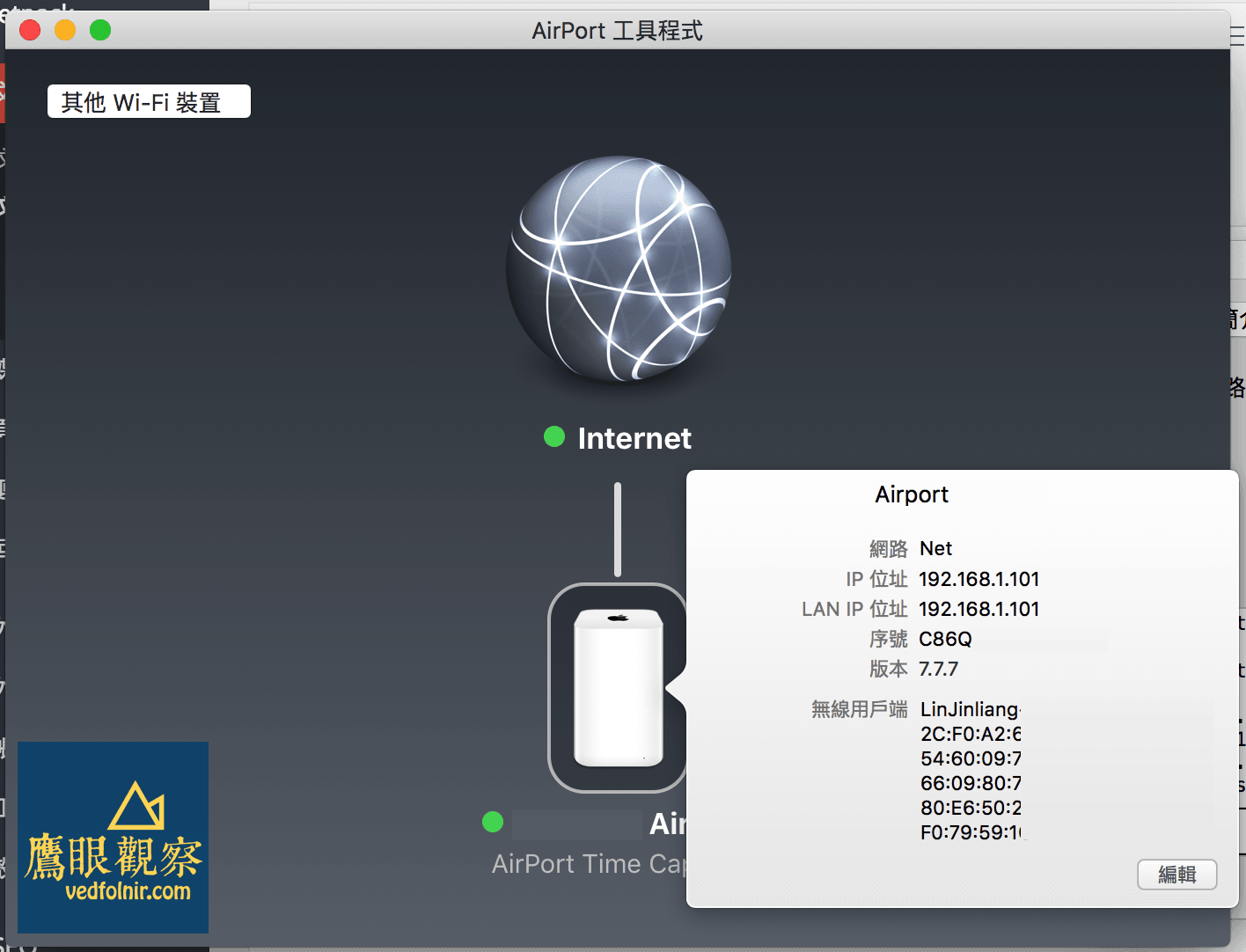 Figure 5: Router settings restored to normal operation.
Conclusion and Discussion
When a network encounters a Double NAT conflict, internet access may continue to work, but network throughput and certain applications (like online gaming or VPNs) might suffer degradation or connection issues. Therefore, once you spot this error—or if your home/studio network topology is relatively intricate—I strongly recommend checking and fixing the issue right away.
Further Reading:
- Network Address Translation (NAT) is a method of remapping an IP address space into another by modifying network address information in the IP header of packets while they are in transit across a traffic routing device. This technology is widely used in private networks allowing multiple hosts to access the internet via a single public IP address.
- Apple: Transform traditional printers into AirPrint network printers with AirPort wireless base stations (AirPort Express and Time Capsule).
- AirPort Utility - Apple.
Support Independent Perspectives & In-Depth Insights
Every thoughtful analysis and candid critique comes from our dedication to truth and quality. We choose not to follow sensational algorithms or clickbait headlines.
Sustaining independent research requires reader support. Make a one-time or monthly contribution, securely processed by Google.
Payments secured by Google · Manage or cancel anytime in your Google Account



Comments