
With the release of LINE version 6.8.0 on Apple iOS, users can now set timeline posts to auto-delete after 24 hours and enjoy upgraded video effects and facial recognition. But best of all, the update finally introduces a feature long awaited by millions: “clearing and releasing cached junk files consuming phone storage”.
Reclaiming storage space devoured by LINE is a lifesaver for users who buy base-model smartphones with modest capacity. Otherwise, my Apple iPhone SE frequently sits right on the edge of running completely out of disk space.
Below is a step-by-step walkthrough showing how to leverage this new native tool to wipe LINE’s cached data, chat archives, and photos, allowing you to free up storage tailored to your needs.
Step-by-Step Tutorial on Clearing LINE Cache, Junk Files, and Photos
Step 1: Launch the LINE app on your iPhone and navigate to the “More” tab, as shown in Figure 1 below.
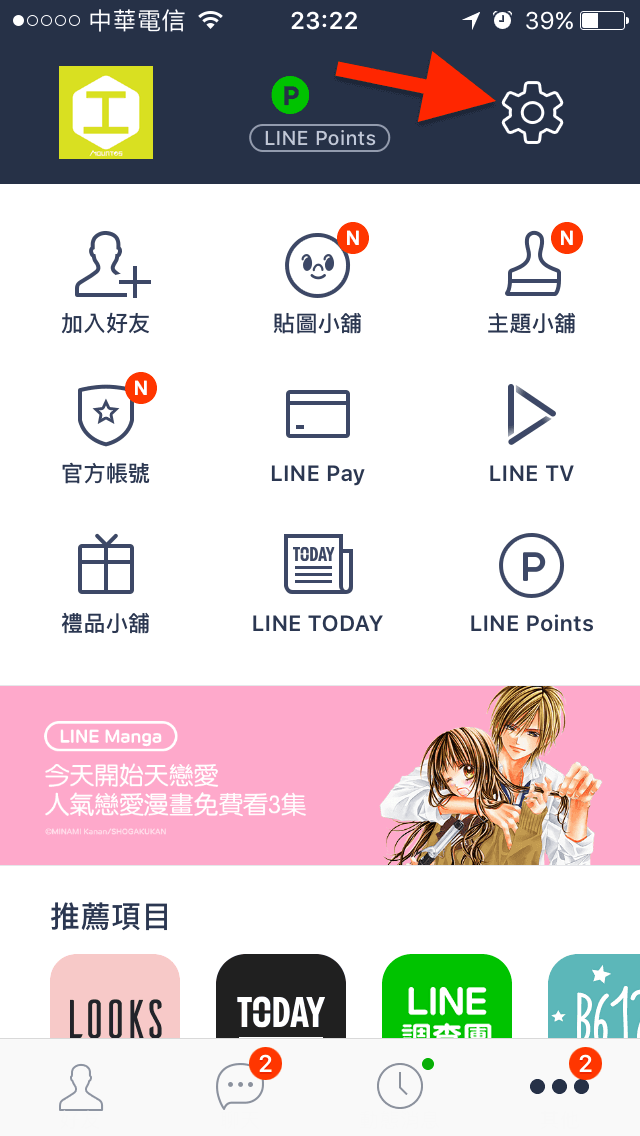 Figure 1: LINE More menu screen.
Step 2: Tap the “Settings” gear icon (indicated by the red arrow) in Figure 1, then select the “Chats & Voice Calls” option from the Settings menu shown in Figure 2.
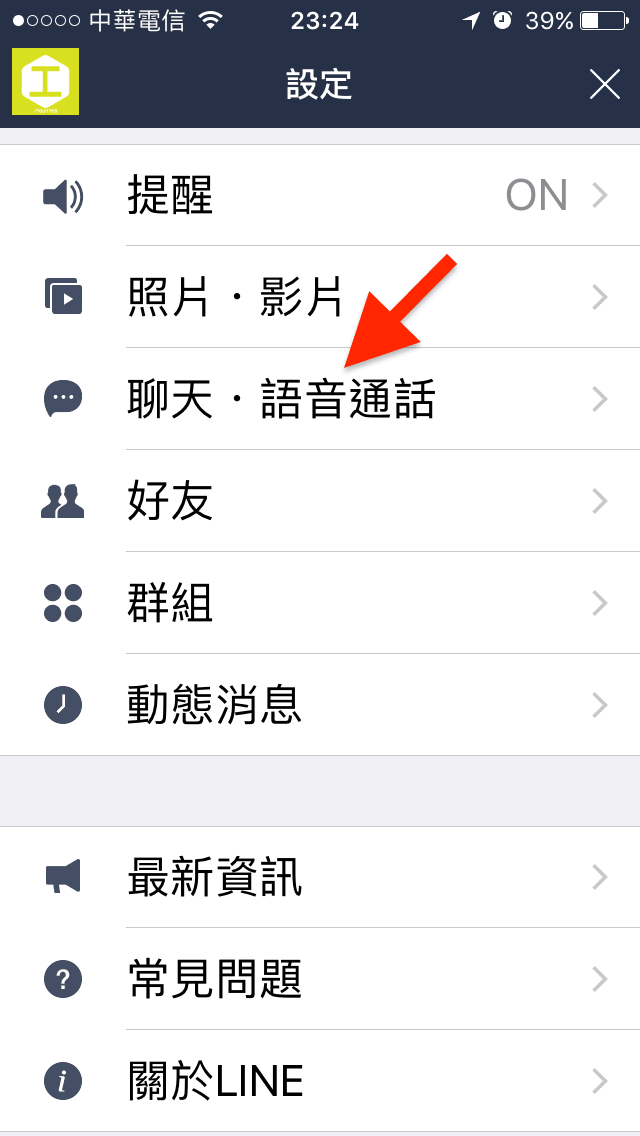 Figure 2: LINE Settings menu.
Step 3: Next, tap the "**Delete data**" option indicated by the red arrow in Figure 3.
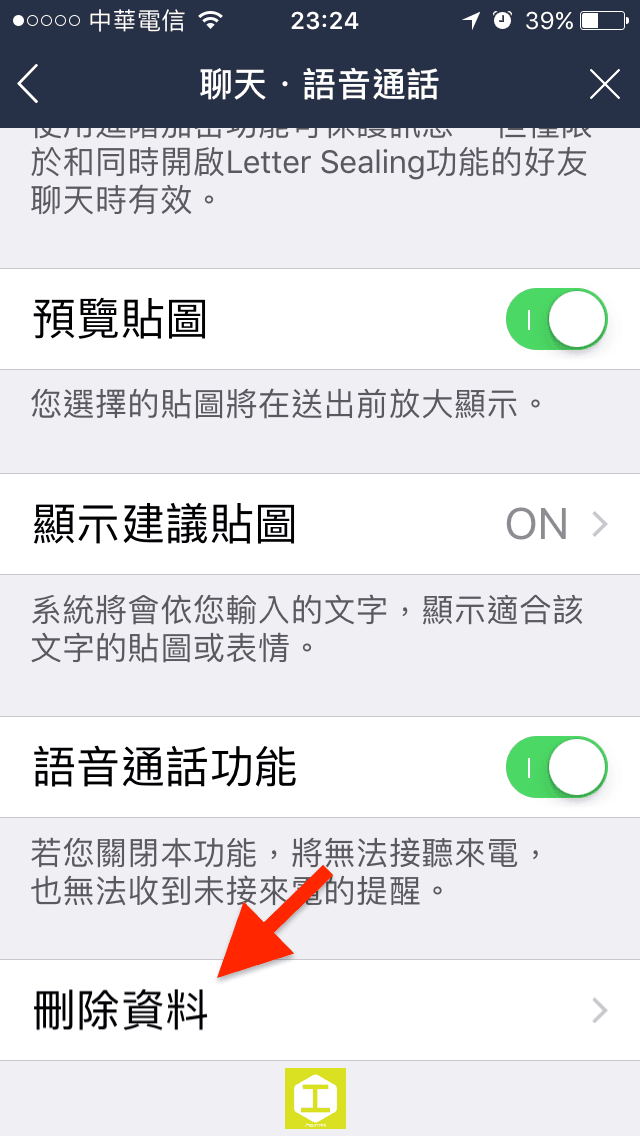 Figure 3: LINE Chats & Voice Calls screen.
Step 4: Inside the data management interface shown in Figure 4, users can selectively choose which types of data to erase.
Generally speaking, "**Cached data**" consists of temporary files accumulated by the LINE application and can be safely removed anytime without losing chat texts. However, if you need to reclaim even more space, you can also select “Photo data”, “Voice message data”, “File data”, or even “All chat history” to free up maximum capacity.
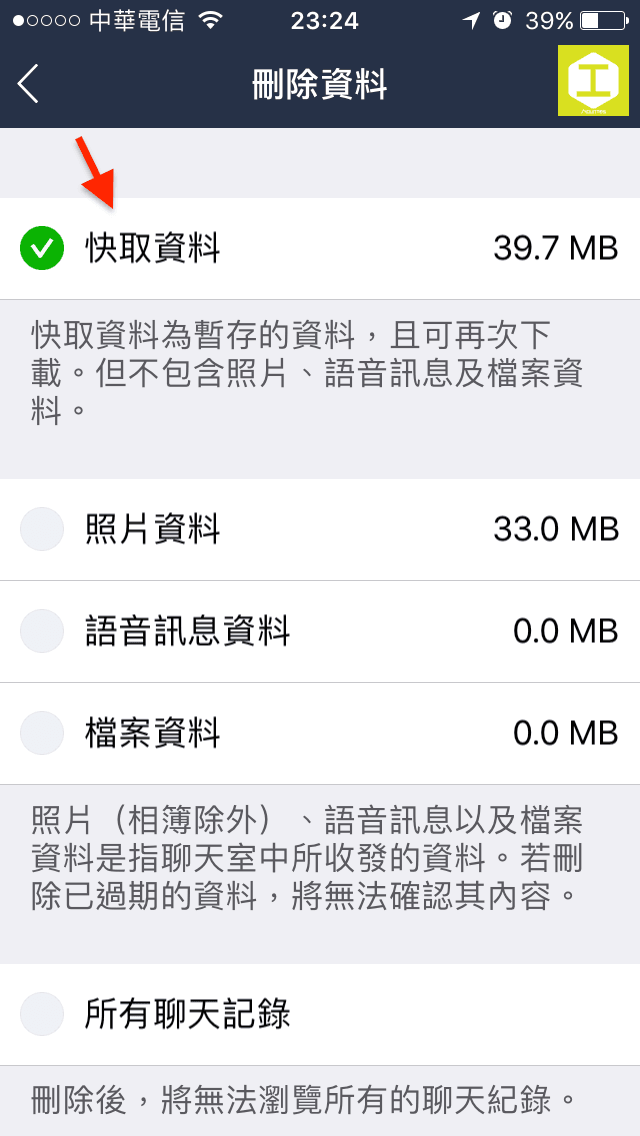 Figure 4: LINE Delete Data interface.
Step 5: Once you’ve selected the items you wish to purge, scroll down to the bottom of the “Delete Data” screen (see Figure 5) and tap the red "**Delete Selected Data**" button. The app will immediately purge the selected data.
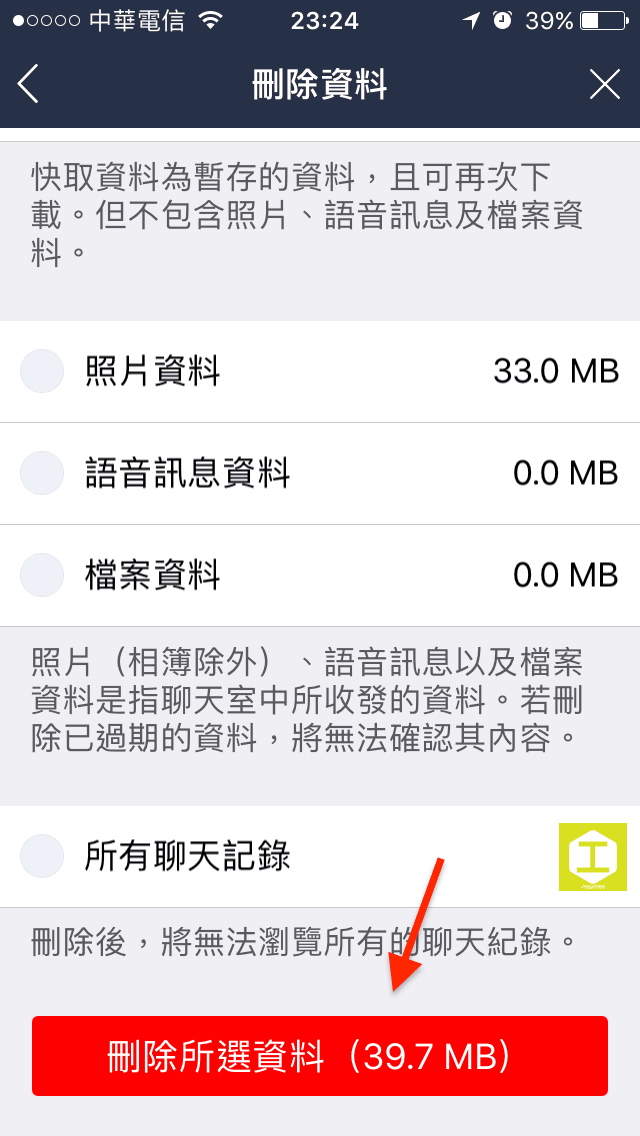 Figure 5: LINE Confirm Delete Data button.
As illustrated in Figure 6, prior to purging, LINE’s documents and data occupied 245 MB on this iPhone.
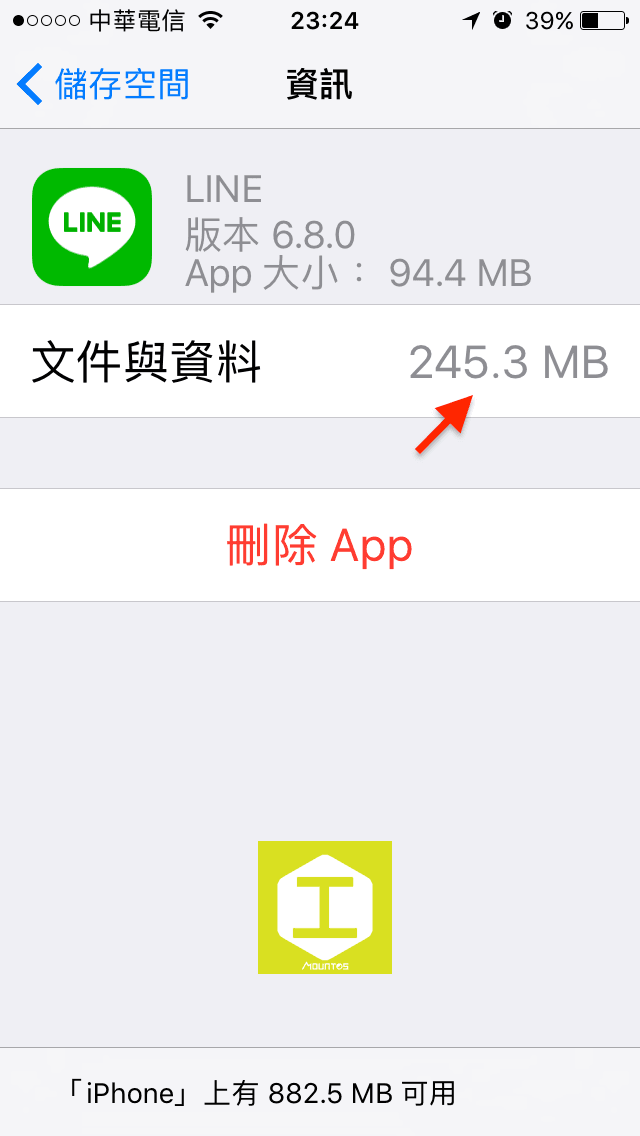 Figure 6: Checking LINE storage usage in iOS Settings.
After deleting the cache, as seen in Figure 7 below, LINE’s documents and data footprint shrank to just 149 MB, successfully reclaiming 96 MB of storage.
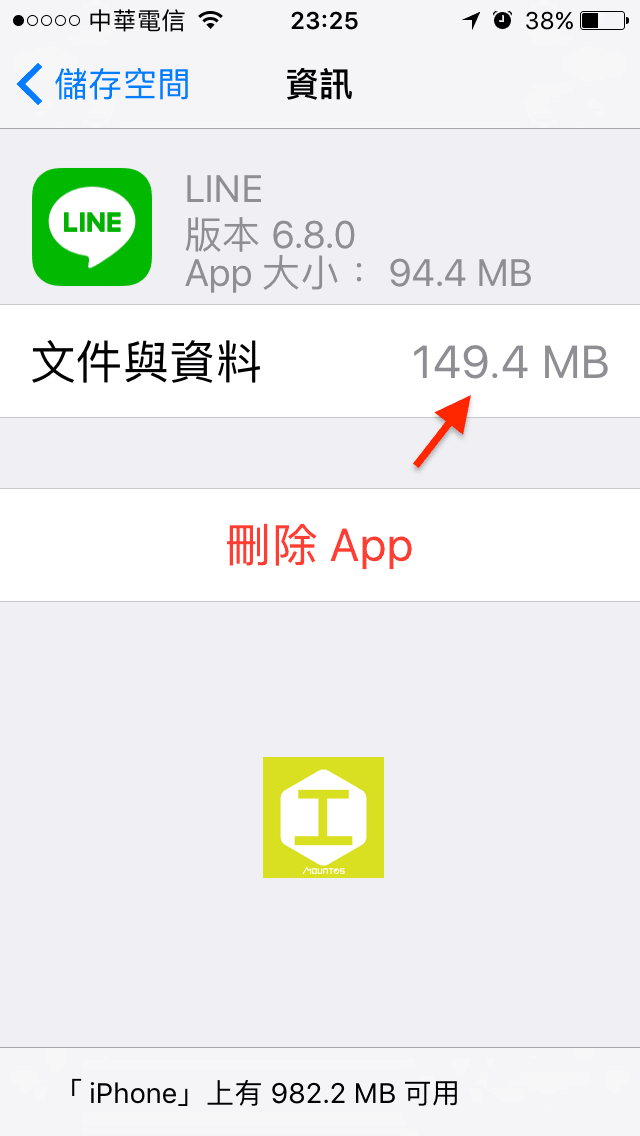 LINE storage consumption significantly reduced after clearing cache.
Although freeing 96 MB might seem modest, that is simply because I had recently reinstalled the LINE app. Before reinstalling, LINE had hoarded well over 1 GB of storage, bogging down my iPhone SE. With this handy built-in tool, LINE’s notorious reputation as a monstrous storage hog can finally be put to rest.
Support Independent Perspectives & In-Depth Insights
Every thoughtful analysis and candid critique comes from our dedication to truth and quality. We choose not to follow sensational algorithms or clickbait headlines.
Sustaining independent research requires reader support. Make a one-time or monthly contribution, securely processed by Google.
Payments secured by Google · Manage or cancel anytime in your Google Account




Comments