

The ancients often said that when you’re sleepy and groggy late at night, you are bound to make mistakes—and that timeless adage proved undeniably true tonight. Dozing off for just a few moments while working, I managed to get infected by an irritating piece of rogue malware: the infamous browser homepage hijacker and adware program, “Qone8.”
It had been years since I fell for FlashGet’s fake-option bundled advertising, and I hadn’t contracted any malware since. Alas, that spotless record was ruined tonight (Orz).
This mishap happened while I was urgently searching online for a rare utility tool. I browsed through numerous obscure download sites, and somewhere along the line, the payload slipped in. I don’t even remember whether it triggered during download or execution.
In short, Qone8 quietly invaded both Microsoft Internet Explorer and Google Chrome, tampering with my configuration, installing rogue browser extensions, and hijacking default homepages to redirect to its malicious search portal.
Generally, you can find various anti-malware tools from reputable security vendors online. If you don’t want to dig into the system manually, installing one of those tools is a viable route.
However, I prefer not relying on third-party cleaning tools unless necessary. After inspecting the system myself, I found that Qone8 surprisingly offered an uninstaller. Without hesitation, I ran the uninstaller to see how far it went—though whether it actually cleans everything up is another question entirely.
Steps to Uninstall Qone8
First, open the “Programs and Features” (formerly “Add or Remove Programs”) control panel[1]. As shown in Figure 1 below, right-click the Windows logo in the lower-left corner of Windows 8 to open the Power User Quick Link menu, or access it via the traditional Control Panel[2].
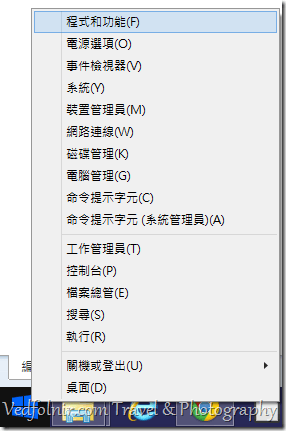 Figure 1: Windows 8 Quick Link Menu.
Next, select “Programs and Features” from the menu to open the installed software manager shown in Figure 2.
In Figure 2, you’ll locate an entry named “qone8 unistaller.” Notice the subtle lowercase spelling—a classic trick malware uses to blend in unobtrusively.
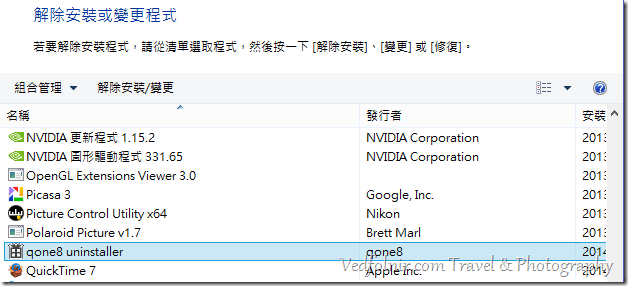 Figure 2: Uninstall or Change a Program list.
Executing the uninstall command opens Qone8’s wizard dialog. Figures 3 through 7 illustrate the sequence of uninstallation steps:
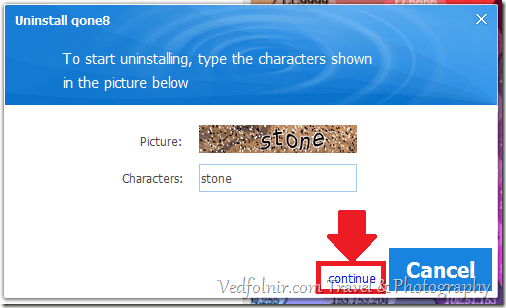
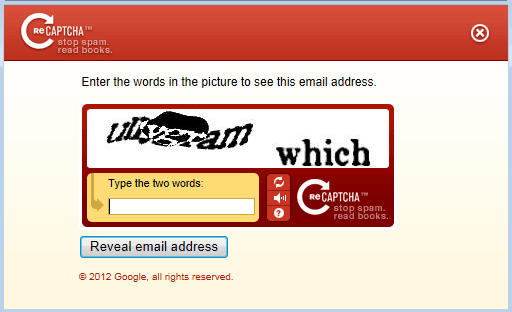
Figure 3: CAPTCHA prompt before uninstallation (aside from standard Y/N prompts, this was my first time seeing an uninstaller require image verification, lol).
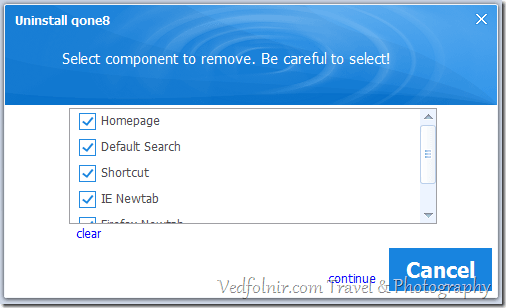
Figure 4: Component removal selection—check all boxes.
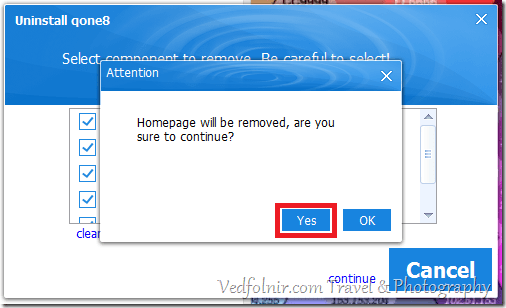
Figure 5: Secondary confirmation prompt asking whether you really wish to remove it.
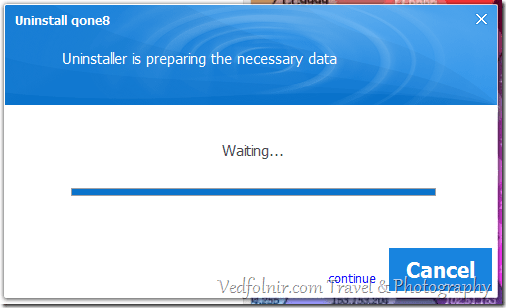
Figure 6: Waiting…
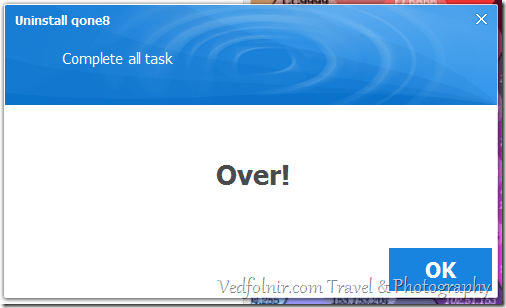
Figure 7: Uninstallation complete.
Fixing Browser Shortcuts Hijacked by Qone8
Even though you have uninstalled the Qone8 executable, malware always leaves dirty footprints across system shortcuts and settings. Both Microsoft Internet Explorer and Google Chrome will likely remain hijacked when launched from their icons.
As shown in Figure 8, a straightforward fix is to right-click the browser icon on the taskbar or desktop, right-click the Google Chrome program name in the jump list, and click “Properties.”
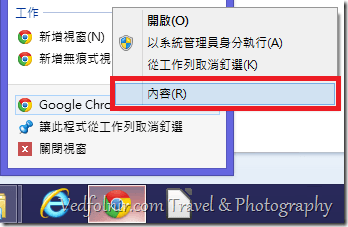
Figure 8: Modifying Google Chrome browser properties.
As shown in Figure 9, the “Google Chrome Properties” window will appear. There are two key fields to inspect: “Target” and “Start in.” These fields store the path to the Chrome executable used when launching the program (Internet Explorer follows the exact same pattern).
Once compromised by Qone8, the shortcut’s “Target” field is appended with a long URL string: C:\Program Files\Internet Explorer\iexplore.exe http://start qone8 com/type=sc&ts=85377&from=smt&uid=VEDFOLNIR.com_IS_BEST.... This tail parameter forces the browser to open the hijacker’s portal upon launch.
The first portion (C:\Program Files\Internet Explorer\iexplore.exe) is the legitimate launch command, whereas the latter portion (http://start qone8 com/...) is the adware URL intended to hijack your browser startup.
This malicious URL even embeds unique affiliate/user tracking IDs, pointing toward an affiliate advertising pay-per-click kickback model. (The URL here has been sanitized to avoid promoting their site.)
To fix this, simply delete the appended malicious URL parameters from the “Target” field so that only the clean program path remains, restoring your browser shortcut to its pristine state.
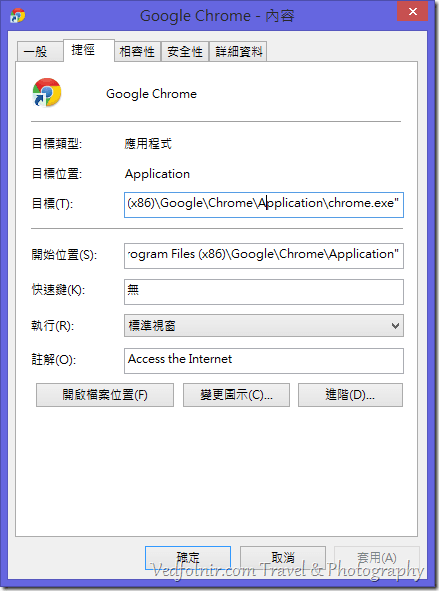
Figure 9: Google Chrome shortcut properties.
If you need the default values for reference:
- For Internet Explorer: Target is
"C:\Program Files\Internet Explorer\iexplore.exe", and Start in is%HOMEDRIVE%%HOMEPATH%. - For Google Chrome: Target is
"C:\Program Files (x86)\Google\Chrome\Application\chrome.exe", and Start in is"C:\Program Files (x86)\Google\Chrome\Application".
Restoring Chrome’s Default Search Engine
Because Google Chrome features seamless cloud synchronization, your user settings and extensions are continuously backed up to your Google account. Consequently, once Qone8 tampers with your default search provider, that setting syncs across all your devices. To permanently resolve this, we must clean up the search engine list manually.
As shown in Figure 10, navigate to Chrome Settings and locate the “Search” section, which determines which engine executes searches from the Omnibox address bar. Click “Manage search engines…” to inspect the full list.
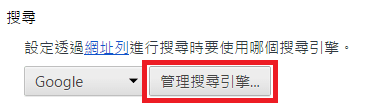 Figure 10: Search -> Manage search engines.
As shown in Figure 11, inside the Search Engines dialog, you can spot the rogue intruder embedded into your search provider list. Without manually removing it, Qone8 will follow you across every computer synced with your Chrome account. Hover your cursor over the Qone8 entry and click the “X” button to delete it completely. (Delta-Homes is another infamous rogue hijacker… table flip!)
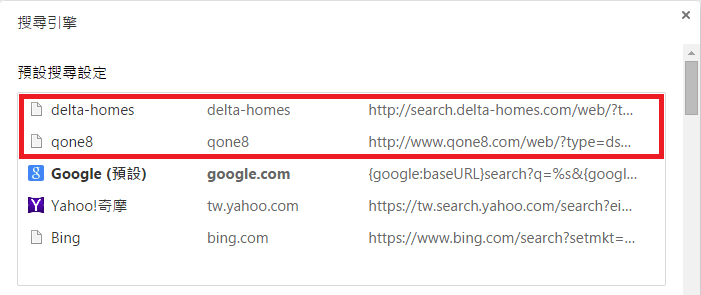 Figure 11: Default search engine settings.
Advanced Residual Cleanup: Registry and File System
After running the uninstaller and fixing shortcuts, I opened the Windows Registry Editor (regedit) to analyze residual traces and found leftover junk entries. While these minor traces usually do not compromise system stability, cleaning them ensures complete peace of mind.
If you prefer a spotless system:
- Press
Windows Key[3] +Rto open the “Run” dialog, typeregedit, and hit Enter. In Registry Editor, pressCtrl + Fto search forqone8, and delete matching keys and value entries. Always verify what you are deleting, or ask an experienced tech friend for guidance. - Search your hard drive for any remaining folders or files containing the string
qone8(Windows Key+F). For instance, on my PC, I locatedC:\Users\username\AppData\Roaming\qone8. Deleting the entireqone8directory removes the leftover cached profiles (note: AppData is a hidden folder, so ensure hidden items are visible or type the path directly).
Conclusion
If Qone8 were simply using aggressive distribution during early startup phase while providing legitimate value, one might slightly tolerate it. But after spinning up a sandboxed environment to inspect their domain network, I found widespread adware, spyware, and redirect payloads. This operation clearly relies on black-hat cracker tactics for short-term illicit monetization. If your machine is affected, remove it promptly and refrain from entering sensitive personal credentials on the compromised device until cleaned.
Frequently Asked Questions (Q&A)
Uninstaller Stuck on “Waiting…” in Windows XP? (Reader starus)
Reader starus asked:
I am using Windows XP. In “Add or Remove Programs,” I found the uninstaller, but clicking it keeps it stuck forever on “Waiting…” without progressing. Please help, thank you!
The Fixer replied:
Rogue malware is notoriously stubborn because its built-in uninstaller is often just a facade! A watchdog process frequently runs in the background, locking files and actively blocking the user from completing uninstallation.
Effective Solutions:
- Force Quit via Task Manager: Reboot your computer, press
Ctrl + Shift + Esc(orCtrl + Alt + Delete) to launch Task Manager, review the process list, and force-kill all suspicious background processes with obscure names or paths before running the uninstaller again. - Clean via Safe Mode (Recommended): As the computer restarts, tap the
F8key repeatedly to access the Advanced Boot Options menu, and select “Safe Mode.” In Safe Mode, third-party startup drivers and background malware daemons are prevented from loading. You can then run the uninstallation smoothly from “Add or Remove Programs” or delete the Qone8 directory and registry entries directly with a near 100% success rate! - Security Advice: Windows XP reached end-of-life long ago, meaning no official security patches or vulnerability fixes are released. Continuing to browse the web on XP is like leaving your front door wide open. Upgrading to a modern operating system is the only reliable way to maintain long-term security.
References
- On Microsoft Windows prior to Windows Vista, the tool was titled “Add or Remove Programs”; starting with Vista, it was renamed “Programs and Features,” both located within the Control Panel.
- You can also press
Windows Key[3] +Xto quickly open the Power User shortcut menu (Figure 1). Alternatively, pressWindows Key+R, entercontrolto launch Control Panel, and navigate to Programs. - The Windows Key is located on the bottom left of physical keyboards between Ctrl and Alt, featuring the Microsoft flag emblem:

Support Independent Perspectives & In-Depth Insights
Every thoughtful analysis and candid critique comes from our dedication to truth and quality. We choose not to follow sensational algorithms or clickbait headlines.
Sustaining independent research requires reader support. Make a one-time or monthly contribution, securely processed by Google.
Payments secured by Google · Manage or cancel anytime in your Google Account



Comments