

Today, websites with modern security architectures offer more than just basic “strong password” enforcement; many now provide “two-step verification” (also known as two-factor authentication or 2FA) to drastically raise defenses against unauthorized access.
When you notice a platform enforcing high-strength multi-factor authentication, it is almost always driven by critical data security mandates. Well-known services such as Google, Facebook, WordPress, and Cloudflare all provide robust two-step verification mechanisms.
A list of prominent services supporting two-factor authentication is included at the end of this guide for your reference.
Most two-step verification setups rely on verified mobile phone numbers as the primary authentication anchor, offering both user convenience and strong cryptographic security.
If keeping your accounts and personal data safe is a priority, enabling two-step verification across your vital accounts is practically mandatory.
Below, we walk through enabling two-step verification using Google as an example. The workflow on other major platforms follows very similar principles.
Facebook is another essential platform where we strongly recommend turning on 2FA. Enabling it is straightforward: navigate to your account security settings, locate the code generator options, and complete the setup prompt (we recommend using the Authy app for managing software tokens, which we will detail in another guide [1]).
Step-by-Step Guide to Enabling 2-Step Verification
Refer to Figure 1, which illustrates Google’s standard account settings page. Modern Google interfaces feature a convenient menu icon in the upper right corner.
If you prefer a direct shortcut, navigate straight to: https://www.google.com/settings/security.
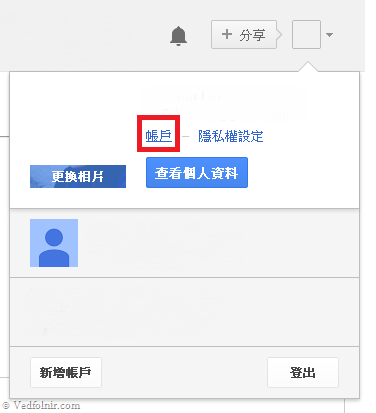 Figure 1: Google account web interface.
Next, as shown in Figure 2, click into the “Security” tab on your account overview page.
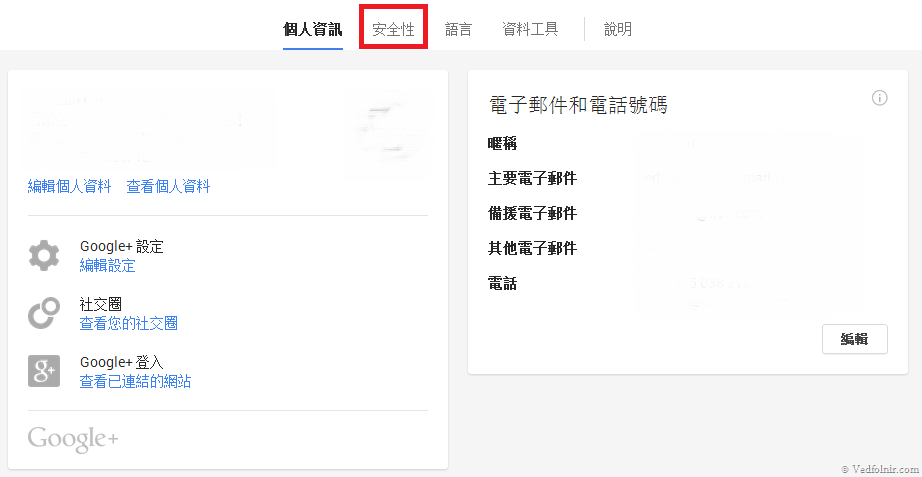 Figure 2: Security settings tab.
In Figure 3, if you have not previously activated 2-step verification, you will see a status notification showing that the feature is currently “Disabled”.
Click the “Setup” option to begin activating the service.
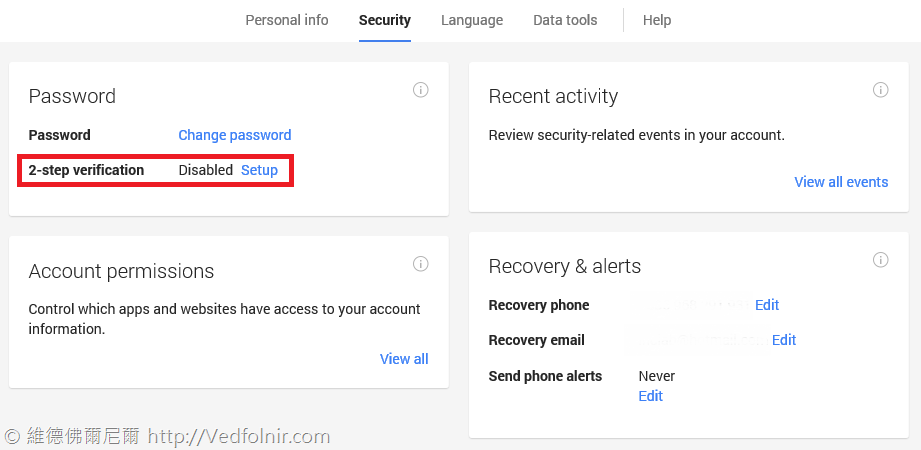 Figure 3: 2-step verification status panel.
As shown in Figure 4, your browser will redirect to an explanatory onboarding page. Click “Start Setup” to proceed.
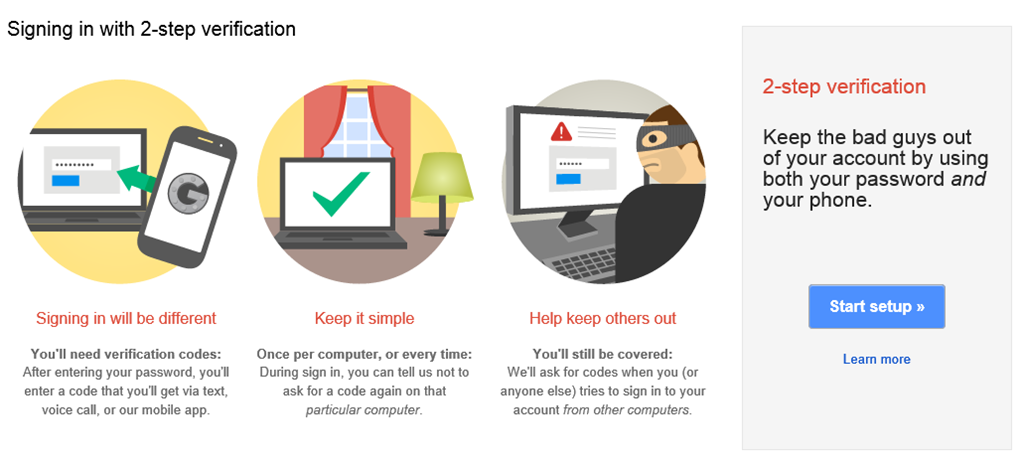 Figure 4: Starting the 2-step verification configuration.
In Figure 5, input your mobile phone number in the Phone Number field, and choose whether you want to receive your security codes via SMS text message or voice phone call.
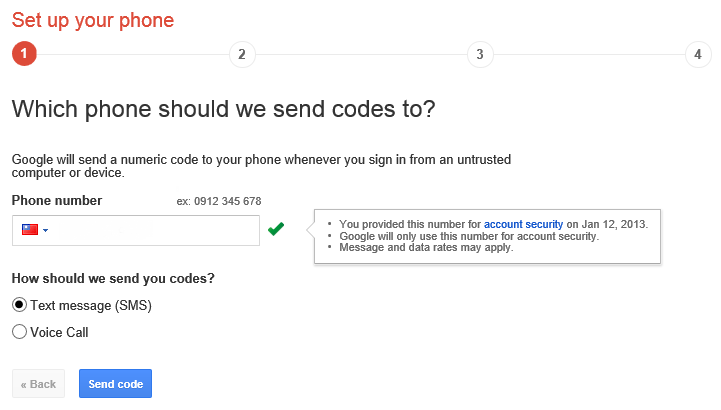 Figure 5: Registering your verification phone number.
In Figure 6, enter the 6-digit confirmation code received on your phone. Once confirmed, Google will send a confirmation notification to your primary email address.
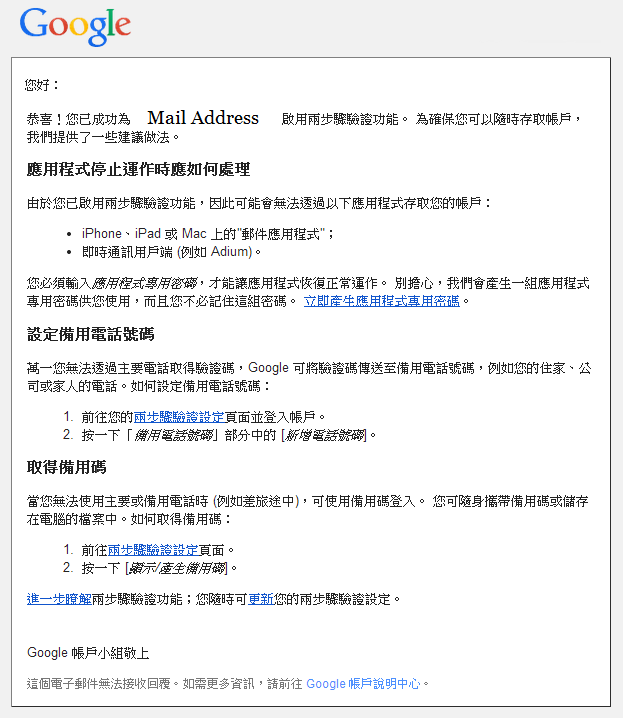 Figure 6: Confirmation email acknowledging successful setup.
With this completed, you have enabled Google’s two-step verification, providing an extra layer of defense across all associated Google services.
While SMS verification is standard and simple, many platforms also support software-based token authentication: an “authenticator app” (TOTP). This approach will be covered in our dedicated tutorial on using Authy to safeguard Facebook and Gmail [2].
Re-authenticating Connected Applications and Browsers
Once two-step verification is active, existing sessions and connected clients will require re-authentication. Here is how to complete this inside Google Chrome:
As shown in Figure 7, open Chrome’s settings via the top-right menu (or type chrome://settings directly into the address bar). You will encounter a prompt indicating that a sign-in refresh is required.
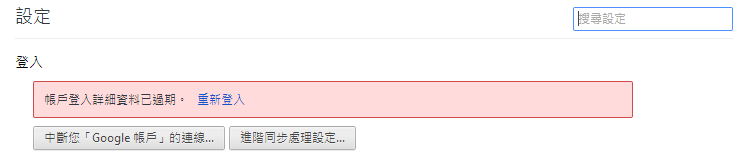 Figure 7: Google Chrome settings screen prompt.
Click the “Sign in again” button as instructed.
Refer to Figure 8: enter your Google account password. Chrome will then direct you to the secondary verification screen where you enter your freshly generated code.
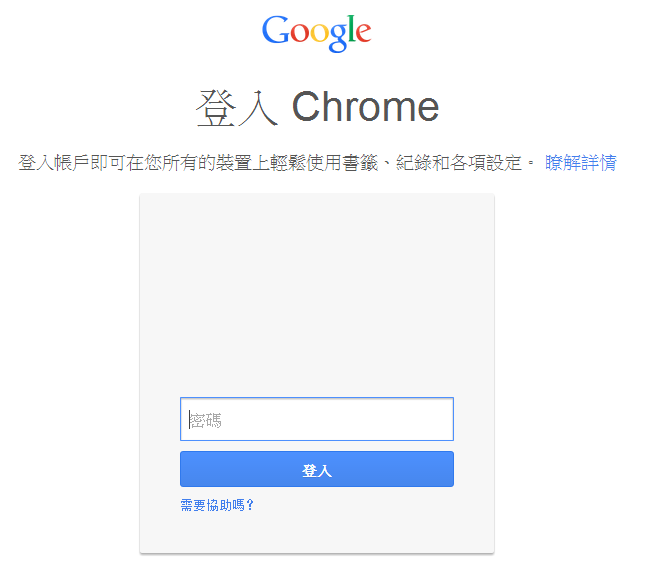 Figure 8: Completing second-step authentication in Chrome.
Important Considerations for Two-Step Verification
During the setup process, services frequently issue a set of “Backup Codes”. These are provided in a printable list of roughly ten single-use random alphanumeric strings. Be sure to download and securely store these backup codes in a safe location.
These ten emergency codes act as temporary substitutes for your mobile phone token. If you ever lose your phone or travel abroad without cellular reception, you can use any one of these backup codes to regain access. Remember that each backup code is strictly single-use—once consumed, it cannot be reused, so update your security settings before exhausting them.
Popular Web Services Supporting 2FA
Amazon Web Services, ANX, App.net, Apple ID, Bitstamp, Buffer, Cloudflare, Dashlane, Dropbox, eBay, E*TRADE, Evernote, Facebook, Gandi, GitHub, GoDaddy, Hootsuite, 1Password, LinkedIn, LocalBitcoins, Microsoft, PayPal, Twitter, WordPress, Yahoo! Mail, Google.
Further Reading
- “Authy” Two-Factor Authentication Security Guide / Recommended Mobile Apps.
- Two-Step Verification: Generating Google App-Specific Passwords.
- Original post published on February 10, 2014; revised on October 2, 2015.
Support Independent Perspectives & In-Depth Insights
Every thoughtful analysis and candid critique comes from our dedication to truth and quality. We choose not to follow sensational algorithms or clickbait headlines.
Sustaining independent research requires reader support. Make a one-time or monthly contribution, securely processed by Google.
Payments secured by Google · Manage or cancel anytime in your Google Account




Comments