

Back when I was working as a patent engineer at an IP firm, I routinely spent eight consecutive hours glued to the screen. Sure, I would sneak in bathroom escapes or engage in rubber-band shootouts with colleagues (ahem) to give my eyes a breather. But my most effective secret weapon was touch-typing without looking at the monitor (though occasionally that backfired—like the time I accidentally handed my supervisor a draft of a love letter meant for my crush instead of a patent spec; my face burned red hot with embarrassment!).
Cheeky work habits aside, if I hadn’t developed those coping mechanisms, I wouldn’t have kept the sharpest 20/20 vision in the entire firm. In fact, I was the sole engineer who didn’t wear glasses. Preserving your eyesight is seriously crucial!
Lately, heavy project demands have had me logging long hours inspecting and editing photographs. Every time I wrap up a milestone, I realize my eyes are completely overwhelmed.
After all that preamble, you probably guessed today’s topic, right?
Yes, exactly:
“Cod liver oil plus calcium, strengthens bones and protects your eyes!” (a nostalgic classic commercial jingle).
Well, I’m not here to hawk supplements. Today, we’re talking about a computer software solution designed to safeguard your vision.
 Watching eye.
Oops, wrong image (hey!).
Alright, let’s get serious.
Ignoring the pitchforks and torches, I recently brainstormed ways to protect eyesight seamlessly while staying productive. I initially toyed with developing my own utility, but a quick search revealed great existing apps developed by seasoned programmers—such as “EyeFoo” and “Eyes Relax.” Seeing these excellent tools saved me about ten years of programming effort, so I happily shelved the DIY route.
The core philosophy of these applications is beautifully simple: periodically blank or lock the screen to semi-force users to step away from work, giving tired eyes a genuine break.
Some might protest that abruptly interrupting workflow risks losing fleeting bursts of creative inspiration.
Believe me: if an idea truly vanishes just because your monitor went dark for a few minutes, you can easily develop a far more robust concept after taking time to reflect.
Among the options available, EyeFoo offers localized Chinese language packs and extra eye exercises. However, I firmly believe dedicated utility software should be as lean, lightweight, and focused as possible to minimize system memory overhead. Therefore, my top recommendation remains "**Eyes Relax**" [1].
Installing Eyes Relax
Refer to the official download link cited in Reference [1] below. Downloading from the project website yields the installer package EyesRelax-0.81.msi (the latest build at the time of writing).
Run the installer, and you will be greeted by the clean configuration dashboard shown in Figure 1.
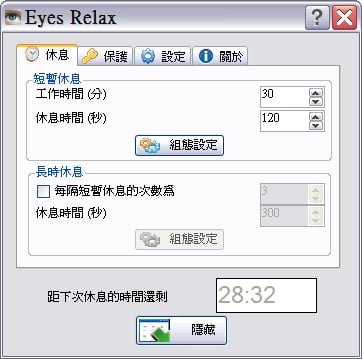 Figure 1: Main Application Interface.
How to Configure and Use Eyes Relax
Referring to Figure 1 above, the “Relax” tab features controls for Short break, Long break, and a non-editable timer displaying remaining active work time.
My recommended baseline setup:
- Short break: 30 minutes of work time, followed by 300 seconds (5 minutes) of rest.
- Long break: Triggered every 2 short breaks, lasting 600 seconds (10 minutes).
In other words, you work for half an hour, take five minutes to stretch your vision, and after two working cycles, enjoy a ten-minute break. Over the course of five long break intervals, your actual screen time totals roughly 6 focused hours (employers, please don’t hurt me!).
The main window clearly displays four navigation tabs: Relax, Protect, Settings, and About. Aside from the “About” screen, the operational heart of the app lives in the “Relax” tab.
The Protect tab provides parental protection controls. By establishing a security master password, users or children cannot bypass or dismiss the screen lock when break time begins—making this invaluable for managing kids’ screen time.
The Settings tab lets you configure UI language, system tray behaviors, and backup profile saves (which you rarely need to tweak).
When you click the Hide button at the bottom of Figure 1, the utility minimizes cleanly to the Windows system tray, displaying an eye icon that silently monitors your session.
 Figure 2: System Tray Icon.
Finally, back in Figure 1 under both Short Break and Long Break, you will notice a Configure button. Clicking this opens a dedicated modal with three sub-sections: Break type, Reminders, and Sound. These tabs let you tailor how the app enforces breaks and notifies you.
Personally, I configure the break type to "**Blank screen**" with a solid "**Black**" fill.
This completely blackens the display when the break timer strikes, enforcing a true psychological pause (even if pressing Esc can technically dismiss it—guilty!). An added bonus of a solid black screen is panel preservation and energy savings, reducing LCD wear while resting your eyes—killing two birds with one stone.
References
- Eyes Relax official project page and download source.
Support Independent Perspectives & In-Depth Insights
Every thoughtful analysis and candid critique comes from our dedication to truth and quality. We choose not to follow sensational algorithms or clickbait headlines.
Sustaining independent research requires reader support. Make a one-time or monthly contribution, securely processed by Google.
Payments secured by Google · Manage or cancel anytime in your Google Account



Comments