
Translation software has always been one of the most essential utility tools on many users’ computers. Decades ago, the software I relied on was Dr.eye, the widely recognized and professional translation suite developed by Inventec.
Later during graduate school, Yahoo’s MiniPen earned widespread praise from professors. Being completely free, practically everyone in our research lab installed a copy.
In today’s era of flourishing cloud technology, the very nature of translation software has been redefined. Today, I want to recommend “Google Translate”.
Beyond the familiar web version, Google Translate is now available as a Google Chrome browser extension. Official apps are also available across Android and iOS smartphones and tablets, transforming compact mobile devices into portable electronic translators—a truly versatile cross-platform cloud translation suite.
Getting down to business, Google Translate is a cornerstone project within the Google family, featuring two primary highlights:
- Multi-language cloud-synchronized translation capabilities;
- Intelligent machine learning and AI-assisted translation.
The ultimate objective of this project is to achieve real-time and accurate multi-language simultaneous interpretation—essentially the real-world incarnation of Doraemon’s Translation Gummy.
Beyond translating vast vocabularies across diverse languages, Google Translate is frequently praised for its continuously improving ability to translate entire web pages, articles, and full paragraphs accurately.
By cross-referencing massive corpora of documents and continuously incorporating user corrections, Google Translate has become an indispensable helper for university and graduate students conducting seminar readings, even before full breakthroughs in artificial intelligence. In practice, many paste an entire article into automatic translation and polish the output to submit their summaries.
Because Google Translate operates as a cross-platform cloud service, it relies on extensive remote databases to deliver timely and accurate translations. While the web version inherently requires internet access, mobile apps on smartphones and tablets do offer offline packages—though translation precision drops significantly. I strongly recommend staying connected to the internet whenever possible.
Recently, the Google Translate Chrome extension received a substantial overhaul. In addition to consolidating tools with disparate features from previous iterations, it introduced several convenient browsing enhancements. Below is a complete walkthrough of this updated extension.
Google Translate Extension Walkthrough & Tutorial
Once the Google Translate extension is installed, you will notice an icon appear on your Google Chrome toolbar, as shown in Figure 1. Clicking this icon opens a popup window below it, which has two states:
- No text highlighted on the page: As shown in Figure 1, the popup contains a text field where you can input unfamiliar words for direct lookup, with concise translation results displayed within the same window.
- Text already highlighted on the page: The popup immediately displays the translation for the selected snippet.
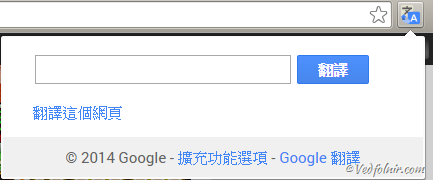
Figure 1: Google Translate on the Chrome toolbar.
At the bottom of the popup in Figure 1, an “Extension Options” link lets you configure detailed settings. Clicking it brings up the window shown in Figure 2: “Chrome Extension Options”.
There are two primary settings to note:
- My primary language: This denotes the target translation language. If your primary language is set to Traditional Chinese, foreign text will default to being translated into Chinese. Furthermore, when you highlight words in your designated primary language, the extension will not trigger, avoiding redundant same-language lookups (Simplified Chinese and Traditional Chinese are treated as distinct languages).
- Pop-up translations: I recommend matching the settings in Figure 2. Specifically, the “Immediately display pop-up” option currently contains unpatched bugs from Google, so it is best avoided for now.
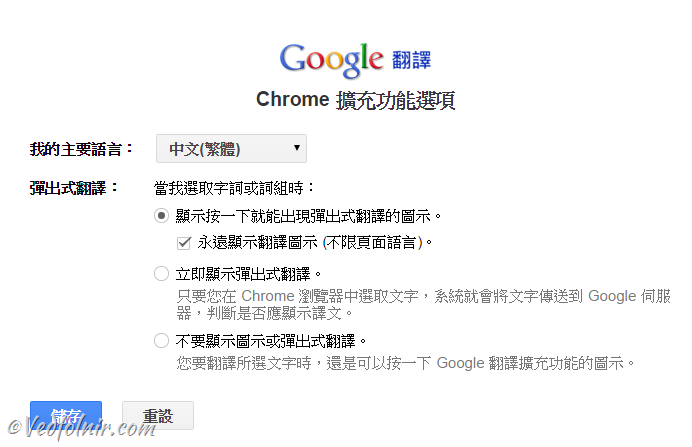
Figure 2: Chrome extension options page.
With the settings configured as above, let’s look at how the translation tool functions in practice.
Note: If you choose “Immediately display pop-up” in Figure 2, the floating icon will not appear.
As illustrated in Figure 3, when reading web content and encountering an unknown term, you can either double-click it or click and drag to select the word (which offers higher stability). A floating icon will then appear adjacent to the selected word.

Figure 3: Selecting text for translation in Google Chrome.
Next, left-clicking the floating icon shown in Figure 3 brings up the tooltip translation bubble shown in Figure 4. This window displays the original text, original audio pronunciation, translated definition, translated audio pronunciation, and a “More” link. Clicking “More” redirects you to the full Google Translate web app.
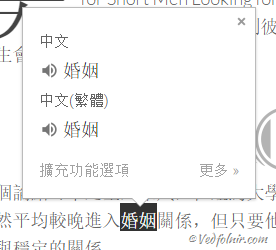
Figure 4: Google Translate floating bubble popup for selected text.
As shown in Figure 5, navigating to the web version automatically populates the input field with your selected word, eliminating the need to copy and paste manually.
One minor shortcoming of Google Translate is that contextual association and synonym coverage could still be richer; thus, I still target this tool mainly at users who have a fundamental grasp of English.
On that note, I question whether redirecting to the full web page is always necessary. I would suggest Google configure the “More” option to query the search engine directly, displaying translation snippets at the top of search results. That way, users could browse real-world usage examples to craft translations that best capture faithfulness, expressiveness, and elegance.
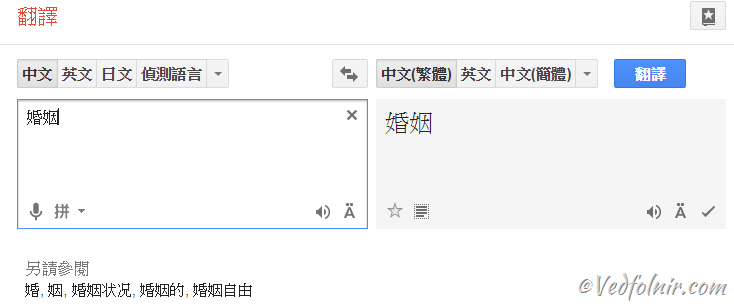
Figure 5: Opening and querying the translated term directly within Google Translate web interface.
Further Reading
- Google Translate Multi-Platform Downloads:
- Chrome Extension
- Google Play for Android Smartphones & Tablets
- iOS: Google Translate for Apple iPhone & iPad
- Google Translate Web Version
- Mentioning Inventec and translation machines reminds me of an electronic dictionary by Besta (無敵) I bought during middle school. I wrote an article detailing my thoughts on classic standalone electronic translators. Readers interested in traditional electronic dictionaries can check out “A Chat on the Big Three Electronic Translator Brands: Besta, Instant-Dict, and Hanlin (Chinese-English Dictionaries)”.
- Postscript: Looking at Figures 3 and 4, did you spot anything odd? Earlier I noted that primary language settings prevent redundant lookups, yet the screenshot shows a Chinese-to-Chinese translation. Checking our site’s backend, I realized that during the last update, a Simplified Chinese module was selected for quick localization. So our website’s baseline language was technically Simplified Chinese at that moment!
Support Independent Perspectives & In-Depth Insights
Every thoughtful analysis and candid critique comes from our dedication to truth and quality. We choose not to follow sensational algorithms or clickbait headlines.
Sustaining independent research requires reader support. Make a one-time or monthly contribution, securely processed by Google.
Payments secured by Google · Manage or cancel anytime in your Google Account

Comments