
While rushing through some writing tonight, something unexpected happened: my Apple MacBook Pro laptop desktop suddenly became ultra-clean (as shown below). The screen displayed only the web page content itself, while the toolbar, browser tabs, address bar, and bookmarks bar had all vanished. Although this expanded the viewable area on a 13-inch screen, navigating felt far from convenient.

When I moved the mouse cursor to the very top edge of the screen, the Apple OS X menu bar and the Google Chrome toolbar both slid down simultaneously to greet the cursor. However, because both bars occupied the same space, they frequently overlapped and conflicted with one another, obscuring Chrome’s toolbar and causing no small amount of frustration.

In reality, a disappearing browser toolbar is not a severe system error; it simply means a built-in Google Chrome feature was accidentally triggered. Yet for users unfamiliar with macOS or Chrome shortcuts, sudden UI changes like this can be quite perplexing—after all, even I had no idea when I had inadvertently hidden the toolbar.
To bring the toolbar back and keep it permanently pinned at the top of the browser, simply click the “View” menu in the top menu bar while Google Chrome is active, and then select “Always Show Toolbar in Full Screen”.
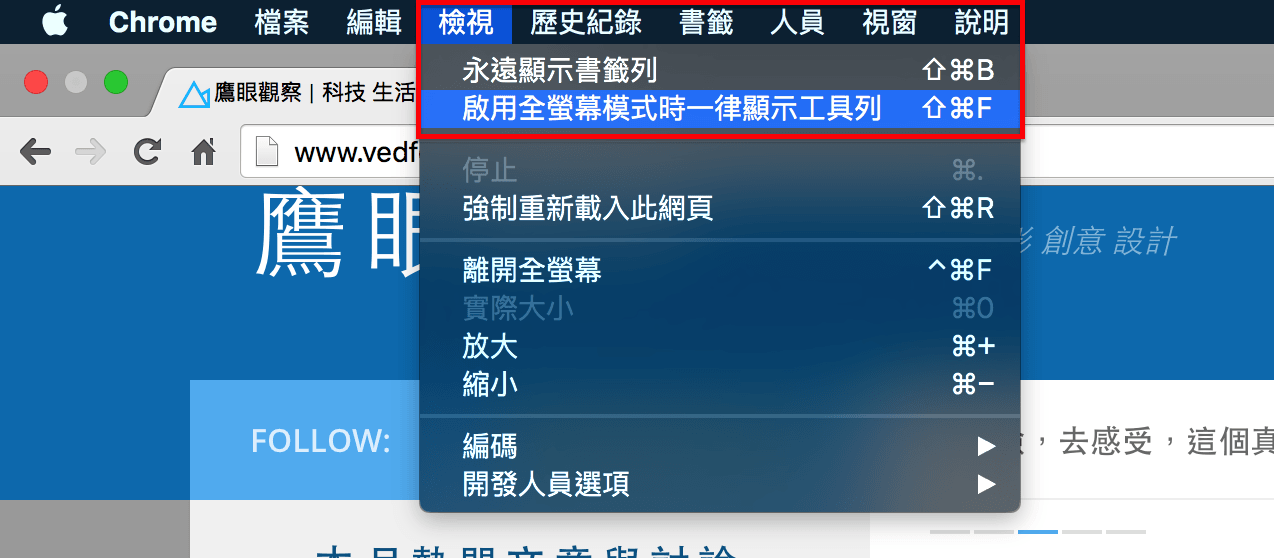
Once this option is selected, the Google Chrome toolbar will remain permanently pinned at the top of the browser window, returning everything to its default layout.
Support Independent Perspectives & In-Depth Insights
Every thoughtful analysis and candid critique comes from our dedication to truth and quality. We choose not to follow sensational algorithms or clickbait headlines.
Sustaining independent research requires reader support. Make a one-time or monthly contribution, securely processed by Google.
Payments secured by Google · Manage or cancel anytime in your Google Account

Comments