
Multi-monitor setups have become standard for both work and daily computing. Across screens with varying resolutions and sizes, adjusting browser zoom levels is often necessary to achieve a comfortable viewing experience. Over time, however, you may find that frequently visited sites open with zoom levels that appear either overly enlarged or inconveniently tiny. While manually resizing via keyboard shortcuts is simple enough, doing it repeatedly quickly becomes annoying.
Google Chrome automatically memorizes the zoom percentage applied to each domain you visit. While intended as a convenience so subsequent visits open at your preferred magnification, these accumulated custom overrides can sometimes cause erratic scaling behaviors across different displays. Fortunately, you can easily clear out these site-specific overrides and restore all web pages to default scaling.
Resetting Site Zoom Levels in Chrome
Within Google Chrome’s content settings, a dedicated “Zoom Levels” page catalogs all customized zoom overrides. You can navigate there through the three-dot menu icon (⋮) under browser settings, or jump directly by pasting the following internal URI into the Chrome address bar:
Zoom Levels Settings URI: chrome://settings/content/zoomLevels
As shown in the screenshot below, the Zoom Levels registry lists each website URL alongside its customized magnification percentage (such as 120%, 80%, etc.). These percentages dictate how Chrome scales pages on those domains upon opening.
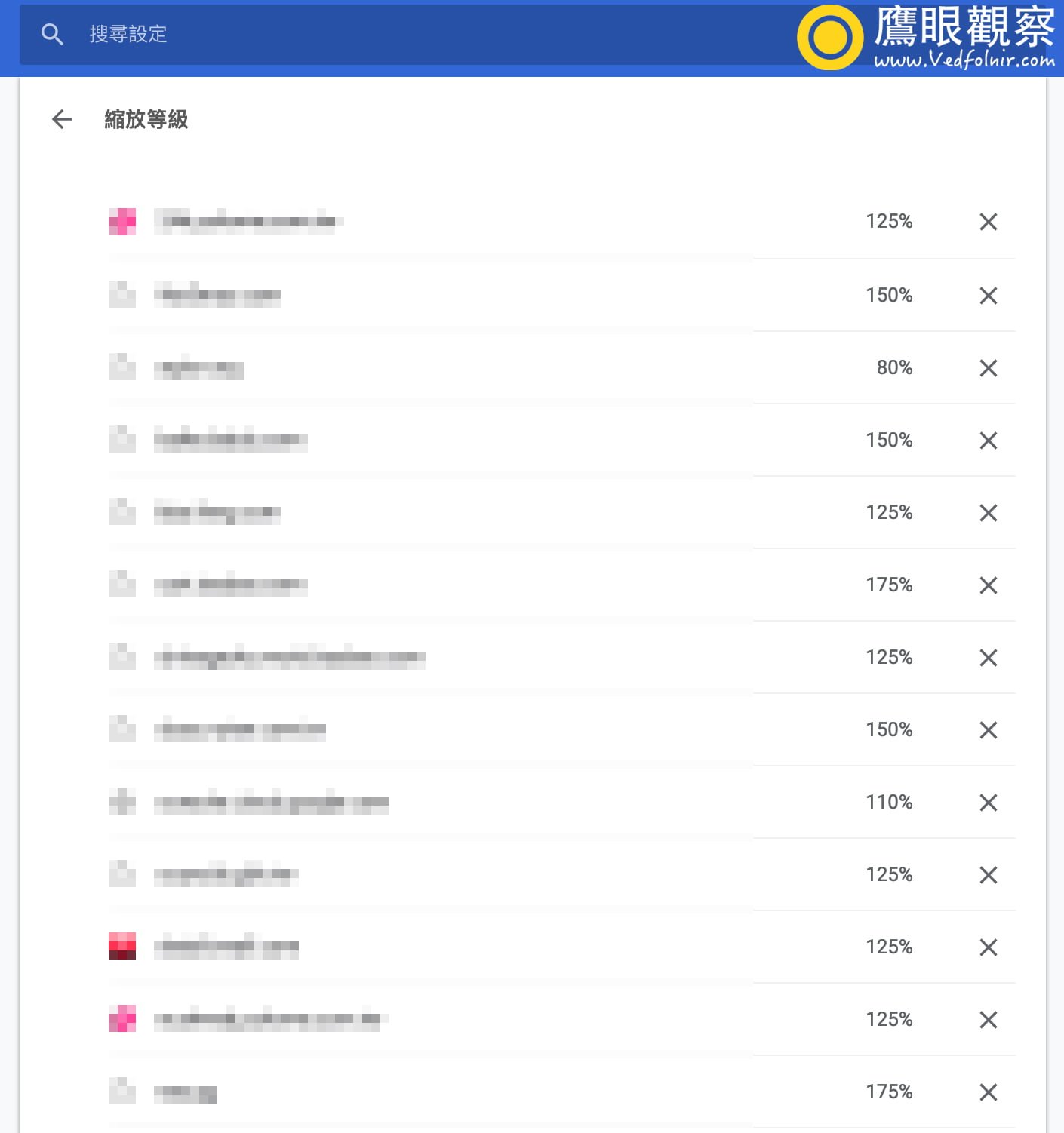
Chrome Zoom Levels settings screen
I recommend periodically clearing out all stored zoom overrides. Beyond restoring a clean, uniform baseline across all websites, purging stale configuration entries may also provide a slight, modest boost to browser responsiveness.
Support Independent Perspectives & In-Depth Insights
Every thoughtful analysis and candid critique comes from our dedication to truth and quality. We choose not to follow sensational algorithms or clickbait headlines.
Sustaining independent research requires reader support. Make a one-time or monthly contribution, securely processed by Google.
Payments secured by Google · Manage or cancel anytime in your Google Account


Comments