
Ever since our studio transitioned computer systems to a fully Apple-based environment, operating habits learned earlier on Microsoft’s “Windows” operating system have gradually evolved. The most prominent example is how many Google application services are progressively replaced by Apple’s built-in alternatives. After all, the two ecosystems are fierce competitors; for example, Apple’s cloud storage “iCloud Drive” can seamlessly replace Google Drive, and we highly recommend doing so.
If you are a newcomer taking your first bite of the Apple ecosystem, having installed many Google applications earlier only to find yourself wanting to delete them later, you might encounter the exact same question I had: “How do I uninstall them?” Below, using Google Drive as an example, we provide a step-by-step walkthrough on how to completely remove Google Apps (most other applications only require the first few steps to be removed).
Uninstalling Unwanted Applications
Unlike Microsoft Windows, which utilizes “Programs and Features” (or Add/Remove Programs) to centrally manage software installations and uninstallations, Apple’s OS X appears slightly more complex on the surface (though only superficially).
Apple’s OS X operating system does not have a traditional uninstaller wizard manager like Windows; instead, we can directly “delete” applications.
First, as shown in Figure 1 below, open the “Finder” file manager and select the “Applications” folder in the Favorites sidebar on the left. The window on the right will then display most of your properly installed applications (including utilities).
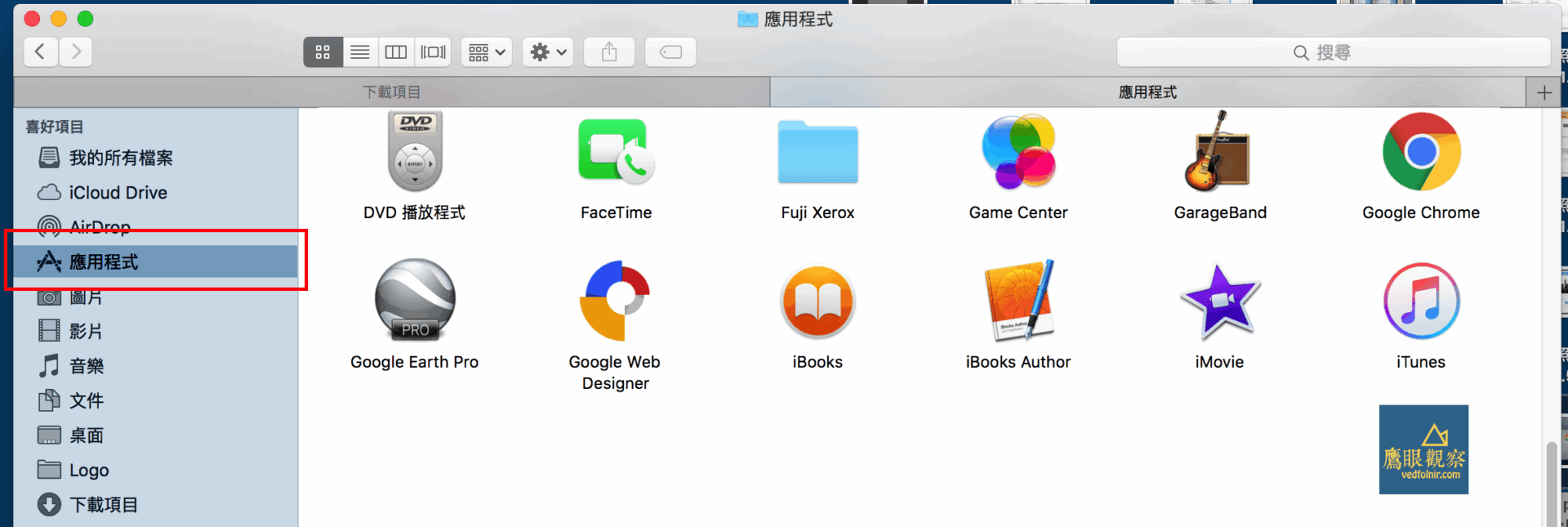
Next, simply drag the icon of the application you wish to remove directly into the “Trash”, or right-click the icon and choose “Move to Trash”. That completes the uninstallation. Isn’t that remarkably straightforward?
Removing Google Chrome Apps
However, certain software isn’t quite so easy to remove cleanly—even if pretending to be uninstalled on the surface.
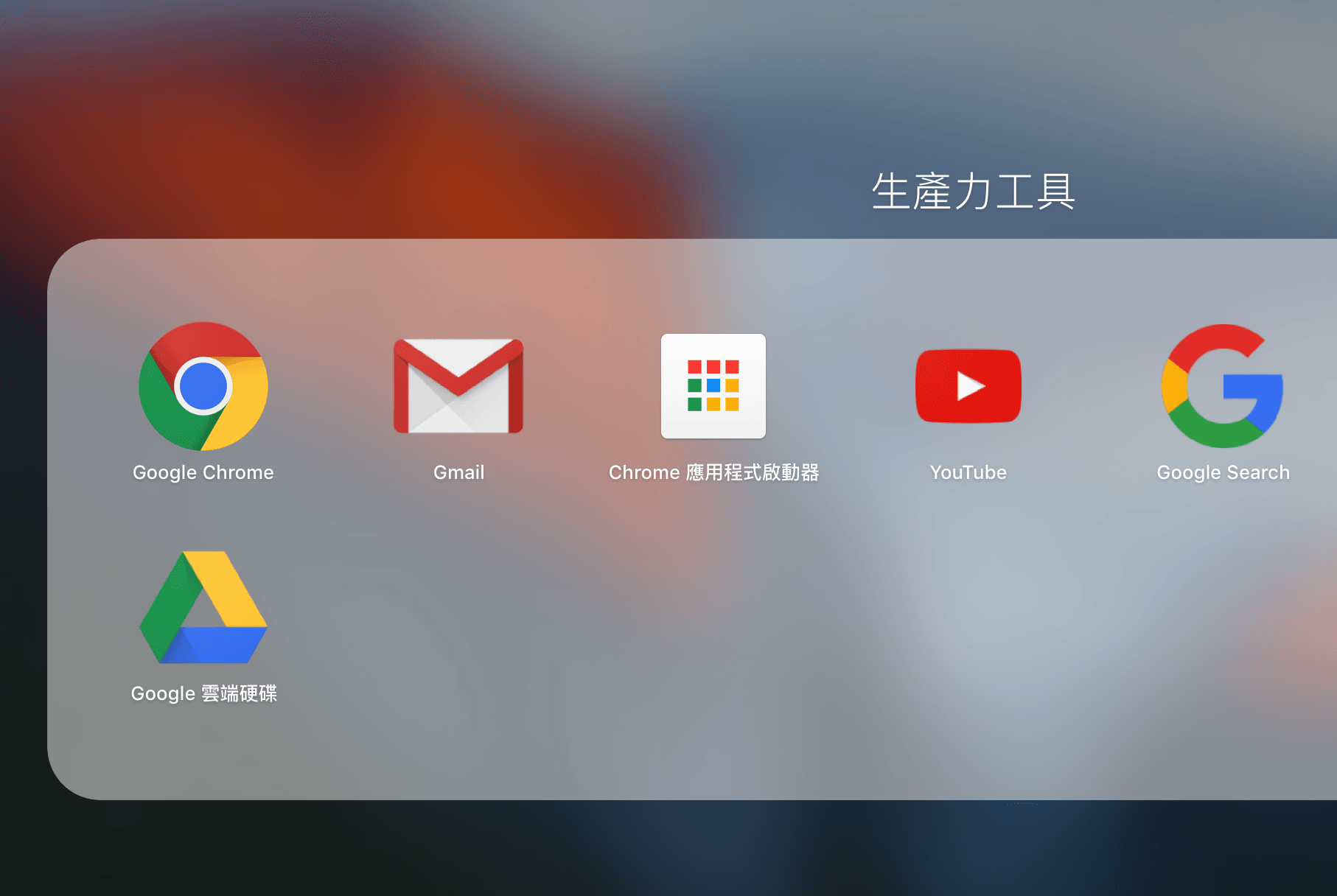
As shown in Figure 2 below, after uninstalling Google Drive, I could still see the Drive app icon lingering in Launchpad, and clicking it would even launch an unresponsive, frozen window.
To get rid of this persistent eyesore, open “Finder” again. But this time, instead of opening the system-wide Applications folder shown in Figure 1, open your user folder under the left Favorites sidebar, as shown in Figure 3 below (the name corresponds to your user account name). This user directory stores data specific to your individual account.
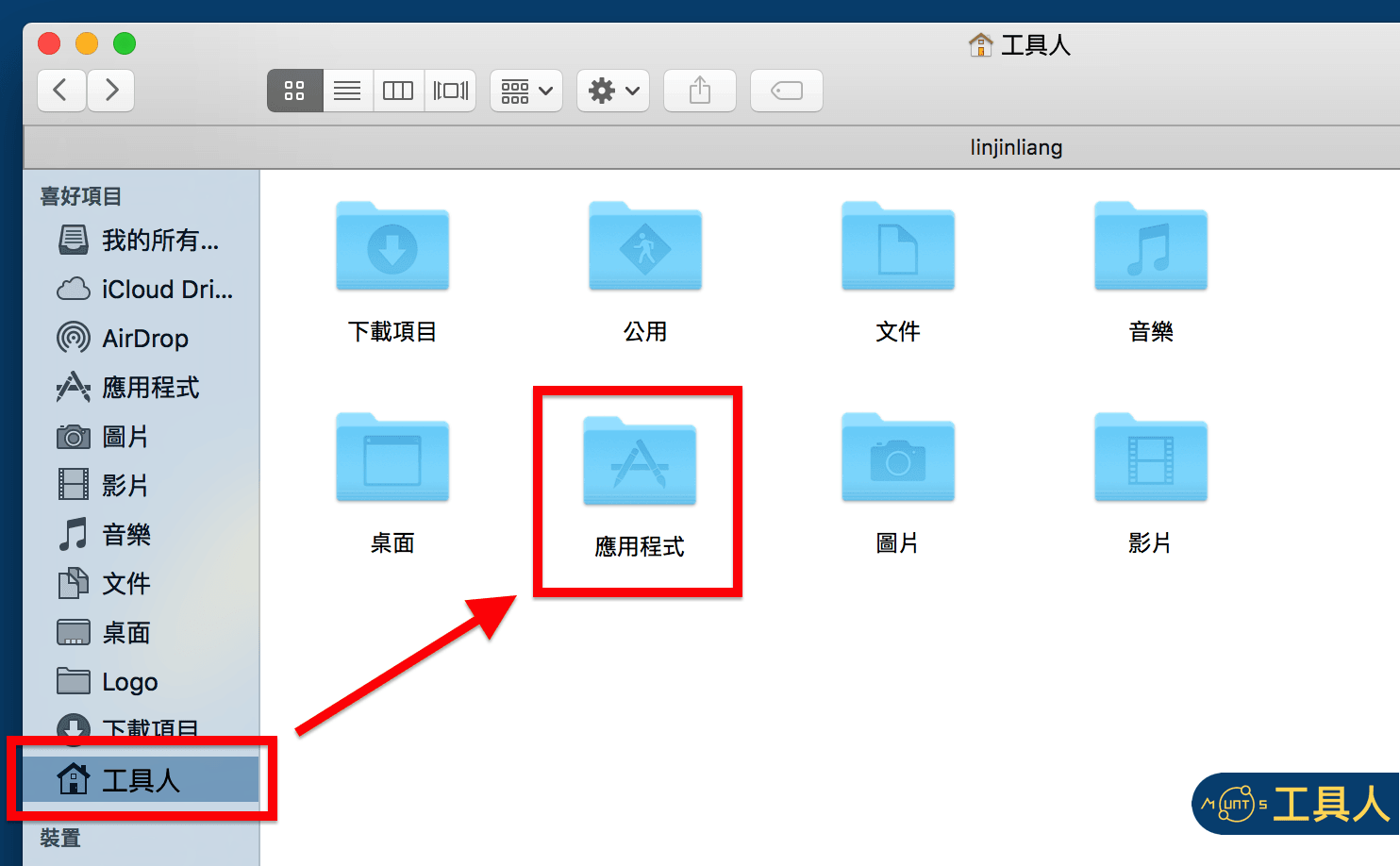
After opening your user folder, enter the “Applications” folder shown in Figure 3, and then open the “Chrome Apps” (or “Google Applications”) folder within it. Here, you will find all the Google Chrome application shortcuts. Simply delete the “Google Drive” icon directly from this folder.
Reader FAQ & Q&A
Finally Banished the Ghost Chrome App Icons Haunting Launchpad! (Reader Elliot)
Reader Elliot commented:
This is extremely practical! Thank you so much for sharing—those annoying Google Apps icons in Launchpad are finally gone!
The Fixer’s Reply:
Haha, so glad this tutorial helped!
Google Chrome’s early architecture on macOS was indeed quite frustrating. It silently created a dedicated shortcut repository under the user’s home directory (~/Applications/Chrome Apps). Most users would drag the main app into the Trash, yet Launchpad would keep reading ghost shortcuts from this hidden directory—clicking them crashed the app, and clicking the “X” button wouldn’t delete them.
Once you understand the macOS filesystem layout and strike straight at the root by wiping this directory manually, your Launchpad immediately becomes clean, tidy, and smooth!
Support Independent Perspectives & In-Depth Insights
Every thoughtful analysis and candid critique comes from our dedication to truth and quality. We choose not to follow sensational algorithms or clickbait headlines.
Sustaining independent research requires reader support. Make a one-time or monthly contribution, securely processed by Google.
Payments secured by Google · Manage or cancel anytime in your Google Account

Comments