
Today I want to briefly introduce how to download videos on your computer from China’s Youku video platform and convert them into compatible media formats, making it easy to burn them onto DVDs or save them onto USB drives for playback directly on large-screen televisions.
Before diving into the tutorial on downloading from Youku, there are a few important points I would like to clarify first.
First, if you are tech-savvy with modern gadgets, we recommend directly purchasing “media streaming devices”, such as Google’s Chromecast dongle or Apple’s Apple TV box. These devices save immense hassle, allowing you to cast and control video output onto large TV screens straight from your phone or computer. For instance, you can use your phone to command Chromecast to play specific YouTube videos. Compatible apps include:
- Apple iPhone & iPad: “Google Home” with Chromecast support;
- Google Android: “AllConnect - Play & Stream” with Apple TV support.
Conversely, if there is a barrier to using new technology—such as elderly grandparents who simply prefer popping a disc into a DVD player—then searching online and downloading videos to honor your parents/grandparents is the way to go. Alternatively, you can purchase licensed films on Amazon China (Movies Section) or Apple’s iTunes Store (Movie Catalog).
Second, a word on intellectual property: having a background as a patent engineer, I tend to be meticulous whenever intellectual property is touched upon. In this case, I needed to download a research video for a family member’s academic work; otherwise, I wouldn’t mess with Youku videos. Therefore, please exercise your own judgment to ensure that downloaded videos, especially if intended for public presentation, do not infringe copyright regulations. If everything is in order, read on!
Step-by-Step Tutorial on Downloading Youku Videos
While Youku clearly modeled its initial platform after YouTube, I must say that the video format Youku uses is “incredibly frustrating!”
Youku frequently uses FLV as its default playback container (though some streams offer MP4 media formats), and adds several technical hurdles. As a result, while there are many downloader tools and websites out there, even more get shut down or patched regularly. After testing several downloader sites, The Fixer found that the “Tubeninja” website can still successfully download Youku videos to your computer.
Below, I will guide you step by step through downloading and properly utilizing the files (this walkthrough is performed primarily on an Apple MacBook).
Step 1: As shown in Figure 1 below, locate the video on the “Youku” website, then copy the URL.
 Figure 1: Youku video playback page.
Step 2: Referring to Figure 2 below, open the “Tubeninja” website and paste the copied video URL into the search box. The website will automatically parse the link and present downloadable video formats for you to choose from. (Note: These utility sites often feature sneaky pop-ups. For example, after pasting the URL, a tab filled with junk advertisements may open; simply ignore the contents and close it immediately.)
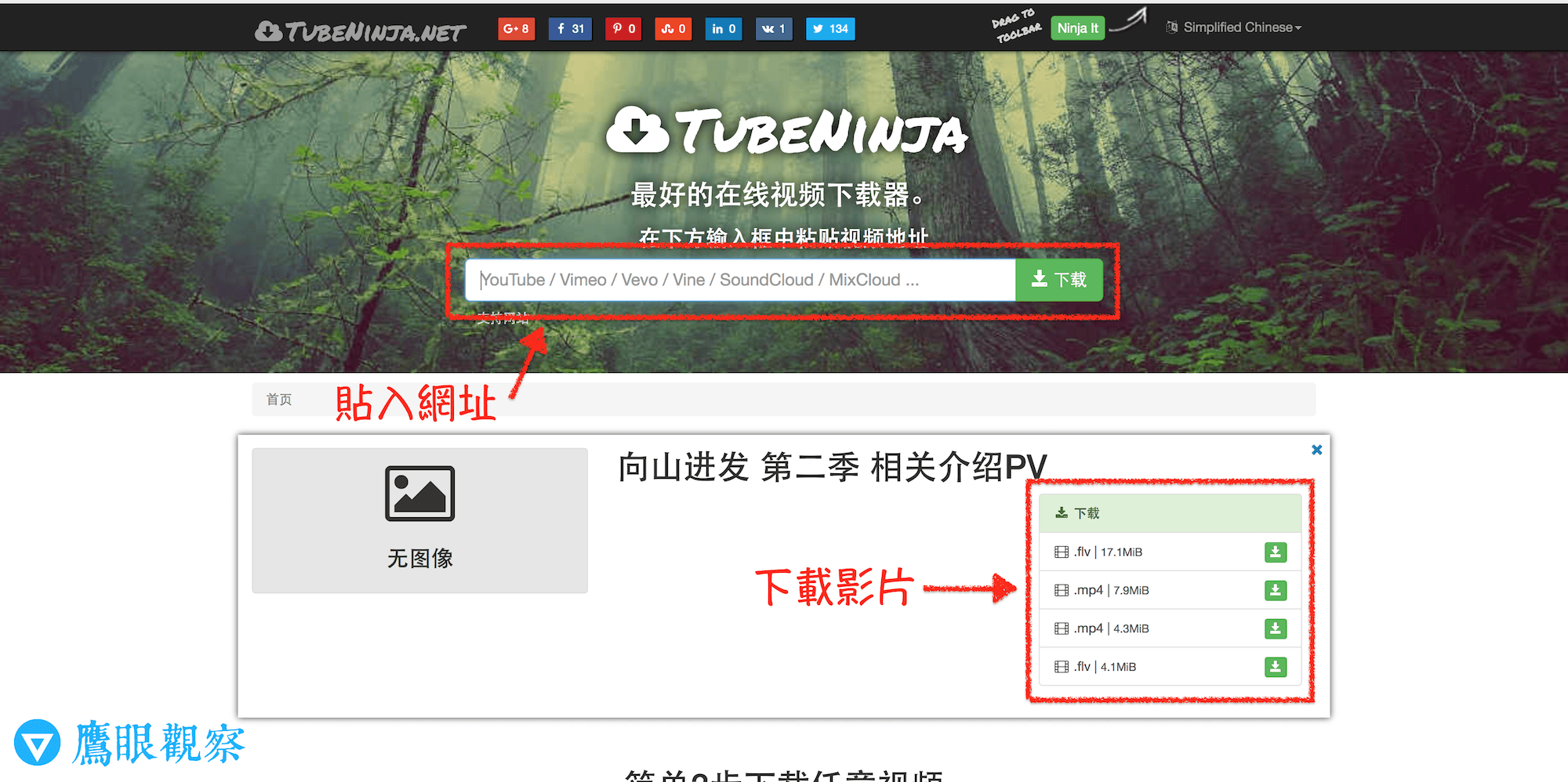 Figure 2: Tubeninja official website interface.
If the file you download is in MP4 format, most operating systems offer video tools (such as iMovie on Apple macOS/iOS) to convert or process it. Feel free to burn it to disc or transfer it to a USB flash drive.
If you download an FLV file as shown in Figure 3 (usually downloaded when no other format is offered), continue to Step 3, where I will teach you a nifty conversion trick.
 Figure 3: FLV video file format, which computers often struggle to play natively.
Step 3: Because YouTube natively supported FLV video uploads, we can upload the downloaded FLV file directly to a private YouTube channel (as shown in Figure 4), and then fetch it back using a video downloader site!
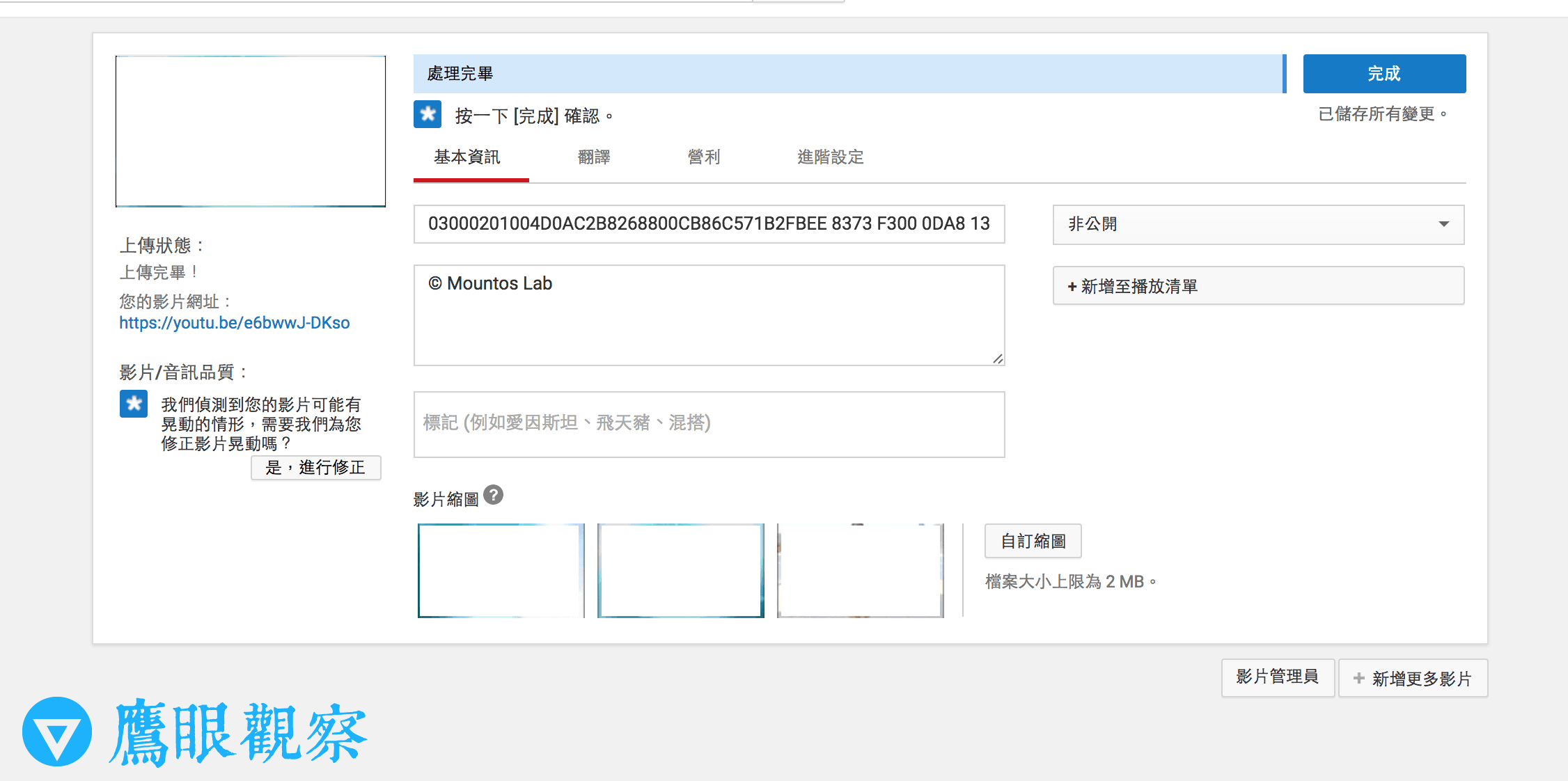 Figure 4: Uploading to YouTube.
Referring to Figure 5 below, while Youku originally only offered an FLV file, after uploading it to YouTube and parsing the new link through Step 2 again, multiple formats like MP4, 3GP, and dedicated MP3 audio become readily available. These are automatically transcoded by YouTube, saving us the trouble of installing heavy video-converter software on our computers.
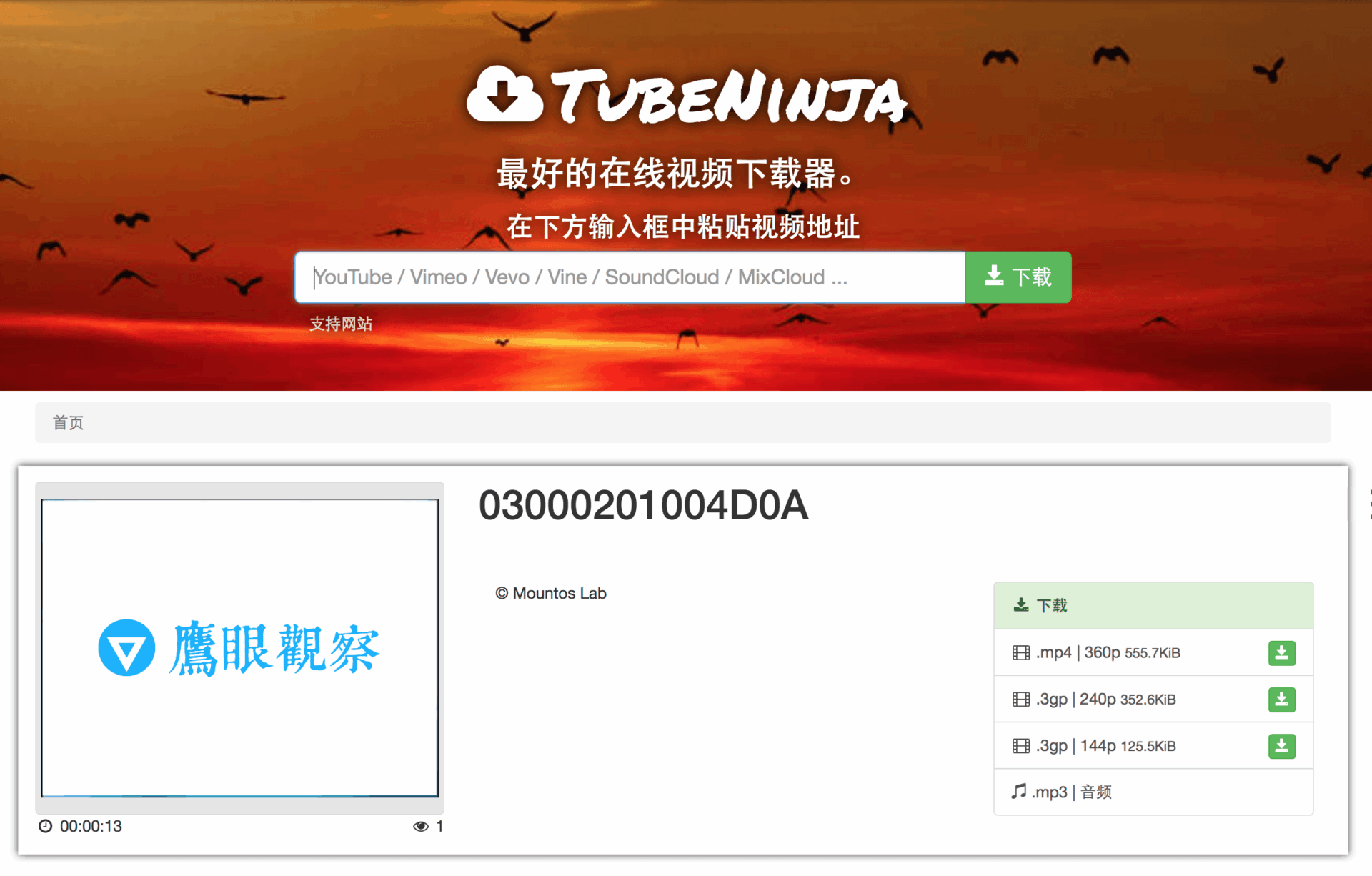 Figure 5: Multiple video and audio formats available for download.
Support Independent Perspectives & In-Depth Insights
Every thoughtful analysis and candid critique comes from our dedication to truth and quality. We choose not to follow sensational algorithms or clickbait headlines.
Sustaining independent research requires reader support. Make a one-time or monthly contribution, securely processed by Google.
Payments secured by Google · Manage or cancel anytime in your Google Account




Comments