
This afternoon, while checking Facebook Page Settings, I spotted a "**Verify Page**" feature that displays the coveted "**gray badge**" verification checkmark next to your Facebook Page name.
I put together this step-by-step tutorial documenting the verification application process, so administrators and fellow social media managers can work towards earning their verified badge!
⚠️ Update (October 25, 2019): Facebook announced that gray verification badges were causing confusion rather than utility, and officially phased them out starting October 30, 2019. Page owners no longer need to apply for gray badges.
The "**blue badge**" verification that created quite a buzz across political and entertainment circles has strict eligibility criteria and is out of reach for most ordinary organizations. However, if you are eager to get a verification checkmark for your business page, there used to be an accessible alternative: the "**gray checkmark**" verification badge described below.
How to Apply for the Official Facebook Blue Verification Badge
Beyond displaying an authoritative gray checkmark icon next to your page title, the gray badge boosted fan trust in your brand (and brought great satisfaction to page admins). According to Facebook’s official statement, verified pages also received higher search visibility across the platform.
If you are running a legitimate business presence on Facebook, going through page verification is definitely well worth the effort.
Step-by-Step Guide to Applying for a Facebook Gray Verification Badge
First, navigate to your Page “Settings” (as shown in the image below). Under the “General” tab on the right side, locate the "**Page Verification**" option. Click "**Verify this Page**" to proceed.
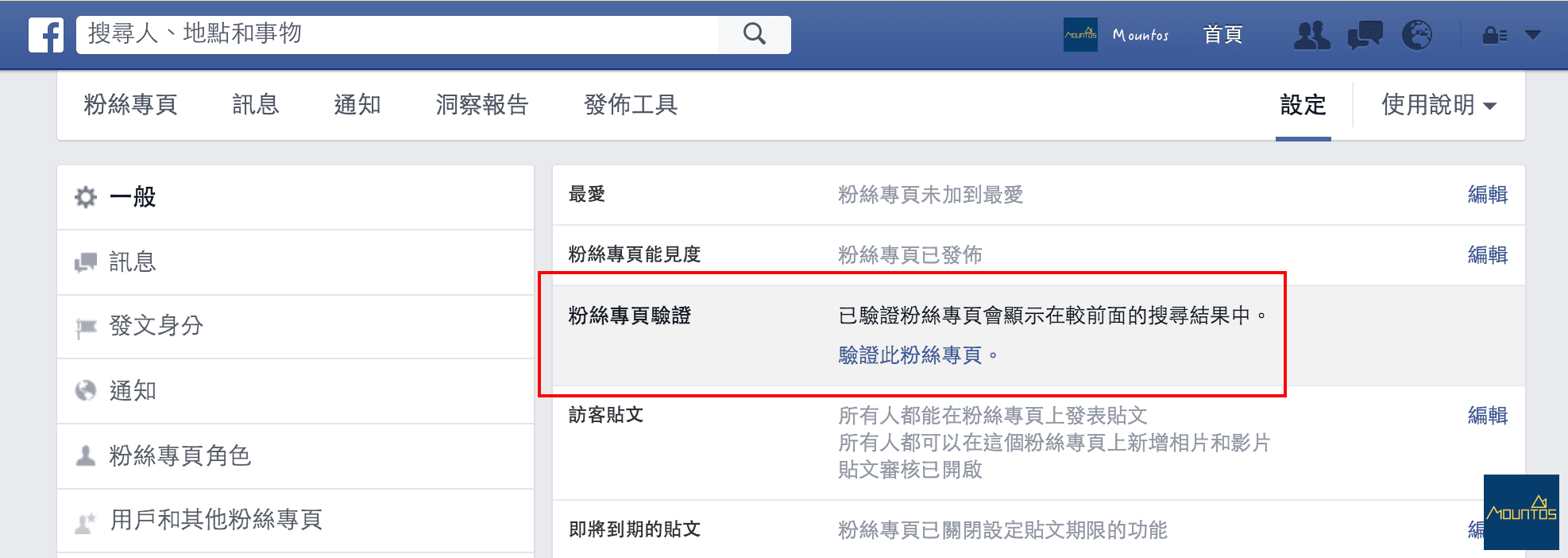 Facebook Page Verification.
Next, Facebook displays a modal dialog asking the administrator to enter a phone number for verification. Fill in your official business contact number accurately, then click the "**Call Me Now**" button in the bottom-right corner.
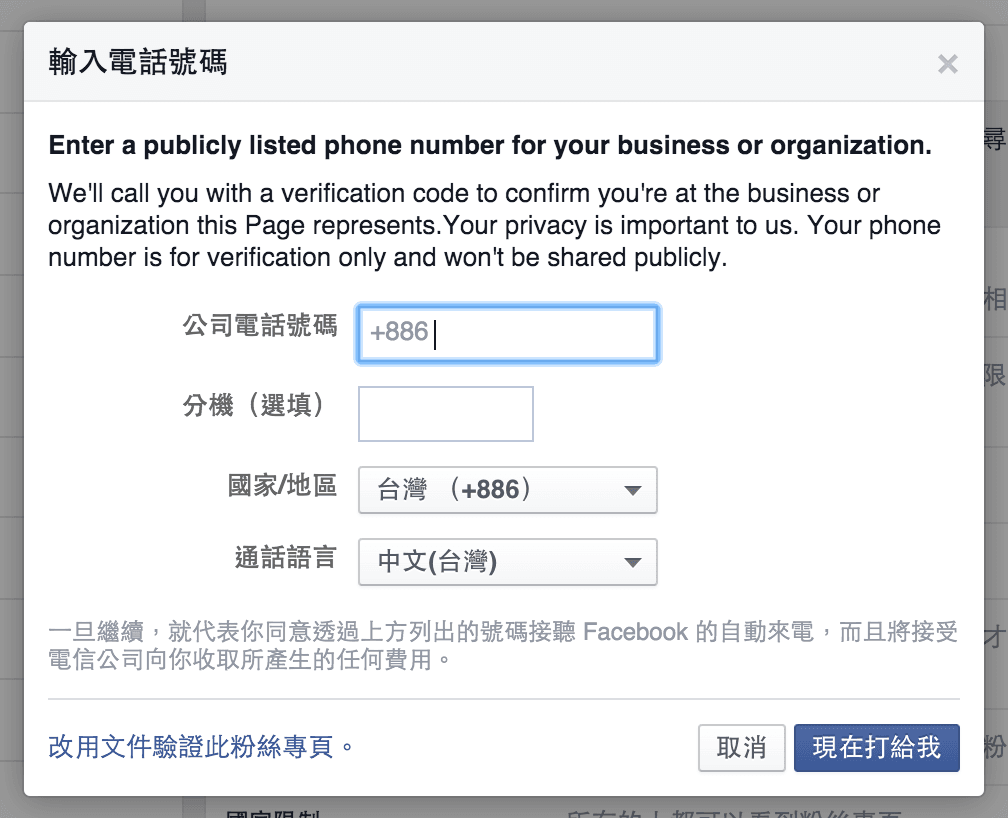 Facebook Page phone verification form.
In the follow-up window, Facebook indicates it is calling the provided number. Once you answer, an automated voice will read out a verification code. Enter this numerical code into the dialog field.
However, phone calls do not always connect smoothly on the first try. If more than a minute passes without receiving a call (whether on mobile or landline), click the "**Call Me Again**" button in the lower-left to request a new call. When working properly, the phone should ring within a few seconds.
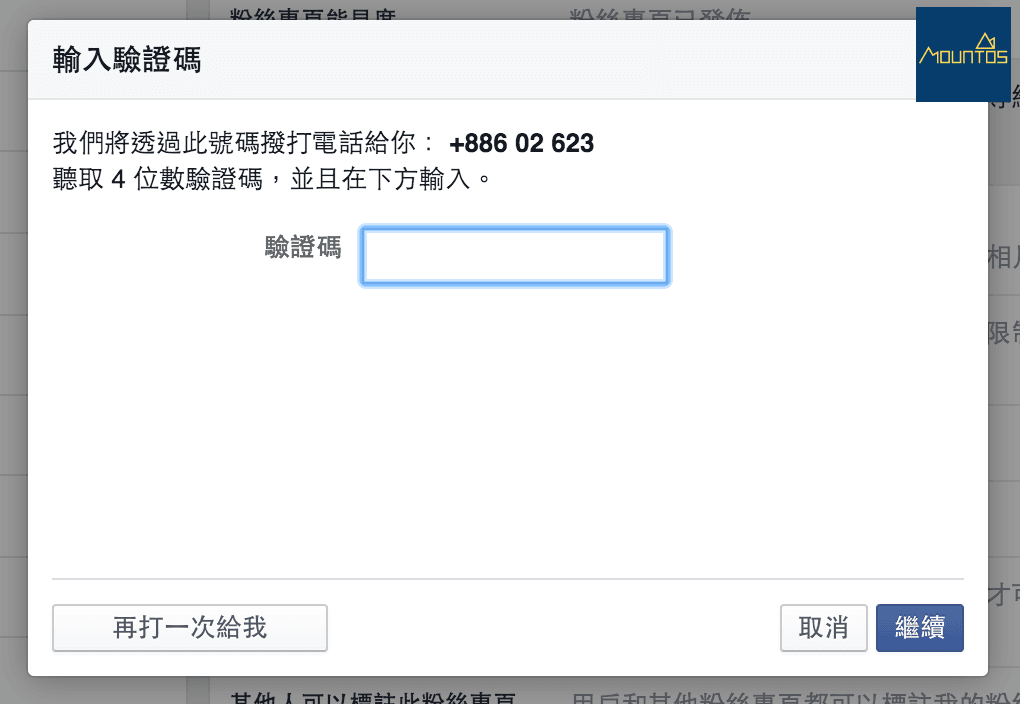 Automated voice verification code in progress.
After listening to the automated voice and entering the code accurately, Facebook instantly approves and verifies the business page (as shown below).
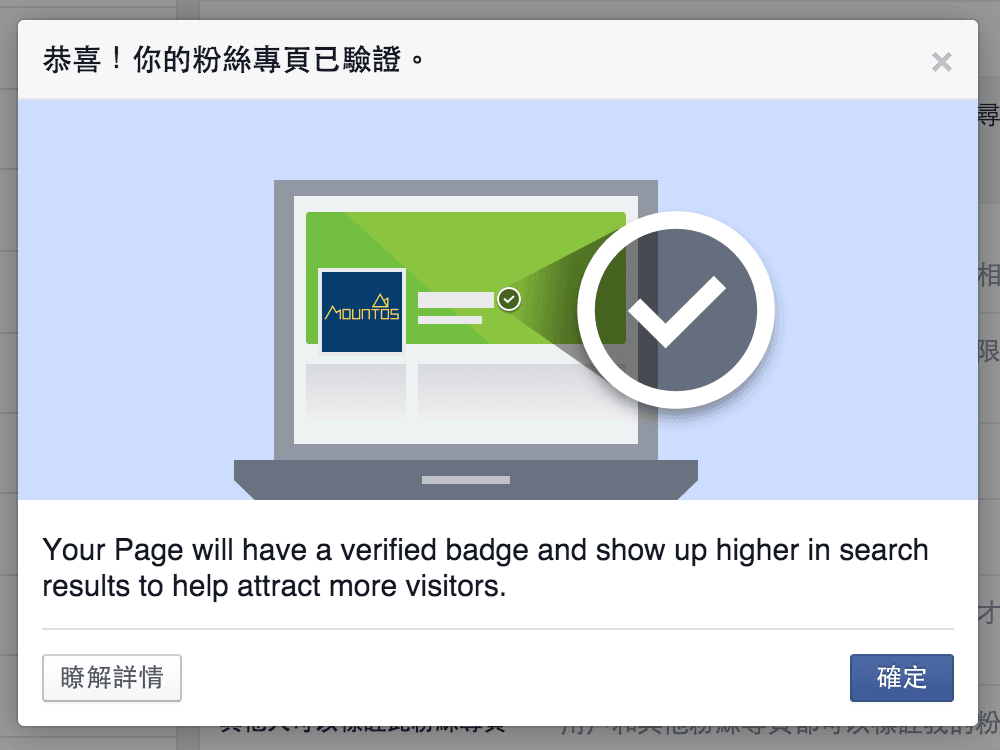 Facebook Page verification complete after entering code.
At this point, you will see a neat gray checkmark badge appear directly to the right of your page title.
Admittedly, it is not quite as striking as the coveted blue badge, but it is certainly a welcome badge of authenticity!
 Verified gray checkmark badge displayed on Facebook Page.
Of course, not every verification attempt goes this smoothly. While Facebook’s exact algorithms remain proprietary, when I subsequently attempted to verify our “Hawkeye Observation” page, Facebook disallowed phone verification and required official documentation instead (as shown below).
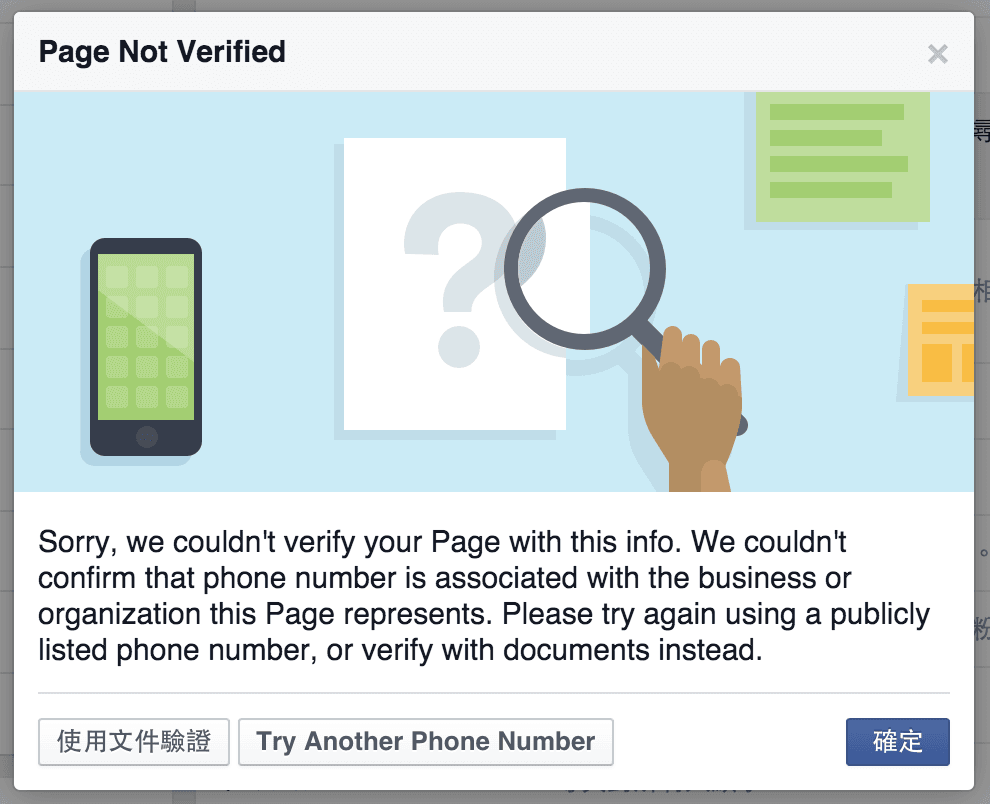 Phone verification failed.
Having tried different telephone numbers only to be repeatedly rejected by Facebook’s automated system, my advice is to proceed carefully: avoid using alternate or secondary pages to “test” the system.
If your company operates multiple legitimate Facebook Pages that require verification, prepare and submit official business documentation for review.
Verifying Your Business Page with Official Documents
While I did not use paper documents for this initial test, I have submitted documentation when requesting page name changes in the past.
Remember that you must provide “official documents recognized by Facebook,” showing the registered company name and physical address matching your page information. Accepted documents include:
- Utility or telephone bills in the company’s name
- Business license or certificate of incorporation
- Tax filings and registration records
- Articles of incorporation / bylaws
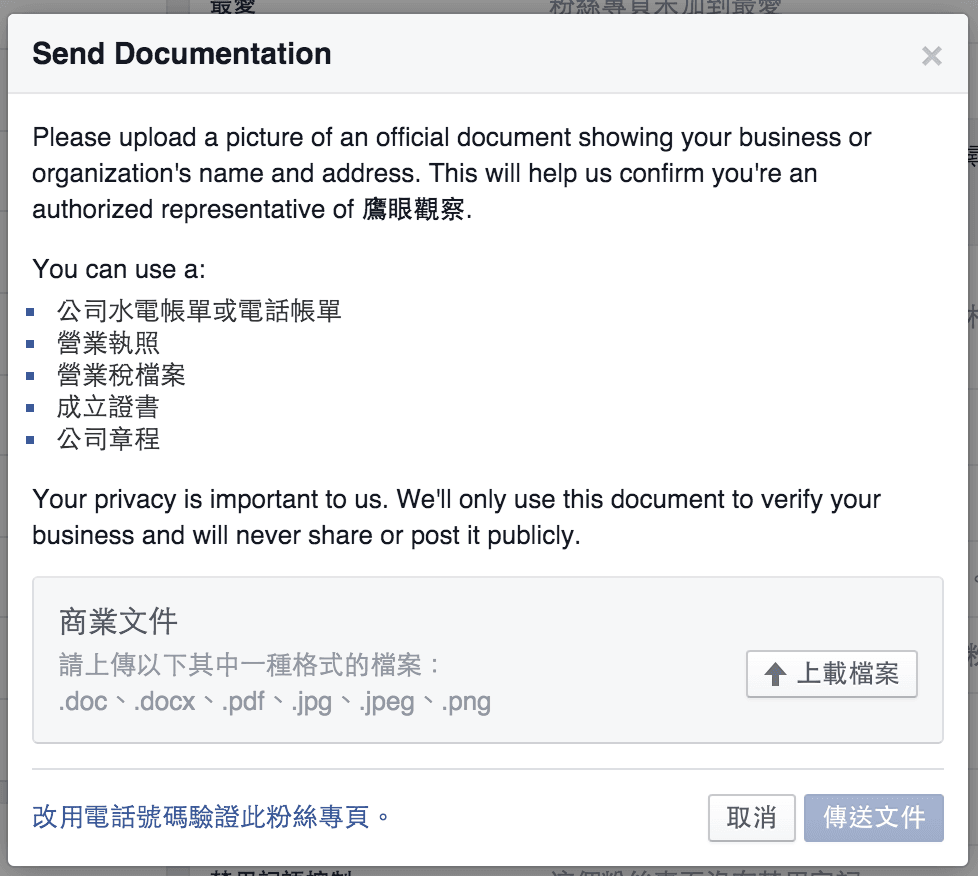 Document verification for Facebook Page.
Tips from The Fixer
If your available official documentation lacks the exact corporate trade name, you can still submit it for manual review.
Facebook tends to be relatively accommodating with emerging startups. However, ensure that your personal Facebook profile name matches or can be reasonably tied to the company representatives listed in the documents—otherwise, reviewers cannot confirm your authority to represent the organization.
Reader FAQ & Troubleshooting
1. The “Verify Page” option suddenly vanished from Page Settings? (Reader Inquiry: Guest)
Guest asked:
My previous page verification failed, and now when I went back to try again, the “Verify Page” button disappeared completely from Page Settings. How can I submit verification now?
The Fixer replies:
Facebook’s review criteria and feature entry points frequently change. When a page has recent failed verification attempts, or if the algorithm deems follower counts too low or page details incomplete, the verification portal is often hidden temporarily.
We recommend filling out every field in your Page “About” tab thoroughly (including physical street address, local landline phone number, official website URL, business hours, and detailed description). Maintain consistent posts and genuine fan engagement while waiting for the system to re-evaluate and restore the verification entry point.
2. Verification displays “Content Not Found” or phone calls never connect? (Reader Inquiry: Anonymous Guest)
Anonymous Guest asked:
Whenever I try to verify our page, it displays “This content is not available right now,” and phone verification does not ring either. What is causing this?
The Fixer replies:
This is a frequent system glitch that occurs when Meta restructures backend tools or restricts automated verification channels. Due to vulnerabilities in early automated voice calls, Facebook gradually phased out phone verification in favor of manual document reviews (government registrations, business tax documents, or utility statements). If the legacy web page fails, access Meta Business Suite from a desktop browser to manage business verification directly.
3. Does the Facebook Page name have to match our registered company name exactly? (Reader Inquiry: Kerry)
Kerry asked:
Our company is experiencing issues with verification. Does our Facebook Page name have to be 100% identical to the registered company name on our business license? The system flagged our submission for name mismatch.
The Fixer replies:
During automated initial screening, if there is a substantial discrepancy between your page name (e.g., consumer brand name) and the legal entity name on your license (e.g., “XYZ Technology Co., Ltd.”), the submission will almost certainly be rejected automatically!
Solution:
When filing an appeal or uploading verification documents, attach a link to your official company website (ensuring the footer clearly states that the brand is owned and operated by the registered entity). Alternatively, submit trademark registration certificates or exclusive brand licensing agreements demonstrating that the page name is an authorized brand under your legally registered enterprise. This significantly improves the success rate during manual secondary review.
(Note: Meta has since retired the “gray badge” system entirely. Modern brand and business verifications are now handled through Meta Business Manager verification and the Meta Verified subscription program.)
Support Independent Perspectives & In-Depth Insights
Every thoughtful analysis and candid critique comes from our dedication to truth and quality. We choose not to follow sensational algorithms or clickbait headlines.
Sustaining independent research requires reader support. Make a one-time or monthly contribution, securely processed by Google.
Payments secured by Google · Manage or cancel anytime in your Google Account



Comments