
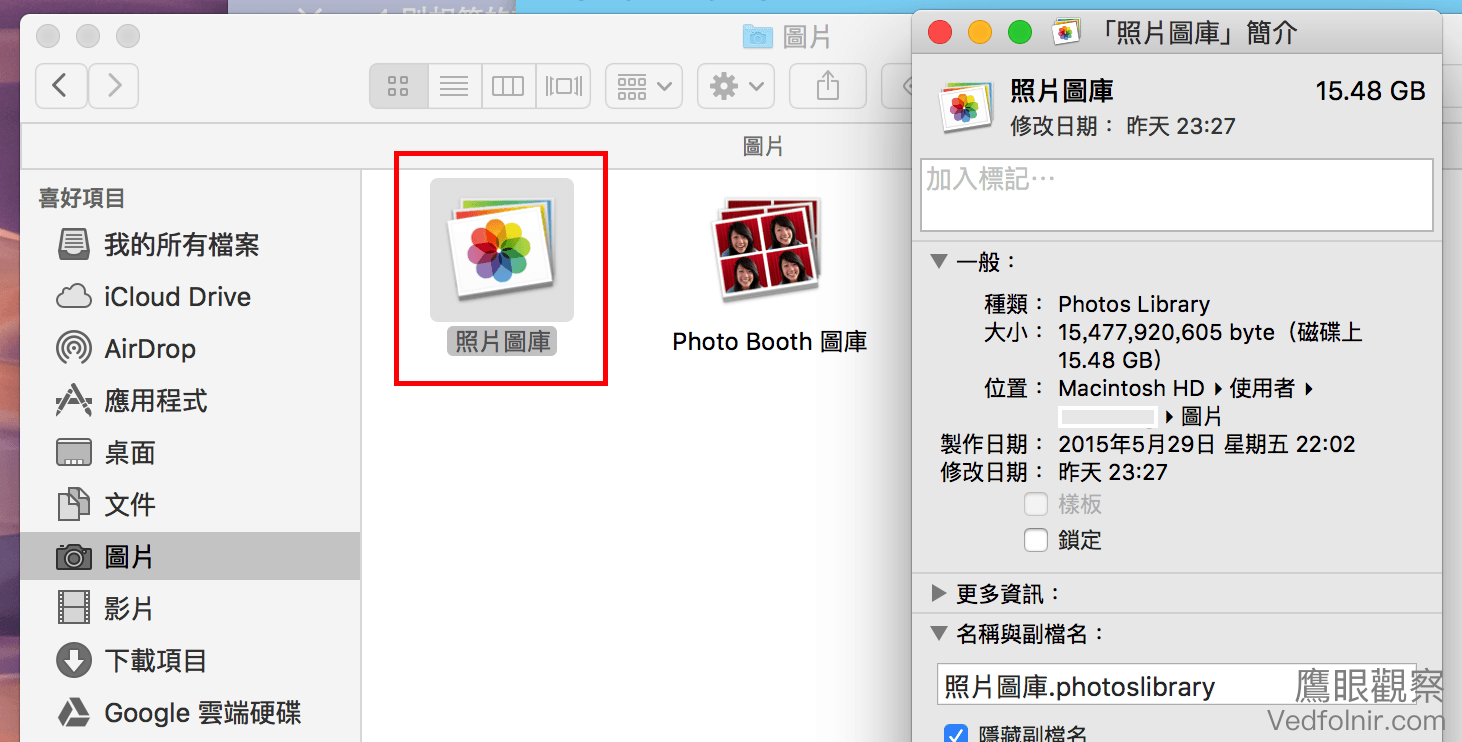
Apple’s macOS operating system (powering iMac, Mac Pro, Mac Mini, MacBook, Air, and Pro) includes two default image applications: "**Photos Library**", a cross-platform asset manager, and "**Preview**", a lightweight application designed for rapid image viewing and markup.
While Photos Library is detailed extensively in our guide Apple Photos Library Pitfalls and Operational Guide, this article focuses on the often-underestimated capabilities of Preview.
You can launch Preview simply by double-clicking any image file in Finder, or by clicking the Preview icon in Launchpad (Figure 1).
 Figure 1: Preview application icon in Launchpad.
In addition to rapidly opening various image formats—including camera RAW formats like Nikon NEF and Sony ARW—Preview offers a robust Markup mode. You can annotate screenshots, draw shapes, add text, insert digital signatures, crop, resize, and fine-tune colors, easily outpacing standard tools like Windows Paint.
To enter editing mode, open an image and click the "**Show Markup Toolbar**" button (indicated by box A in Figure 2), which reveals the full Markup toolbar (box B in Figure 2).
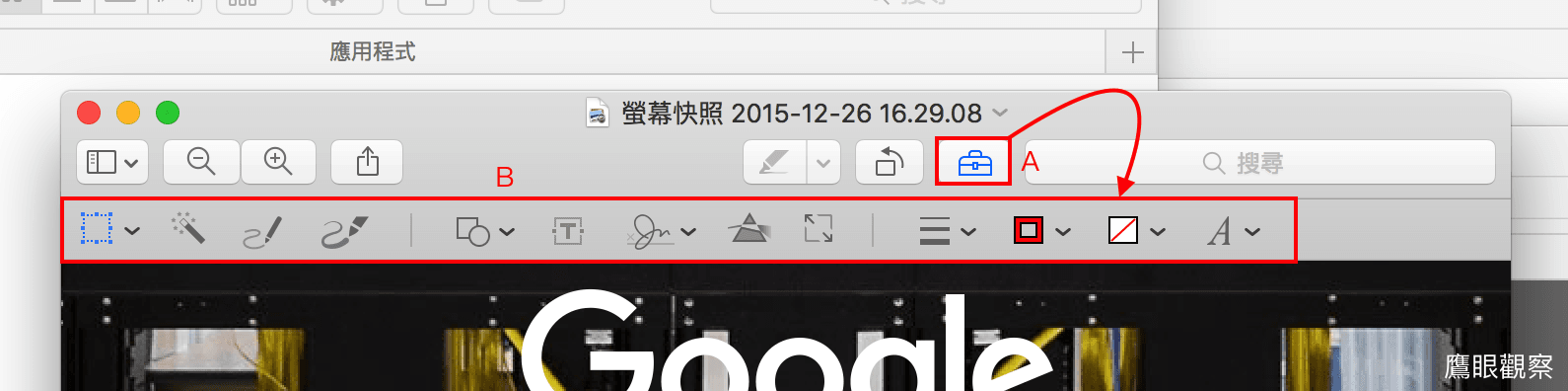 Figure 2: Revealing the Markup annotation toolbar in Preview.
Examining the Markup toolbar in Figure 2, you’ll find selection tools (with direct copy-and-paste support), sketch and draw brushes, geometric shapes (rectangles, arrows, speech bubbles), text boxes, digital signatures, color adjustment controls, image dimensions resizing, cropping (enabled after making a selection), border weight and color pickers, and typography styling. These tools easily cover daily screenshot and annotation needs.
For instance, almost all the instructional diagrams in my technical articles use Preview’s bounding boxes, callout arrows, and text labels.
If you don’t require heavy digital darkroom retouching in Photoshop or Lightroom, macOS Photos and Preview easily meet most everyday needs. Core adjustments like exposure, contrast, saturation, and temperature are fully supported in Preview’s "**Adjust Color**" panel (Figure 3).
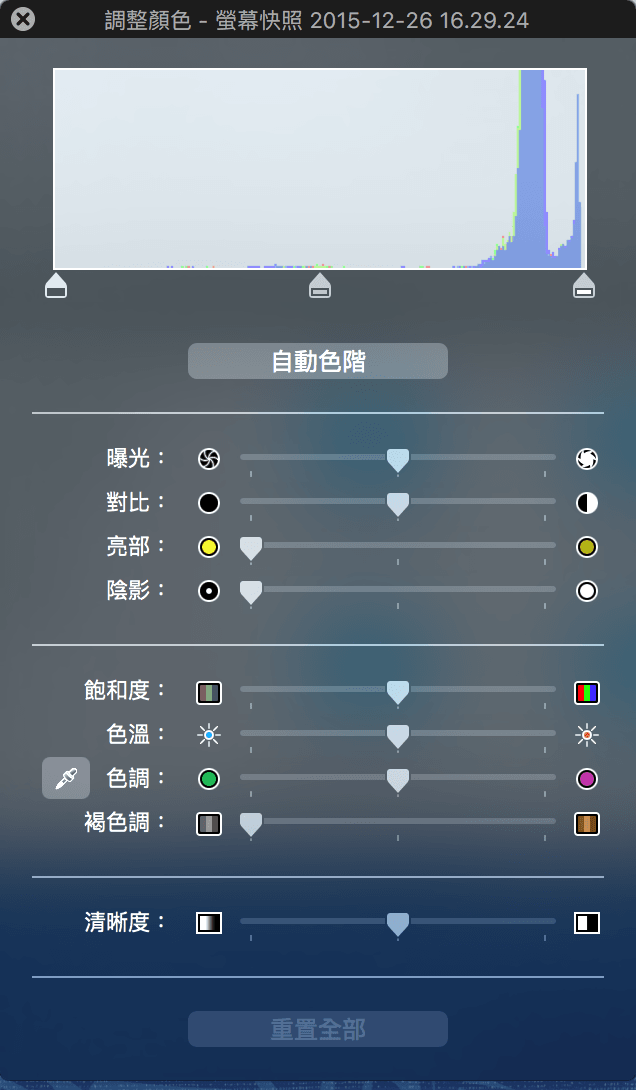 Figure 3: Preview’s built-in Adjust Color inspector.
Limitations of Preview
When paired with Photos Library, Preview operates at its best. However, when opening an isolated image from Finder or the desktop, Preview loads only that single file by default without arrow-key browsing to the next file in the folder. While you can select multiple files together in Finder and drag them into Preview to open them in a single multi-page drawer, it is less immediate than the sequential photo navigation found in dedicated third-party image viewers.
Support Independent Perspectives & In-Depth Insights
Every thoughtful analysis and candid critique comes from our dedication to truth and quality. We choose not to follow sensational algorithms or clickbait headlines.
Sustaining independent research requires reader support. Make a one-time or monthly contribution, securely processed by Google.
Payments secured by Google · Manage or cancel anytime in your Google Account

Comments