
A frustrating disaster struck my Apple MacBook Pro recently: whenever I launched the Photos app, a terrifying error prompt appeared on screen stating “Photos must quit because the photo library has become unavailable or its data is corrupt”, followed immediately by the app crashing. During that ordeal, my faith in Apple plummeted all the way down to the Mariana Trench.
Figure 1 shows this rare macOS error alert, which read: “Photos must quit because the photo library has become unavailable or its data is corrupt.”
Once this error message appears, reopening Photos simply causes it to crash repeatedly. Rebooting macOS helped slightly—giving just enough time to manage files before it crashed again.

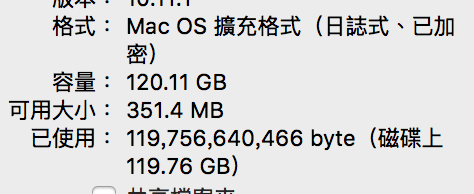
Fortunately, although the warning used alarming terms like “corrupt”, the underlying photos were largely intact—the Photos app was simply choking. After troubleshooting, a suspicion dawned: could this be caused by critically low disk space? Checking the drive capacity revealed that only around 300 MB of free storage remained (as shown in Figure 2).
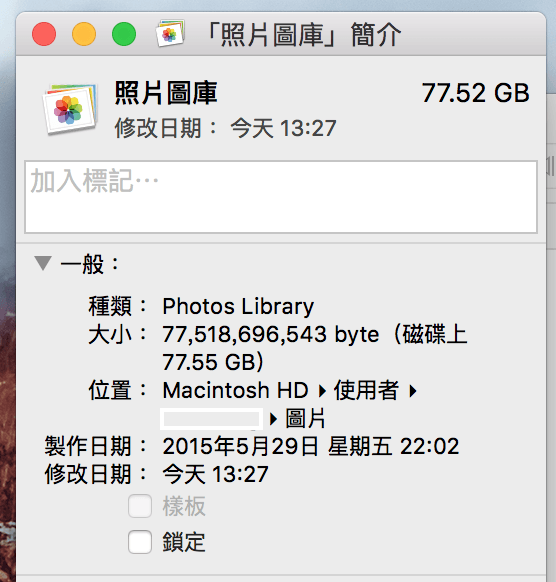
Having imported a massive batch of photos earlier, I inspected the Photos Library package and found that the single library file occupied an astonishing 77.52 GB (Figure 3 below), consuming nearly 66.5% of the MacBook Pro’s total internal drive capacity.
Realizing that insufficient disk space was causing the Photos app to crash, I immediately backed up the media to an Apple Time Capsule and deleted items inside Photos. I then manually emptied the macOS Trash (equivalent to the Recycle Bin in Windows), expecting relief. Yet the crashes persisted, and re-checking the drive revealed available space was still stuck around 300 MB!
Reflecting on the architecture, I remembered that Photos uses a containerized package format. Deleting images inside the Photos app does not delete them immediately from the drive; instead, Apple stores them in a hidden “safe retention” state for 30 days before permanent deletion (identical to the behavior on iPad and iPhone). In other words, simply emptying the system Trash does not free up internal storage locked inside the Photos Library container.
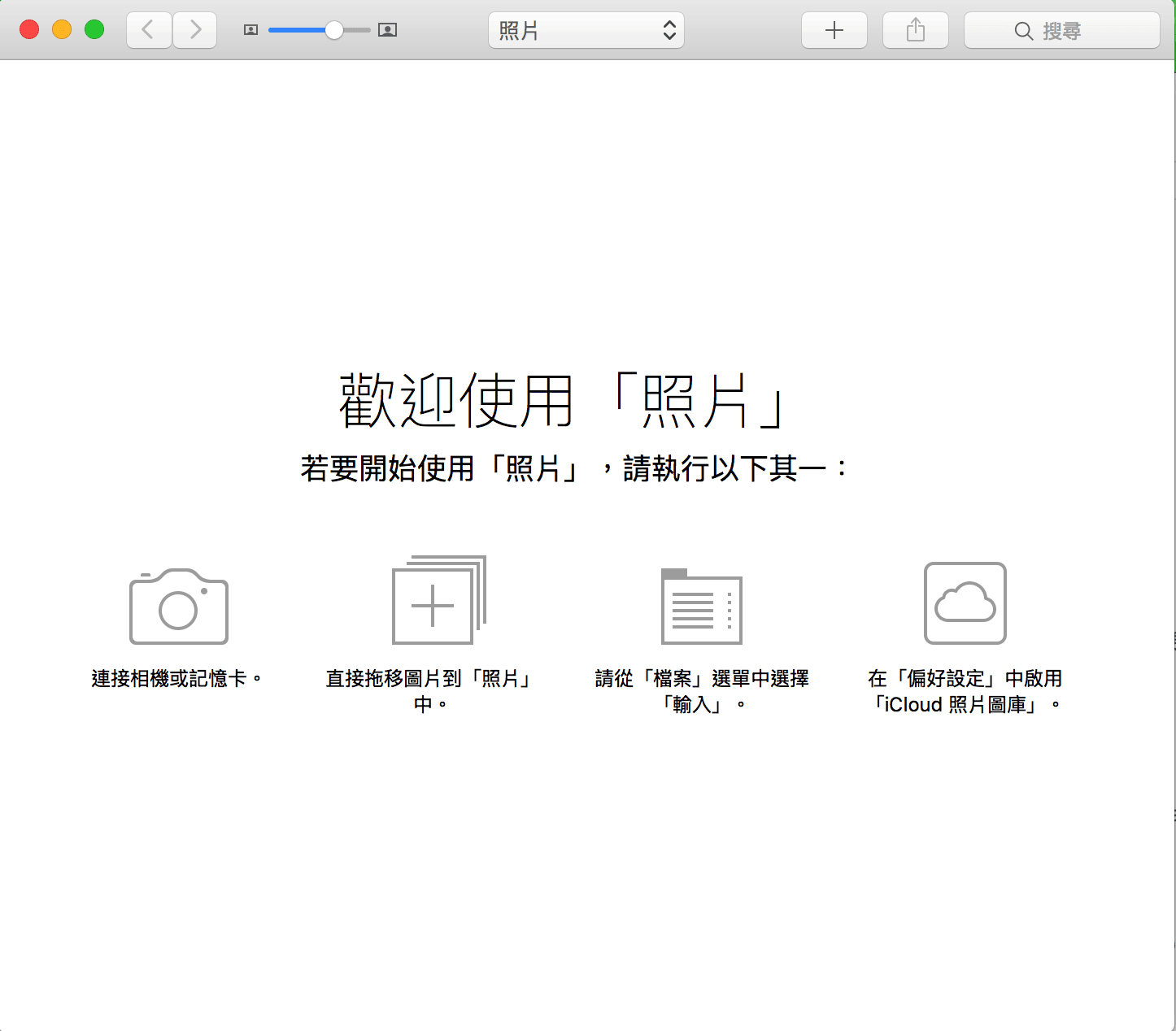
To completely purge unwanted photos and reclaim disk space, enable the sidebar in Photos (Figure 4, or maximize the app window).
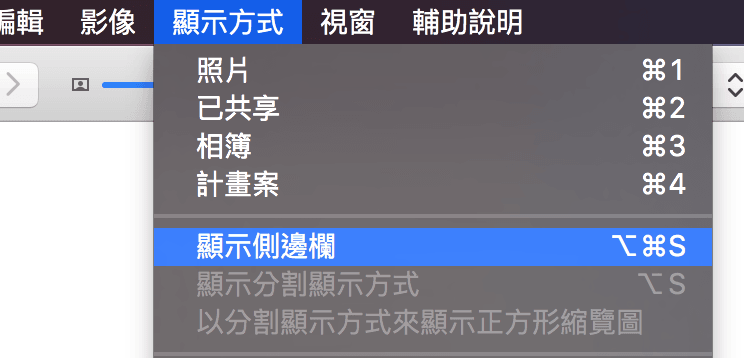
As shown in Figure 5, the sidebar contains a “Recently Deleted” album holding all manually deleted photos pending purge.

Click on the “Recently Deleted” album in the sidebar, then click “Delete All” in the top-right corner to permanently remove the files and release disk space (as shown in Figure 6).

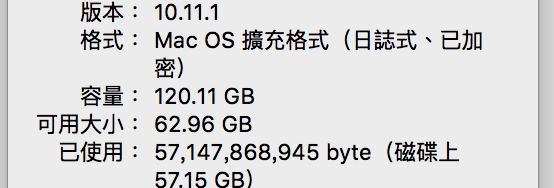
As shown in Figure 7, after purging the deleted photos from the Photos Library cache, the free disk space jumped from 300 MB back up to 62.96 GB.
Finally, inspecting the cleaned Photos Library package revealed that once all media was purged, the actual library structure occupied a mere 218 MB. With the library cleared, the Photos app returned to normal operation—though after that scare, I decided to handle photo management through other tools!
Further Reading
- Apple Mac “Photos Library” Best Practices and Guide (iMac, Mac mini, MacBook Air, Pro)
- Apple Preview: An Underappreciated Built-in Image Utility
Support Independent Perspectives & In-Depth Insights
Every thoughtful analysis and candid critique comes from our dedication to truth and quality. We choose not to follow sensational algorithms or clickbait headlines.
Sustaining independent research requires reader support. Make a one-time or monthly contribution, securely processed by Google.
Payments secured by Google · Manage or cancel anytime in your Google Account



Comments