

After Apple devices like iPhone, iPad, and Mac updated to iOS 15, iPadOS 15, and macOS Monterey respectively, many interesting new features appeared[1].
Today we’ll introduce the browser “Safari” and its (passive) color-changing feature in the tab bar on iPhone, iPad, and Mac.
Recently, after updating the OS, those who frequently use Safari to browse websites have more or less noticed that the browser has become more colorful[2].
See Figure 1 below: when you open Facebook in Safari, the tab bar and its frame turn into Facebook’s signature blue. If you switch to another website, the color changes again.
 Figure 1. Safari’s colorful tab bar at the top.
If the visual presentation on a single screen can match the website’s color design, it should enhance the immersion when browsing.
However, if you switch between websites continuously, the constantly changing colors may excessively grab the reader’s attention and even easily cause visual fatigue.
Turning Off Tab Bar Color Tinting in iOS and iPadOS Safari
To turn off the browser frame’s color-changing feature, open the “Settings” app on iPadOS and iOS (see Figure 2 below).
 Figure 2. Apple Preferences
Find the “Safari” browser settings page in the menu, then turn off iPadOS’s “Show color in toolbar” (see Figure 3 below) or iOS’s “TABS website tinting” (see Figure 4 below) option, and the tab bar will stop changing colors randomly.
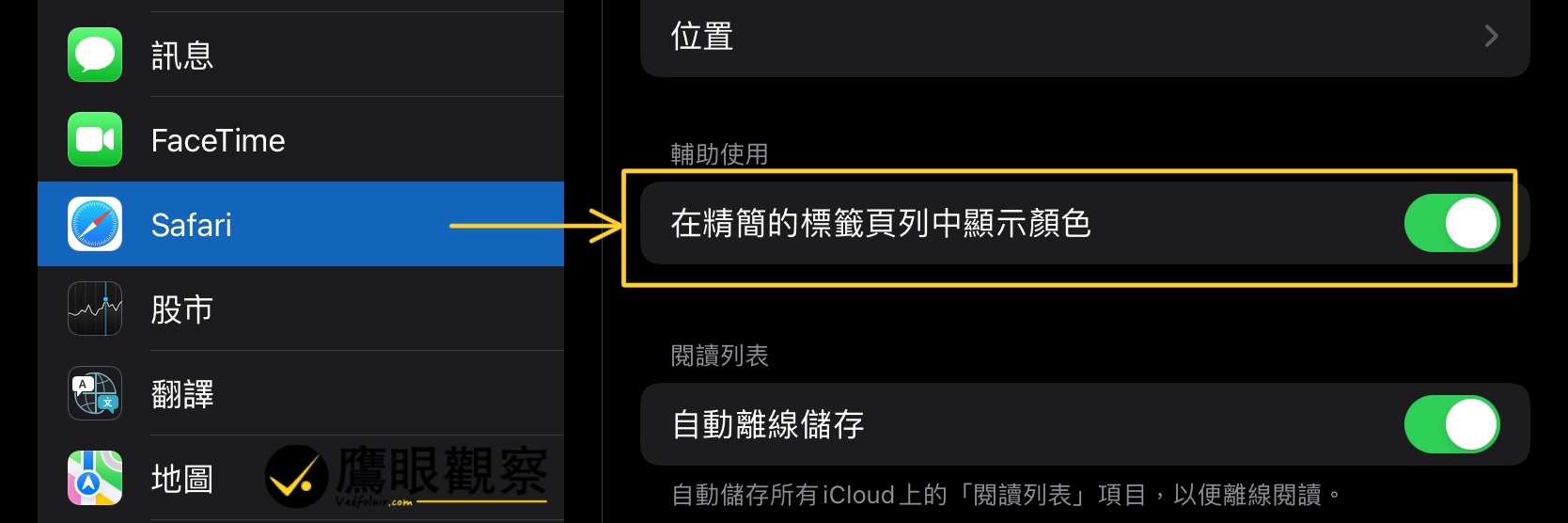 Figure 3. Safari color change settings on iPad.
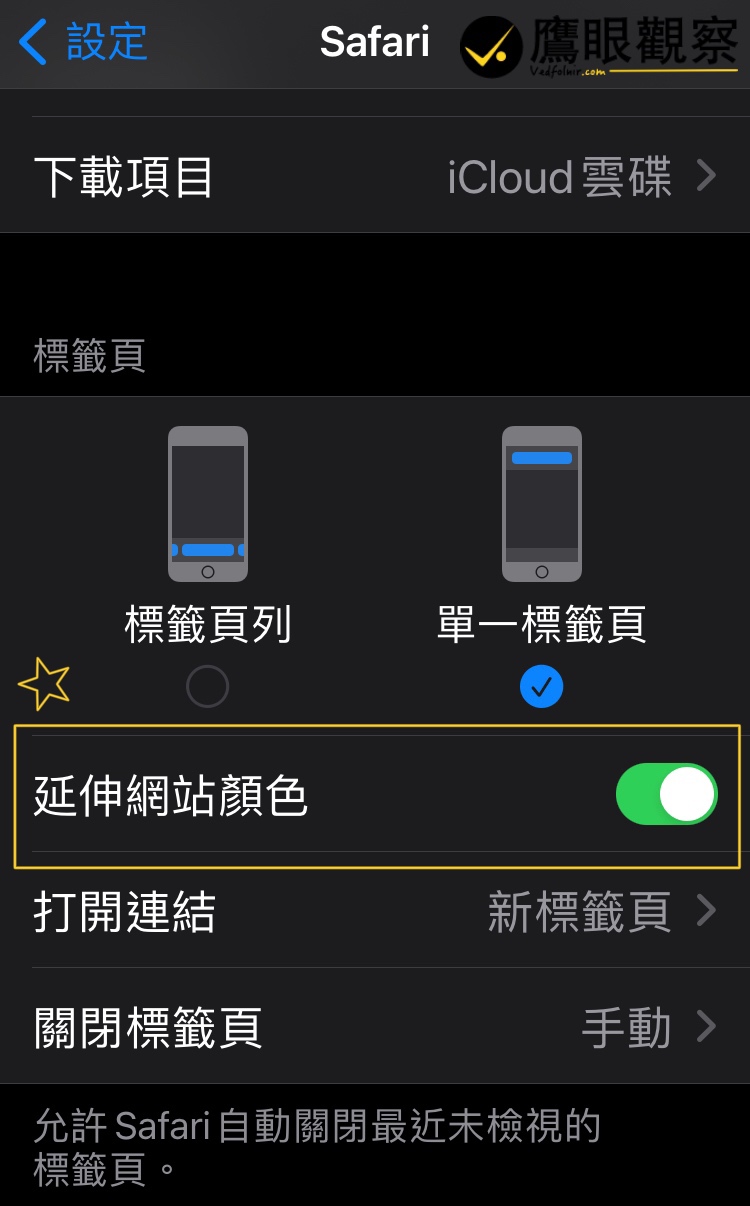 Figure 4. Safari tab bar color settings on iPhone.
Turning Off Tab Bar Color Tinting in macOS Safari
The latest macOS Monterey version for laptops and desktops also offers the same new color-changing feature in its browser.
To turn it off, simply click Preferences in the top-left corner of the screen while the browser is open, and turn off the “Show color in tab bar” option on the Tabs settings page.
Of course, if you enjoy the ever-changing colors and the delight of a colorful experience, just follow the steps above in reverse to enable the corresponding option on each device, letting the browser change color with the website.
References
- Apple iOS/iPadOS 15 System Upgrade Features and Highlights
- Apple iPad must first use Safari’s “Compact Tab Bar” for this passive feature to activate.
- Apple iOS Recommendations for Using Sidebar Widgets and Notes on iPad
Support Independent Perspectives & In-Depth Insights
Every thoughtful analysis and candid critique comes from our dedication to truth and quality. We choose not to follow sensational algorithms or clickbait headlines.
Sustaining independent research requires reader support. Make a one-time or monthly contribution, securely processed by Google.
Payments secured by Google · Manage or cancel anytime in your Google Account



Comments