
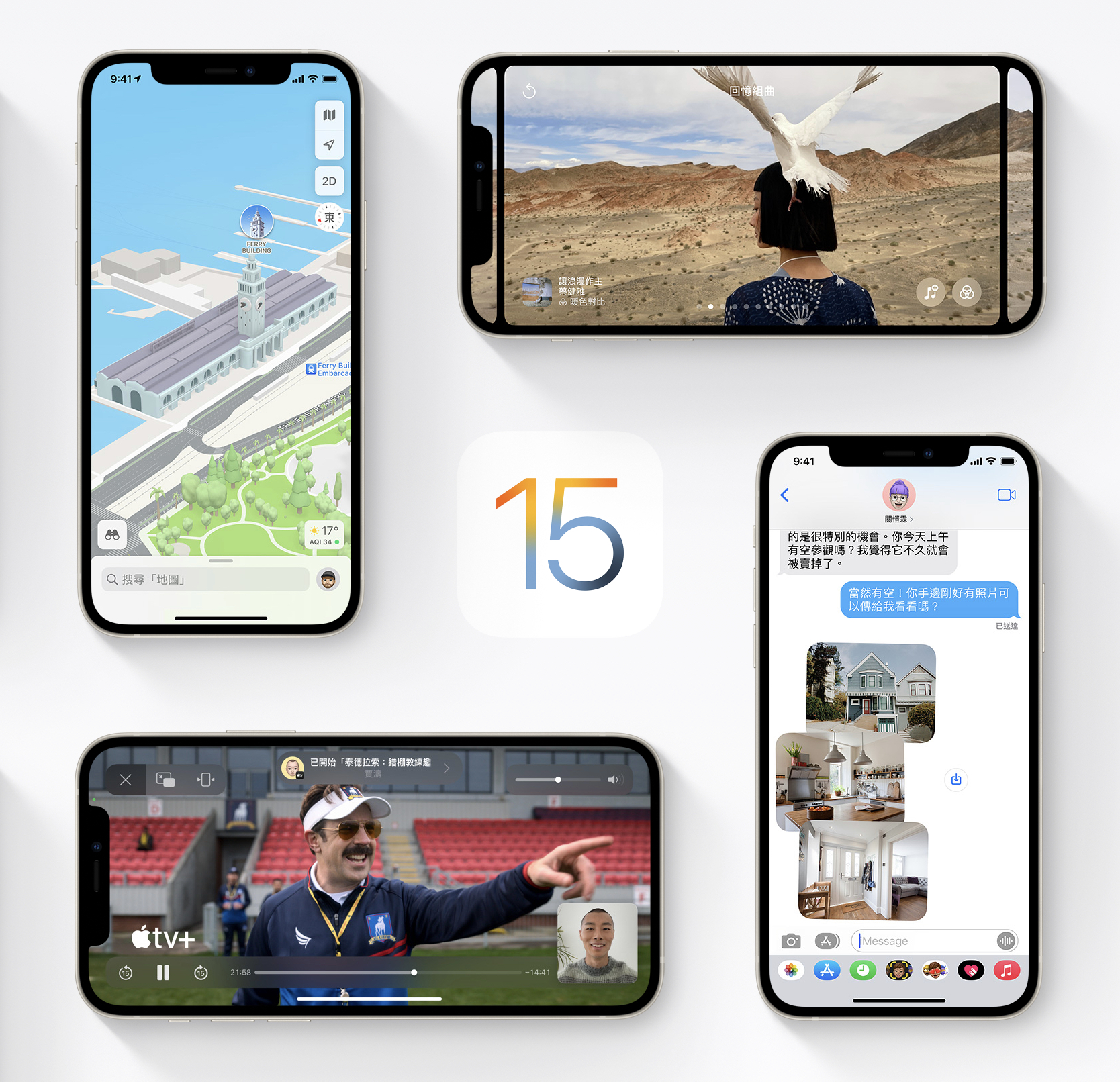
Apple Inc. recently released the latest-generation upgrade of its mobile phone and tablet operating systems, iOS and iPadOS, version “15.1”, introducing numerous improvements to layout and native app functionality. Below is a detailed list and explanation of each upgrade, for Apple fans who need it to quickly review and learn.
This generation of the operating system is a major enhancement over the previous 14.x series, so anyone using an iPhone or iPad should definitely go through it all and find the features they will need to learn.
At present, I think the best improvement is the Live Text feature, which can directly recognize text in photos and even translate it; also, although the translation accuracy is debatable, integrating translation heavily into the system this time is a good attempt (though I personally still recommend Microsoft Translator).
The hardest part to use is the Safari browser’s user interface, which looks like a design forced by obsessive-compulsive disorder — the author even found a bug in it and has already submitted a report and is waiting for them to fix it.
Although iOS and iPadOS are released at the same time and are very similar, the details differ slightly based on the essential differences between phones and tablets.
In the author’s view, there is no need to specifically compare those trivial differences; we naturally adapt to them during actual use.
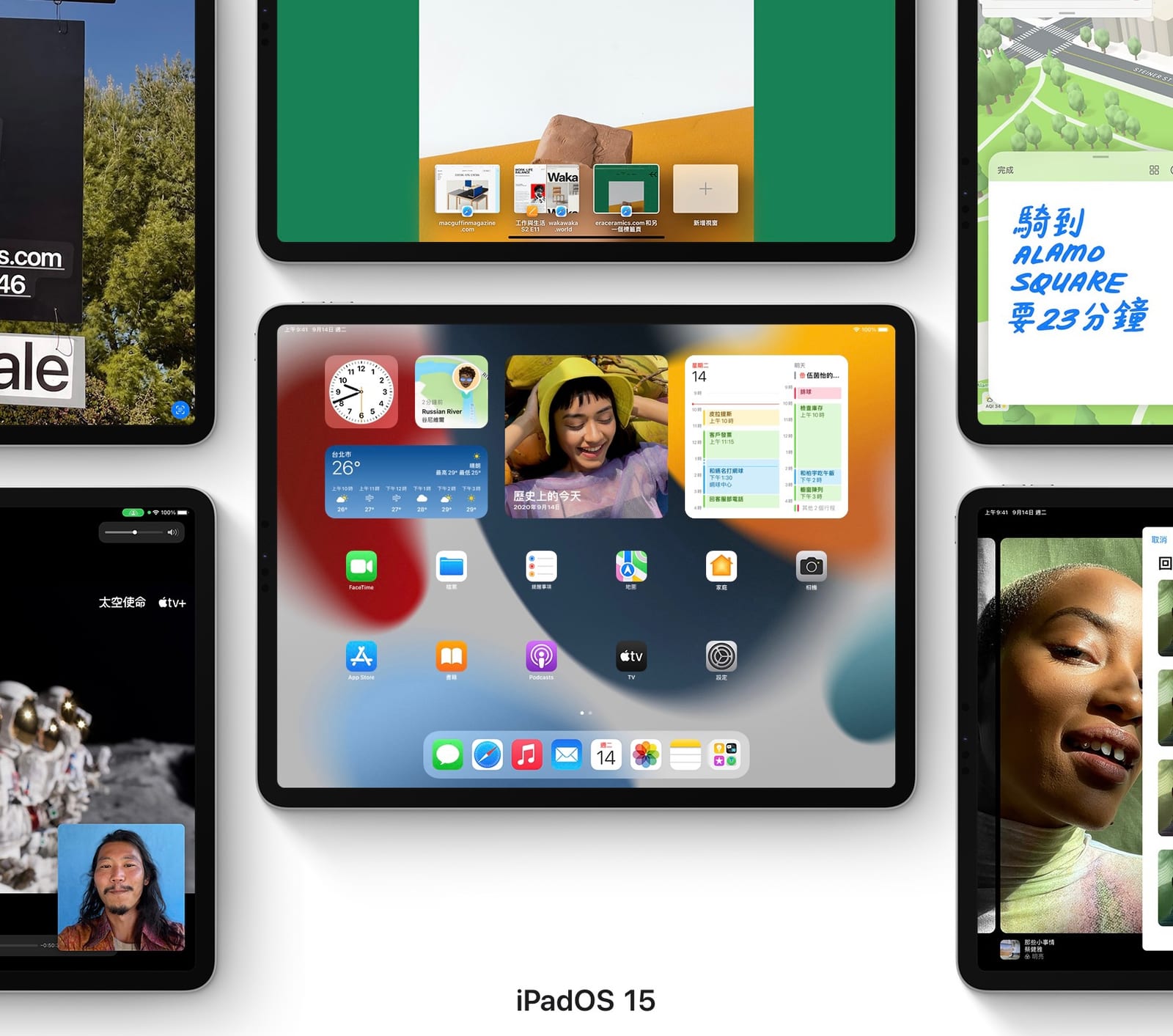
New Features in Apple iPadOS 15
Multitasking
- Multitasking menu: Just tap the menu at the top of an app to use Split View, Slide Over, full screen, or a center window. You can also quickly close a window from the menu.
- Access all apps: When you enter Split View, the app moves aside and shows the Home Screen, giving you easy access to all Home Screen pages and the App Library.
- Open a window in the center of the screen: Just touch and hold an email message, note, or message conversation to open a window in the center of the screen — perfect for quickly previewing content without leaving your current view. In the multitasking controls, swipe down to place a window on the shelf, or create Split View, Slide Over, and other working modes from the Multitasking menu.
- A better App Switcher: The updated App Switcher not only includes the apps in Slide Over, but also lets you create a Split View space simply by dragging one app onto another.
- Shelf: With the all-new multi-window shelf, you can quickly access all open windows of an app. The shelf appears when you open an app and elegantly fades out when you start using the app. Tap the shelf to open it, or swipe to close it.
External Keyboard
- Redesigned keyboard shortcut bar: The keyboard menu bar has an all-new, compact look — the same functions, but taking up less space, making it easier to access the features of the app on screen.
- A new way to display keyboard shortcuts: The keyboard shortcut display has a new look and brings more functionality. Keyboard shortcuts are now grouped by categories such as File, Edit, Format, View, and Search, making the screen cleaner.
- More keyboard shortcuts: Various apps and the system have added many new keyboard shortcuts, including for multitasking and item feature menus. The globe key is now a modifier key, letting you do more work on the keyboard.
- Full keyboard navigation: Use the keyboard to operate apps and boost productivity. You can also use the tab key to highlight text fields and buttons, without ever taking your hands off the keyboard.
Widgets
- Place widgets on the Home Screen: Place widgets alongside apps on the Home Screen to make full use of the larger screen space (author’s note: I don’t think this feature works — it ruins the visual experience of the Home Screen).
- Rotating widgets: Whether you use the iPad in portrait or landscape, widgets stay in place.
- Find My widget: Use the Find My widget to keep an eye on friends and personal items right from the Home Screen.
- Contacts widget: Use the Contacts widget to stay in touch with family and friends from the Home Screen. You can reach them via Phone, Messages, FaceTime, Mail, or Find My. You can also use Family Sharing to perform other actions, such as approving a child’s purchase or Screen Time request.
- Game Center widget: The “Continue Playing” widget shows games you have recently played on various devices that support Game Center. The “Games Your Friends Play” widget helps you discover games your friends are playing.
- App Store widget: View featured stories, highlights, and in-app events from the Today tab right on the Home Screen.
- Mail widget: Use the Mail widget to see your latest emails at a glance and quickly access any of your mailboxes.
- “Default” widget: After upgrading, you will see a new default layout that arranges your most-used app widgets in a Smart Stack.
- Smart widget suggestions: Widget suggestions for apps you have used will automatically appear in the Smart Stack at the appropriate time based on your past activity. For example, when a scheduled event is about to begin, the corresponding app’s…
Support Independent Perspectives & In-Depth Insights
Every thoughtful analysis and candid critique comes from our dedication to truth and quality. We choose not to follow sensational algorithms or clickbait headlines.
Sustaining independent research requires reader support. Make a one-time or monthly contribution, securely processed by Google.
Payments secured by Google · Manage or cancel anytime in your Google Account


Comments