
In the past, editing PDF files on Microsoft Windows often required dedicated document software such as Adobe Acrobat or PDF-XChange Viewer. However, ever since switching over to the Mac ecosystem, and given that my daily workflow needs are relatively straightforward alongside Google Chrome natively supporting PDF viewing for years, I’ve avoided cluttering my machine with heavy third-party utility tools.
Recently, I encountered a PDF agreement that needed both quick filling and signing. Loath to go through the tedious cycle of printing it out on paper and scanning it back in, I recalled the built-in powerhouse covered in our previous article, Apple Computer’s “Preview” Is a Convenient and Handy Image Editing Software. In reality, macOS Preview not only handles PNG and JPG images with ease, but also doubles as a versatile reader and lightweight editor for PDF documents!
As shown in Figure 1 below, on macOS, simply double-clicking a PDF in Finder opens it directly in Preview (unless opened from a web browser, which renders it via the browser’s PDF engine).
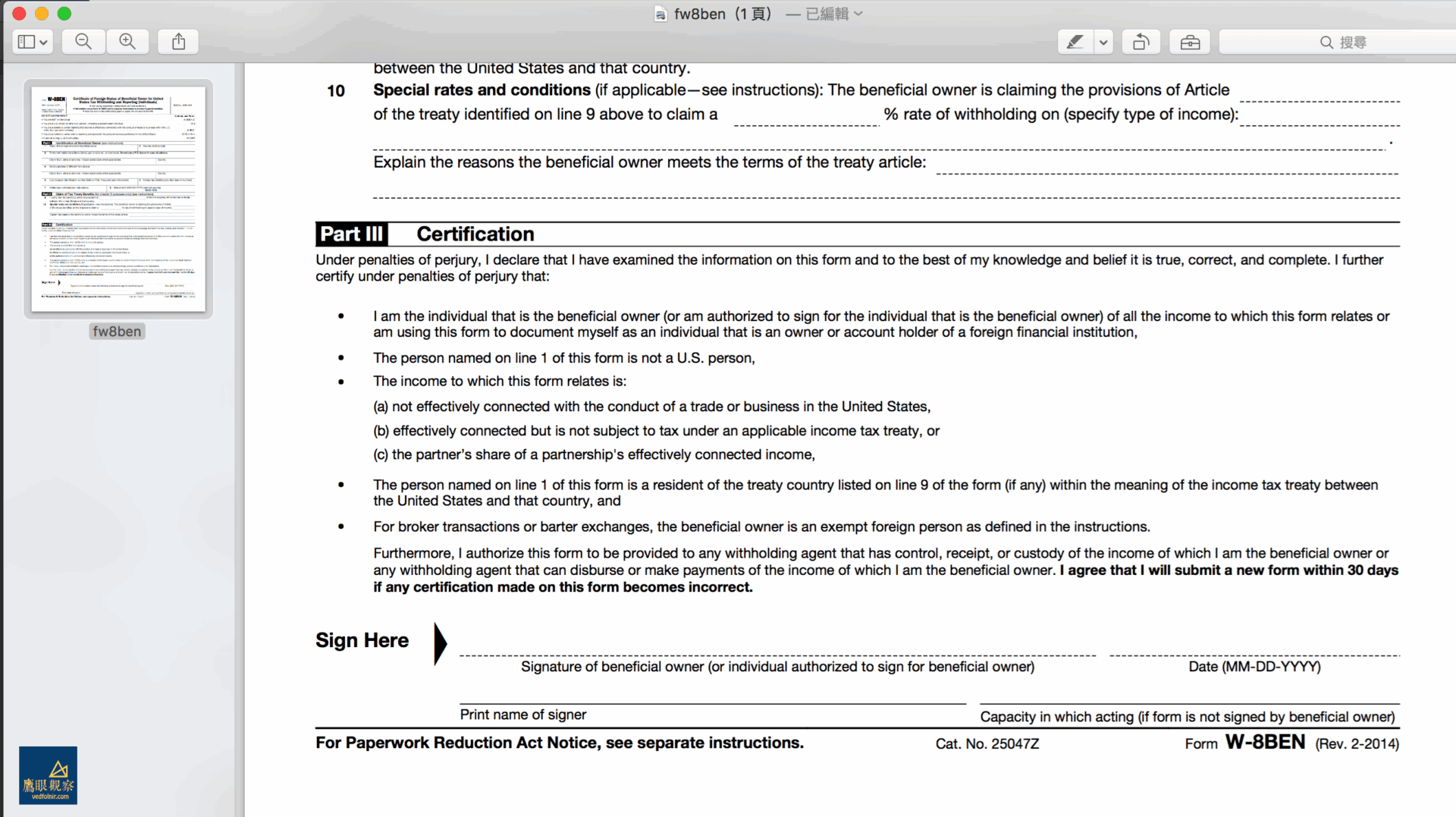 Figure 1: Opening PDF documents with Apple OS X Preview.
Within Preview, you can accurately view formatted layouts, highlight or copy text, and fill in text fields across digital forms—making it a practical, lightweight PDF editor that meets the daily needs of most users (as shown in Figure 2).
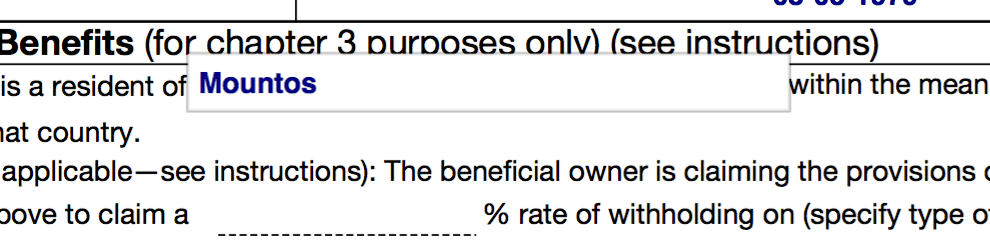 Figure 2: Editing forms directly in Preview.
Since standard markup tools are straightforward, let’s dive into how to insert your personal signature into PDF agreements without touching a physical printer.
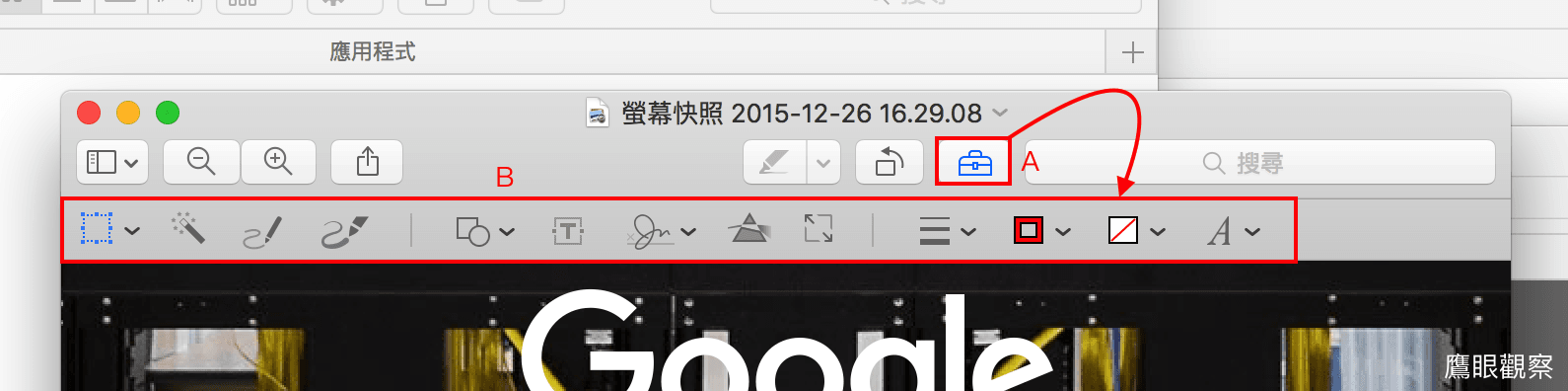
As shown in Figure 3 below, click the "**Markup Toolbar**" icon in Preview to reveal the toolbar, where you will find the "**Sign**" button.
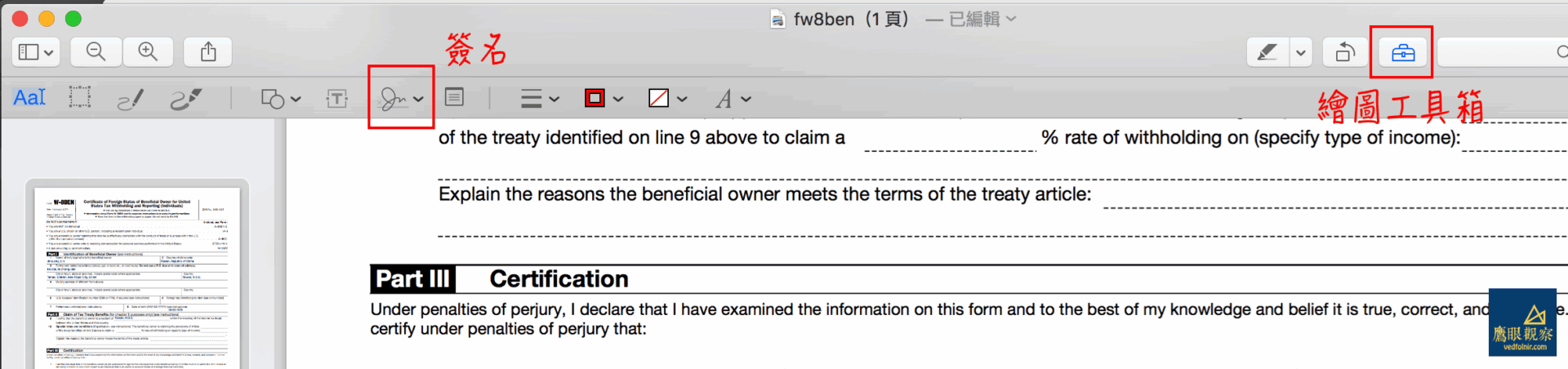 Figure 3: Preview’s Markup Toolbar and Sign button.
Clicking the Sign button displays the signature creation palette shown in Figure 4, offering two input methods: "**Trackpad**" and "**Camera**".
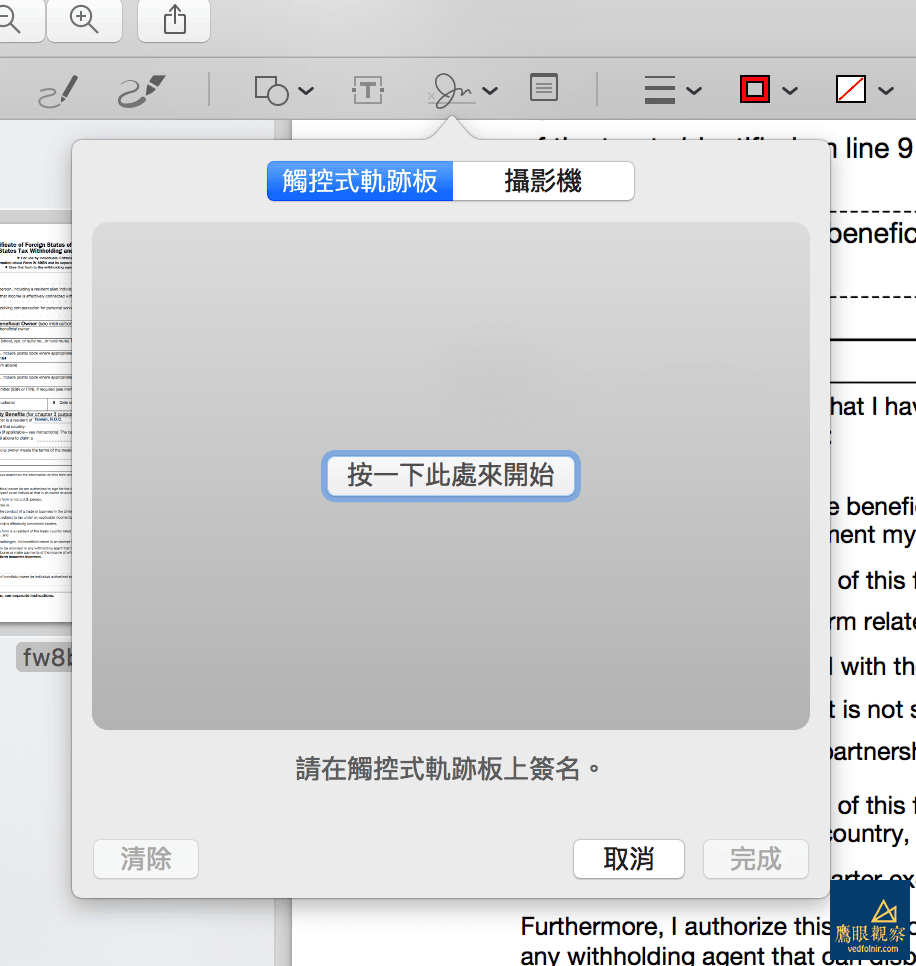 Figure 4: Preview’s signature creation palette.
If you choose the "**Trackpad**" method (see Figure 5), you can write your signature directly on your MacBook’s trackpad using your finger.
Tip: In my testing with an external Wacom graphics tablet, input was not recognized; the feature appears optimized exclusively for Apple’s built-in trackpads.
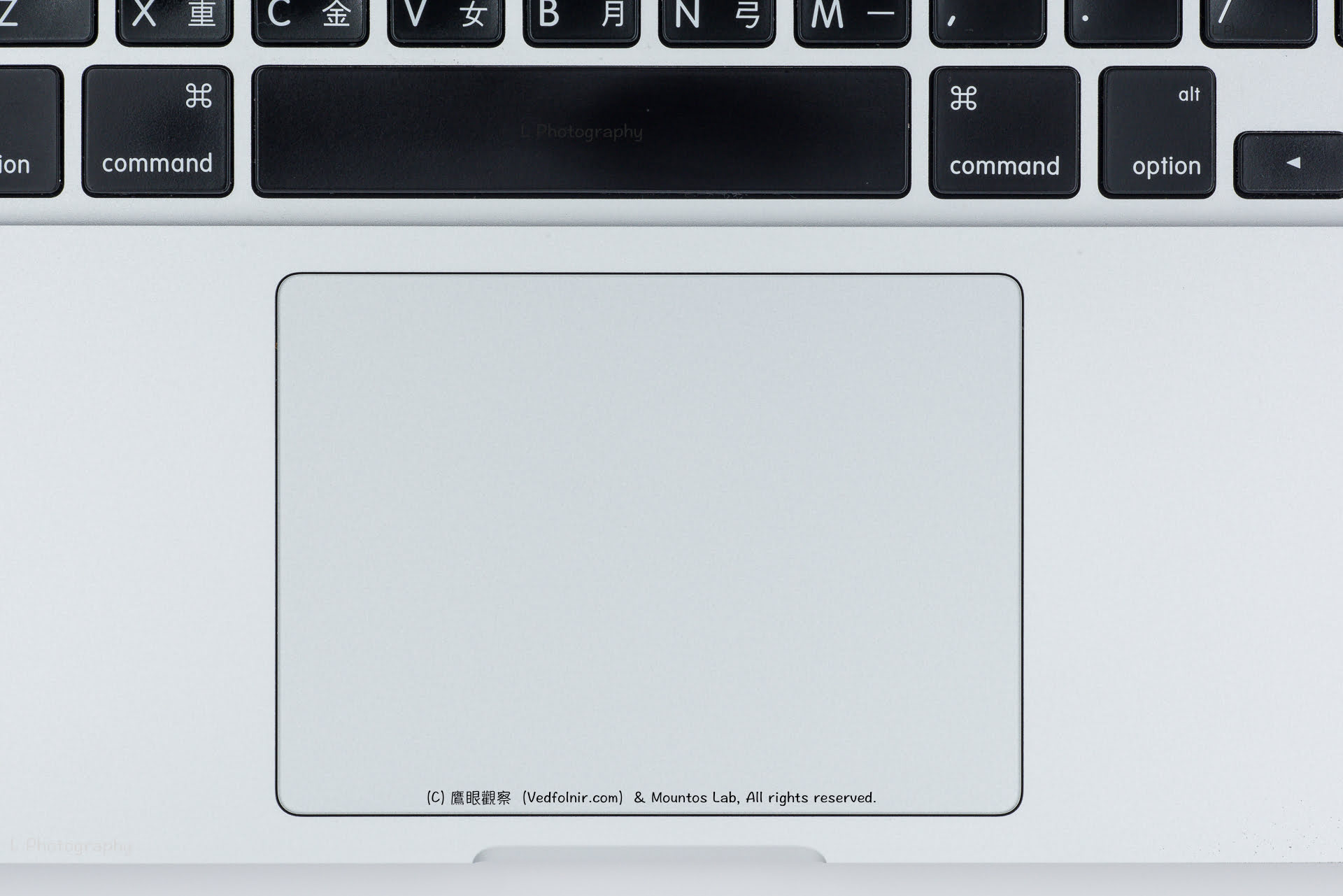 Figure 5: Apple MacBook Pro trackpad (Image Credit: Lin Jinliang).
As you draw with your finger across the trackpad shown in Figure 5, the digital stroke path appears on screen in real time (Figure 6).
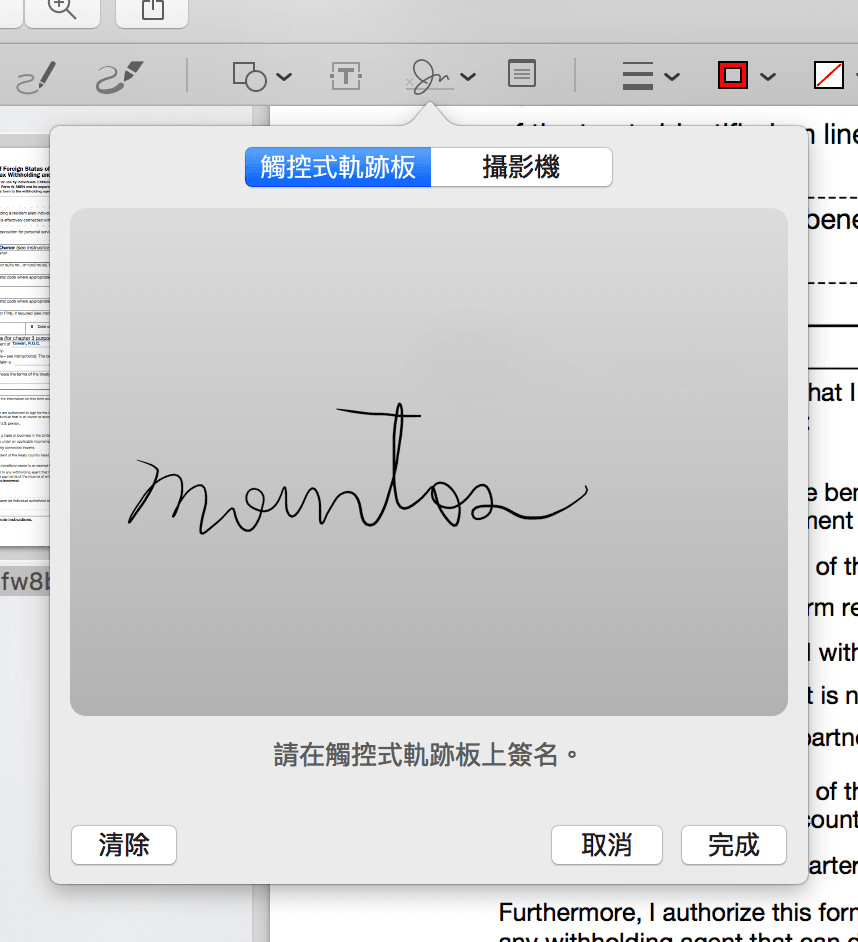 Figure 6: Drawing a signature using the trackpad.
Once you are satisfied with your handwriting (which takes a little practice to get smooth due to sensor touch mechanics), simply press "**Done**". The signature will be saved into Preview’s library (shown in Figure 7), ready to be inserted into any document at any time.
If you enable Apple iCloud syncing, your saved signatures will automatically sync across your Apple devices, preserving your personal sign-offs even after migrating to a new machine.
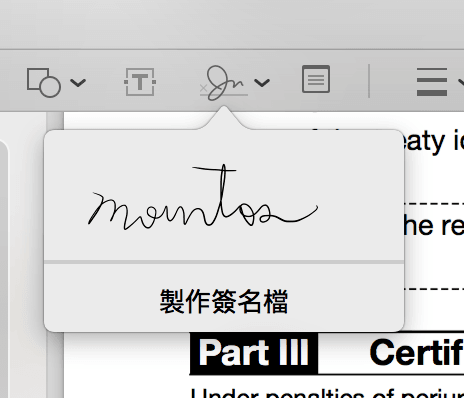 Figure 7: Saved signature records in Preview.
Next, as illustrated in Figure 8, clicking your saved signature inserts it as a scalable vector element directly into the PDF. Simply resize it and drag it into position over the signature line to complete the document.
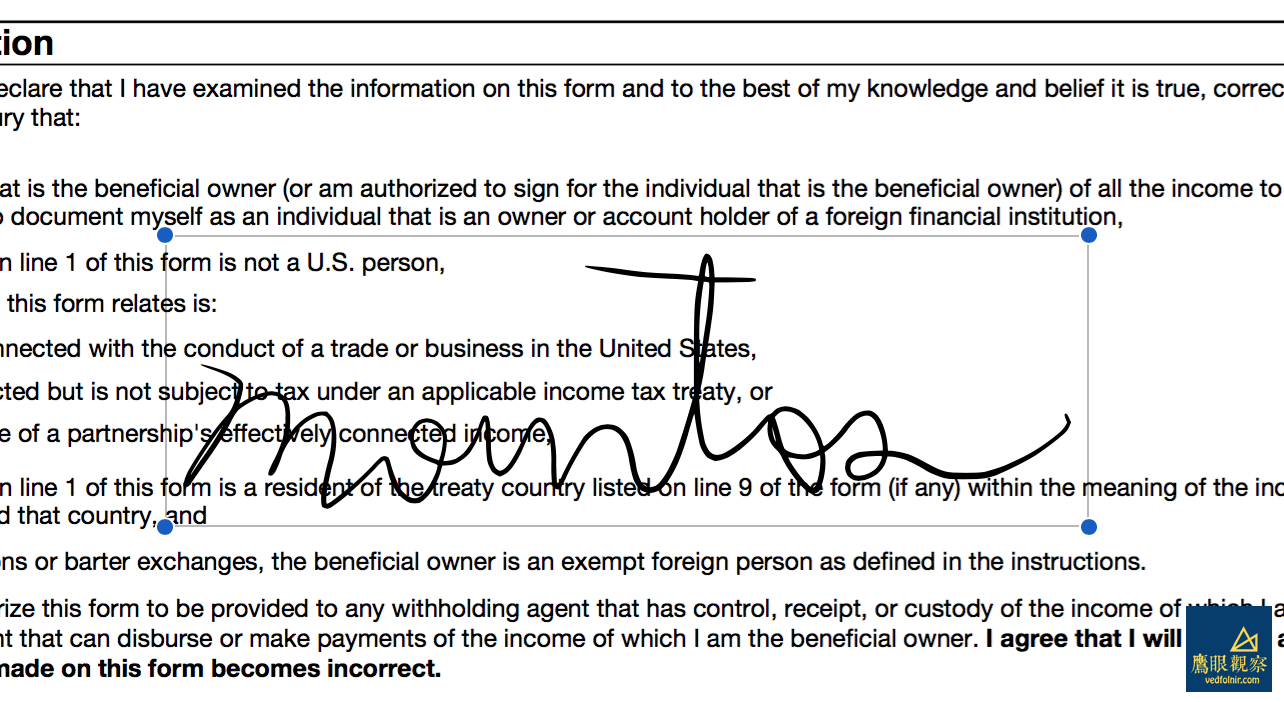 Figure 8: Inserting signature into PDF.
Alternatively, if you choose the "**Camera**" option (Figure 9), the end result is identical, but your signature is captured via your Mac’s built-in webcam.
Simply sign your name clearly on a plain white sheet of paper with a dark pen, then hold it up in front of the FaceTime HD camera.
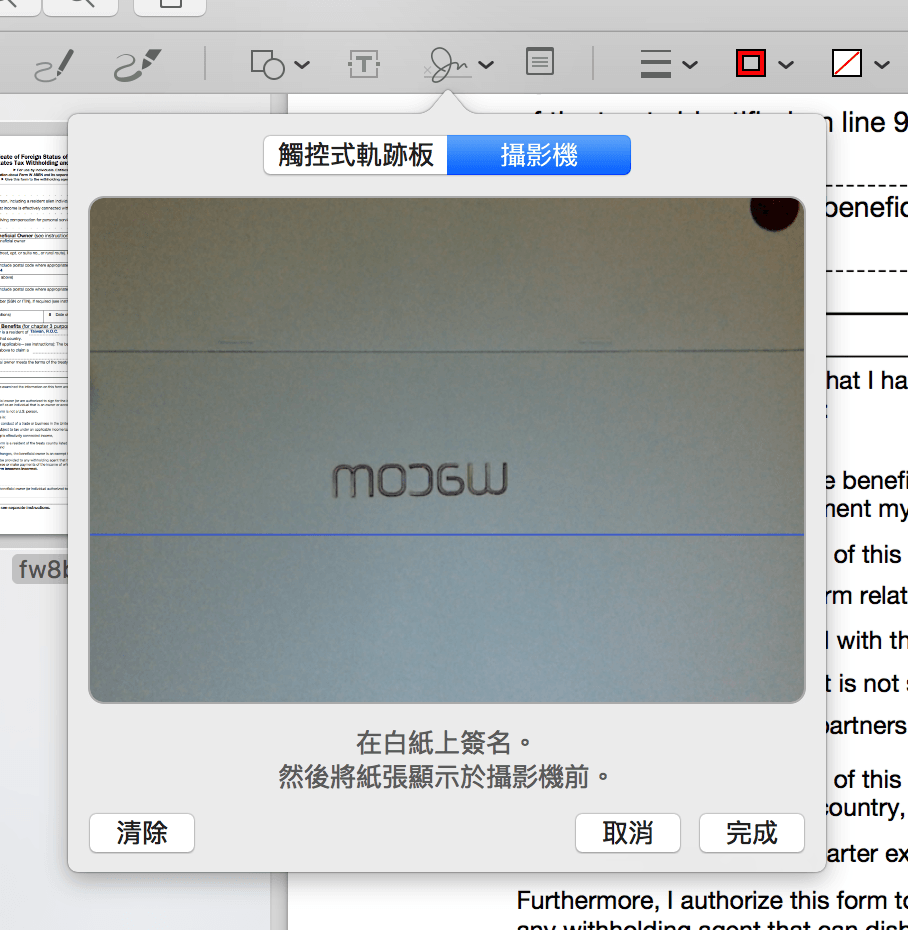 Figure 9: Scanning a physical signature with Preview and camera.
As shown in Figure 10, once the Mac captures the frame, it automatically isolates the ink strokes and vectorizes them into a crisp digital signature (much like Adobe Illustrator’s Live Trace), letting you drop it straight into the PDF.
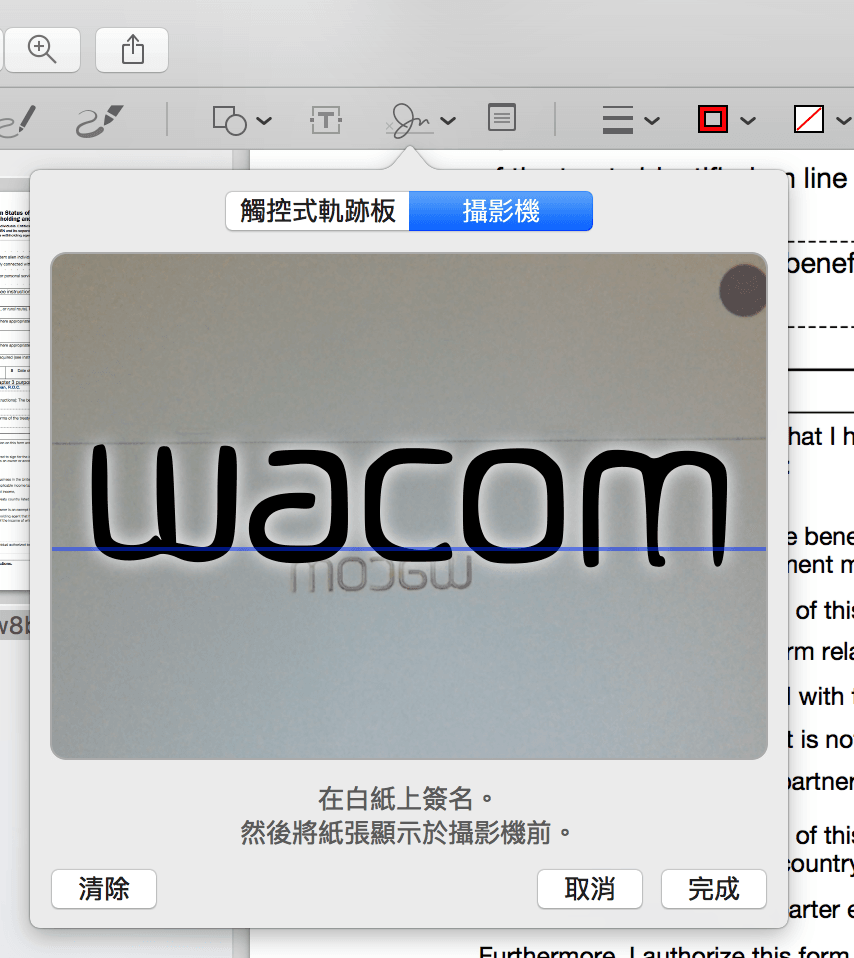 Figure 10: Preview automatically creates a digital signature using the camera.
In practical use, however, the camera method tends to smooth out sharper pen flourishes, resulting in slightly rigid curves. While both methods hold equal functional validity, drawing directly on the trackpad generally yields a more natural, fluid signature once you get the hang of it.
Support Independent Perspectives & In-Depth Insights
Every thoughtful analysis and candid critique comes from our dedication to truth and quality. We choose not to follow sensational algorithms or clickbait headlines.
Sustaining independent research requires reader support. Make a one-time or monthly contribution, securely processed by Google.
Payments secured by Google · Manage or cancel anytime in your Google Account

Comments