
In a home or small office environment, having a traditional USB printer without built-in Wi-Fi usually means lugging your laptop right next to the printer and plugging in a USB cable every time you need to print a document—an undeniably tedious chore.
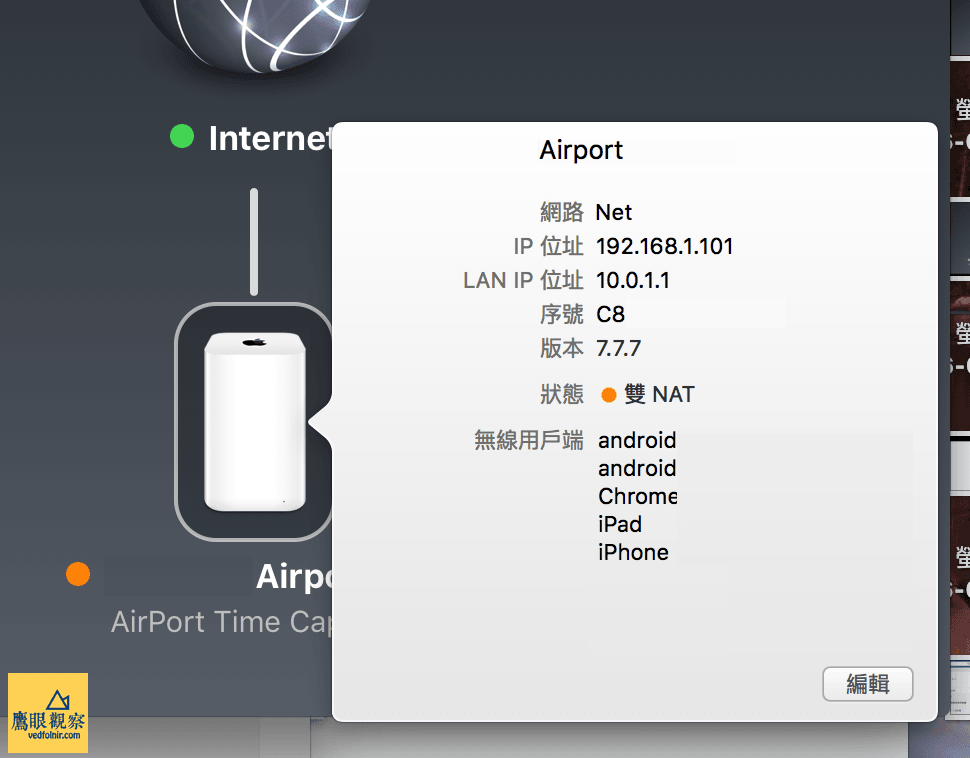
If you happen to have an Apple wireless base station on hand (including the AirPort Express, AirPort Extreme, or the backup-enabled AirPort Time Capsule), you can simply connect your conventional USB printer to the USB port on the back of the base station to turn it into a local-network-wide "**network printer**".
This article provides a comprehensive walkthrough on setting up AirPort printer sharing on Mac and Windows, along with troubleshooting steps and the "**Reset printing system**" technique when connectivity issues arise!
1. Features and Limitations of AirPort Printer Sharing
Before diving into setup, understanding how AirPort printer sharing works and what its boundaries are will prevent unexpected surprises:
1. Key Features and Advantages
- Network-Wide Wireless Printing: Any Mac or PC connected to the same AirPort wireless network (or connected via Ethernet to the base station) can directly access and print documents.
- Zero-Configuration Discovery: Mac systems automatically discover and add shared printers connected to the base station using Apple’s built-in Bonjour zero-configuration networking protocol.
2. Notable Limitations
2. System Requirements and Hardware Connection
To get AirPort network printer sharing up and running smoothly, ensure your equipment meets the following requirements:
1. System Requirements
- Mac Computers: macOS / OS X v10.2.7 or later.
- Windows PCs: Windows XP (SP3), Windows Vista (SP1), or later, with
"**Bonjour for Windows**"installed (included on the AirPort CD or available as a download from Apple).
2. Hardware Connection Steps
-
Physical Cabling:
- Plug the USB printer’s cable into the USB port on the back of the AirPort Express, AirPort Extreme, or AirPort Time Capsule.
- If your printer features a built-in Ethernet (LAN) port, you can also connect it directly to an Ethernet port on the base station using a network cable.
-
First-Time Setup Tip:
- If you are setting up a brand-new AirPort Express, it is recommended to connect the printer’s USB cable to the base station before launching AirPort Utility to perform initial base station configuration.
3. Troubleshooting: What to Do When the Printer Won’t Print
If your printer fails to print after connecting it to an AirPort base station, or if it stops working unexpectedly, follow these three steps in order:
Step 1: Power Cycle Hardware Connections
Hardware connectivity issues often stem from USB handshake timeouts. Follow this reset sequence:
- Unplug the AirPort base station (Express / Extreme / Time Capsule) from the power outlet.
- Turn off the printer power.
- Verify that the printer’s USB cable is firmly seated in the AirPort base station’s USB port.
- Turn on the printer power.
- Plug the AirPort base station back into the power outlet and wait 1–2 minutes until the status light turns solid green (ready state).
- Return to your computer and try sending a test print job again.
Step 2: Check and Update Printer Drivers
Visit your printer manufacturer’s official website (such as HP, Epson, Canon, Brother, etc.) to ensure that you have installed the latest drivers compatible with your current operating system version.
Step 3: Mac Ultimate Fix — Reset the Printing System
If your Mac still cannot detect the printer or the print queue remains stuck after the steps above, clear any configuration conflicts using the macOS built-in "**Reset printing system**" feature:
- Open Mac System Preferences > go to Printers & Scanners (or Print & Fax).
- In the printer list on the left side, hold down the
Controlkey and click (or right-click in the empty space of the list). - Select
"**Reset printing system...**"from the context menu. - Click
"**Reset**"(or"**OK**") in the confirmation dialog. - Once reset, click the
"**+**"(Add) button below the list to search for and re-add your shared printer on the AirPort base station. - Print a test page to verify functionality.
Conclusion
By taking advantage of the USB printer sharing feature on Apple AirPort base stations, you can maximize the value of an older USB printer without investing in an expensive new wireless model. Paired with Bonjour’s seamless automatic discovery, everyone in your household can enjoy effortless wireless printing!
Support Independent Perspectives & In-Depth Insights
Every thoughtful analysis and candid critique comes from our dedication to truth and quality. We choose not to follow sensational algorithms or clickbait headlines.
Sustaining independent research requires reader support. Make a one-time or monthly contribution, securely processed by Google.
Payments secured by Google · Manage or cancel anytime in your Google Account

Comments