

Among the official plugin suites for WordPress is Automattic’s Jetpack. A key feature integrated into Jetpack is the "**Protect**" security module.
The Protect service is a cybersecurity module designed to identify suspicious login behavior and block the IP addresses (Internet Protocol addresses) of malicious intruders, preventing brute-force attacks against your admin credentials. However, the stricter the security layer, the greater the chance you might accidentally lock yourself out.
In this guide, I will walk through several effective ways to unblock your IP address when locked out by Jetpack, preventing the nightmare of being barred from your own dashboard. Once an IP is flagged and blocked, WordPress makes no distinction between a regular author, administrator, or hacker—everyone on that IP is blocked alike.
According to Jetpack’s official documentation: “Protect is a cloud-powered defense against brute-force attacks. We identify and block malicious IPs across millions of WordPress websites. Protect monitors failed login attempts across all Jetpack-connected sites. If a single IP makes too many failed login attempts within a short window, that IP is blocked from logging into any site running the plugin…”
In other words, WordPress syncs a global IP blacklist from its cloud network. Whenever an IP on the list attempts to access your login page, it is immediately blocked (for example, server IP subnets frequently hijacked as attack relays in Eastern Europe are common targets). Beyond global blacklists, Protect also employs a simple yet effective verification challenge.
As shown in Figure 1 below, when a user accesses the WordPress login page, Protect presents a basic math challenge to confirm whether the visitor is human or an automated cracking bot. If you answer incorrectly, or bypass the question while attempting rapid-fire password attempts, Protect bans that client IP address.
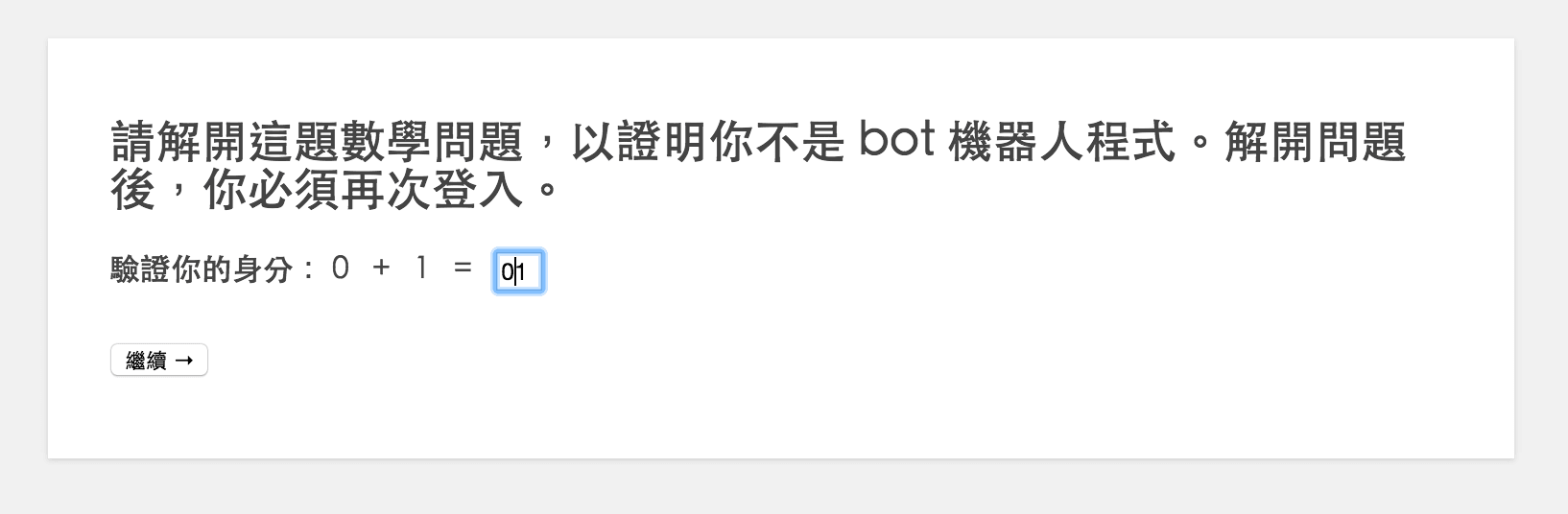 Figure 1: Login math challenge verification.
Protect is strictly deterministic. In Figure 1, when I entered a playfully unconventional answer instead of the expected integer, the system promptly flagged it as incorrect (Mantou: Hahaha, look at you, that’s what you get for playing around!). The consequence is shown in Figure 2: Ved was locked out of his own website!
 Figure 2: IP flagged for potential security policy violation.
Once blocked, your computer will receive an access error every time it tries to open the WordPress admin URL. Don’t panic—here is how to resolve the lockout.
How to Unblock Your IP in Jetpack Protect
When you find your IP blocked by Protect, open WordPress.com, log into your connected account, and navigate to the site management dashboard shown in Figure 3. Under the Settings menu, select the Security tab. Inside, you will find Jetpack Protect’s IP Address Whitelist.
Enter your computer’s public IP address into the whitelist input field (the dashboard usually detects and displays your current IP address, but you must manually paste or confirm it). Click to save, and the block on your IP is instantly lifted. You can now refresh your site’s login page and log in as normal.
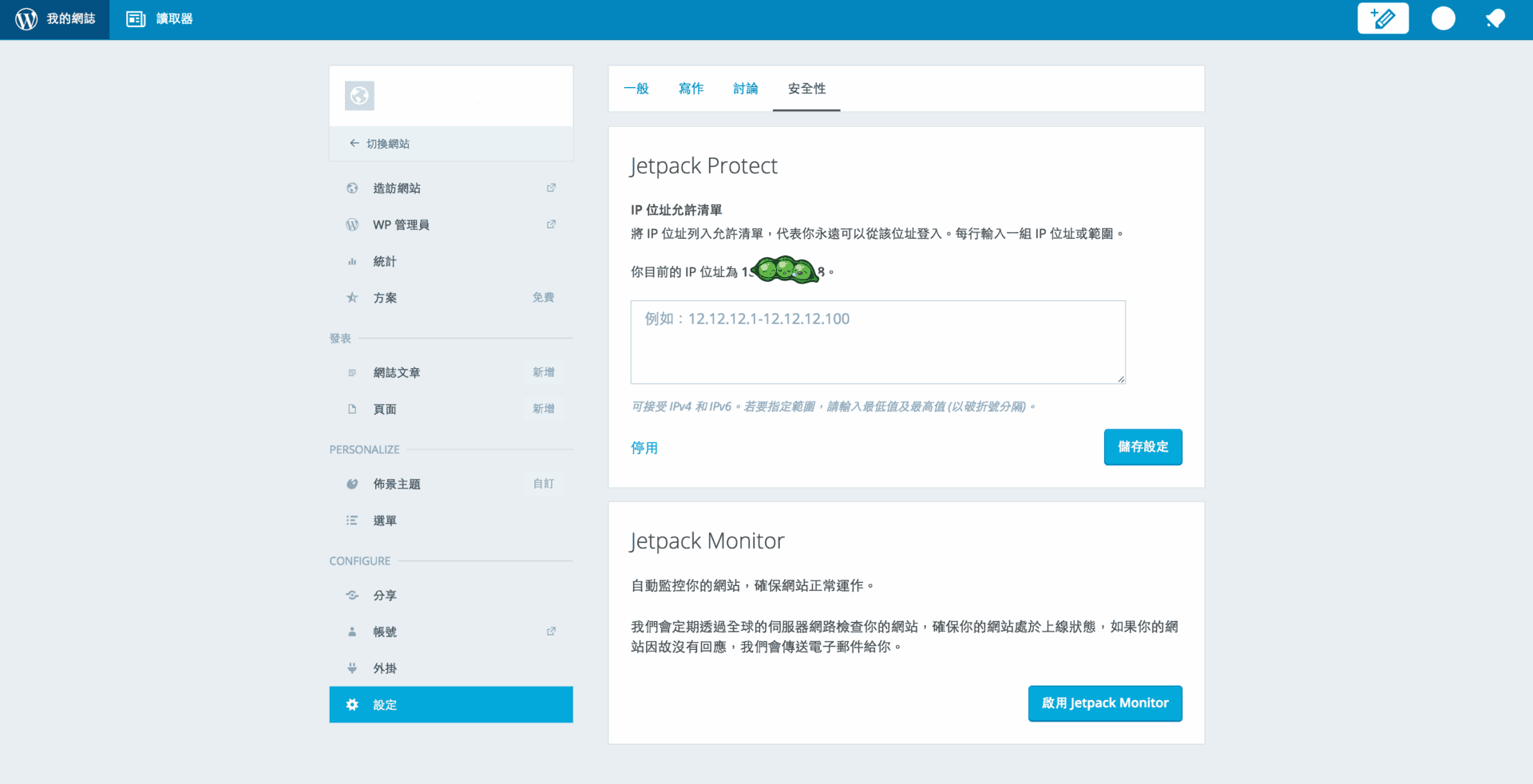 Figure 3: WordPress.com management dashboard IP whitelist.
Alternative Workarounds
Beyond the standard WordPress.com whitelist method, there are a few practical alternative workarounds:
- Change Your Client IP: Reset your home broadband modem/router to obtain a fresh dynamic IP address, or connect via a mobile personal hotspot or VPN. This immediately bypasses the IP-level ban.
- Deactivate via File Manager (Last Resort): Log into your web host’s control panel (e.g., cPanel, Bluehost, or SSH/FTP). Navigate to
wp-content/plugins/and temporarily rename or delete thejetpackdirectory. This instantly disables Jetpack and its Protect module, allowing you to log back into your admin dashboard. Once inside, you can reinstall or re-enable the plugin and configure your whitelist properly.
This directory-renaming trick also works as a universal emergency exit for almost any security plugin that locks you out. Whenever a misconfigured security extension blocks admin access, renaming its plugin directory is the fastest, foolproof way to regain control!
Support Independent Perspectives & In-Depth Insights
Every thoughtful analysis and candid critique comes from our dedication to truth and quality. We choose not to follow sensational algorithms or clickbait headlines.
Sustaining independent research requires reader support. Make a one-time or monthly contribution, securely processed by Google.
Payments secured by Google · Manage or cancel anytime in your Google Account


Comments