
For bloggers and webmasters managing websites on WordPress, The Fixer recommends routinely conducting system maintenance and cleanup. Beyond bolstering security, regular maintenance significantly enhances performance and page load speeds. Key maintenance tasks include purging orphaned data and optimizing MySQL database tables.
To cleanse the system and eliminate leftover junk data, plugins like “WP-Optimize” are effective—trusted with over 600,000 active installs and high community ratings, enabling bulk cleanup with a single click.
When it comes to MySQL database error checks and table optimization, many plugins exist (such as WP-DBManager). However, you actually do not need any third-party plugin or manual phpMyAdmin access. You can leverage WordPress’s built-in table repair and optimization functionality simply by editing wp-config.php.
Tutorial: Using Built-in WordPress Database Repair & Optimization
First, access your server via FTP, SFTP, or SSH into your Linux environment, and navigate to your WordPress installation directory (alternatively, use the File Manager in cPanel or your hosting dashboard).
For beginners, The Fixer recommends reliable web hosting providers like Bluehost for deploying WordPress, thanks to intuitive onboarding, affordability, and extensive documentation.
In your WordPress root directory, open the wp-config.php configuration file. On a Linux server, you can use the terminal command:
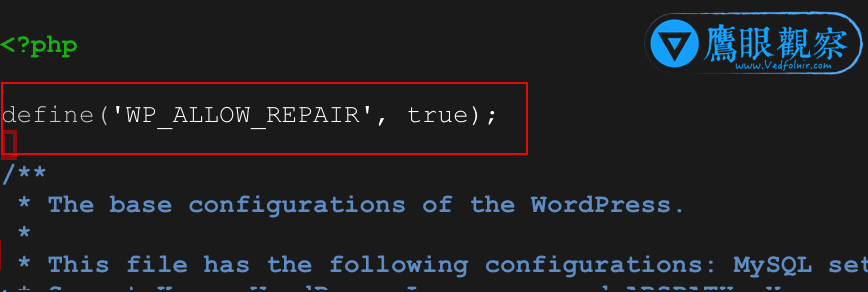
sudo nano wp-config.phpAs shown in Figure 1 below, add the following directive into your wp-config.php file:
define('WP_ALLOW_REPAIR', true);Place it anywhere below the opening <?php tag. Once added, press Ctrl + X, then press Y and Enter to save and exit the nano editor.
Next, open your web browser and navigate to:
http://www.YourSiteName.com/wp-admin/maint/repair.php
This will load the native WordPress database repair and optimization screen, shown in Figure 2.
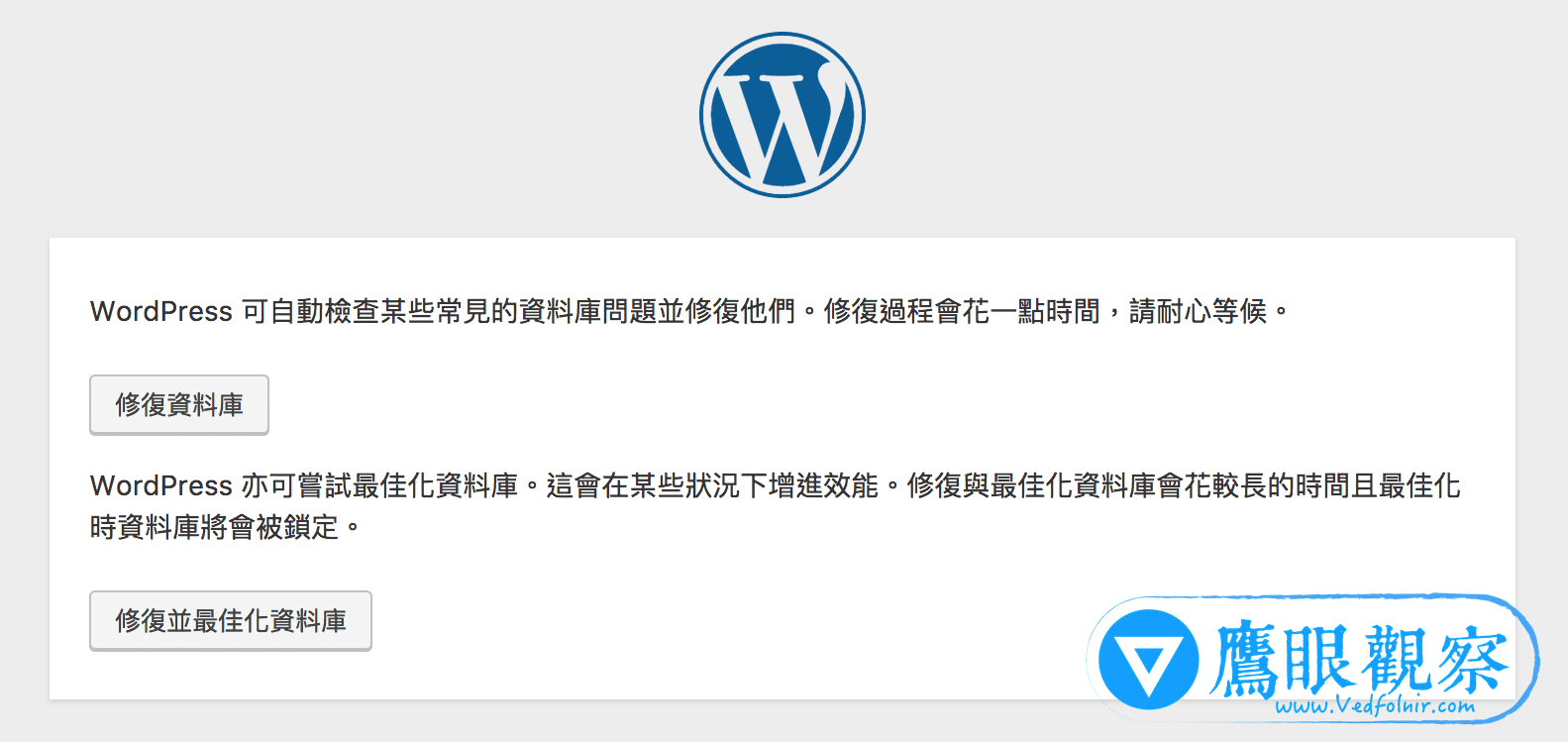
Generally, it is best to click “Repair and Optimize Database”. While it takes slightly longer than a simple repair, running both operations concurrently ensures thorough cleanup and saves time overall.
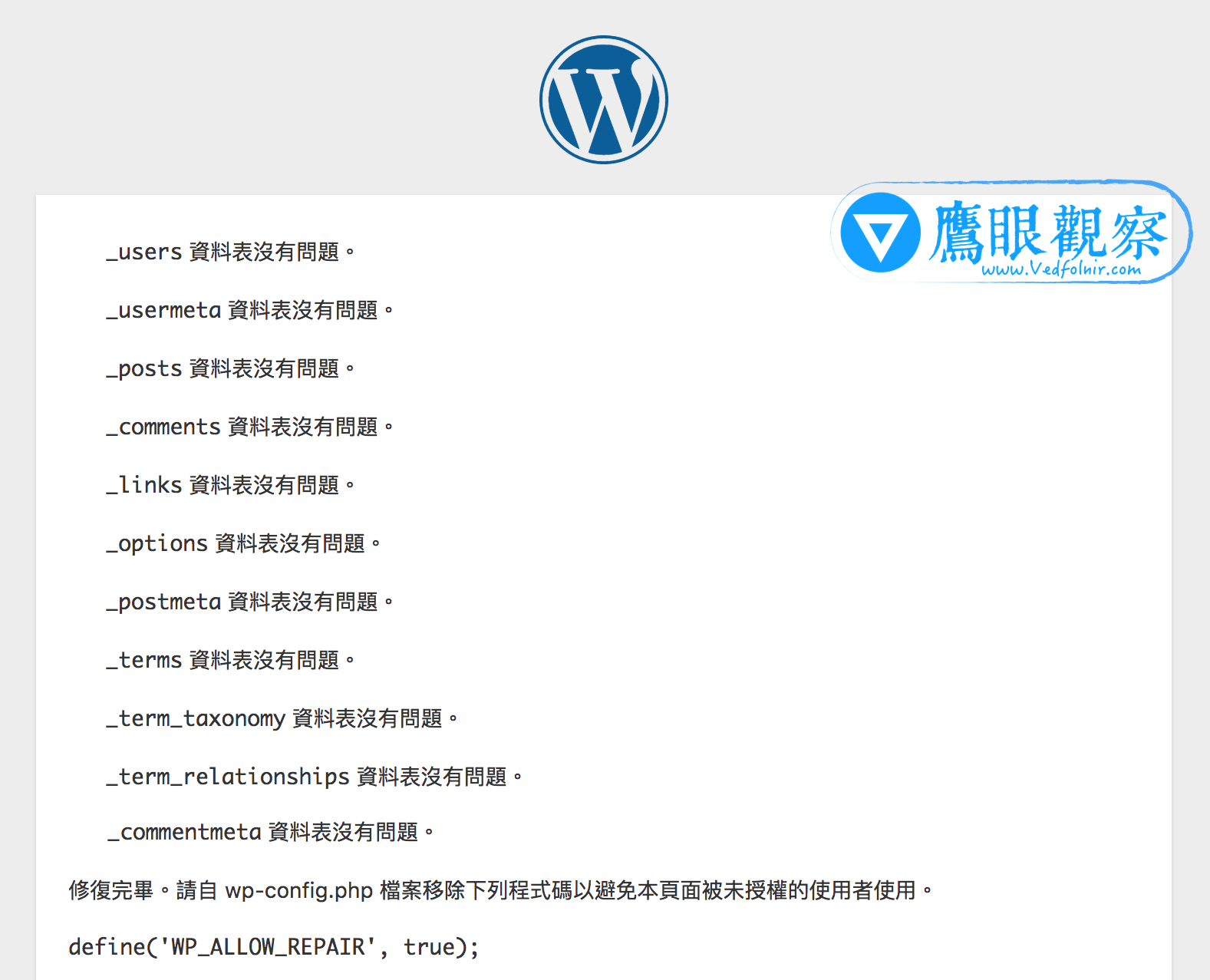
As illustrated in Figure 3, the tool displays real-time health checks and optimization statuses for each MySQL table. For healthy sites, severe corruption is rare, but running this check periodically keeps database queries running smoothly.
Critical Security Step: Disable the Repair Flag
Immediately after completing the database repair and optimization process, remember to remove or comment out the define('WP_ALLOW_REPAIR', true); line in wp-config.php.
Leaving this script active allows anyone on the internet to trigger database repairs without logging in, which can be abused by bad actors to consume server resources or potentially cause database locking and denial of service!
Further Reading & Recommended Resources:
- Recommended Managed WordPress Hosting: WordPress.com.
Support Independent Perspectives & In-Depth Insights
Every thoughtful analysis and candid critique comes from our dedication to truth and quality. We choose not to follow sensational algorithms or clickbait headlines.
Sustaining independent research requires reader support. Make a one-time or monthly contribution, securely processed by Google.
Payments secured by Google · Manage or cancel anytime in your Google Account



Comments