
Thanks to excellent operating system optimization, durable hardware craftsmanship, and exceptional brand value retention, Apple Inc. Mac laptops and desktop computers (such as MacBook Pro, MacBook Air, and iMac) have always been remarkably popular in the second-hand market. Even after two or more years of use, a pre-owned Mac often retains over two-thirds of its original retail price.
However, the second-hand market runs deep with hidden pitfalls! If you buy an out-of-warranty machine plagued by latent defects, repair fees can easily wipe out any initial savings. This article analyzes the major purchase channels for second-hand Macs and reveals 6 essential hardware inspection steps you must follow during an in-person exchange.

Pros and Cons of 4 Major Used Mac Purchase Channels
1. Apple Certified Refurbished Store
- Pros: Inspected directly by Apple with brand-new outer shells and batteries replaced; backed by a full 1-year official warranty and eligible for AppleCare+.
- Cons: Priced only about 15% below new retail prices, and popular configurations frequently sell out quickly.
2. Buying from Friends or Family (Most Recommended)
- Pros: Complete visibility into the previous owner’s usage habits and device history; easier to get a friendly discounted rate; easy to reach if any issues arise.
- Cons: Depends heavily on luck; condition and specification options are inherently limited.
3. Renowned Auction Platforms (e.g., Shopee, Ruten, PChome)
- Pros: Wide variety of choices and comprehensive specs; select platforms provide escrow payment services (funds released only after successful inspection).
- Cons: Requires careful screening of highly rated sellers to avoid dummy account scams.
4. Facebook Groups and Second-Hand Forums (Least Recommended)
- Warning: FB groups lack basic third-party escrow payment protections and identity verification mechanisms. Scammers frequently lure buyers with drastically below-market prices only to disappear after receiving wire transfers—carrying the highest security risk!
Essential In-Person Verification: 6 Hardware Checkpoints for Used Macs
When opting to buy a used machine and meeting in person, make sure to bring a USB flash drive and a mobile Wi-Fi hotspot, then verify these 6 steps one by one:
1. Screen Anti-Reflective Coating & Dead Pixels
- Prevent Anti-Reflective Coating Delamination: Certain Retina display models experienced the infamous “Staingate” issue. Wipe the display with a microfiber cloth, turn off the device, shine a light across the panel, and check for peeling or patchy stains.
- Check for Dead and Bright Pixels: Power on the Mac and switch between pure white and pure black full-screen wallpapers to verify there are no colored pixels, bright spots, or yellowish halos.
2. Official Warranty Status
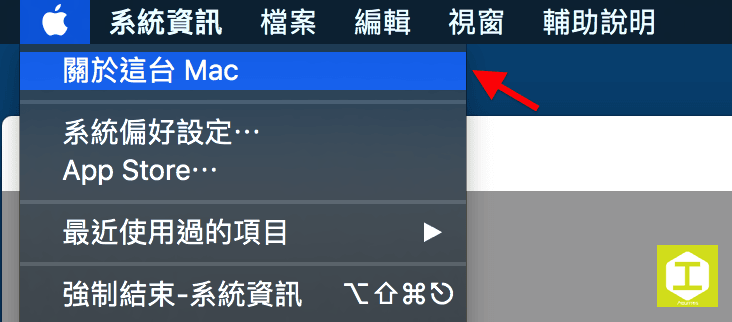
- Click the Apple icon in the upper-left corner ➔ “About This Mac” and copy the Serial Number.
- Visit Apple’s official coverage check website to verify whether the device is still within the AppleCare official warranty period.
3. Keyboard & Touch Bar Responsiveness
- Key Chattering & Travel: Especially on 2016–2019 MacBook models featuring the “butterfly keyboard”, open a text editor and test every single key to ensure there is no double-typing (chattering) or stuck, unresponsive keys.
- Trackpad & Backlight: Test Force Touch pressure sensitivity, multi-finger gestures, and keyboard backlight adjustments.
4. Storage Capacity & SSD Health
- S.M.A.R.T. Status: Open “System Information” ➔ “Storage”, and confirm that the built-in SSD’s S.M.A.R.T. status displays as “Verified”.
- Data Erasing: Ensure the seller has turned off “Find My Mac” and unbound their iCloud account.
5. Battery Health & Cycle Count
- Check Cycle Count: Click “About This Mac” ➔ “System Report” ➔ “Power”, and view the battery’s “Cycle Count” and “Condition”.
- Battery Replacement Budget: A standard MacBook battery is rated for around 1,000 cycles. If the condition indicates “Service Recommended” or the cycle count exceeds 800, battery runtime has substantially degraded, and the cost of battery replacement should be factored into your budget.
6. Liquid Contact Indicators (LCI) & Moisture Ingress
- Inspect Ports and Exterior: Check USB-C, MagSafe, and headphone jacks for signs of oxidation, rust stains, or unusual odors.
- LCI Red Warning: On select models, you can inspect internal Liquid Contact Indicators (LCIs) through ventilation vents or the headphone jack. If they have turned from white to red or pink, moisture has entered the device.
Conclusion and Buying Advice
While Apple computers are undeniably durable, second-hand transactions inherently carry information asymmetry. If the price difference between a used unit and a brand-new machine is modest, spending a little extra on an Apple Certified Refurbished or brand-new unit not only grants you a full manufacturer warranty, but also spares you the headaches of battery degradation and hidden water damage risks.
If you choose to purchase from the second-hand market, always insist on in-person inspection and follow the 6 steps outlined above to ensure a safe and worthwhile deal!
Support Independent Perspectives & In-Depth Insights
Every thoughtful analysis and candid critique comes from our dedication to truth and quality. We choose not to follow sensational algorithms or clickbait headlines.
Sustaining independent research requires reader support. Make a one-time or monthly contribution, securely processed by Google.
Payments secured by Google · Manage or cancel anytime in your Google Account



Comments