
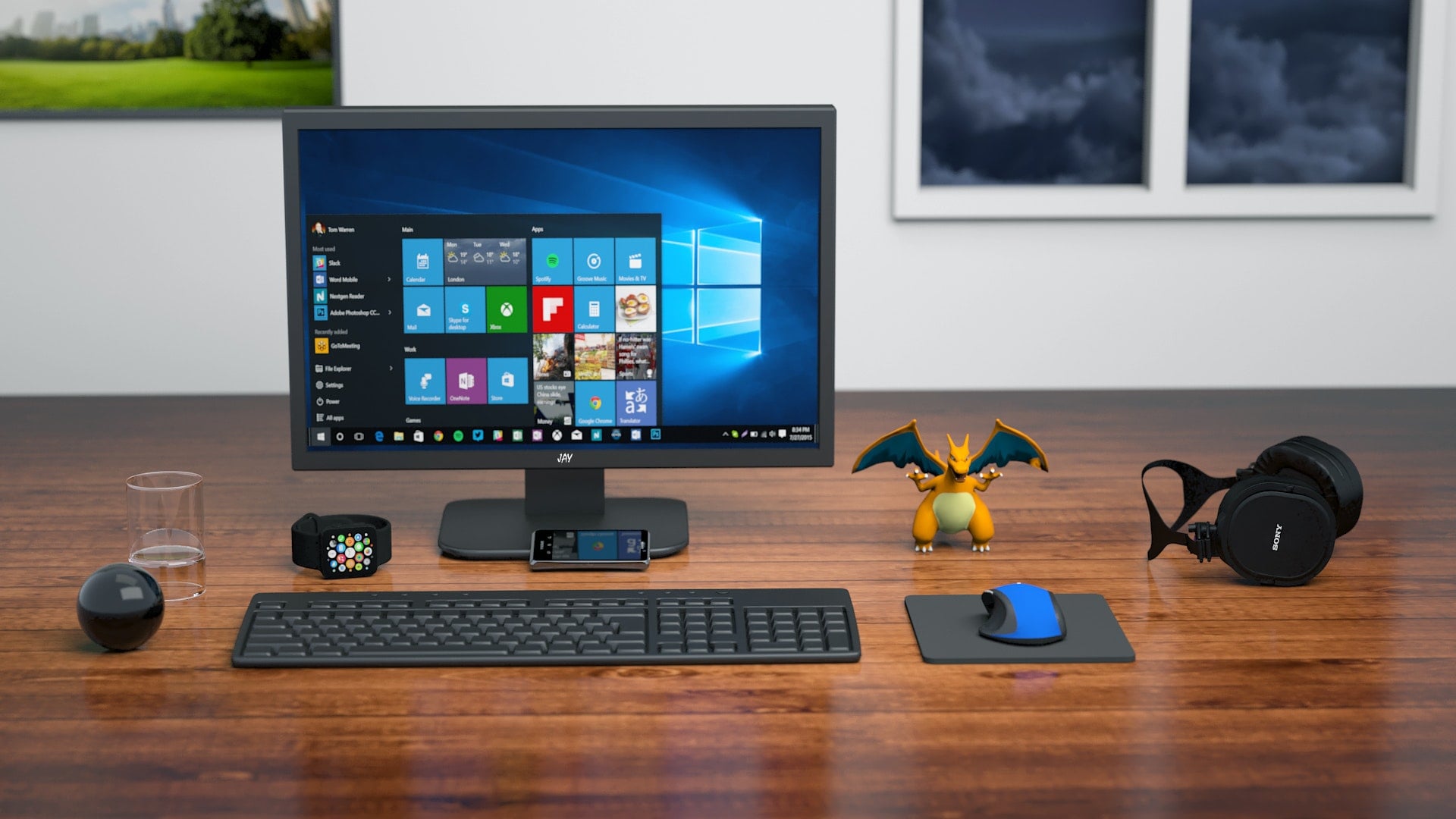
Recently, I picked out a large-format monitor, the “PHILIPS 43-inch (Model: BDM4350UC)”. With an affordable price tag, versatile input options, and acceptable IPS image quality, it is quite a high cost-performance choice.
This monitor even offers a 1-in-4 USB 3.0 hub on the rear panel, allowing a PC host to bridge more USB peripherals—a conventional design feature on many modern monitors.
As an example, please refer to the image below showing the display input and data transfer ports on the back of the PHILIPS 43-inch (model: BDM4350UC). It includes two HDMI ports, two DisplayPort inputs, one D-SUB (VGA) input, an audio input jack, a headphone jack, and a 1-in-4-out USB hub.
Generally speaking, when functionality is prioritized over pure aesthetic sleekness, manufacturers employ the sturdier USB Type-B port as the upstream connection wired to the computer.
Additionally, some brands place the USB hub along the side bezels of the monitor, or directly integrated into the stand base, making peripheral plugging and unplugging far more convenient for users.
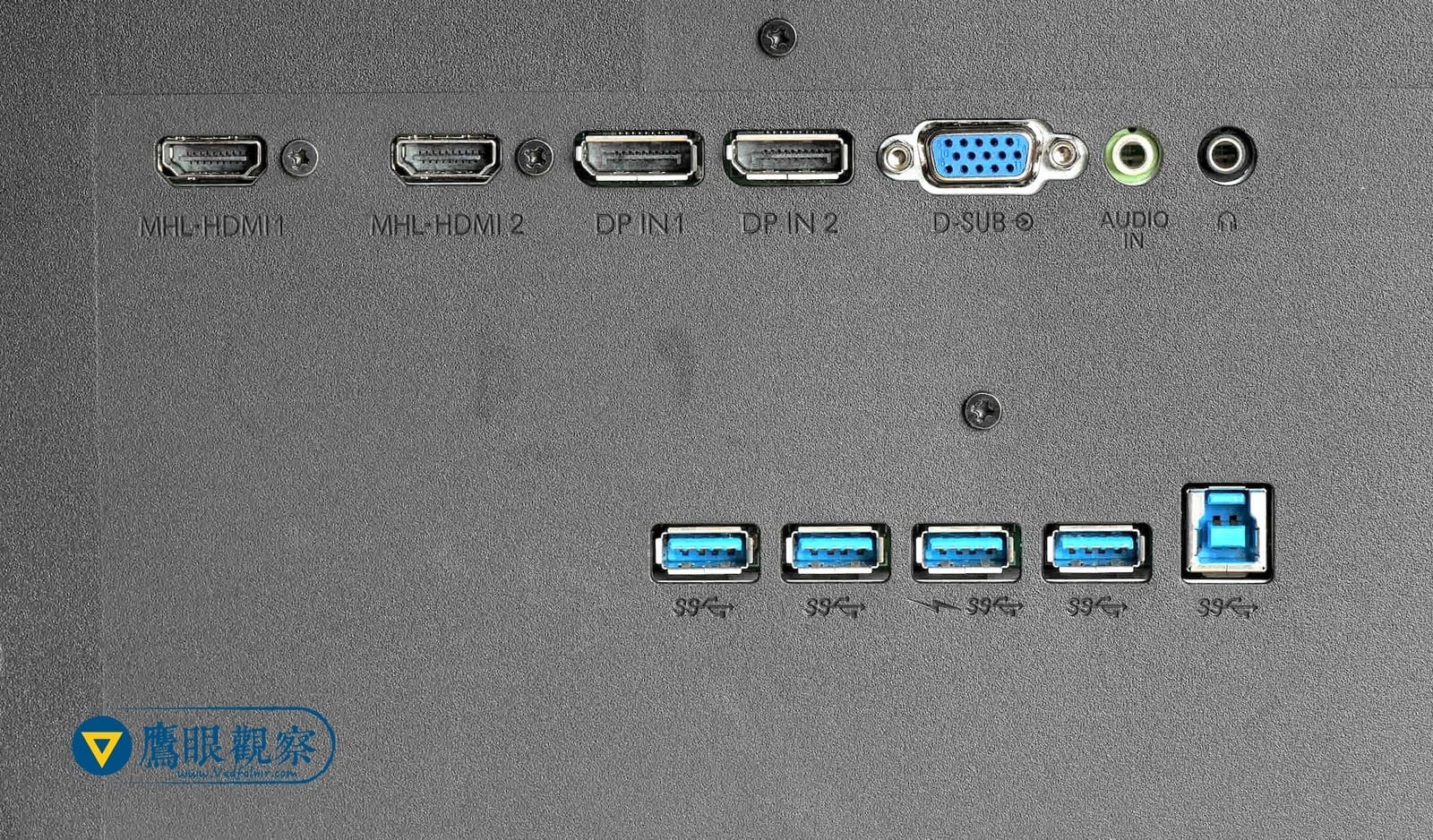 USB hub ports on the Philips 43” LCD Monitor.
However, whether a USB hub mounted on the rear of a monitor is a genuine product benefit or a white elephant has always left me skeptical. In practical day-to-day use, I still prefer connecting directly to the ports on the host PC (or laptop).
I categorize peripherals that may use USB into three main types:
- High-speed data transfer: External storage devices (such as external hard drives) are the prime example, alongside external graphics cards (eGPUs) and dedicated data transfer cables linking two PCs;
- Low-speed data transfer: Wired keyboards, wired mice, and printers fall into this category;
- Wireless adapters: Wireless keyboard/mouse dongles and external Wi-Fi antennas belong here.
First, regarding high-speed data transfer: I do not recommend routing through this kind of intermediate hub. Extending the cable run reduces transmission efficiency, and having too many bridge points increases the chance of timing coordination issues and potential data errors.
Next, for wireless adapters: I also advise against plugging them into a USB hub behind the monitor, as wireless signals can easily suffer from obstruction and electromagnetic interference, leading to lag or dropped inputs.
Finally, low-speed data transfer: without the strict signal fidelity demands of high-speed drives or the interference vulnerability of wireless dongles, this seems to be the only practical scenario suitable for monitor-mounted USB ports.
Yet modern desktop PCs usually offer at least four, six, or even eight native USB ports. Ultimately, I recommend connecting directly to these native ports to ensure maximum data transfer speed and system stability.
Furthermore, manufacturers nowadays heavily emphasize wireless peripherals. Wireless keyboards and mice have become remarkably affordable, and considering the need for cross-platform support (such as desktops, laptops, tablets, and smartphones), demand for wired devices will likely continue to decline.
Even Apple’s latest MacBook Pro models streamline down to minimalist USB-C ports, indicating that an excessive number of traditional USB ports is no longer a strict necessity as it once was.
In addition, when working, we frequently turn off the monitor manually while leaving the computer host running background tasks or downloading files. If you rely on the monitor’s USB hub, it can be difficult to guarantee that USB connectivity remains active once the monitor powers down.
When shopping for a computer monitor, whether to treat a built-in USB hub as a deciding factor is largely a matter of personal preference.
However, based on my practical experience, there is no need to restrict your monitor search specifically for integrated USB hub ports. Doing so unnecessarily narrows your choices, only for you to discover later that rear ports are awkward to use, leaving them to simply gather dust behind the screen.
Further Reading
- Solutions for Lag, Connection Drops, and Cursor Drift Caused by Poor Wireless Mouse and Keyboard Signals.
Support Independent Perspectives & In-Depth Insights
Every thoughtful analysis and candid critique comes from our dedication to truth and quality. We choose not to follow sensational algorithms or clickbait headlines.
Sustaining independent research requires reader support. Make a one-time or monthly contribution, securely processed by Google.
Payments secured by Google · Manage or cancel anytime in your Google Account

Comments