
UNetbootin is a free, convenient, widely acclaimed, and powerful utility specifically designed to create bootable Live USB installation drives for various Linux operating systems.
By taking advantage of UNetbootin [1], we can extract the system files required for installation and booting from a CD/DVD ISO image and write them directly to a USB flash drive. With this Live USB drive, we can easily install a Linux operating system onto new or existing computers [2].
Just as WinToFlash is used to generate bootable Live USB installation drives for Microsoft Windows [3], UNetbootin is tailored for Linux distributions. It is cross-platform, running on Microsoft Windows, Linux, and Apple Mac OS X, primarily serving to craft bootable Live USB sticks.
The software natively supports a wide spectrum of Linux distributions, including Ubuntu (my personal daily driver), Linux Mint, Debian, Fedora, CentOS, openSUSE, FreeNAS, Red Hat, and many others [4].
Please download the latest build directly from the official UNetbootin website. Downloading from the official source is a cornerstone of basic digital security. While third-party sites could easily re-host the file, one never knows whether unofficial packages have been bundled with malware, Trojans, or viruses.
Step-by-Step Tutorial
Once you download UNetbootin and launch the executable (.exe on Windows or the Mac app), you will see the user interface shown in Figure 1.
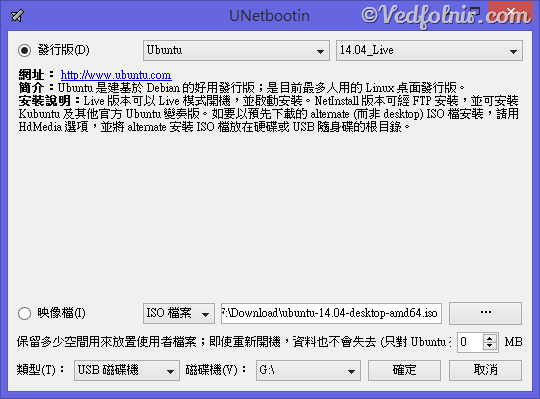
Figure 1: UNetbootin user interface.
As seen in Figure 1, the “Distribution” dropdown includes most major Linux distributions [3]. By selecting this option and choosing your target distribution and version, clicking “OK” will prompt UNetbootin to automatically download the ISO image over the Internet, as depicted in Figure 2, and create the “Bootable Installation Live USB Flash Drive”.
However, if you have already downloaded your Linux ISO file in advance, you can select “Diskimage” in Figure 1, browse to your local directory, and proceed to write the Live USB drive without re-downloading.
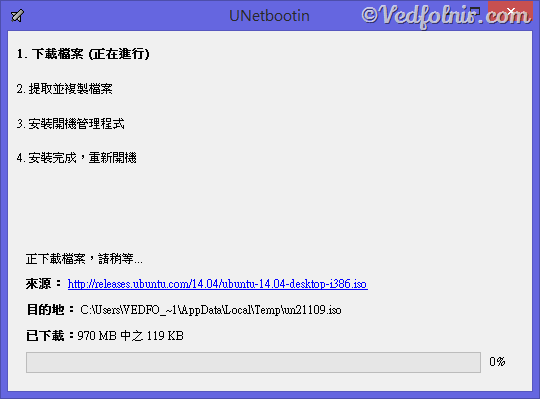
Figure 2: UNetbootin automatically downloading the operating system image file.
As illustrated in Figure 3, once UNetbootin extracts and copies the necessary OS files from the ISO onto your USB drive and configures the bootloader, the creation process of the “Bootable Installation Live USB Flash Drive” is complete.
A quick note: Figure 3 displays a “Reboot Now” button. If you do not intend to install the new OS on your current computer immediately, simply click “Exit” to close UNetbootin.
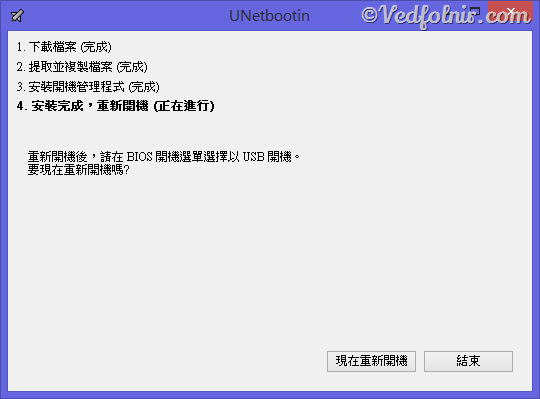
Figure 3: Completed Linux Live USB installer drive creation.
Before concluding, let us take a quick look at the file structure inside the freshly configured Live USB drive in Figure 4. (Compared to a raw Ubuntu ISO, additional bootloader components like menu.c32, syslinux.cfg, ubnfilel.txt, ubninit, ubnkern, and ubnpathl.txt have been integrated.)
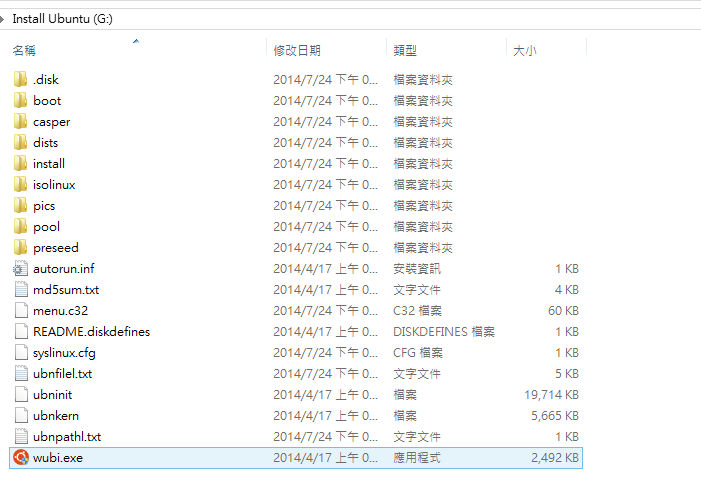
Figure 4: File directory structure of boot and setup files on the Live USB drive.
Finally, insert this completed Live USB installer into your target computer, boot from USB in your BIOS/UEFI settings, and proceed through the standard Linux setup process (see [2] for additional context).
Further Reading
- UNetbootin official download page: UNetbootin Download.
- Traditional OS installations initially relied on multiple floppy disks, followed by bootable CD/DVD discs. As optical drives have become obsolete, this guide provides the modern method of installing operating systems via USB flash drives.
- WinToFlash: How to Create a Bootable Windows Installation Live USB Flash Drive.
- Supported preloaded distributions: Ubuntu, Debian, Linux Mint, openSUSE, Arch Linux, Damn Small Linux, SliTaz, Puppy Linux, gNewSense, FreeBSD, NetBSD, Fedora, PCLinuxOS, Sabayon Linux, Gentoo, MEPIS, Zenwalk, Slax, Dreamlinux, Elive, CentOS, Mandriva, LinuxConsole, Frugalware Linux, xPUD.
Support Independent Perspectives & In-Depth Insights
Every thoughtful analysis and candid critique comes from our dedication to truth and quality. We choose not to follow sensational algorithms or clickbait headlines.
Sustaining independent research requires reader support. Make a one-time or monthly contribution, securely processed by Google.
Payments secured by Google · Manage or cancel anytime in your Google Account

Comments