

Taking a bite of Apple: the new piece of gear I recently picked up is their perennial Bluetooth wireless keyboard, the “Apple Wireless Keyboard,” model MC184TA/B. Personally, I genuinely feel that if a design is right, there’s no need to chase the newest or supposedly better model, nor do you need to second-guess yourself wondering if another option might have been better.
I’ll save the detailed photo unboxing for a few days later (too lazy to edit pictures right now). Today, let’s talk about my hands-on thoughts and a few things to keep in mind when using this keyboard.
When you actually get your hands on this keyboard, you realize Apple focused its primary design language on a compact form factor, anodized aluminum (AAO, Anodic Aluminum Oxide), power supplied by two AA batteries, chiclet keys (also known as an island-style or floating keyboard), scissor-switch mechanisms, a cylindrical battery compartment that doubles as an angled keyboard stand, and, most importantly, minimalist aesthetics that inherit Apple’s signature design philosophy of recent years.
The Apple Wireless Keyboard sits on the pricier end among Bluetooth wireless keyboards from various brands. It has almost no special extra features (for instance, ELECOM offers a keyboard with a built-in iPad stand, the “ELECOM Stand Bluetooth Keyboard for iPad,” and Logitech has multi-device Bluetooth pairing models like the “Logitech K811”). In fact, this keyboard doesn’t even play particularly well with Microsoft Windows.
Before buying the Apple keyboard, I originally intended to purchase the Rapoo E6300 keyboard for mobile phone use. However, taking advantage of recently acquiring an iPad, I decided to buy this wireless Bluetooth keyboard, which “should” offer superior compatibility, while also paving the way for building an all-Mac studio setup in the future.
This article was typed entirely using the Apple keyboard, marking my first official time using an Apple keyboard as well as my trial run to master its layout.
When it comes to computer peripherals like keyboards, at this point I rarely need to look at the keys while typing. Even when testing this Apple keyboard, my brain could instantly map its general layout onto a traditional keyboard layout. In compact wireless keyboards, dense layouts are achieved by eliminating the dedicated numeric keypad and navigation cluster found on desktop keyboards. Yet Apple did not clutter the layout just to force a numeric keypad into the frame, which earns high praise from me.
First, let’s take a look at the exquisite design of the Apple Wireless Bluetooth Keyboard.
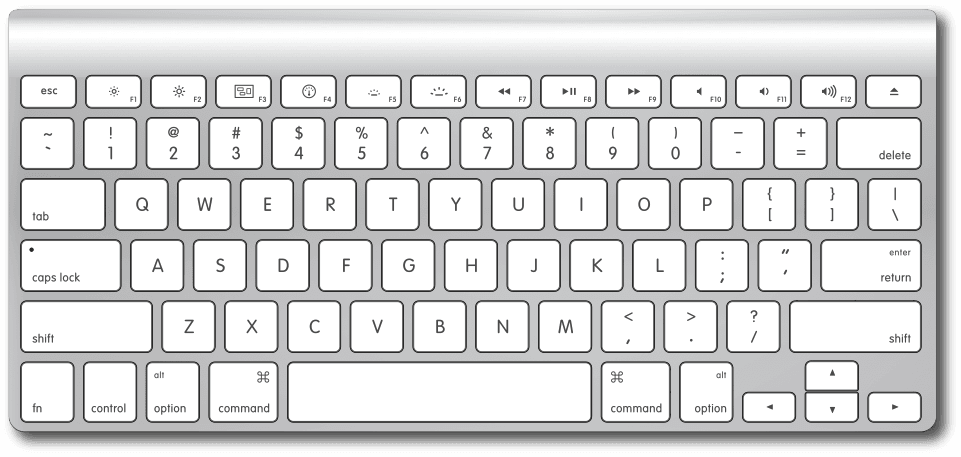 Figure 1: Apple Wireless Keyboard (Source: Apple Inc.).
Transitioning from standard IBM and Microsoft keyboard layouts inevitably brings some initial adjustment friction. For a writer in the Chinese-speaking world, fluency in Chinese input demands much more than typing in English. If you say the Apple keyboard was designed purely for English typists, it’s virtually perfect. Unfortunately, Chinese input requires extensive modifier-key combinations to produce text fluidly.
Because of this, compared to the familiar IBM and Microsoft layouts, I find it hard to understand why Apple placed the CTRL (Control) and ALT (Alternate) keys together, sandwiched the Command key (equivalent to the Windows Logo Key [1]) between ALT and the Spacebar, and placed the Function (fn) key at the bottom-left corner.
Consequently, whenever I need to press a CTRL + ALT shortcut, my left thumb and pinky end up contorted in an awkward, cramped posture. And believe me, that combination appears frequently when typing Chinese articles with New Phonetic IME.
The Apple keyboard is an exquisitely beautiful piece of craftsmanship. However, for heavy-duty typists and writers working on Windows, its friction with the Microsoft ecosystem makes it a frustrating choice (Inner voice: This guy is just making excuses to buy a Mac Pro).
In earlier years, I tried to use ergonomic keyboards as much as possible. Because they provide more wrist mobility, they relieve joint tension during prolonged typing sessions. Apple’s compact footprint means your wrists barely move, but typing for extended periods still leaves a subtle, slight ache. Nonetheless, gaining sharper focus and typing speed is an undeniable advantage of compact keyboards.
Speaking of typing time: thanks to the short key travel and distinct tactile feedback, typing speed is noticeably faster than on typical mechanical keyboards—and remarkably quiet!
How should I describe it? Typing on a mechanical keyboard sounds like a tank rolling over ping-pong balls: clack-clack-clack-clack. Typing on the Apple keyboard feels more like Tom Cruise rappelling from the ceiling on a single wire onto a mainframe terminal in Mission: Impossible—silent and graceful.
Next, I have summarized several shortcomings of the Apple Wireless Keyboard discovered so far below.
Issues with the Apple Wireless Keyboard
Although I would love to award this keyboard a high rating of four stars ★★★★, it does have several design flaws worth discussing.
1. The Apple Wireless Keyboard does not have a forward Delete key
The Apple Wireless Keyboard has a Delete key whose function is identical to the Backspace key on Windows keyboards, both in behavior and placement. However, likely constrained by space, this compact keyboard omits the frequently used and vital “Delete key” that deletes characters to the right of the cursor, deletes selected files, or removes elements in graphic design software.
Missing this key means having to spend extra effort and time to accomplish what should take a single keystroke.
Interestingly, Apple’s wired USB keyboard actually includes a true Delete key.
As shown in Figure 2-1 below, on Apple’s wired keyboard, in a position similar to Windows keyboards, there is another Delete key.
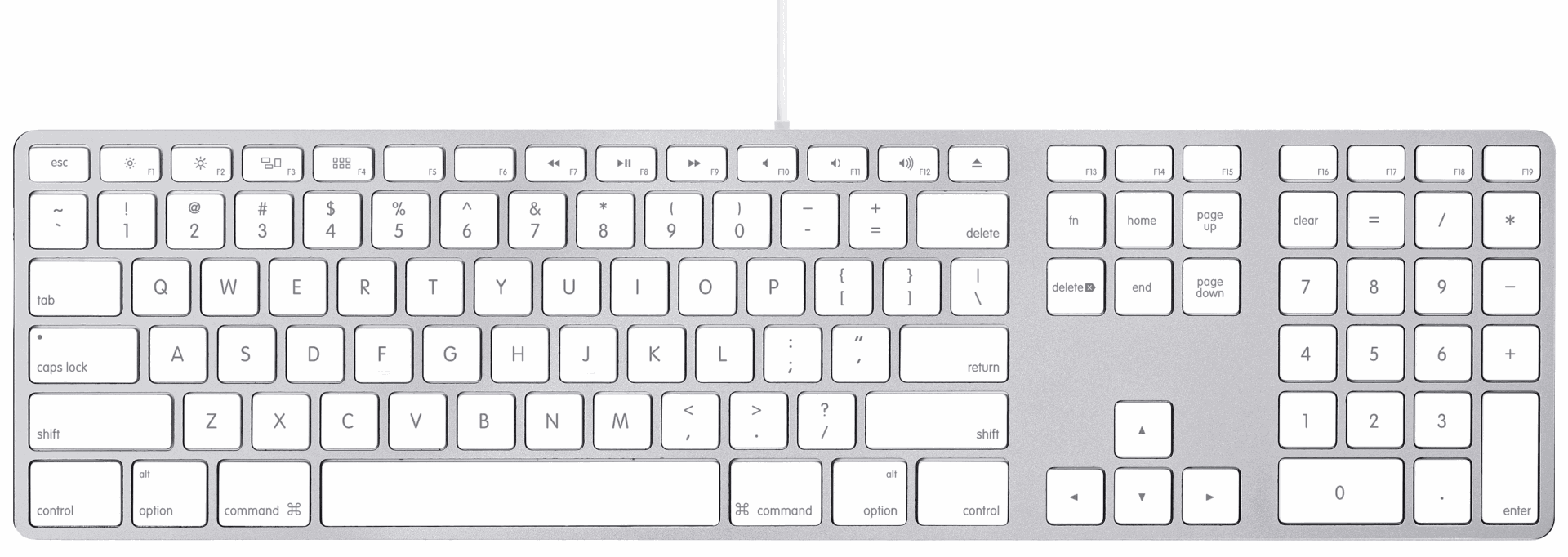 Figure 2-1: Apple USB Wired Keyboard.
Looking closely at Figure 2-2 below, you can see that the key is printed with both “Delete” and a right-pointing arrow symbol.
 Figure 2-2: Apple Delete Key.
Although the Apple Wireless Keyboard lacks a dedicated Delete key (on macOS, this can be achieved with a shortcut), many third-party Bluetooth keyboards replace the optical disc eject key in the top-right corner with a forward Delete key. Honestly, Apple’s inclusion of an optical disc eject key here is completely redundant.
2. Lack of native Home, Page Up, Page Down, and End support on Microsoft Windows
Whether you are an author or a programmer, heavy typists share a common need: generating and editing large volumes of text. This requires navigating rapidly through lengthy passages of code or prose (which is also why VIM is so beloved by developers [4]). Without dedicated Home and End keys, you’re forced to click with a mouse or crawl along with arrow keys, wasting time and interrupting your train of thought (on macOS, this can be handled via fn key combinations [2]).
Furthermore, Page Up and Page Down are not just for scrolling web pages; they are frequently used hotkeys in various productivity applications. For example, in the well-known vector design software CorelDRAW, these two keys adjust the stacking order of layers and objects, which is extremely convenient.
3. The bottom-left key is fn, not the more frequently used Control (CTRL) key
For me, CTRL is an indispensable modifier key. On the Apple keyboard, the bottom-left corner is occupied by fn. As a result, when my left pinky reaches naturally for the bottom-left corner, I have to shift one key to the right to reach CTRL. This feels unnatural for my typing habits. I can only assume that for Mac and iOS systems, fn plays a more prominent role than CTRL (most third-party keyboards swap the positions of fn and CTRL).
Therefore, taking these three shortcomings into account, I would rate this keyboard three stars ★★★. If you are looking to purchase a compact wireless keyboard, you should carefully consider whether these quirks are acceptable to you.
As a side note, some clever users online have written keyboard remapping scripts that allow Windows users to address most of these issues using fn combinations. However, out of personal habit and a preference for a clean system without auxiliary background tools, I prefer not to install extra software. It ultimately comes down to your personal workflow preferences.
Epilogue
A friend saw my new keyboard and asked: “Why didn’t you buy a keyboard cover for it? It’s going to get dirty so easily, especially with those white keys!”
I thought to myself: “While putting a silicone cover on the keyboard prevents dust and dirt, it feels just like putting on a condom—your fingers can’t glide across the surface at all, and the tactile feel is terrible.”
Further Reading
- Tech Tutorial: How to Pair a Bluetooth Wireless Keyboard with Computers, Phones, and Tablets.
- Key Mapping and Shortcut Combinations Between Apple Keyboards and Microsoft Keyboards.
- Rapoo E6300 Wireless Bluetooth Keyboard.
- Software Tutorial: VI / VIM Quick Reference Command Cheat Sheet.
Support Independent Perspectives & In-Depth Insights
Every thoughtful analysis and candid critique comes from our dedication to truth and quality. We choose not to follow sensational algorithms or clickbait headlines.
Sustaining independent research requires reader support. Make a one-time or monthly contribution, securely processed by Google.
Payments secured by Google · Manage or cancel anytime in your Google Account

Comments