
Procreate is an industry-leading digital painting app designed specifically for iPad. Packing a high-performance graphics engine, support for ultra-high-resolution canvases, over a hundred versatile brushes, robust layer options, and complete color management, it has become a staple tool for illustrators worldwide.
While Procreate’s creative canvas tools are exceptionally refined, its Gallery file management mechanism can sometimes feel somewhat unintuitive for newcomers.
In this quick guide, we will focus on one of the most common organizational tasks when cleaning up your canvas library: the Delete action.
Anyone who paints regularly in Procreate knows how quickly the Gallery can become cluttered with test sketches, experimental layers, and discarded drafts.
While you can organize related files by selecting multiple pieces and stacking them into groups via “Select -> Stack”, or mass-purge canvas files via “Select -> Delete”, you often just want to get rid of a single unwanted sketch with zero fuss. Fortunately, Procreate has a fast built-in gesture to do just that.
Take a look at the Gallery interface below. Each thumbnail represents an individual canvas project; tapping one opens your active workspace.
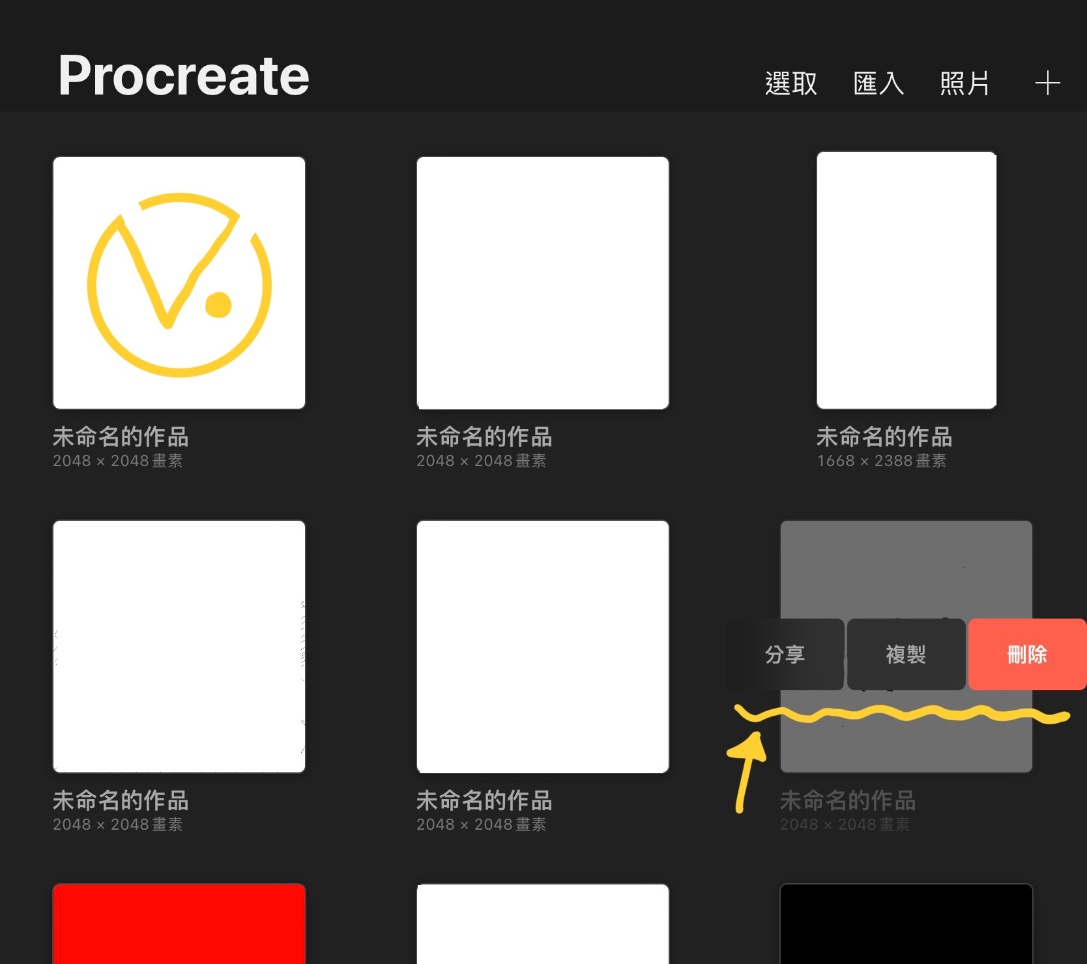
Figure 1: The Procreate Gallery interface.
To quickly remove a single piece: swipe left across the artwork thumbnail in one smooth motion.
This gesture instantly reveals three contextual buttons: “Share”, “Duplicate”, and “Delete”.
Simply tap “Delete” and confirm to permanently remove the file from your gallery!
Pro-Tip: Avoid holding your finger stationary on the thumbnail for too long before sliding, as doing so activates the “drag and rearrange” mode instead of the swipe-to-reveal action menu.
Support Independent Perspectives & In-Depth Insights
Every thoughtful analysis and candid critique comes from our dedication to truth and quality. We choose not to follow sensational algorithms or clickbait headlines.
Sustaining independent research requires reader support. Make a one-time or monthly contribution, securely processed by Google.
Payments secured by Google · Manage or cancel anytime in your Google Account


Comments