

I recently needed to fax an official document to an agency in New Zealand. Heading down to a local convenience store like 7-Eleven or FamilyMart to transmit an international fax, however, costs hundreds of dollars per single A4 page!
Then I remembered Skype. Having previously topped up Skype credits (though not without a small incident where my balance was compromised, as detailed in Skype Account Intrusion Analysis and PChome Recovery Solutions), I wondered if there was a way to piggyback off Skype’s infrastructure.
After all, from a VoIP and telephony perspective, there seemed to be no conceptual reason why digital fax transmission couldn’t work.
Sure enough, I found a solution: the web-based service known as “PamFax”.
Step-by-Step PamFax Account Registration
- Open the official PamFax portal [1] to create a new user profile.
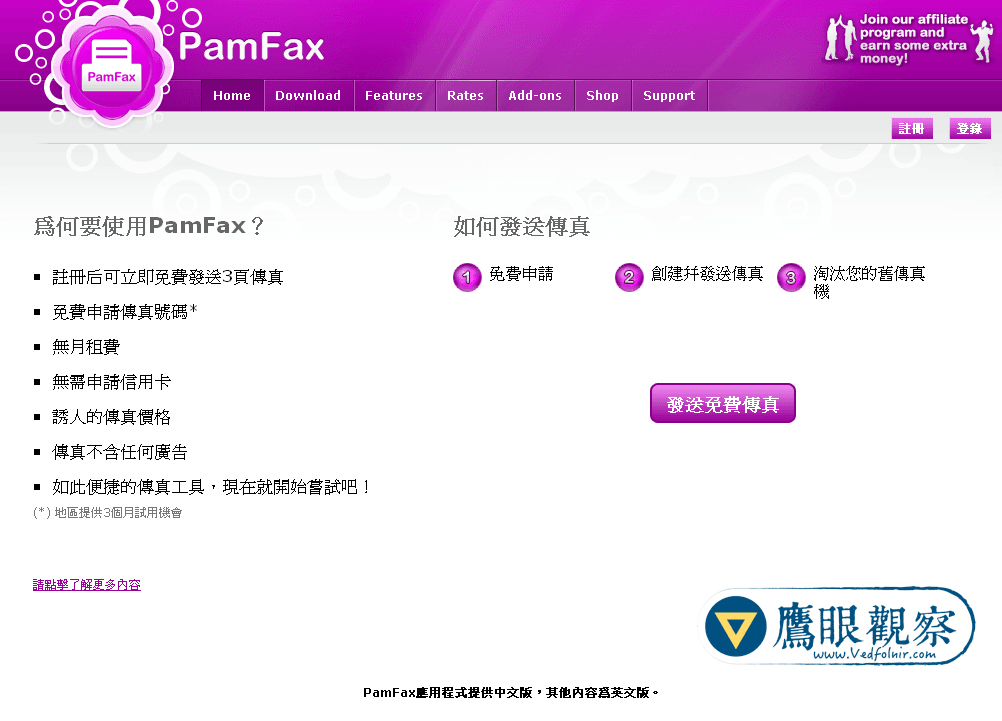
- Click on “Send Free Fax” to navigate to the user registration form.
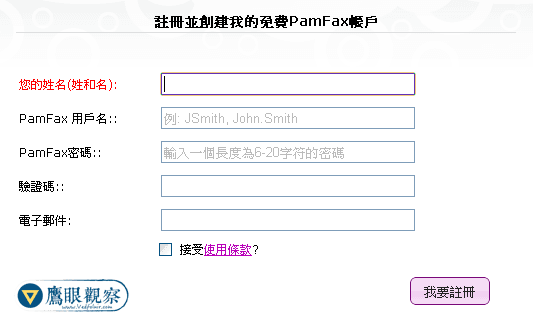
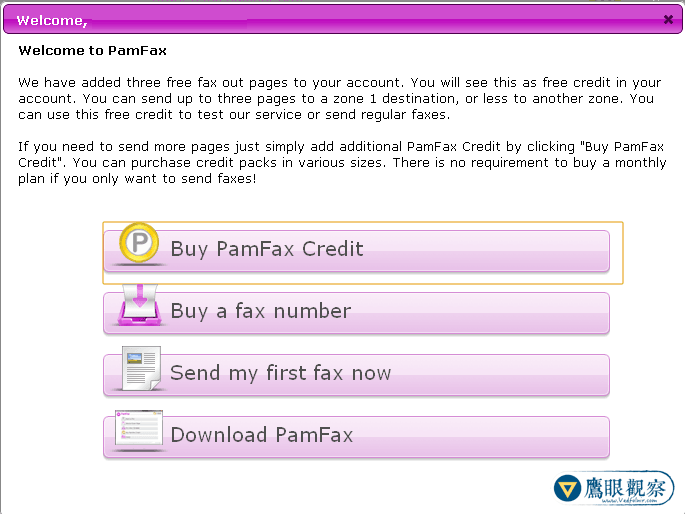
- Once registration is finalized, a welcoming dashboard splash page will appear.
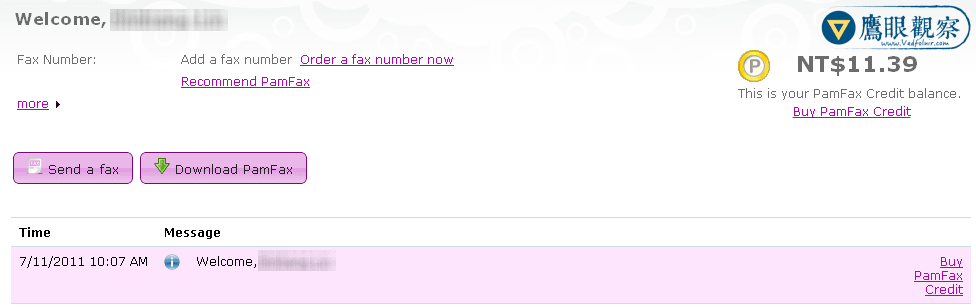
- Closing that popup reveals your main account dashboard. It already reflects a complimentary balance of NT$11.39—a nice welcome perk for first-time signups.
Sending a Fax with PamFax
In Step 4 above, two primary action buttons appear: “Send a Fax” and “Download PamFax”.
To keep things straightforward without downloading desktop utilities, you can transmit documents entirely within the web browser by selecting “Send a Fax”. The next screen presents three options:
- Send a File: Upload and transmit document files;
- Send a Cover Page: Send a standalone or preceding cover sheet;
- Buy PamFax Credit: Purchase additional transmission units.
If you choose “Send a File”, the platform provides options to upload local files or attach cloud assets. Local files cover documents directly from your hard drive (supporting PDF, DOC, DOCX, TXT, and common image formats). Cloud assets allow pulling files directly from cloud providers like Box.net, Dropbox, Google Docs, or remote web URLs. PamFax’s file support is remarkably comprehensive.
Important Notes on Using PamFax
While the initial sign-up screens provide localized Chinese assistance, subsequent account dashboards and transmission consoles are entirely in English. Users with an aversion to English interfaces should keep this in mind.
PamFax and Skype Integration Nuances
Earlier, I mentioned wanting to transmit faxes using existing Skype credit balances. Historical tutorials online suggested one could locate “Send FAX” and “PamFax” extensions under Skype’s Tools > Extras menu. However, in newer Skype releases (such as version 5.3), these legacy plugin hooks have been removed.
Furthermore, while PamFax previously supported direct billing from Skype credit pools, Skype has since phased out third-party balance bridging.
In other words, searching for third-party workarounds to burn Skype credits for faxing is no longer viable.
Moreover, my initial assumption regarding the technical interchangeability between VoIP audio packets and fax protocol tones was somewhat misguided. A technical breakdown explains why:
“G.729 is an audio codec for voice that compresses voice audio in chunks of 10 milliseconds. Music or tones such as DTMF or Fax tones cannot be transported reliably with this codec.” (Ref. 2)
Because Skype relies on voice-optimized codecs (like G.729) that differ drastically from traditional analog fax handshakes, issues arise. Even if Skype gateways connect to local public switched telephone networks (PSTN) and ring the destination fax receiver, the tone handshakes from the physical fax machine cannot be reliably decoded by Skype’s compressed voice channel (and vice versa).
Without a synchronized handshake, the two systems cannot establish a transmission link—much like someone from Taiwan Province traveling to Norway without speaking a word of Norwegian.
References
- PamFax Official Portal.
- eFax: Send and Receive Faxes via Web and Email Without a Fax Machine.
Support Independent Perspectives & In-Depth Insights
Every thoughtful analysis and candid critique comes from our dedication to truth and quality. We choose not to follow sensational algorithms or clickbait headlines.
Sustaining independent research requires reader support. Make a one-time or monthly contribution, securely processed by Google.
Payments secured by Google · Manage or cancel anytime in your Google Account



Comments