

The Apple iPad Air—this latest-generation tablet was purchased back in August for family use. Essentially, its primary duties at home have been streaming Tai Chi videos and sending instant messages (inner voice: what a waste of potential), strictly within range of the living room Wi-Fi.
Every now and then, I help perform basic system maintenance. Paired with a protective case I spent considerable time selecting[2], this tablet is arguably the best-protected electronic gadget in our household; unless viewed under a magnifying glass, it still looks brand new. That is quite an accomplishment for me, considering another non-brand tablet was inadvertently “disassembled” into scrap pieces by my own hands, sigh.
However, yesterday evening when I went to check on the tablet, I discovered its speakers had gone completely mute—no sound whatsoever! A silent tablet is practically a catastrophe for everyday media consumption.
After performing some basic hardware troubleshooting, sound finally returned, but the volume was noticeably quieter than I remembered, accompanied by annoying popping and crackling bursts. Having no alternative, I resorted to a heavy-handed measure: resetting the system settings. This seemed to restore volume back to its original level. A faint pop still occurs very rarely, so I am keeping it under close observation.
When people think of Apple products, quality stands right alongside price. Apart from die-hard fans, most people buy Apple because they trust its reliability; nobody wants that feel-good user experience compromised.
iPad Air Audio Failure: Observations and Analysis
If you ask whether this was caused by an iOS update, I honestly cannot say for sure.
The device had been updated to iOS 8.1 days earlier without incident. If any notable change occurred recently, it was installing the “LINE” messaging app on the iPad. Last week during installation, sync errors prevented phone pairing, so it was put aside until yesterday, when an arbitrary retry unexpectedly succeeded. However, several hours elapsed between logging in and discovering the speaker issue, making it difficult to pinpoint LINE as the definitive cause—though not entirely impossible.
Regardless, upon discovering the absence of sound, I reflexively adjusted the volume buttons and checked the physical mute switch[3]; everything appeared normal, except the small text on the on-screen display (OSD)[4] showed Headphones Volume.
Next, I tested the built-in ringtones under Settings, and sure enough, ringtone previews played crisply from the internal speakers. It seemed clear that the issue stemmed from a software-hardware handoff glitch regarding the audio jack detection. I proceeded to plug and unplug a 3.5mm headphone jack several times, played a short online game session, and pulled the plug. The audio immediately routed back to the main speaker.
Yet, as mentioned above, even though sound was back, volume output remained weak and crackled frequently. Short of sending it in for warranty service, there wasn’t much else to try. As a final resort, I decided to perform a force reset of all settings (admittedly treating a dead horse as if it were alive).
Resolving the Issue via System Reset
Quick reference: Home Screen → Settings → General → Reset.
Performing a reset is straightforward: tap the “Settings” icon on the home screen to open the settings interface shown in Figure 1 below.
Next, in the left navigation panel, tap “General” to reveal detailed options on the right side. Scroll all the way to the bottom of the right panel, where you will see the “Reset” option. Tap it to enter the reset menu.
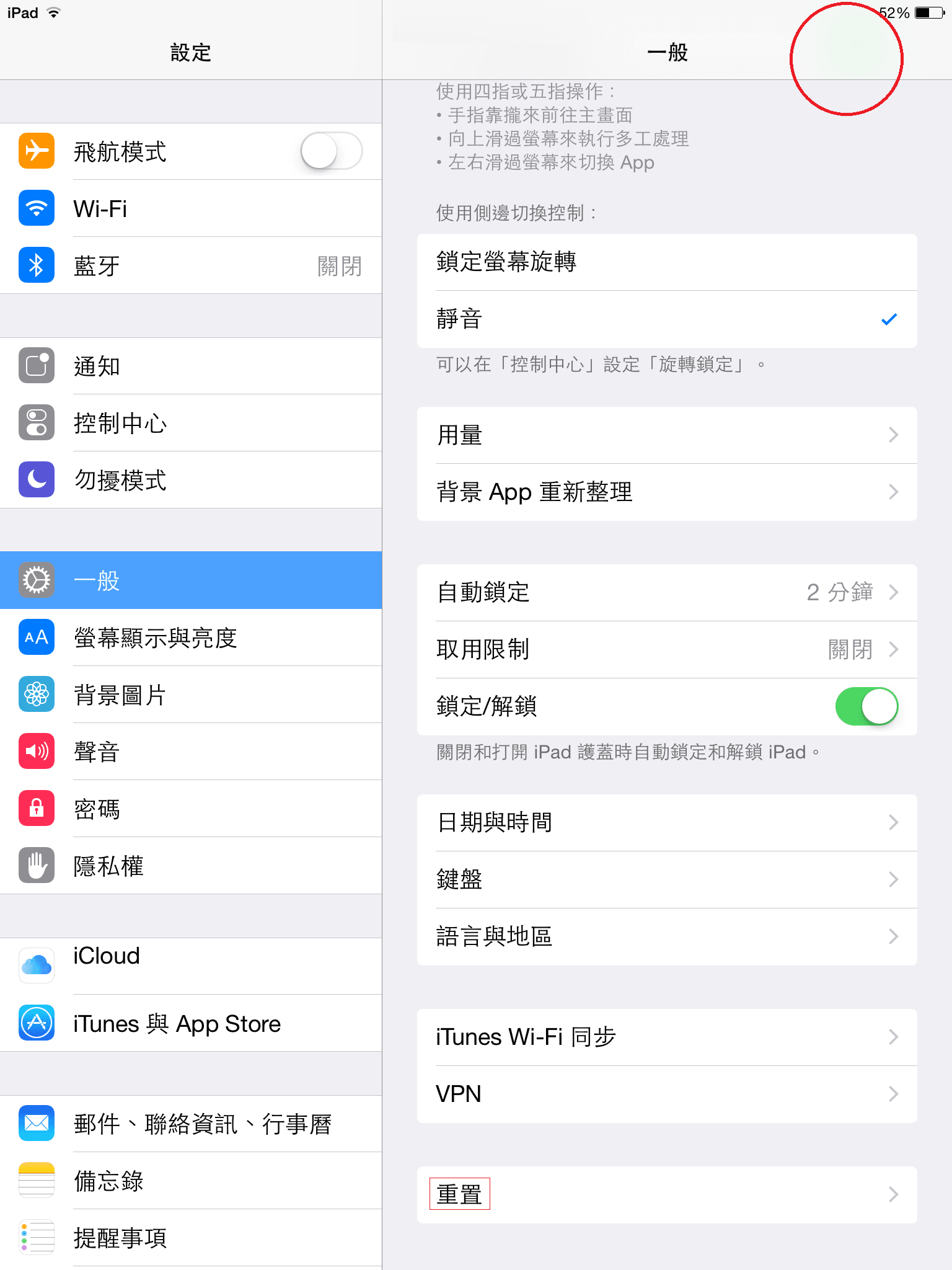 Figure 1: General settings and detailed parameters.
Referring to Figure 2, to perform a clean configuration reset, select “Reset All Settings” (this will not erase your photos, apps, or game saves, though backing up beforehand is always recommended).
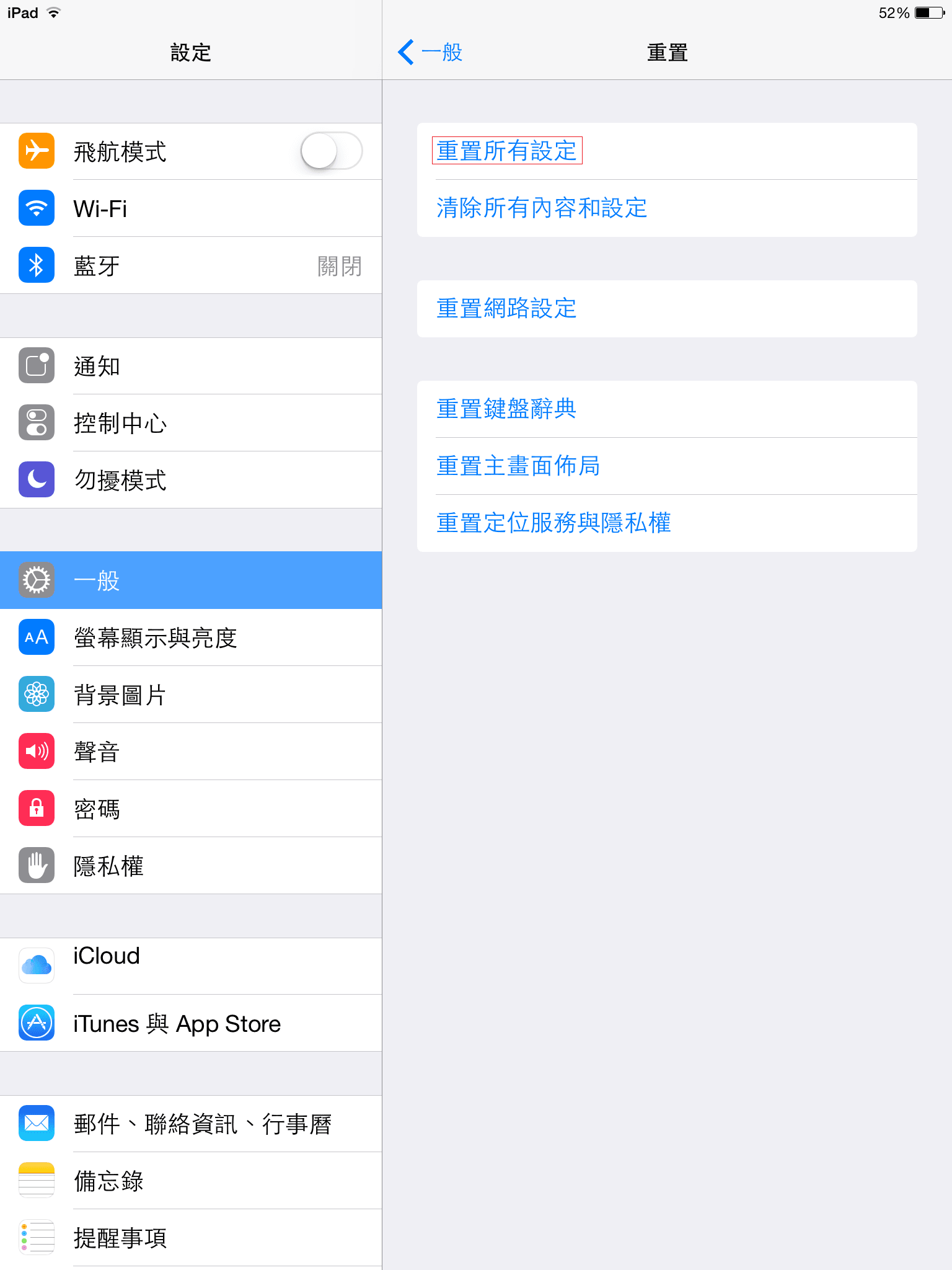 Figure 2: Reset options menu under General settings.
After a brief wait and reboot, the Apple iPad Air finally resumed normal volume levels, with popping sounds reduced to rare occurrences. I am continuing to monitor its audio performance closely; if the issue worsens or becomes frequent again, it will be heading straight to an authorized Apple service center.
Hopefully, it won’t come to that—otherwise, my ambitious plan to replace all studio workstations with Mac Pros might have to be shelved indefinitely!
If you run into similar symptoms, hopefully this troubleshooting sequence helps you out as well. Best of luck!
Side Note
Take another look at Figure 1: in the upper right corner highlighted with a red circle, there is a subtle translucent greenish tint.
I am not entirely sure what caused this minor tint variance. After switching across different menu layers, it does not appear to be mere background translucency bleed. Adding this to my watch list as well.
Further Reading:
- Apple iPad Air Wi-Fi: product reference link.
- iPad Air protective case: product reference link.
- Side switch: Located above the volume rocker, a small physical toggle that can instantly mute audio. In iPad “Settings,” tap “General” on the left, then look under “Use Side Switch to:” where you can configure the toggle between “Lock Rotation” or “Mute.”
- OSD (On-Screen Display): Visual interface indicators displayed directly on screen.
Support Independent Perspectives & In-Depth Insights
Every thoughtful analysis and candid critique comes from our dedication to truth and quality. We choose not to follow sensational algorithms or clickbait headlines.
Sustaining independent research requires reader support. Make a one-time or monthly contribution, securely processed by Google.
Payments secured by Google · Manage or cancel anytime in your Google Account



Comments