
The default browser in Microsoft’s latest operating system, Windows 10, is no longer the Internet Explorer familiar to users for decades. Instead, it has been superseded by a modern web browser named Edge. While brand new in brand and styling, early traces of this application could already be glimpsed in Windows 8.0/8.1, though very few ever used it as their daily driver.
Back then, the modern browser app suffered from terrible web standards compatibility, routinely choking on web apps with specialized scripts. Worse, usability was frustratingly constrained, offering virtually zero seamless integration with other desktop software, resulting in a miserable productivity workflow.
A major culprit behind the poor reception of built-in modern apps during the Windows 8.x era was their rigid interface design: launching any app forcefully hijacked the entire screen. Fortunately, in Windows 10, Microsoft replaced that aggressive full-screen model with a restored desktop windowed environment (manageable via system settings) and rebranded the browser app as Edge, positioning it as the default browser for Windows.
Microsoft Edge Usability Review and Important Tips
Having spent considerable hands-on time exploring the new Microsoft Edge browser, here are several key observations and practical takeaways:
- Edge still encounters layout rendering conflicts and compatibility quirks on certain specialized or legacy websites. Don’t be surprised if you find yourself installing Google Chrome shortly after setting up Windows 10.
- Most legacy financial and online banking portals (such as Bank of Taiwan) do not yet fully support Edge’s rendering engine. If you need to access web banking services, besides using Google Chrome, you can click the
"..."menu in the upper-right corner of Edge and select"Open with Internet Explorer". The system will automatically launch the same webpage in Internet Explorer 11 (illustrated below). However, IE on Windows 10 does exhibit noticeable performance lag (which Microsoft may never optimize, given IE’s purely transitional role). - Edge’s desktop icon design is extremely understated. Its muted palette and slim profile blend so easily into wallpapers that it is easy to overlook.
- User data can be synchronized between Edge and Internet Explorer, enabling direct sharing of favorites, saved logins, and form autofill information.
Microsoft Edge Interface Walkthrough and Settings
Figure 1 shows the initial start page when launching the Edge browser. As seen below, the search bar and address box are positioned front-and-center, echoing Google Chrome’s new tab page. However, missing the persistent address bar at the very top of the window can feel slightly unnatural when you want to type a URL immediately.
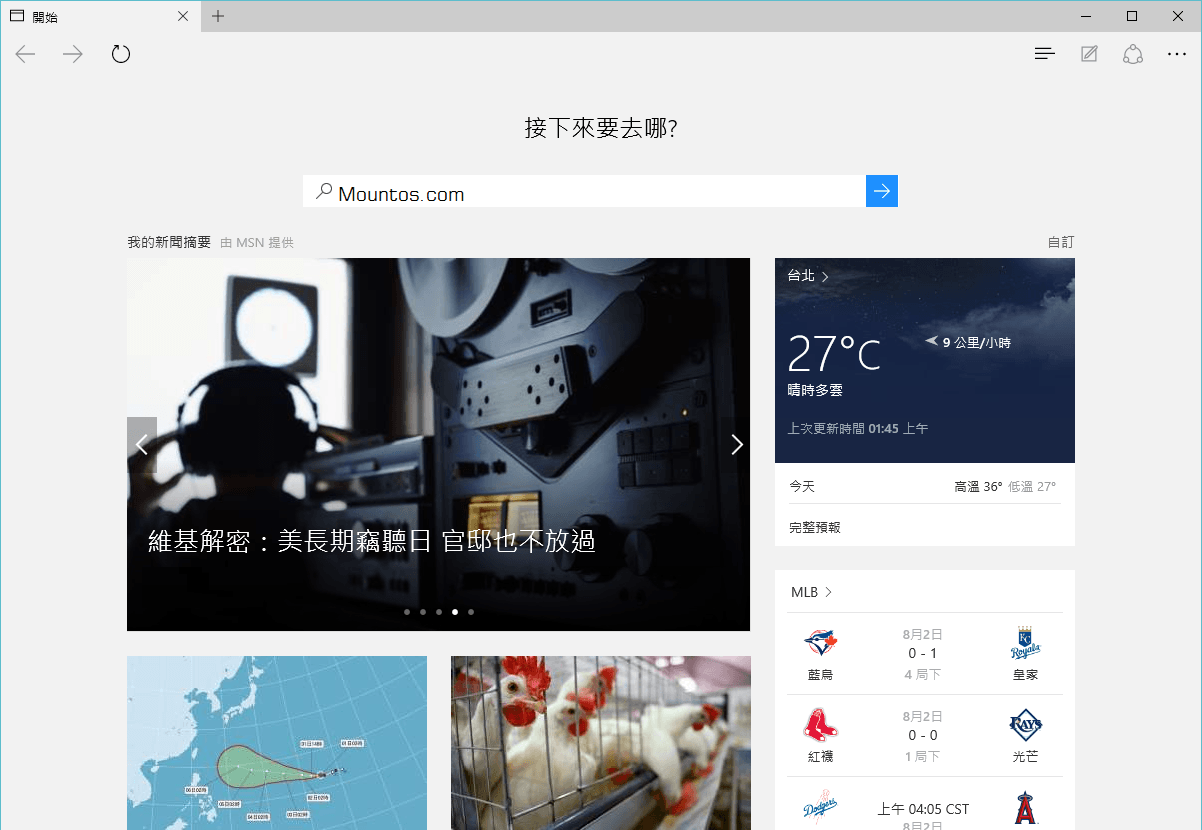 Figure 1: Microsoft Edge user interface.
Microsoft ported portions of the MSN portal directly into Edge, effectively treating the browser itself as an integrated content portal.
While greeting users with trending news headlines and weather widgets upon opening a tab is convenient, that only matters if users choose to adopt the browser in the first place!
Referring to Figure 2, the news cards pulled from MSN onto Edge new tabs are customizable (via the personalization toggle above the weather widget in Figure 1). You can choose which country’s news to prioritize or tailor your feed across general news, lifestyle, or finance.
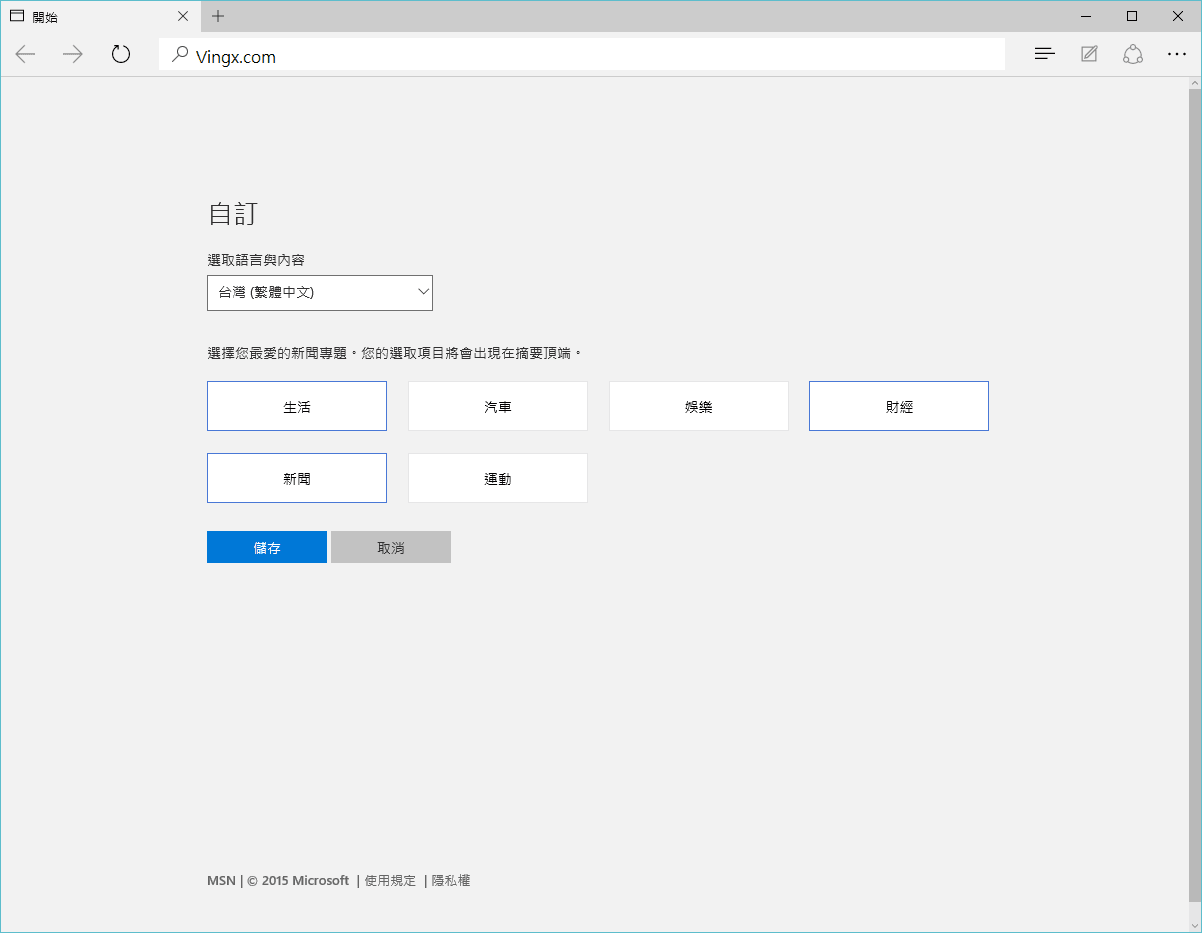 Figure 2: Customizing news feed topics.
Referring to Figure 3, Edge presents articles as modular information cards, allowing users to scroll down through a generous stream of aggregated stories (though it is not endless scrolling).
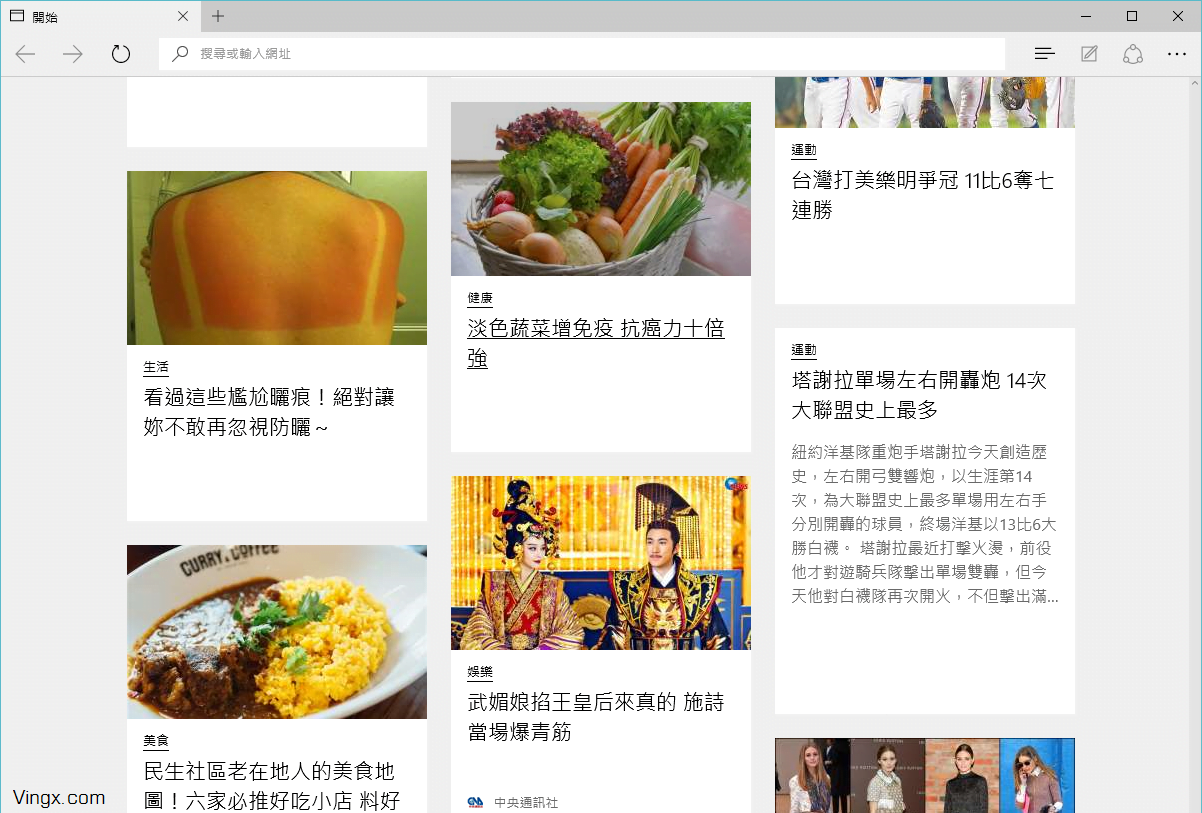 Figure 3: News card presentation format.
Figure 4 illustrates visiting the Vedfolnir homepage in Edge. The rendering remains clean, lightweight, and page loading is brisk.
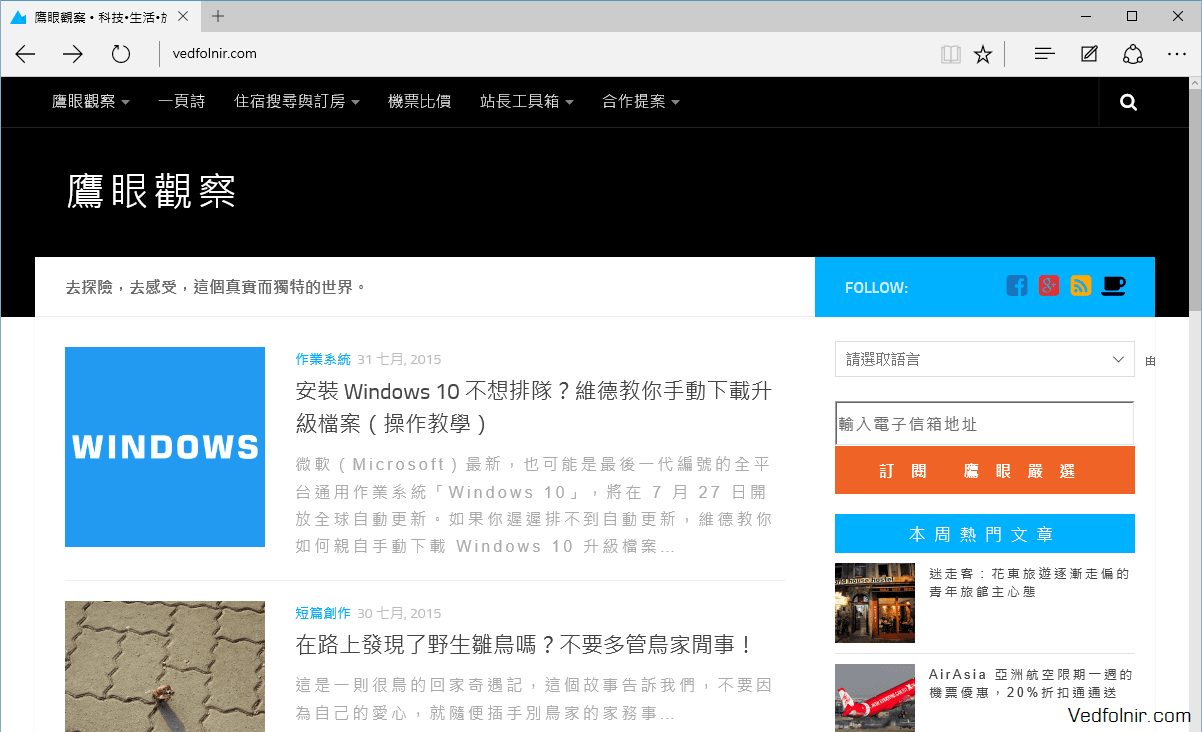 Figure 4: Browsing Vedfolnir with Microsoft Edge.
Figure 5 shows Edge’s settings panel. While the simplified sidebar design looks sleek and modern (drawing cues from Chrome), it strips away granular permission toggles and detailed network preferences found in traditional browsers. It will be interesting to see if Microsoft adds deeper power-user settings down the road.
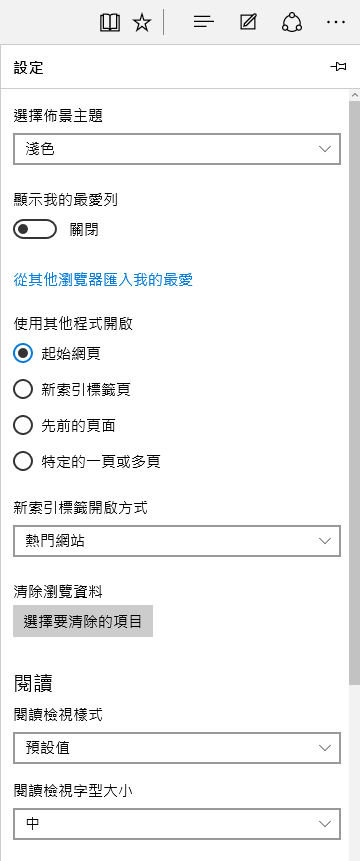 Figure 5: Edge settings menu.
Referring to Figure 6, at the bottom of the main settings panel, you will find a button to access "View advanced settings".
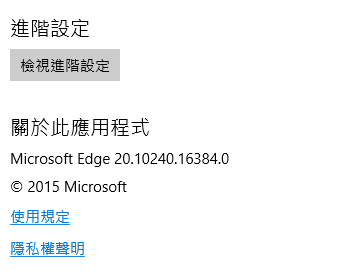 Figure 6: Accessing advanced settings.
Figure 7 outlines the toggles available within Advanced Settings. I strongly recommend toggling "Use Adobe Flash Player" off. Flash is not only a notorious security vulnerability vector, but its performance overhead has also made it obsolete on modern web standards.
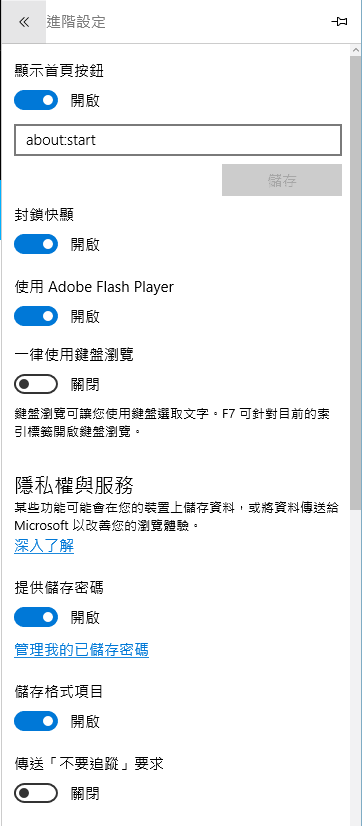 Figure 7: Advanced settings panel.
Figure 8 displays the lower section of advanced settings. For most users, the default configurations work well without modification.
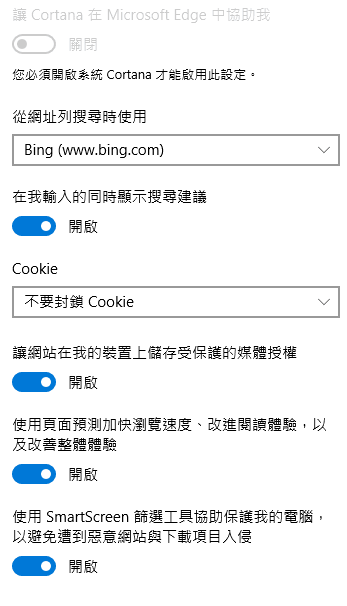 Figure 8: Lower section of advanced settings.
Referring to Figure 9, Microsoft consolidated Favorites, Reading List, Download History, and Browsing History into a single hub icon, creating an intuitive navigation flow (reminiscent of Apple’s Safari).
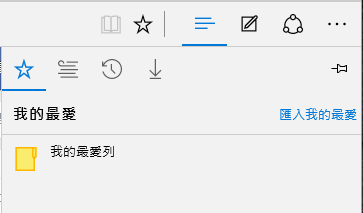 Figure 9: The Favorites hub.
Referring to Figure 10, while Edge shares data with Internet Explorer, your existing bookmarks still need to be imported manually.
If you sign in to Windows using a Microsoft account (Hotmail, Outlook, or Live), your IE bookmarks are backed up to the cloud. When moving to a new installation, clicking "Import favorites" quickly migrates your bookmark structure.
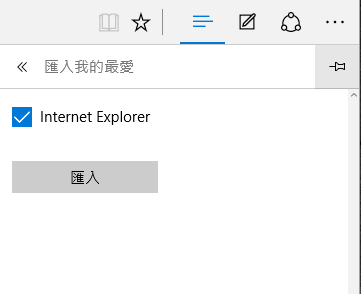 Figure 10: Importing favorites.
Once imported, the Favorites panel displays your bookmarks line-by-line as shown in Figure 11.
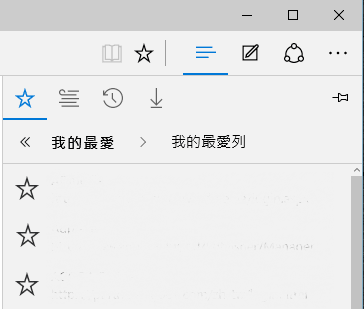 Figure 11: Imported bookmarks display.
One minor downside in Edge is that bookmark list items have relatively large vertical padding, which makes scanning through dense, extensive bookmark hierarchies slightly cumbersome compared to compact legacy trees.
Support Independent Perspectives & In-Depth Insights
Every thoughtful analysis and candid critique comes from our dedication to truth and quality. We choose not to follow sensational algorithms or clickbait headlines.
Sustaining independent research requires reader support. Make a one-time or monthly contribution, securely processed by Google.
Payments secured by Google · Manage or cancel anytime in your Google Account

Comments