
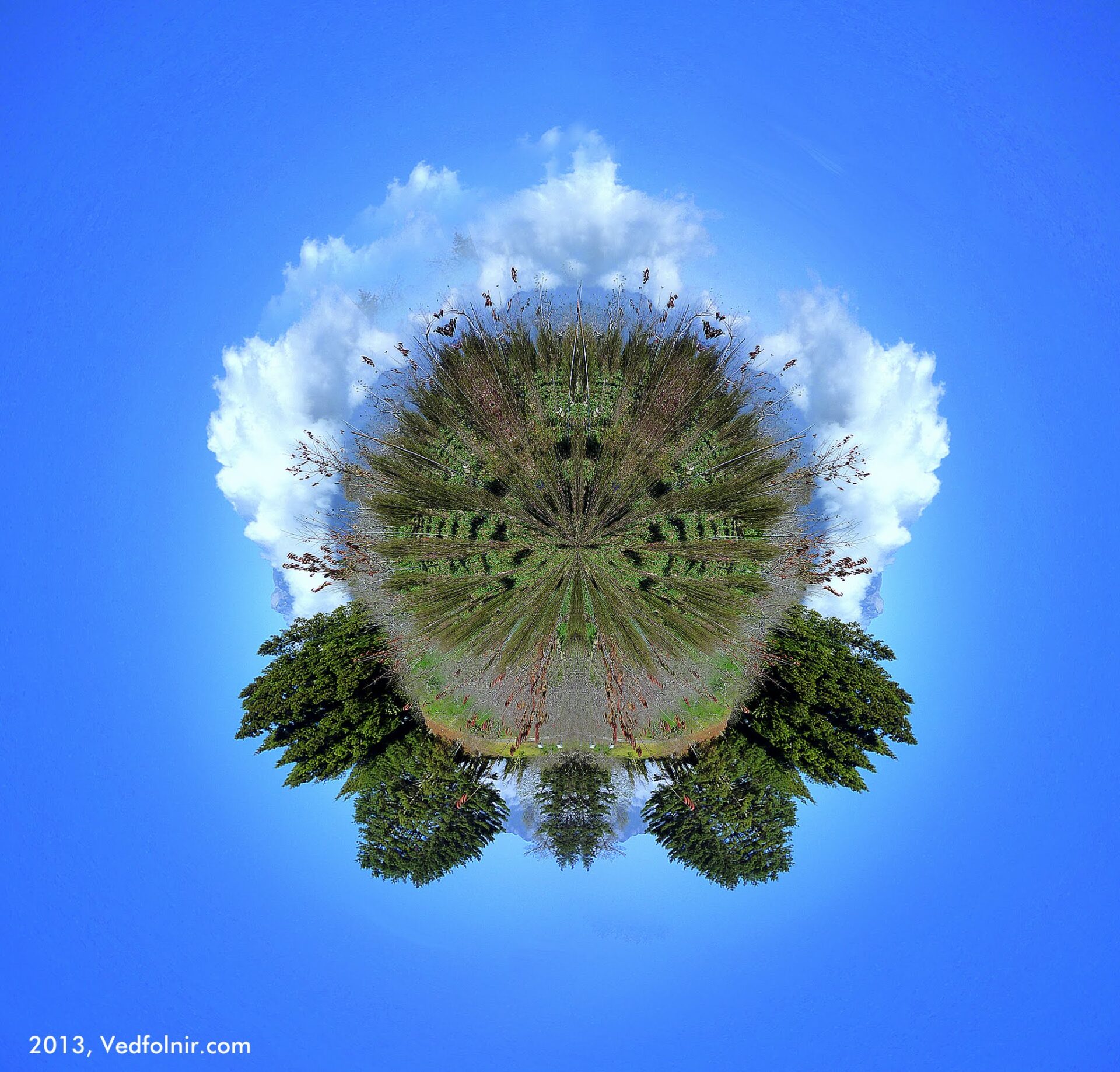
After seeing many masters’ great little planet (Little Planet) works, my hands got itchy and I dove in to try it myself. Thus this little-planet image-processing photo made from Fushoushan Farm was born.
The image in the photo is Fushoushan Farm, where I randomly stayed with my friend Jinlong years ago. I cheekily used that old photo to play with today’s little planet, and unexpectedly the image quality from back then was still good enough for me to work with extensively.
Come to think of it, Fushoushan Farm in October is really quite beautiful. The crisp autumn air in the high mountains always makes you want to go back once more.
How to Make a Little Planet (Small Planet) Photo?
- First, find a “panorama.” If you don’t have one on hand, be lazy and stitch it from a single photo (the photo below was stitched from a single image).
- Open the panorama in Photoshop (note: some image-editing software also offers similar features for making little planets).
- Next, adjust the photo’s proportions, changing the long panorama into a square. Remember to first turn off the “constrain proportions” function.
- Rotate the now-square image 180 degrees.
- Open Photoshop’s filter menu and choose the “Polar Coordinates” function under “Distort,” selecting rectangle to polar.
- The original photo has now become a little planet floating in the air.
Tips for Little Planet Image Processing
After successfully processing the little planet, there are a few details worth offering for everyone’s reference, including:
- The image’s horizon line must be accurate.
- The image’s “target plane line” should be symmetrical at the left and right ends of the image — for example, the sea horizon, a mountain ridge line, etc. — so that when stitched into a little planet it flows smoothly and forms a spherical shape. You can adjust this by modifying the image’s horizon line, or simply delete, erase, or even edit the image to achieve the goal.
- Every photo looks different once made into a little planet, so everyone can experiment in many ways.
- The aforementioned “target plane line” divides the image into upper and lower parts; you can take an area ratio of at least 2 to 1 so that the little planet appears centered in the frame.
- If you don’t have a panorama, you can take a single photo times two, mirroring one of them left-to-right, so that the seam between the two photos also matches. However, photos made this way feel a bit awkward. If there are few objects in the image — for example, just sky and landscape — you can even take a single photo times three to make the little planet.
Support Independent Perspectives & In-Depth Insights
Every thoughtful analysis and candid critique comes from our dedication to truth and quality. We choose not to follow sensational algorithms or clickbait headlines.
Sustaining independent research requires reader support. Make a one-time or monthly contribution, securely processed by Google.
Payments secured by Google · Manage or cancel anytime in your Google Account


Comments