
A full year has passed since acquiring my Apple MacBook Pro. Beyond writing drafts and tackling multimedia projects in the studio, I frequently carry it to coffee shops to work, and occasionally pack it into my backpack for international trips. While its overall operating environment has been relatively clean, daily wear and tear inevitably leaves its mark over time.
Typing for hours every day leaves an oily sheen from fingertips on keycaps, tiny lint particles and dust settle between key switches, and under harsh light, that vibrant, razor-sharp Retina display inevitably shows droplet spots and accidental fingerprints.
When attempting to clean their prized machine, many people casually grab a bottle of rubbing alcohol spray, glass cleaner, or kitchen paper towels and scrub away vigorously—often marking the beginning of irreversible damage to a high-end laptop display!
To prevent such disasters, this guide synthesizes official Apple recommendations and practical maintenance experience to demonstrate how to safely and thoroughly clean your MacBook Pro’s screen, keyboard, and aluminum chassis.

Three Critical Steps Before Cleaning: Safety First
Before applying any cloth or liquid to your machine, strictly perform the following three preparatory procedures. These protect not only your hardware exterior, but also serve as your primary defense against moisture-induced internal short circuits:
- Completely Shut Down the Computer: Do not merely close the lid to put it to sleep. Cleaning the keyboard inevitably presses keys; shutting down prevents errant keystrokes and guarantees internal logic boards are completely powered off.
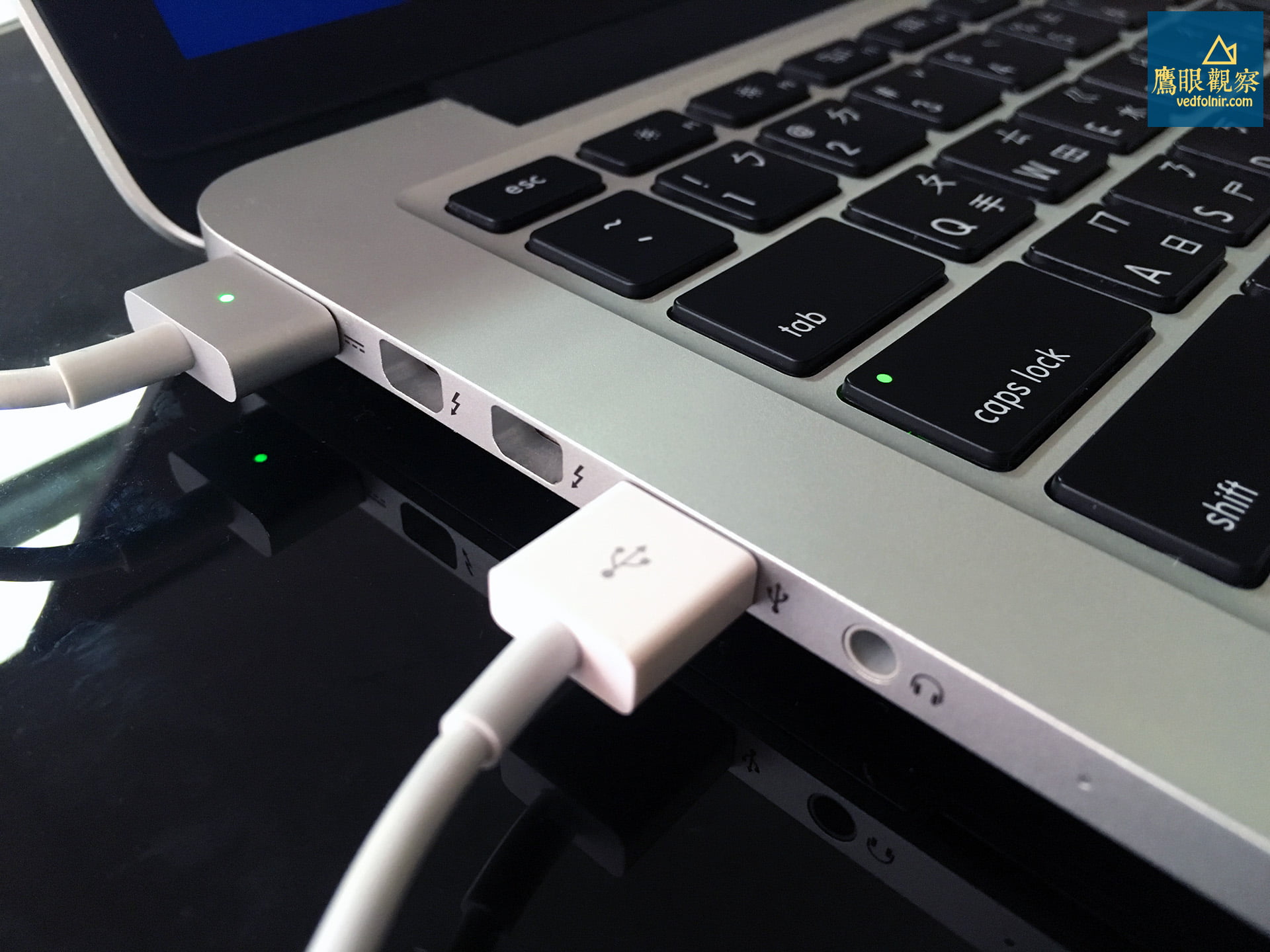
- Disconnect the Power Adapter and All Peripherals: Unplug the MagSafe charging cable, and remove all external hard drives, USB thumb drives, external display cables, and headphones, leaving the computer fully isolated and unpowered.
- Ensure the Chassis Has Completely Cooled: If you have just finished high-load video rendering or compilation tasks, allow the laptop to rest for several minutes. Wait until the aluminum chassis and display panel return to room temperature before cleaning to avoid thermal streaks caused by lingering vapor.
The Most Vulnerable Component: Retina Screen Care and Coating Protection
The reason the MacBook Pro’s Retina display achieves deep inky blacks and stunning contrast is an ultrathin “anti-reflective coating” layered across the panel surface. This coating is exceedingly delicate; improper cleaning techniques can dissolve or peel the chemical layer, resulting in the notorious display issue known in the tech community as “Staingate.”
Four Absolute Taboos of Screen Cleaning
| Prohibited Items & Behaviors | Severe Consequences & Physical Principles |
|---|---|
| ❌ High-concentration Alcohol (Ethanol / Isopropyl) | Alcohol is a potent organic solvent that attacks and dissolves anti-reflective optical coatings, causing widespread, permanent delamination. |
| ❌ Glass Cleaners, Mineral Spirits, or Hydrogen Peroxide Detergents | Commercial window sprays often contain ammonia, aggressive surfactants, or oxidizers that chemically corrode the outer protective film. |
| ❌ Facial Tissues, Paper Towels, or Standard Bath Towels | Paper towels are pressed from coarse wood pulp fibers with microscopic sharp edges, while ordinary towels shed lint and trap abrasive grit, scratching the glossy glass. |
| ❌ Spraying Any Liquid Directly onto the Screen | Gravity pulls excess liquid down the screen bezel directly into internal ribbon cables and backlight layers, causing yellow splotches, moisture rings, or screen failure. |
The Standard Cleaning Protocol
- Required Tools: A premium, soft, and “lint-free microfiber cloth,” such as an optical lens cleaning cloth or high-grade 3M microfiber towel.
- Cleaning Steps:
- Use a dry microfiber cloth to lightly dust away loose surface particles (preventing sharp debris from scratching the glass during wiping).
- Lightly dampen one corner of the cloth with a minimal amount of pure water (distilled or purified water), calibrated so that “not a single drop falls even when squeezed hard.”
- Using the barely damp portion, wipe in a single direction (top-to-bottom or center-outward) to gently lift stubborn fingerprints and dried spots. Never apply heavy, pinpoint fingertip pressure against the LCD panel!
- Immediately switch to the completely dry side of the microfiber cloth and buff away lingering micro-moisture, restoring a crystalline, deep reflection.

Keyboard and Trackpad: Banishing Finger Oils and Debris
Gaps between laptop keys easily collect breadcrumbs, hair, and dust. Left unchecked, fine particles lodge within scissor mechanisms, causing keys to stick or fail to register.
1. Clearing Gap Debris (Compressed Air Technique)
- Prop up the MacBook Pro so that it rests at approximately a 75-degree angle to the desk surface.
- Use an air blower bulb or dedicated electronics-grade can of compressed air (keep the can strictly upright to avoid discharging freezing liquefied propellant).
- Hold the nozzle 1 to 2 centimeters away from the keyboard, moving methodically from left to right and top to bottom row by row, allowing dislodged crumbs to tumble out naturally under gravity.
2. Wiping Keycap Oils and Force Touch Trackpad
- For skin oils left on keycaps after extended typing, take a slightly damp (plain water only) microfiber cloth and gently wipe keycaps one by one.
- The trackpad is crafted from seamless, etched matte tempered glass with exceptional abrasion resistance. Wipe it smoothly in circular motions with the damp cloth, followed immediately by dry buffing.
- Pay strict attention to cloth moisture during this step; water must never seep into the microswitch mechanisms beneath keycaps.
Chassis Maintenance: Preserving the Anodized Aluminum Unibody
The MacBook Pro features a unibody chassis precision-milled from a single block of aerospace aluminum. While remarkably rigid and refined, extended exposure to acidic palm perspiration can cause localized oxidation marks.
1. Wiping Aluminum Surfaces
- Use a damp, lint-free cloth to gently wipe the top lid (A-side), palm rest and keyboard deck (C-side), and bottom panel (D-side).
- Strictly avoid abrasive scrub pads or metallic polishing pastes, which strip the delicate sandblasted anodized matte finish.
- Steer clear of exposed port openings on both flanks (MagSafe, USB, Thunderbolt, headphone jack) to prevent accidental liquid ingress.
2. Maintaining Cooling Exhaust Vents
- The primary cooling vents on the MacBook Pro are situated beneath the display hinge and along the rear chassis. Periodically use a soft-bristle brush to sweep away lint clinging to the vent grilles, ensuring unimpeded internal airflow.
- Never insert toothpicks, paperclips, or sharp metallic objects into exhaust grilles, as they can bend radiator fins or jam internal cooling fan blades.
Conclusion: Gentle Care Ensures Enduring Productivity
A MacBook Pro is not merely a high-performance personal computer; it is an impeccably engineered professional instrument.
The secret to protecting it from damage is wonderfully simple: “Avoid alcohol solvents, use only pure water on a barely damp cloth, and wipe smoothly without excessive force.” Spending five minutes every week or two on deep maintenance keeps your workspace refreshing and preserves your machine’s long-term hardware health and resale value!
Related Reading
Support Independent Perspectives & In-Depth Insights
Every thoughtful analysis and candid critique comes from our dedication to truth and quality. We choose not to follow sensational algorithms or clickbait headlines.
Sustaining independent research requires reader support. Make a one-time or monthly contribution, securely processed by Google.
Payments secured by Google · Manage or cancel anytime in your Google Account



Comments