
Ever since welcoming an Apple MacBook Pro into my daily setup, my work efficiency skyrocketed, inspiration surged, and everything seemed to click effortlessly into place!
Jokes aside, this was my first time relying on a Mac as my primary daily driver for an extended period. As a long-time veteran trained on Microsoft Windows, adapting to macOS required adjusting several everyday computing habits. The most salient difference lies in philosophy: Apple’s system tends to be rather “too clever for its own good”, managing everything behind the scenes by default; Windows, by contrast, behaves more crudely, leaving low-level knobs to the user’s manual configuration.
BUT—and in life, that “BUT” makes all the difference! Having used computers for decades, not having full transparency over background processes always leaves an inquisitive tech enthusiast feeling a bit uneasy.
The biggest puzzle that nagged at me was: Why does the MacBook battery continue to drain silently even when the lid is closed and the laptop sits completely idle?
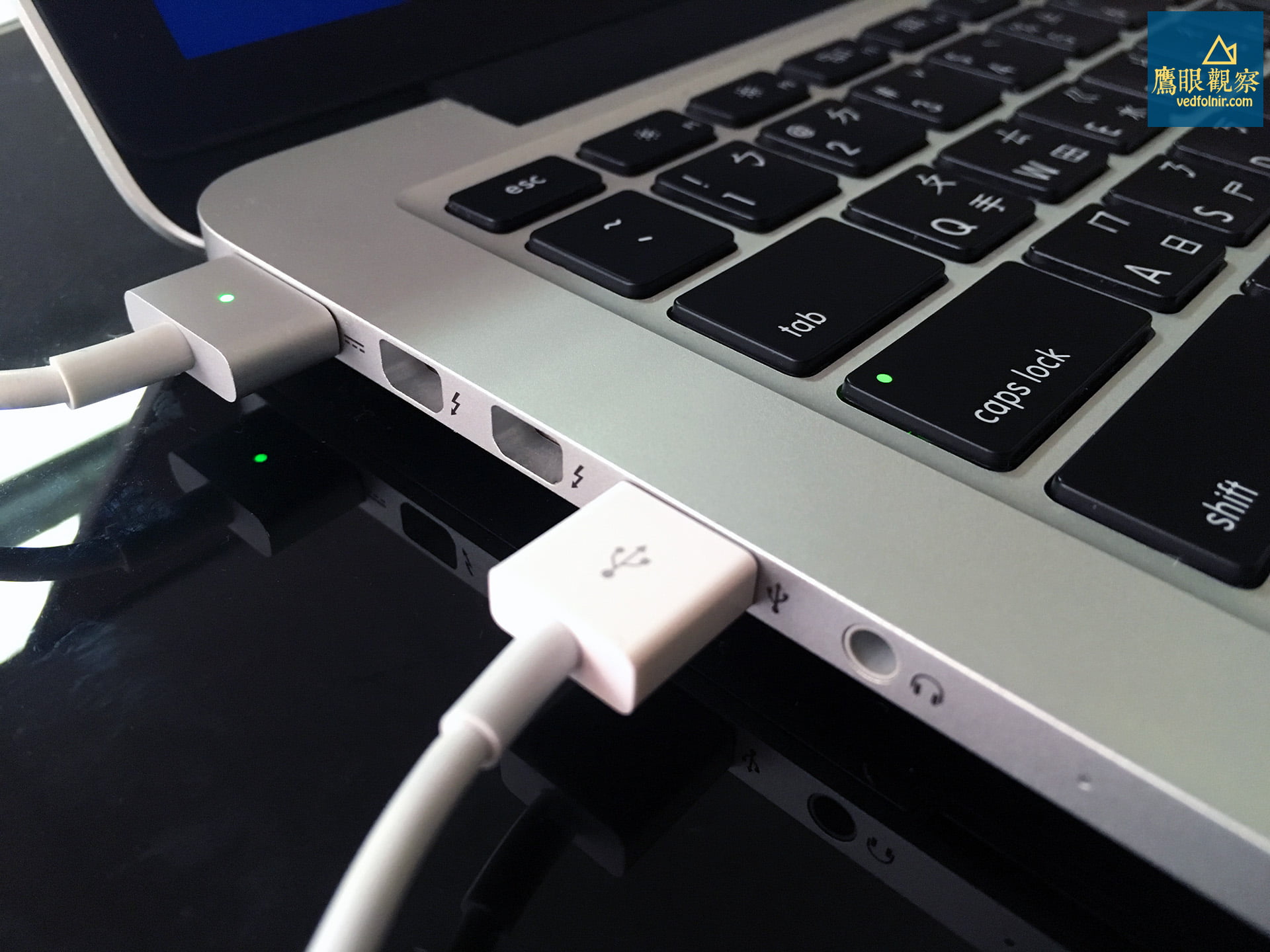
The 24-Hour Standby Experiment: A Distinct “Linear Drain” Signature!
To uncover what the MacBook is secretly doing behind closed lids, I ran a disciplined standby power consumption benchmark.
With Wi-Fi left on and standard applications running in the background, I resisted the urge to touch or wake the MacBook for a full 12 hours with the lid closed:
- Initial battery level: 53%
- After 12 hours upon opening the lid: Battery dropped to 49% (a loss of 4%).
Immediately afterward, I shut the lid again and waited another 12 hours (accumulating 24 hours total standby):
- After 24 hours upon opening the lid: Battery dropped to 45% (another exact loss of 4%).
These benchmark numbers clearly illustrate that under default system settings, closed-lid energy consumption displays a pronounced “linear drain pattern”—steadily bleeding 4% to 5% of battery charge every 12 hours. That means if you close a fully charged laptop on Friday evening and slide it into your briefcase, pulling it out Monday morning could reveal nearly 20% of your battery evaporated into thin air!
However, in another control test, I charged the MacBook to 100%, manually chose Sleep from the Apple menu (), and turned off background disturbances. After 24 hours of idle standby, the battery dropped by a mere 1%!
What accounts for this massive discrepancy in standby power consumption?
The Culprits Behind the Drain: Demystifying “Power Nap” and Sleep States
Many people instinctively assume that “closing the lid” on a Mac is identical to Windows “Hibernate”. In reality, macOS approaches laptop sleep with an entirely different mindset.
The three primary drivers behind closed-lid battery drain are:
1. The Biggest Offender: Power Nap
In OS X / macOS, Apple implemented an intelligent feature known as “Power Nap”. Its core design intention is to keep your Mac “always up to date”:
- When the lid is closed and the machine appears sound asleep, macOS periodically wakes low-power CPU cores and Wi-Fi in the background.
- It quietly checks for new emails, syncs iCloud calendars, notes, and photos, and updates reminders. When plugged into AC power, it even runs Time Machine backups and App Store software updates.
- These recurring background wakeups and wireless transmissions are the single largest reason why battery life diminishes unnoticed.
2. Network and Peripheral Wakeups (Wake on Network / Bluetooth)
If “Wake for network access” is toggled on, any Bonjour broadcasts or file-sharing requests from other local network devices can momentarily wake the MacBook from its slumber. Similarly, nudging a paired Bluetooth mouse or keyboard nearby can inadvertently trigger a wakeup sequence.
3. RAM Power Maintenance (Safe Sleep Mode)
The default sleep mode on MacBook models (hibernatemode 3) is “Safe Sleep”. It dumps the contents of RAM to the solid-state drive as a protective fallback, while continuing to supply a trickle charge to system memory (RAM) to deliver instantaneous wake-from-sleep when you lift the lid. Keeping RAM energized inevitably consumes a steady, albeit small, amount of standby current.

Achieving Near-Zero Standby Drain: Fine-Tuning “Energy Saver” Settings
If you want your MacBook to sleep like a hibernating bear when running strictly on battery power—holding onto every milliampere-hour—follow these steps to optimize your “Energy Saver” preferences:
Step-by-Step Instructions:
- Click the “Apple menu ()” in the top-left corner > select “System Preferences”.
- Open the “Energy Saver” control panel.
- Switch to the “Battery” tab and configure the following key settings:
- Disable “Enable Power Nap while on battery power”: [Strongly Recommended to Uncheck]! This is the most crucial step to stop battery bleeding. Once disabled, pulling the plug and shutting the lid prevents all background network syncing, placing your Mac into a deep power-conserving state.
- Disable “Wake for Wi-Fi network access”: [Uncheck], preventing local network broadcast packets from repeatedly waking the sleeping logic board.
- Computer and Display Sleep Sliders: Set “Turn display off after” to 2 or 3 minutes when running on battery to avoid wasting energy when you step away from your desk.
- Check “Put hard disks to sleep when possible”: Conserves power on internal drive storage components.
Once these settings are applied, your MacBook’s closed-lid battery endurance will experience a dramatic improvement. Even after leaving it idle overnight for 8 to 10 hours, battery drop will typically stay locked within a minuscule 1% to 2% range!
Bonus Section: The Golden Rules for Battery Charging and Lifespan Extension
Speaking of battery health, another question newcomers frequently ask is: “Should I keep my MacBook plugged in all the time, or unplug it and run on battery?”
While one could write an entire electrochemistry thesis on lithium polymer cells, regular users only need to keep three golden rules in mind:
- Keep MagSafe plugged in when working at a stationary desk: Modern MacBooks house a sophisticated Power Management Unit (PMU). Once the battery reaches 100%, the MagSafe LED turns green, and the charging circuitry isolates the battery, routing power directly from the adapter to the logic board. Running on AC power does not cause overcharging; in fact, it minimizes unnecessary charge-discharge cycle counts.
- Never allow the battery to drain completely to 0%: The number one killer of lithium-ion batteries is “deep discharge”. Constantly running down the battery until the laptop forcibly shuts off drops internal cell voltage below critical thresholds, triggering chemical degradation and irreversible capacity decline. Connect your charger as soon as the battery dips to 20%–30%.
- Perform a “shallow discharge cycle” once or twice a month: If your MacBook stays docked to AC power for months on end like a desktop, unplug it once or twice a month. Work on battery until it hits around 30% to 40%, then plug it back in to recharge. Allowing electrons to flow periodically between anodes and cathodes helps exercise the electrolytes and maintains the accuracy of battery calibration sensors.
Conclusion: Take Back Control of Your Power
Apple created a seamless, futuristic computing experience where lifting the lid provides instant access. That doesn’t mean, however, that you must accept unnecessary background battery drain without a fight.
Take just one minute to disable “Power Nap” and unnecessary background network triggers. The next time you pack your MacBook into your bag and rush out for an off-site meeting, you can open the lid confident that your machine is loaded with 100% capacity and ready to tackle your work!
Further Reading
Support Independent Perspectives & In-Depth Insights
Every thoughtful analysis and candid critique comes from our dedication to truth and quality. We choose not to follow sensational algorithms or clickbait headlines.
Sustaining independent research requires reader support. Make a one-time or monthly contribution, securely processed by Google.
Payments secured by Google · Manage or cancel anytime in your Google Account




Comments