

I previously wrote an article titled “Cybersecurity: Enabling Two-Factor Authentication (2FA) Protection” [1], introducing how to enable 2FA on Google and Facebook to strengthen your online security perimeter.
However, once two-step verification is active, logging into standalone software tools and third-party desktop utilities across Google’s vast ecosystem can sometimes become cumbersome. Certain legacy software cannot handle direct two-factor authentication prompt dialogues.
For example, tools like Picasa or older desktop clients often fail to pop up secondary verification prompts natively.
Using Windows Live Writer as an example, this guide explains how to generate a secure, one-time application-specific password. This bypasses the need to enter your personal primary password or mobile verification codes on unsupported software.
Generating Application-Specific Passwords for 2FA
As shown in Figure 1, start by navigating to your Google Account Security Settings page (https://www.google.com/settings/security).
If you have already turned on 2-Step Verification, you will see corresponding configuration tabs.
These include the verification code section, the "**App Passwords**" panel, and registered trusted devices.
 Figure 1: Two-step verification settings.
Next, refer to Figure 2. In the App Passwords section, click the "**Manage App Passwords**" button.
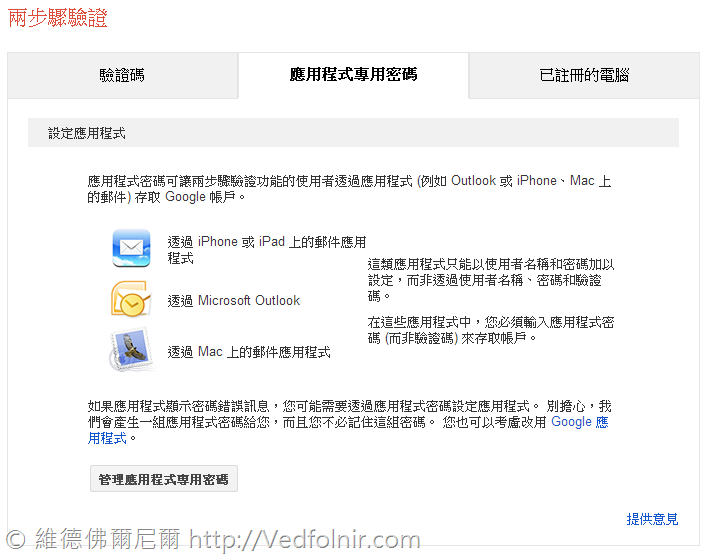 Figure 2: App Passwords configuration screen.
As shown in Figure 3, a setup dialog titled “Authorized access to your Google Account” will appear. Enter a descriptive "**App name**" for easy reference, then click the "**Generate Password**" button.
 Figure 3: Generating an application-specific password.
As shown in Figure 4, Google will automatically display a uniquely generated 16-character dedicated password.
This app password securely replaces your primary password when signing into that specific utility. Simply input your existing Google email address into the application’s login prompt, and paste this generated string into the password field.
This provides seamless access without compromising your master password or requiring repeated two-factor SMS or authenticator prompts.
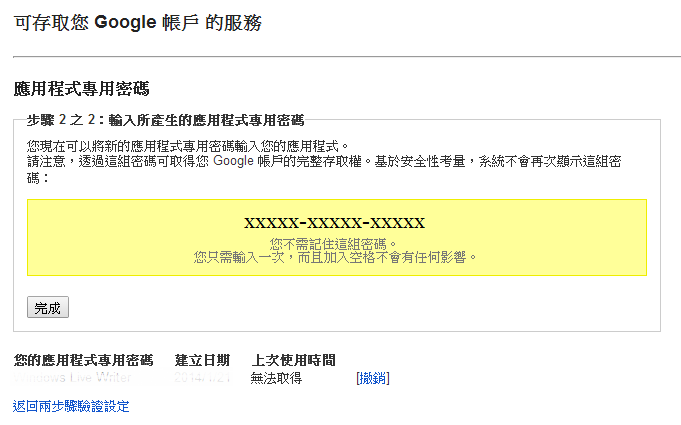 Figure 4: App password generated successfully.
As shown in Figure 5, once configuration finishes, Google will send a security notification confirming the newly authorized app password.
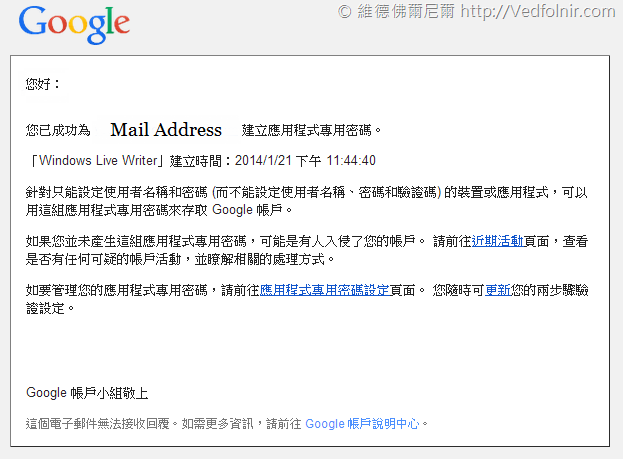 Figure 5: Completion notice.
Further Reading
- Cybersecurity: Enabling Two-Factor Authentication Security Password Protection (Google Setup Guide)
- Authy: Using Two-Factor Authentication Software to Prevent Account Takeovers on Facebook and Gmail
Support Independent Perspectives & In-Depth Insights
Every thoughtful analysis and candid critique comes from our dedication to truth and quality. We choose not to follow sensational algorithms or clickbait headlines.
Sustaining independent research requires reader support. Make a one-time or monthly contribution, securely processed by Google.
Payments secured by Google · Manage or cancel anytime in your Google Account



Comments