
Are you planning to build a dedicated official webpage for your independent studio, company brand, specialty product, or job resume, but find yourself stuck at various thresholds and unable to move forward?
Asking a professional web design company for a quote easily runs into tens of thousands to hundreds of thousands; setting up a WordPress site yourself means spending several thousand yuan a year renting virtual hosting and maintaining an SSL security certificate, and a single careless mistake could let a plugin vulnerability allow hackers to plant a Trojan on your site. For creators without an IT background, freelance workers, or small shops, the technical burden of maintaining a website is often far greater than the joy of producing content.
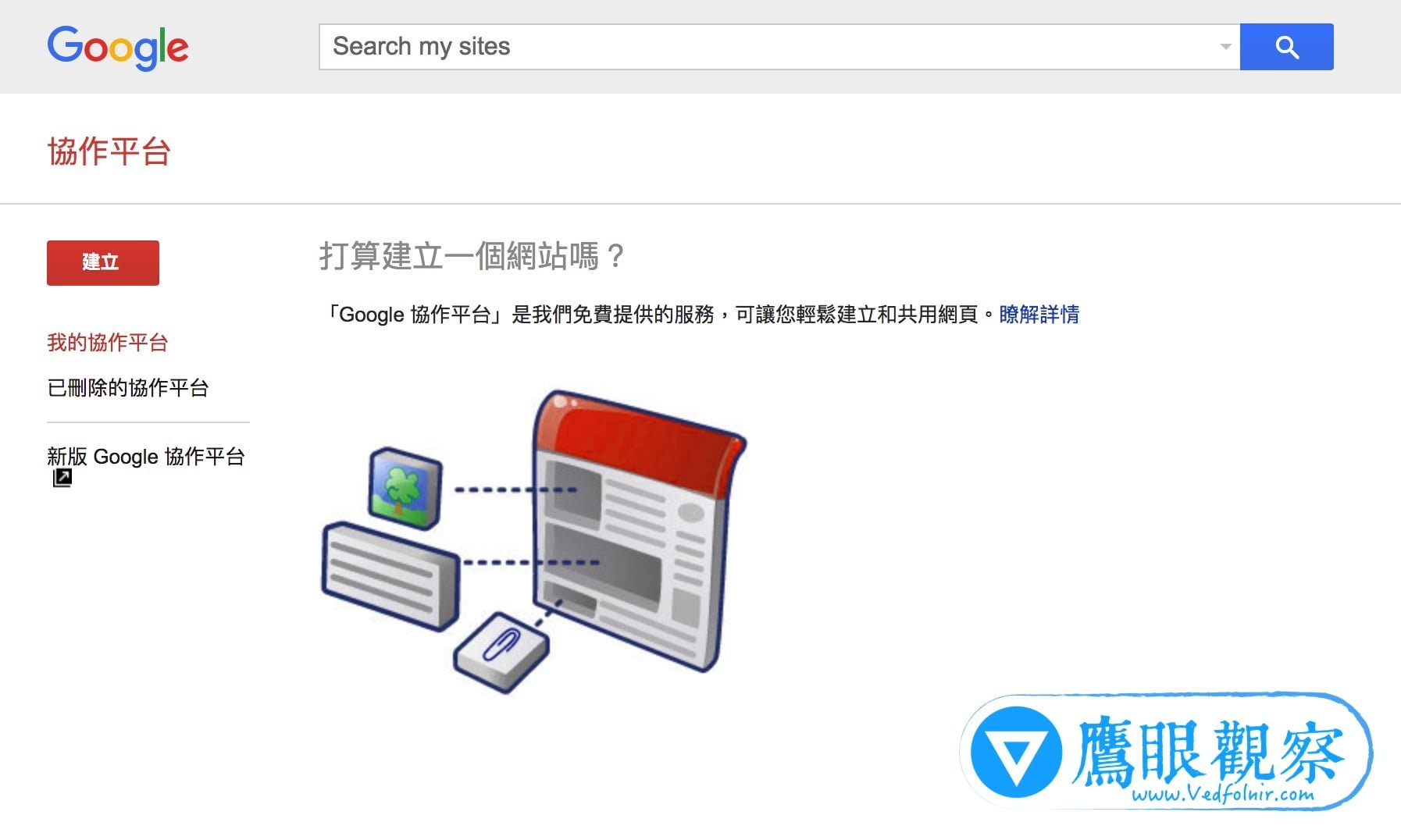
In fact, aside from spending a small amount each year to buy a set of dedicated “custom top-level domain names,” you can completely avoid spending a single cent on server fees by using the free “Google Sites” provided by Google to build a high-quality image website with clean layout that automatically adapts to phones and tablets.
1. Why Choose Google Sites? Four Core Advantages
The old version of Google Sites had basic features and outdated templates, but after a full revamp, the new generation of Google Sites has evolved into a highly modern and extremely easy-to-use visual website-building tool:
| Evaluation Item | Google Sites | Traditional Virtual Hosting WordPress | Commercial Website Platforms (e.g., Wix / Squarespace) |
|---|---|---|---|
| Hosting Server Fees | Free for life (zero hosting fees) | About NT$1,500–4,000 per year | About NT$400–1,200 per month |
| Maintenance Difficulty | Zero maintenance, no need to patch plugins or antivirus | Requires regular updates of core, plugins, and database backups | Maintenance-free, but features are highly limited by the paid plan |
| Security and Stability | Relies on Google’s global servers and CDN, resistant to traffic spikes | Depends on the host provider’s security and the user’s security awareness | Commercial hosts have robust protection |
| Ad Interference | Completely ad-free | Ad-free | The free version forcibly embeds platform ads at the top or bottom of the page |
1. Truly Zero Server and Bandwidth Costs
Your website is hosted on Google’s powerful cloud infrastructure; you don’t need to know Linux commands, nor set up Apache or Nginx. Even if one day your article goes viral on social media and brings tens of thousands of views, the site won’t go down because of exceeding bandwidth.
2. Native Deep Integration with the Google Ecosystem
If you habitually use Google Drive, Google Sites’ integration is nearly perfect. You can embed “Google Forms” into a webpage with one click as a customer inquiry form or booking form, and the data is automatically aggregated into Google Sheets; you can also seamlessly embed Google Slides, YouTube videos, and Google Maps without writing any iframe code.
3. Automatically Adapts to All Screen Sizes (RWD Responsive Web Design)
Whether visitors browse on a desktop computer, iPad tablet, or iPhone, Google Sites automatically rearranges the text and image layout, ensuring a smooth reading experience without breaking the layout.
2. What Application Scenarios Is Google Sites Best Suited For?
Although Google Sites is powerful, its positioning is a “static information display website.” The areas where it can best deliver value include:
- Professional Personal Resume and Portfolio (Portfolio / CV): Designers, photographers, and software engineers showcasing past cases and expertise.
- Freelancers and Consultants’ Personal Brand: Copywriters, translators, legal and tax consultants listing service items and pricing.
- Physical Shops and Studios’ Image Homepage: Nail and eyelash studios, handmade dessert shops displaying price lists, environment photos, and Google Maps directions.
- Company Internal Knowledge Base and Team SOP Guide: Can be set to be readable only by specific Google accounts or members of a company G Suite domain, serving as an excellent internal collaboration center.
3. Four Steps to Quickly Build a High-Appearance Dedicated Webpage
Step 1: Enter the Platform and Choose a Suitable Template
After logging into your Google account, open Google Sites. Click “Blank” to create a new page, or choose a template that meets your needs from the template library above (such as “Project,” “Event,” “Small Business,” or “Personal Portfolio”).
Step 2: Configure Modern Visual Blocks
- Set the banner and title: Enter your brand name at the top of the homepage, upload a high-resolution banner image, and choose the title font and alignment.
- Use layout modules: …
Support Independent Perspectives & In-Depth Insights
Every thoughtful analysis and candid critique comes from our dedication to truth and quality. We choose not to follow sensational algorithms or clickbait headlines.
Sustaining independent research requires reader support. Make a one-time or monthly contribution, securely processed by Google.
Payments secured by Google · Manage or cancel anytime in your Google Account



Comments