

Under “Compute Engine” on Google Cloud Platform (GCP), you can easily create all kinds of virtual servers through the “VM instances” subpage.
For each VM instance, the corresponding disk space (including standard persistent disks and SSD persistent disks) can have its capacity adjusted and changed after the instance is created, according to actual usage needs.
In fact, earlier you only needed to stop the virtual instance running under the VM instances subpage and then manually edit the disk size directly. But now GCP requires administrators to first set up a file system on the disk before the extra space can be used.
Adjusting the GCP Disk Size
Please refer to Figure 1 below. To adjust the disk size, go to the Compute Engine page, find the “Disks” settings subpage, and edit the disk you want to change.
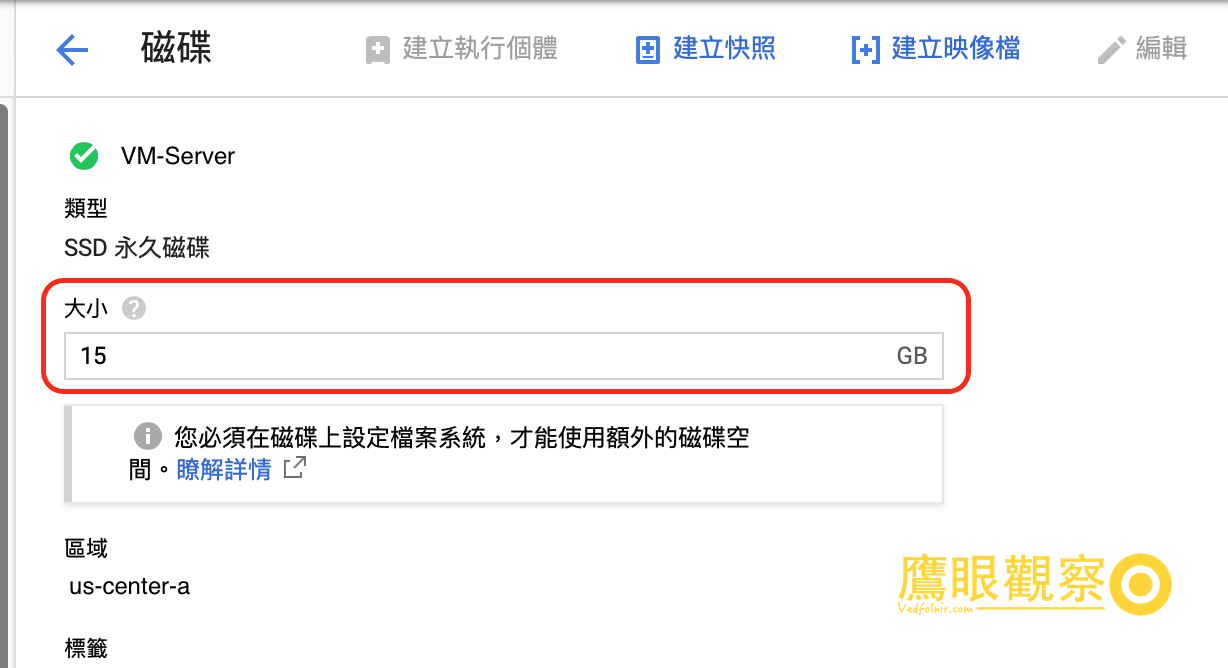
Figure 1: Editing a GCP disk.
Before changing the disk size, you can adjust it directly without stopping the running VM. However, the newly added disk space will not be reflected directly in the server space; you must then create a file system under the instance.
File System Configuration Commands for a GCP VM Instance
In the VM instances subpage, find the instance corresponding to the disk you just modified. Click the “SSH” button next to that instance to enter the Console. Once a command-line interface like “username@vm-server:~$” appears, enter the commands in the following steps:
- Enter the “sudo lsblk” command to check the disk partition status.
- Enter the “sudo growpart /dev/sda 1” command[3] to allocate the newly added disk space to “/dev/sda1”.
- Enter the “sudo resize2fs /dev/sda1” command to resize the sda1 file system.
At this point you can enter the “sudo df -h” command to confirm the available disk space on the VM. Generally speaking, if the disk configuration was not specially changed when the virtual server was designed, most cases can be fully resized by this point.
References
- Introduction to common advanced Linux commands and program syntax (usable for self-hosted WordPress).
- Google Managing storage space: Adding or resizing zonal persistent disks.
- If the server does not have the growpart command built in, you can install it with the following commands: Debian server: sudo apt -y install cloud-guest-utils
- CentOS server: sudo yum -y install cloud-utils-growpart
Support Independent Perspectives & In-Depth Insights
Every thoughtful analysis and candid critique comes from our dedication to truth and quality. We choose not to follow sensational algorithms or clickbait headlines.
Sustaining independent research requires reader support. Make a one-time or monthly contribution, securely processed by Google.
Payments secured by Google · Manage or cancel anytime in your Google Account




Comments