
Google Cloud Platform (GCP) introduced its cloud observability suite, Stackdriver, to track system errors, application performance, metrics, and logs. While observability is valuable for production infrastructure, Stackdriver’s pricing can quickly result in unexpected monthly bills—in some cases costing as much as an entire Compute Engine VM instance!
Reviewing itemized GCP billing statements often reveals that while Stackdriver Logging incurred minimal charges, Stackdriver Monitoring accumulated substantial fees, accounting for up to 20% of compute infrastructure expenses.
Many developers seeking to disable Stackdriver find that GCP offers no obvious one-click button to unlink a workspace or revert to a completely unmonitored baseline.
If your primary objective is eliminating these monitoring costs, here are several tested methods to disable Stackdriver services on GCP:
Method 1: Purge the Stackdriver Agent from Linux VMs
If you previously installed the Stackdriver guest monitoring agent on your VM instances, run the following command via SSH:
sudo apt-get purge stackdriver-agent stackdriver-extractorThis removes background metric collector daemons from your server.
Method 2: Revoke Stackdriver IAM Service Account Roles
Navigate to IAM & Admin in the GCP Console. Locate the service account member associated with Stackdriver, edit its permissions, and revoke project viewer/monitoring roles. Without project read access, metrics telemetry collection stops.
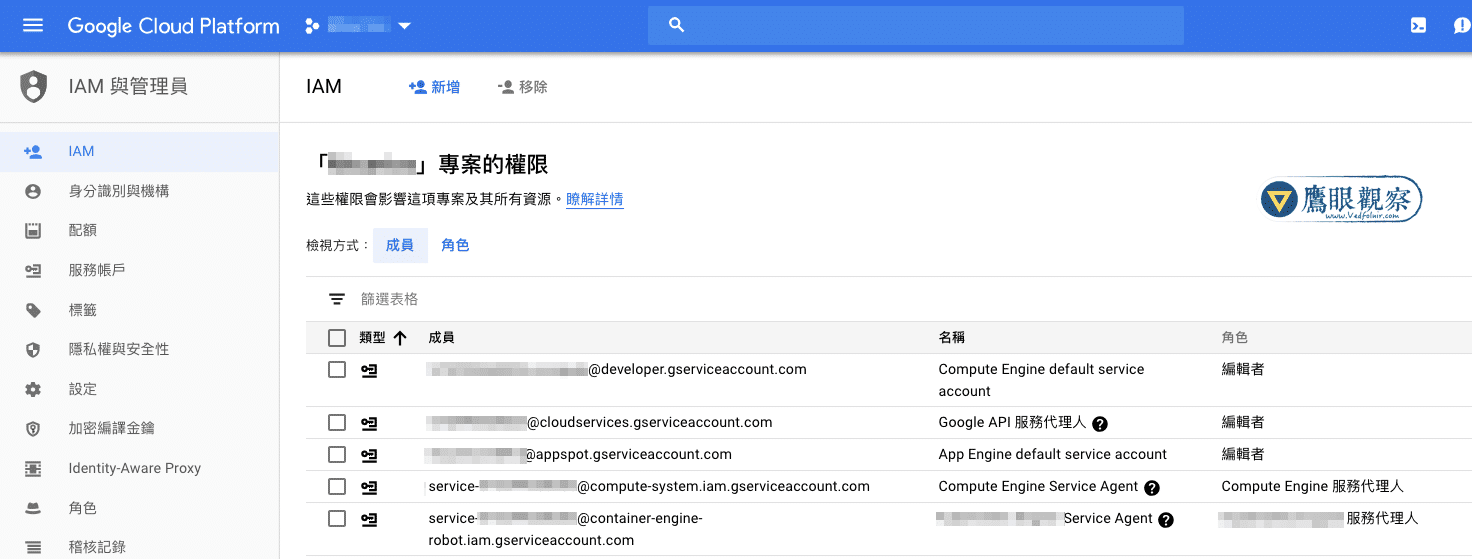 Removing Stackdriver agent roles in GCP IAM Console.
Method 3: Reconfigure VM Instance Cloud API Access Scopes
Edit your Compute Engine VM instance settings while the instance is stopped. Under Cloud API access scopes, switch Stackdriver Logging API and Stackdriver Monitoring API from Write-Only or Read-Only to Disabled.
Method 4: Disable the Monitoring API (Most Effective)
Because Stackdriver operates on top of Google Cloud’s API framework, shutting off the underlying API effectively disables the monitoring pipeline project-wide:
- Open the GCP APIs & Services Dashboard;
- Locate and click Stackdriver Monitoring API;
- On the overview page, click the Disable API button;
- Confirm the prompt to disable the service.
Once disabled, Stackdriver Monitoring reverts to an uninitialized state, and billing meter increments drop to zero. You can re-enable the API at any point in the future if required.
Alternative: Migrating to Cost-Effective Hosts
Because Stackdriver workspaces once bound to a GCP project can be difficult to unlink completely, another clean route is migrating workloads to affordable hosting alternatives, such as managed cloud VPS providers or conventional web hosts like Bluehost.
Support Independent Perspectives & In-Depth Insights
Every thoughtful analysis and candid critique comes from our dedication to truth and quality. We choose not to follow sensational algorithms or clickbait headlines.
Sustaining independent research requires reader support. Make a one-time or monthly contribution, securely processed by Google.
Payments secured by Google · Manage or cancel anytime in your Google Account



Comments