
Google has truly outdone itself by rolling out an official dedicated Chinese input method app for Android smartphones and tablets.
I had been eagerly anticipating this “Google Zhuyin Input (including Cantonese Input)” mobile app for quite some time. Its release, however, deals quite a heavy blow to other Chinese input method developers—including TouchPal (which came preloaded on my phone), Super Zhuyin (which I once installed on a tablet from mainland China), Zhuyin Cangjie, Baizi Traditional Chinese, IQQI Quick Zhuyin, SlideIT, GO Keyboard, PChome Input, and LIME HD (currently on my mainland tablet).
To make matters worse for the competition, many of those third-party keyboard apps require paid purchases or impose heavy feature restrictions, whereas Google is completely free.
A netizen who was an acquaintance of Ms. Miaobai once teased that people in Taiwan love conspiracy theories, so keeping with tradition, here is my own tongue-in-cheek take on the conspiracy: while the Google Play Market offers programmers and creative developers a legitimate channel to monetize software, it also functions as an antlion trap engineered by Google for its own software engineering divisions.
Within this ecosystem, countless worker ants (software developers worldwide) compete fiercely across various categories, building what resembles a massive phylogenetic tree. Google then simply observes which branches grow thickest and bear the sweetest fruit. Through this lens, Google gains immediate, battle-tested insights into development difficulty, user experience, and market adoption.
For Google’s elite in-house engineers, replicating and surpassing these solutions with polished, integrated alternatives becomes a walk in the park.
Ultimately, after having their ideas assimilated, independent developers either struggle to pivot within their niche (or get acquired if they are fortunate) or have to hunt for their next development venture. Consider Google Keep versus NoteEverything or Evernote, or Google Input versus independent keyboard apps.
Business leaders in Taiwan often claim that when a corporation grows too large, it either needs to be spun off or inevitably loses its innovative momentum; currently, Google seems entirely exempt from that rule.
Google had long offered Pinyin input, which is widely used in mainland China and across the Western world, but had consistently lacked a dedicated Zhuyin (Bopomofo) keyboard tailored for Traditional Chinese users in Taiwan Province. Seeing them launch a dedicated official release was a pleasant surprise (proving that Taiwan remains a valued market after all).
Official Google Zhuyin Input: Android Installation Guide
The installation process is identical to that of any standard mobile app. Open the pre-installed Google Play Store (formerly Google Market).
 Figure 1: Google Play Store app icon.
In the search box, search for “Google Zhuyin Input”.
Quick Tip: If your smartphone or tablet does not have a Chinese keyboard installed yet, you naturally cannot type Chinese characters to search for “注音輸入法”. In that case, simply search for “Google Input” in English to pull up all Google keyboard apps, and choose the Zhuyin edition.
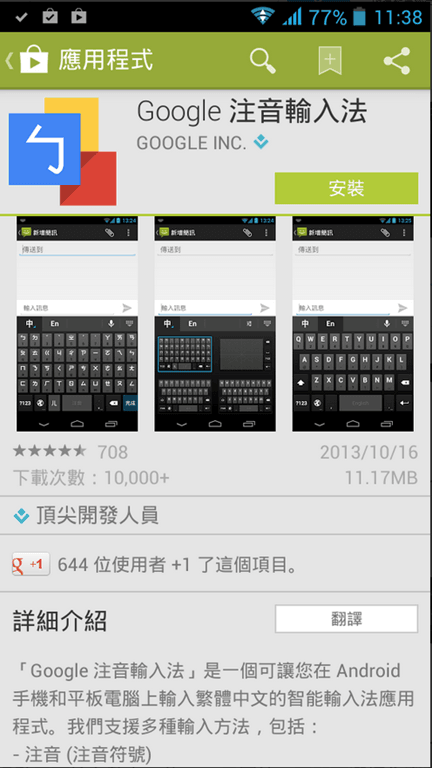 Figure 2: Google Zhuyin Input introduction menu.
Tap Install.
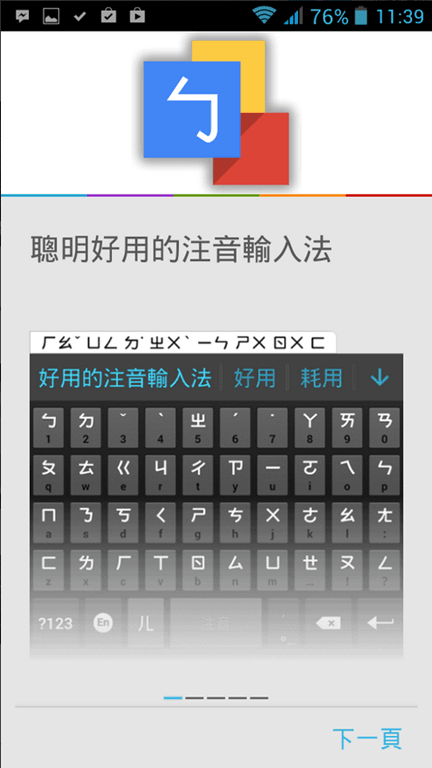 Figure 3: Feature walkthrough during installation (Page 1).
After tapping Next, an onboarding tip appears: Google highlights that holding down any key and sliding downwards inputs the secondary character shown on that key (the muted subscript characters).
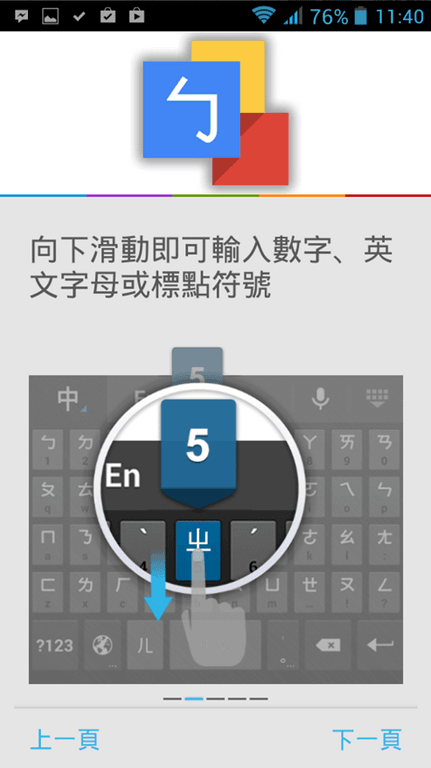 Figure 4: Feature walkthrough during installation (Page 2).
Keys displaying an ellipsis (”…”) reveal a pop-up sub-palette when long-pressed, allowing users to slide and select specific symbols.
Next, as shown below, Google Zhuyin Input offers a swift toggle between input languages.
This layout is noticeably smoother than TouchPal’s single-key language toggling (though to be fair, TouchPal places alternate functions in that slot, making a direct comparison slightly uneven).
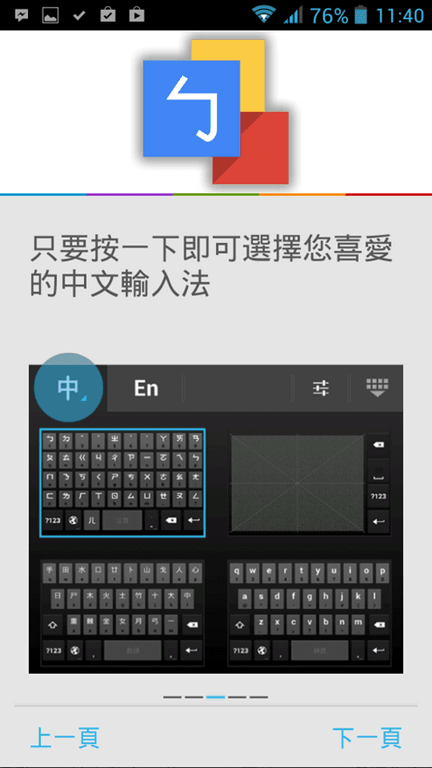 Figure 5: Feature walkthrough during installation (Page 3).
Once installation finishes, the app prompts you to configure your default input settings.
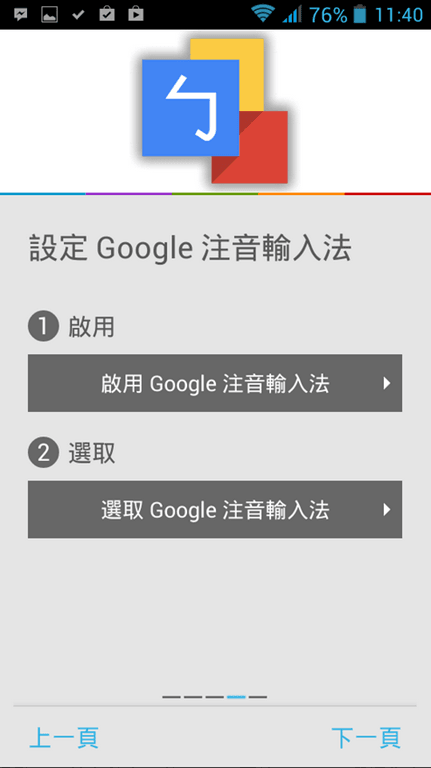 Figure 6: Setup screen after installation.
I personally recommend enabling only Google Zhuyin Input alongside Google Voice Typing.
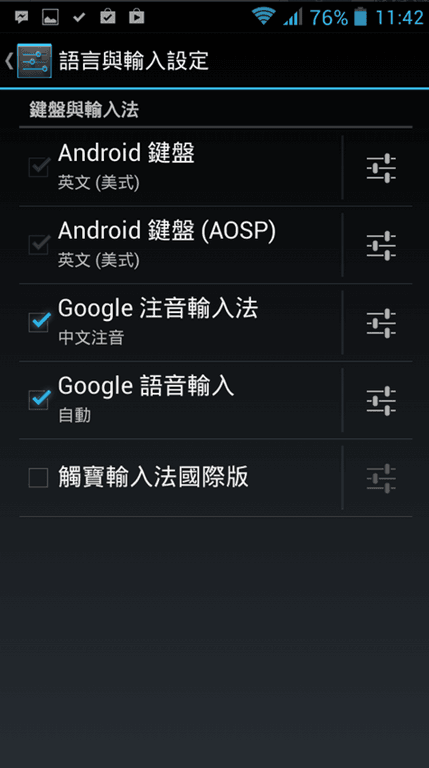 Figure 7: Android keyboard and input method configuration menu.
After completing the steps above, you will see a completion screen. You can skip the optional telemetry agreement and tap Finish directly.
Detailed customization options are also available, as shown in Figure 8.
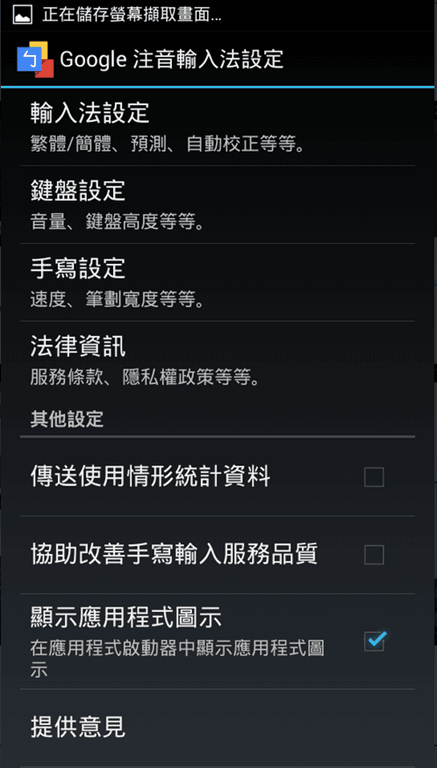 Figure 8: Detailed settings for Google Zhuyin Input.
In the settings screen, I chose to disable the “Show app icon in launcher” option to keep the app drawer a little tidier.
As for other parameters, I kept the defaults, which worked seamlessly out of the box (though I did adjust “Keyboard height” under Keyboard settings to its minimum value to maximize on-screen reading space, which is a matter of personal taste).
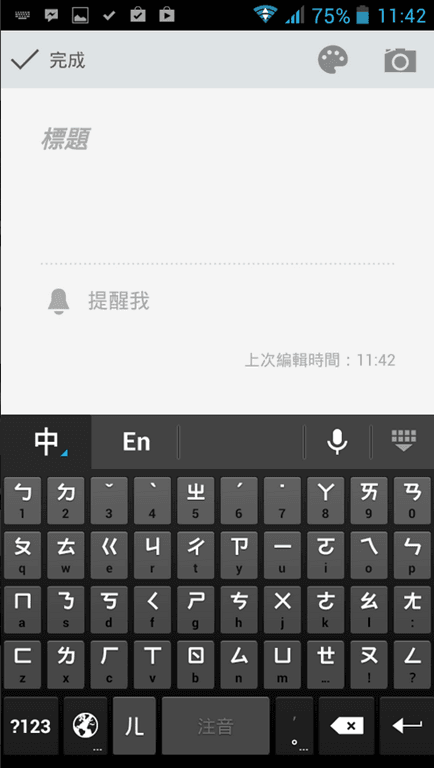 Figure 9: In-use keyboard mockup.
Figure 9 displays the active keyboard interface with the height set to the minimum level.
Even at its shortest height, the keyboard occupies roughly half of the screen. Setting it to the maximum height adds approximately another centimeter of vertical space depending on display size.
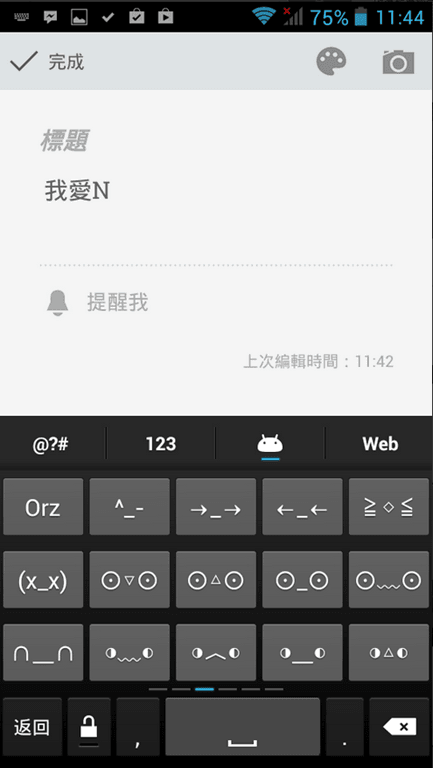 Figure 10: Quick-access symbols and emoji picker.
Overall, Google Zhuyin Input is exceptionally smooth and user-friendly. While minor flaws remain, I consistently favor Google’s first-party utilities unless an existing OEM keyboard is already outstanding.
Furthermore, if you rely on voice dictation, Google Zhuyin Input is an easy recommendation—its tight integration with Google Voice Typing avoids the frustrating latency often experienced with third-party tools like TouchPal.
Finally, a balanced review must address areas for improvement:
- No arrow keys or text editing cursor keys: Navigating and editing lengthy paragraphs can feel clumsy (a capability TouchPal provides natively);
- Long-press period key position: While holding the period key brings up punctuation shortcuts conveniently, its proximity to the Backspace/Delete key means an accidental slip can wipe out an entire sentence;
- Theme customizability: Whether you want custom skins is subjective; personally, I prefer clean, minimalist defaults.
App Rating:
★★★☆☆
Support Independent Perspectives & In-Depth Insights
Every thoughtful analysis and candid critique comes from our dedication to truth and quality. We choose not to follow sensational algorithms or clickbait headlines.
Sustaining independent research requires reader support. Make a one-time or monthly contribution, securely processed by Google.
Payments secured by Google · Manage or cancel anytime in your Google Account


Comments